


The Messaging add-on lets you send SMS and WhatsApp campaigns directly from GemCRM. It requires no extra plugin, but it does require a provider account (such as Twilio, Vonage, or BulkSMSBD) so GemCRM can actually deliver messages through that channel. This guide walks through enabling the add-on and connecting your first provider account.
Step 1: Enable the Messaging Add-on
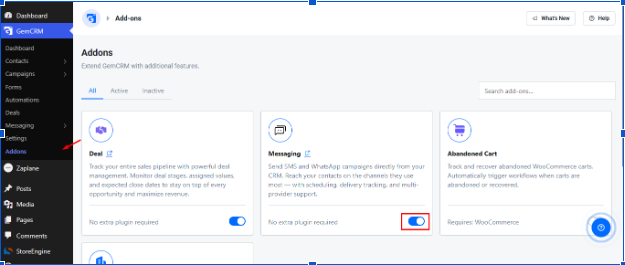
- From the WordPress admin dashboard, open GemCRM → Addons.
- Find the Messaging card. It’s described as a way to send SMS and WhatsApp campaigns directly from your CRM, reaching contacts on the channels they use most, with scheduling, delivery tracking, and multi-provider support.
- Toggle the switch on the Messaging card to activate it. No extra plugin is required.
Step 2: Open Messaging Settings
- In the GemCRM sidebar, click Settings.
- You’ll see a list of setting categories: General, Magic Link, Abandoned Cart, Business Settings, Deal Settings, Email Settings, and Incoming WebHooks. Provider accounts for SMS & WhatsApp campaigns are managed from this same Settings area.
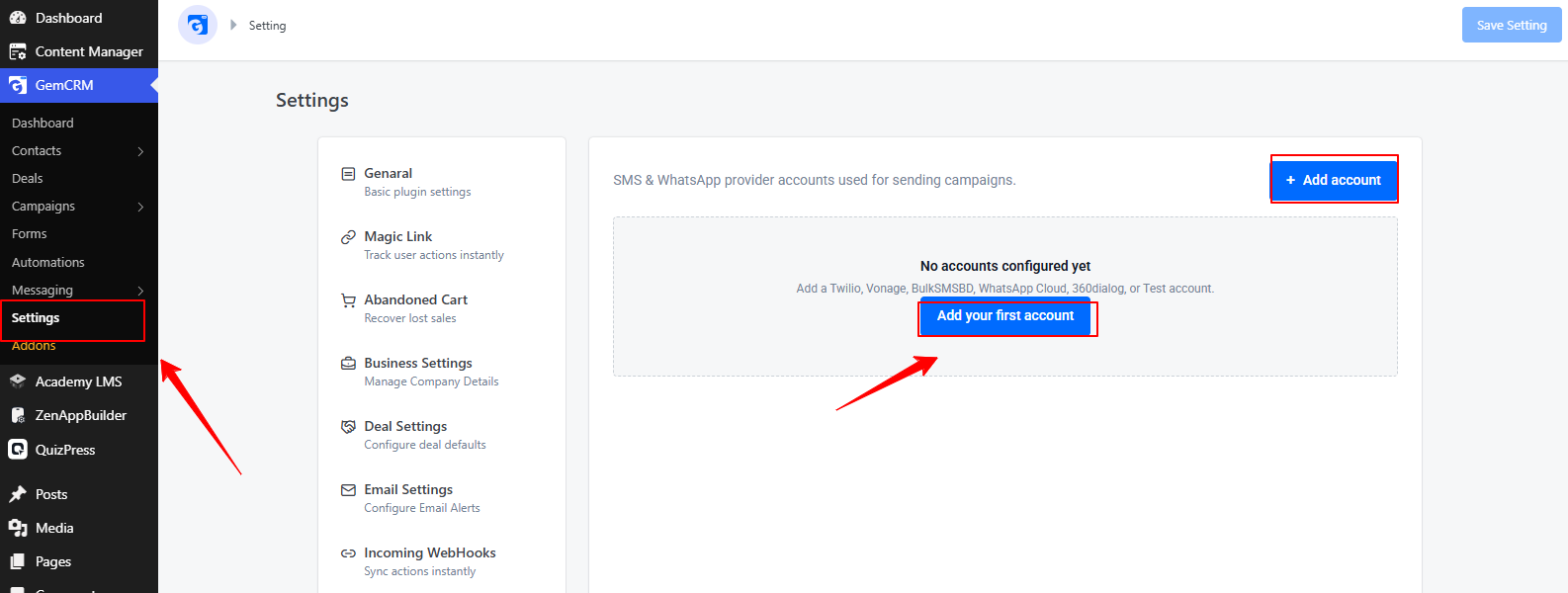
- Click “Add account” (top right) to connect a new SMS/WhatsApp provider, or “Add your first account” if none are configured yet.
Step 3: Choose a Channel and Provider
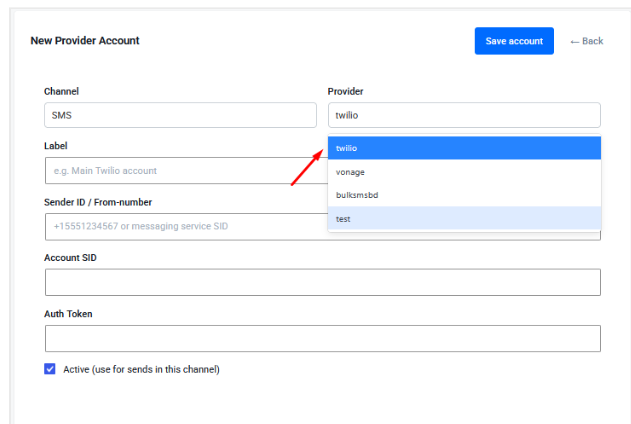
- On the New Provider Account screen, set the Channel field (e.g. SMS).
- Click the Provider field to open the dropdown and select your provider. Supported options include Twilio, Vonage, BulkSMSBD, and Test.
- Twilio and Vonage — established SMS/voice APIs, good for global delivery.
- BulkSMSBD — useful for bulk local SMS delivery in Bangladesh.
- Test — lets you verify the Messaging workflow without a live provider.
Step 4: Fill in Provider Credentials
After selecting a provider, complete the remaining fields:
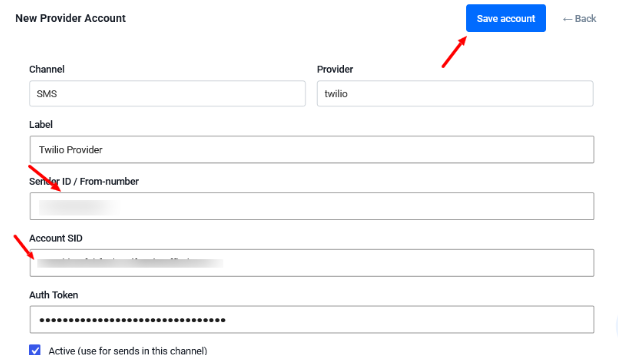
- Label — a friendly name to identify this account (e.g. “Twilio Provider”).
- Sender ID / From-number — your Twilio phone number or approved messaging service SID.
- Account SID — your Twilio account identifier.
- Auth Token — your Twilio authentication token, used to authorize sends.
- Active — leave this checked so the account is used for sends in this channel.
- Once everything is filled in, click Save account in the top-right corner.
Step 5: Confirm and Edit Later
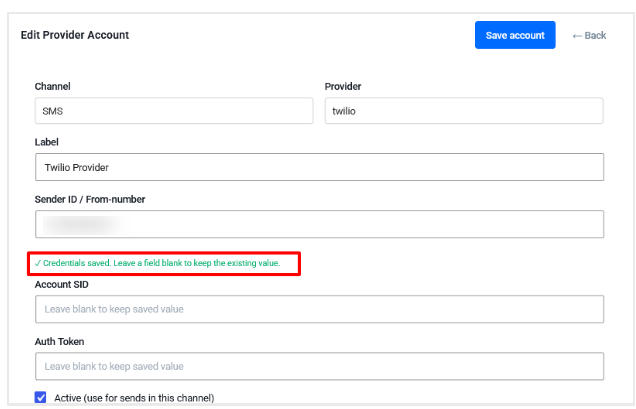
After saving, GemCRM confirms the credentials were saved. If you reopen the account to make changes, the Account SID and Auth Token fields will appear blank as a security measure — this doesn’t mean the values were lost. Leaving these fields blank on an edit keeps the existing saved value; you only need to fill them in again if you want to replace them.