


Configuring your email settings correctly is essential to ensure reliable email delivery, proper branding, and compliance with email best practices. GemCRM allows you to define sender details, retry behavior, and a global email footer from one central location.
This guide walks you through setting up Email Settings step by step.
1. Accessing Email Settings
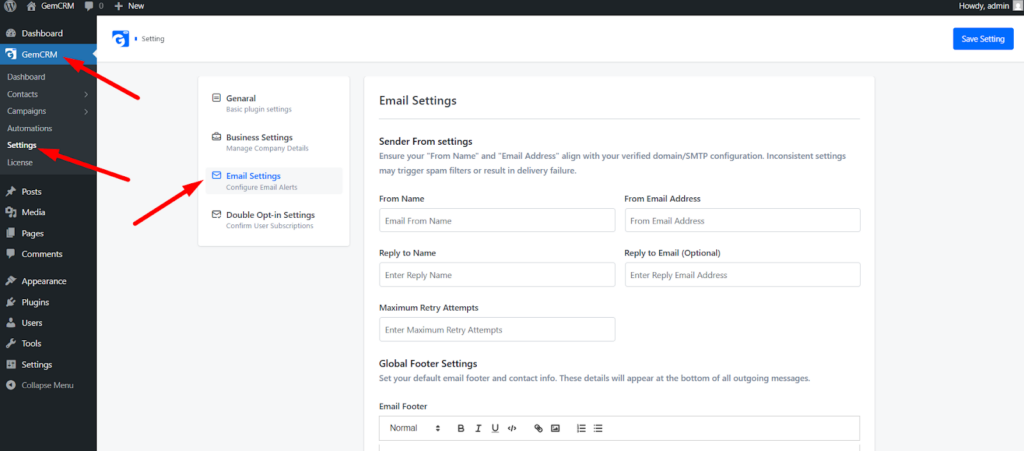
You can configure all email-related options directly from the GemCRM settings panel.
Steps to navigate:
- Go to your WordPress Dashboard
- Click GemCRM from the left sidebar.
- Navigate to Settings
- Select Email Settings
2. Understanding Sender From Settings
Sender settings define how your emails appear in subscribers’ inboxes. Incorrect or mismatched details may cause emails to land in spam or fail delivery.
Available Fields:
- From Name
The sender name shown in the recipient’s inbox (e.g., GemCRM Team). - From Email Address
The email address emails will be sent from.
⚠️ This should match your verified domain or SMTP configuration.
3. Configuring Reply-To Information
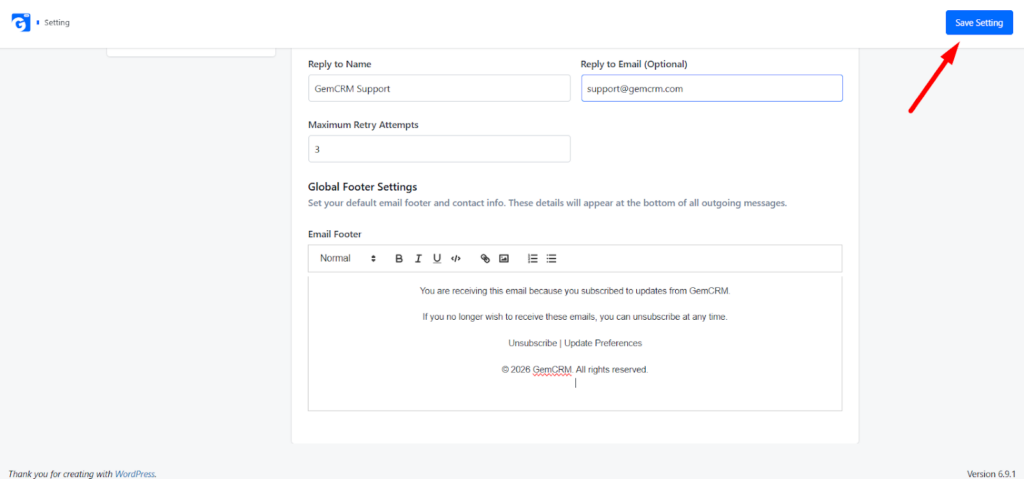
Reply-to settings allow subscribers to respond to your emails using a different address if needed.
Fields:
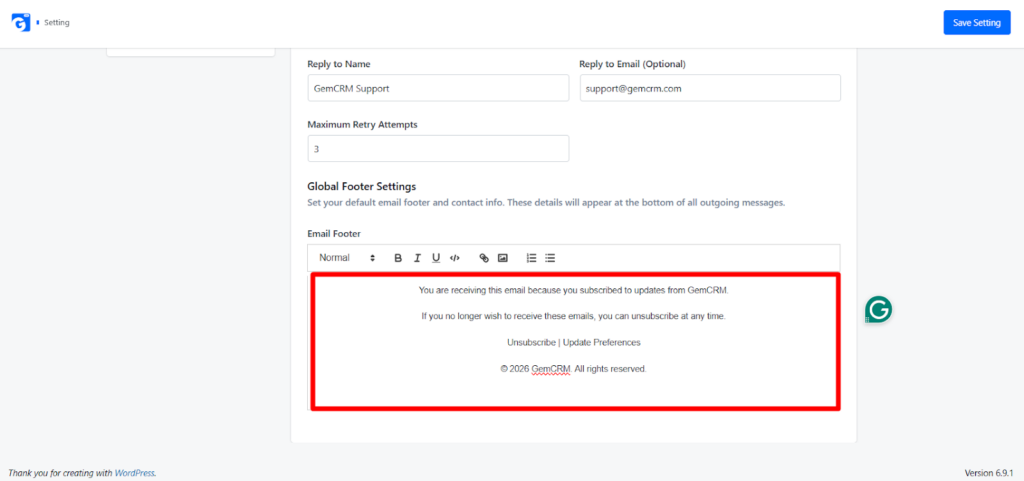
- Reply To Name
The name shown when recipients reply. - Reply To Email (Optional)
If left empty, replies will go to the “From Email Address”.
This is useful for directing replies to a support or sales inbox.
4. Setting Maximum Retry Attempts
In case an email fails to send (due to server issues or temporary errors), GemCRM can retry sending it automatically.
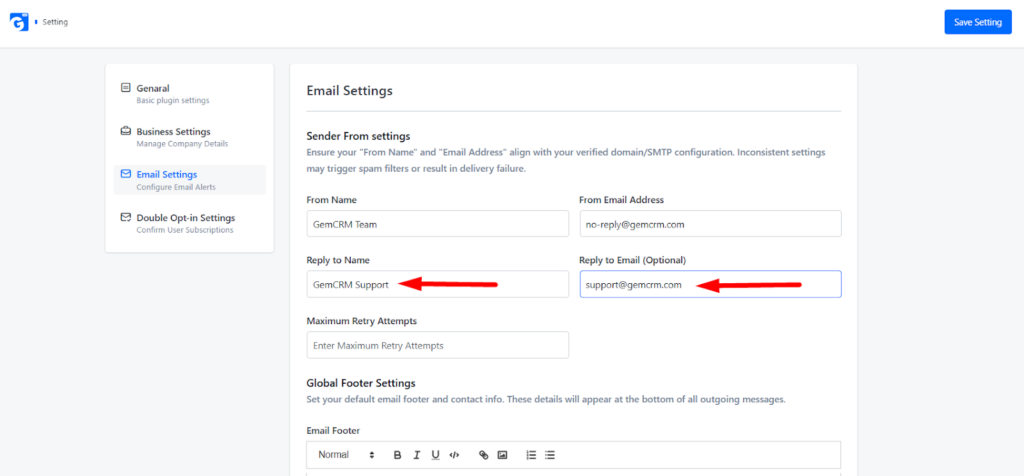
- Maximum Retry Attempts
Define how many times GemCRM should retry sending a failed email before stopping.
A reasonable retry value helps improve delivery without overwhelming your mail server.
5. Configuring Global Email Footer
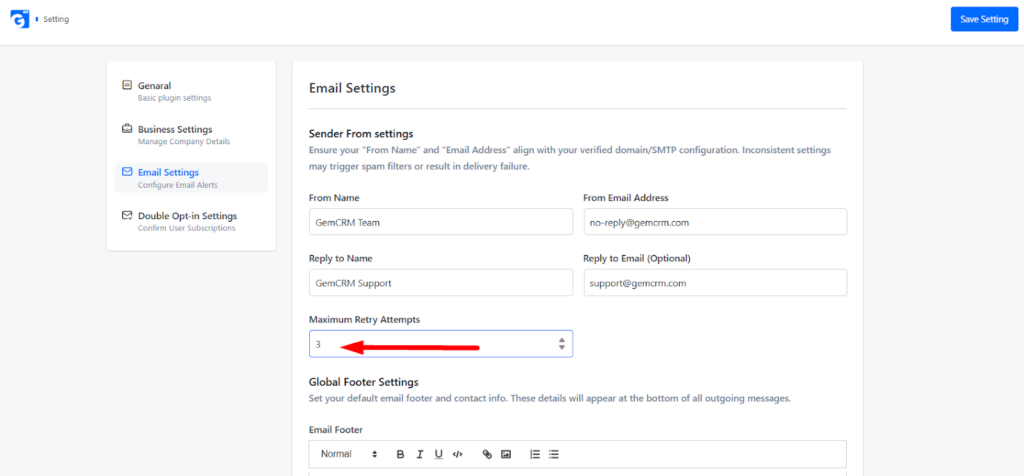
The Global Email Footer appears at the bottom of all outgoing emails, including campaigns and email sequences.
Footer Editor Features:
- Add company information.
- Insert unsubscribe and preference links.
- Format text using the built-in editor.
- Maintain compliance with email regulations.
By default, GemCRM includes:
- Unsubscribe link.
- Update Preferences link.
- Copyright notice.
You can customize this content as needed.
6. Saving Email Settings
After configuring all fields:
- Click the Save Settings button at the top-right corner
Your email settings will now apply to all future emails sent from GemCRM.
Best Practices for Email Settings
- Always use a domain-based email address (e.g., [email protected])
- Ensure your SMTP or email service is properly configured.
- Keep retry attempts reasonable (avoid very high values).
- Include valid contact information in your email footer.
- Test emails before running campaigns or sequences.
Proper email configuration ensures higher deliverability, better branding, and a professional experience for your subscribers. Once set up, GemCRM will consistently apply these settings across all email campaigns and sequences.