


You can add contacts to GemCRM in bulk by importing a CSV file or connecting an existing email marketing provider.
Step 1: Open the Import Option
- Go to GemCRM → Contacts → All Contacts.
- Click the Export & Import button in the top-right corner of the Contacts page.
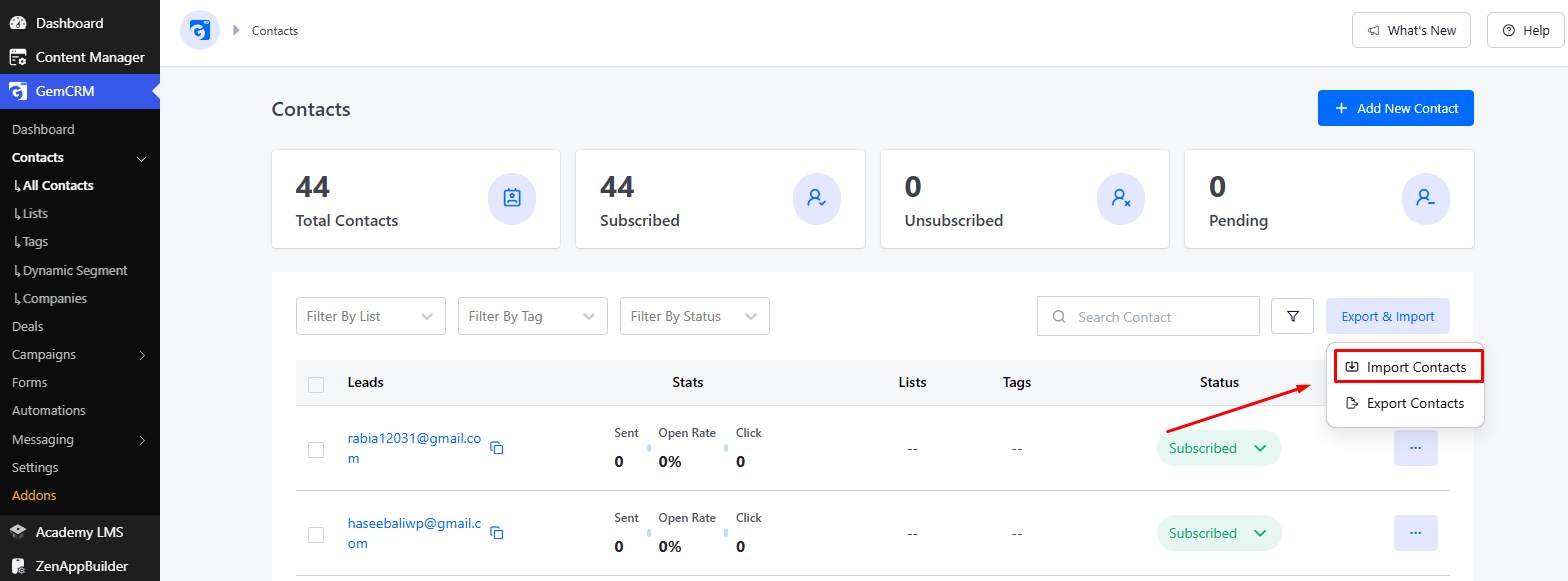
- From the dropdown, select Import Contacts.
Step 2: Choose an Import Method
A modal will appear asking how you’d like to import contacts. You have two options:
- Import from CSV – Upload a CSV file containing your contact data.
- Import from Provider – Connect an existing account from Mailchimp, ConvertKit, MailerLite, Drip, or ActiveCampaign to pull contacts directly.
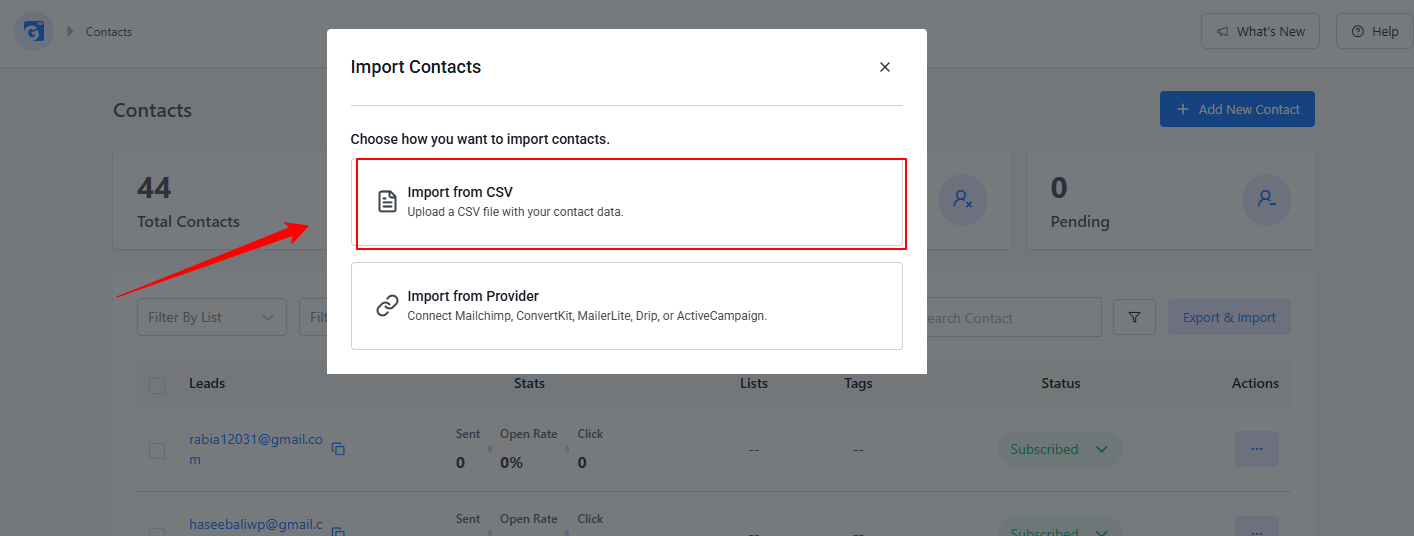
Select Import from CSV to continue with a file upload.
Step 3: Map CSV Fields
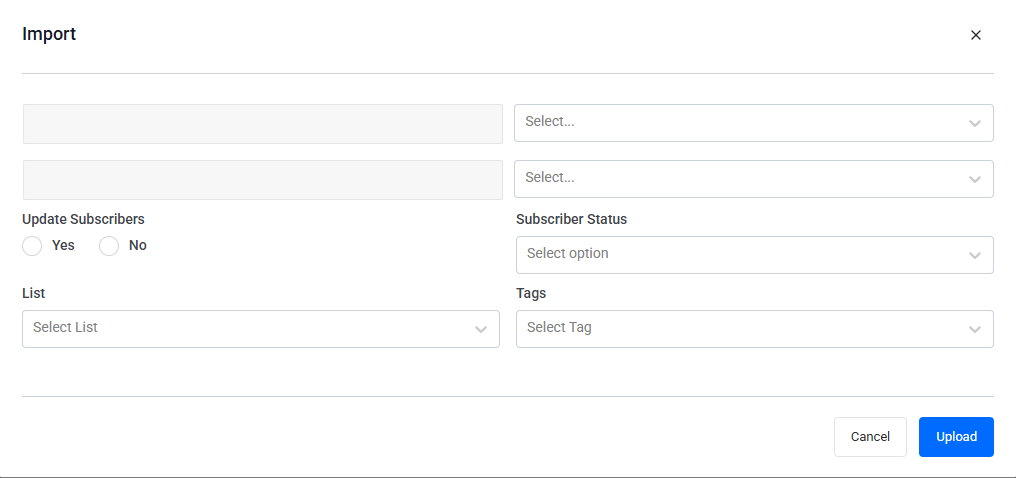
Below the field mapping, set the following options to control how the import behaves:
- Update Subscribers – Choose Yes if you want the import to update existing subscriber records that match, or No to skip updating existing contacts and only add new ones.
- Subscriber Status – Select the default status (e.g., Subscribed, Unsubscribed, Pending) that will be applied to all imported contacts.
- List – Choose the contact List you want these imported contacts to be added to.
- Tags – Select any Tags you’d like to automatically apply to the imported contacts for easier segmentation later.
Step 4: Import Progress
After clicking Upload, GemCRM will begin importing your contacts and display a progress bar showing:
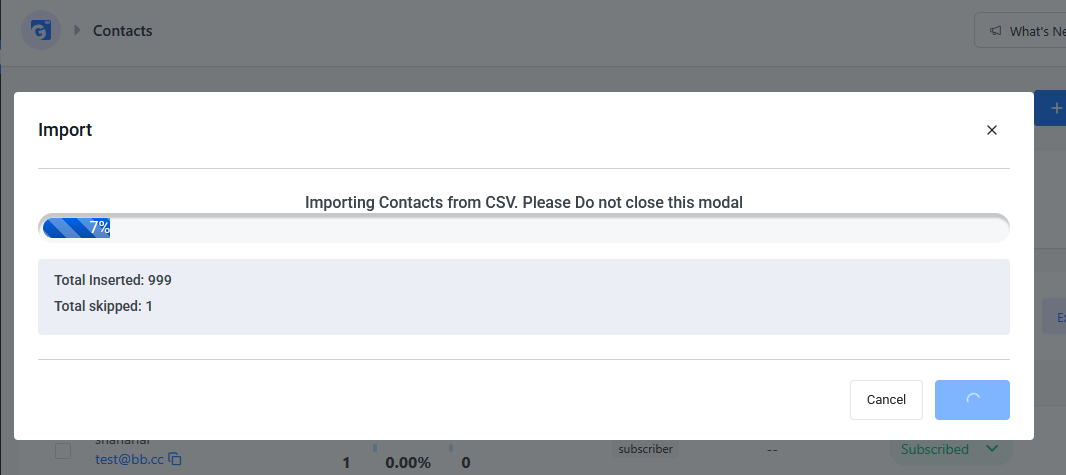
- Import percentage (e.g., 7%)
- Total Inserted – number of contacts successfully added
- Total Skipped – number of contacts skipped (e.g., duplicates or invalid entries)
⚠️ Note: Do not close this modal while the import is in progress, as it may interrupt the process.
Once the import is complete, your new contacts will appear in the All Contacts list along with their subscription status.