


Email Sequences in GemCRM allow you to automatically send a series of scheduled emails to your subscribers based on lists and tags. This is perfect for onboarding emails, drip campaigns, follow-ups, and nurturing leads without manual effort.
⚠️ Important:
Email Sequences are a Pro feature. To use this functionality, you must have both the GemCRM Free plugin and the GemCRM Pro plugin installed and activated.
1. Accessing Email Sequences (Pro Feature)
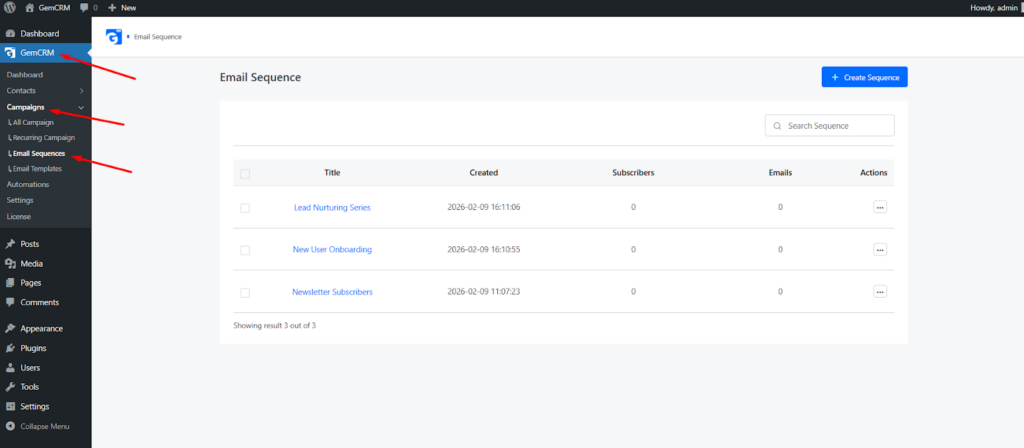
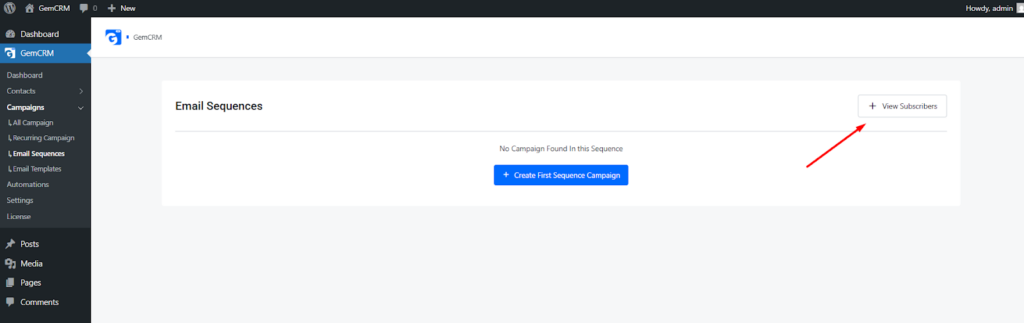
To get started, navigate to the Email Sequences section from your WordPress dashboard.
Steps:
- Go to GemCRM → Campaigns → Email Sequences.
- Click on the Create Sequence button.
2. Creating a New Email Sequence
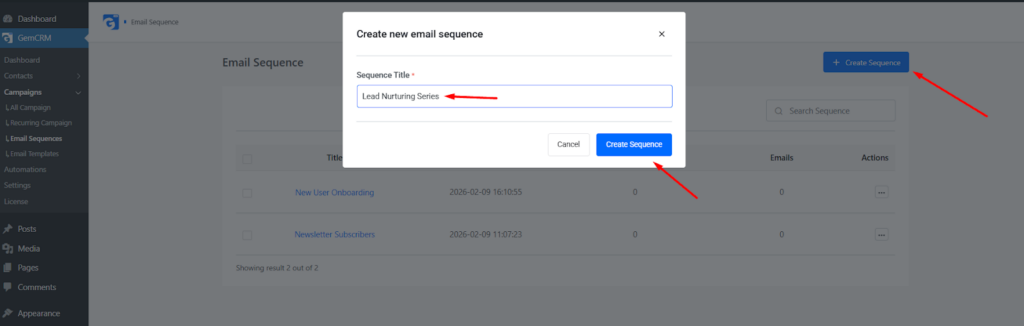
When you click Create Sequence, a pop-up modal will appear where you define the sequence name.
Steps:
- Enter a Sequence Title (e.g., Newsletter Subscribers).
- Click Create Sequence.
This title helps you identify the purpose of the sequence later.
3. Adding Emails to the Sequence
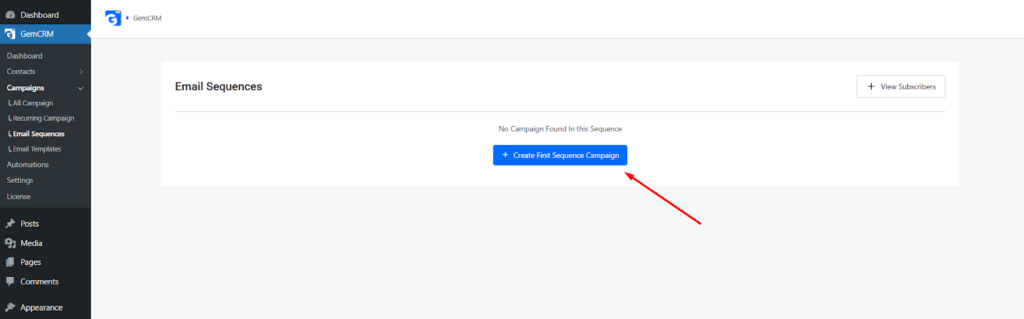
Once the sequence is created, you can start adding emails that will be sent in order.
Steps:
- Click on the newly created sequence.
- Choose to Add New Email to the sequence.
Each email in the sequence is configured individually with its own content and delay.
4. Configuring Email Content and Schedule
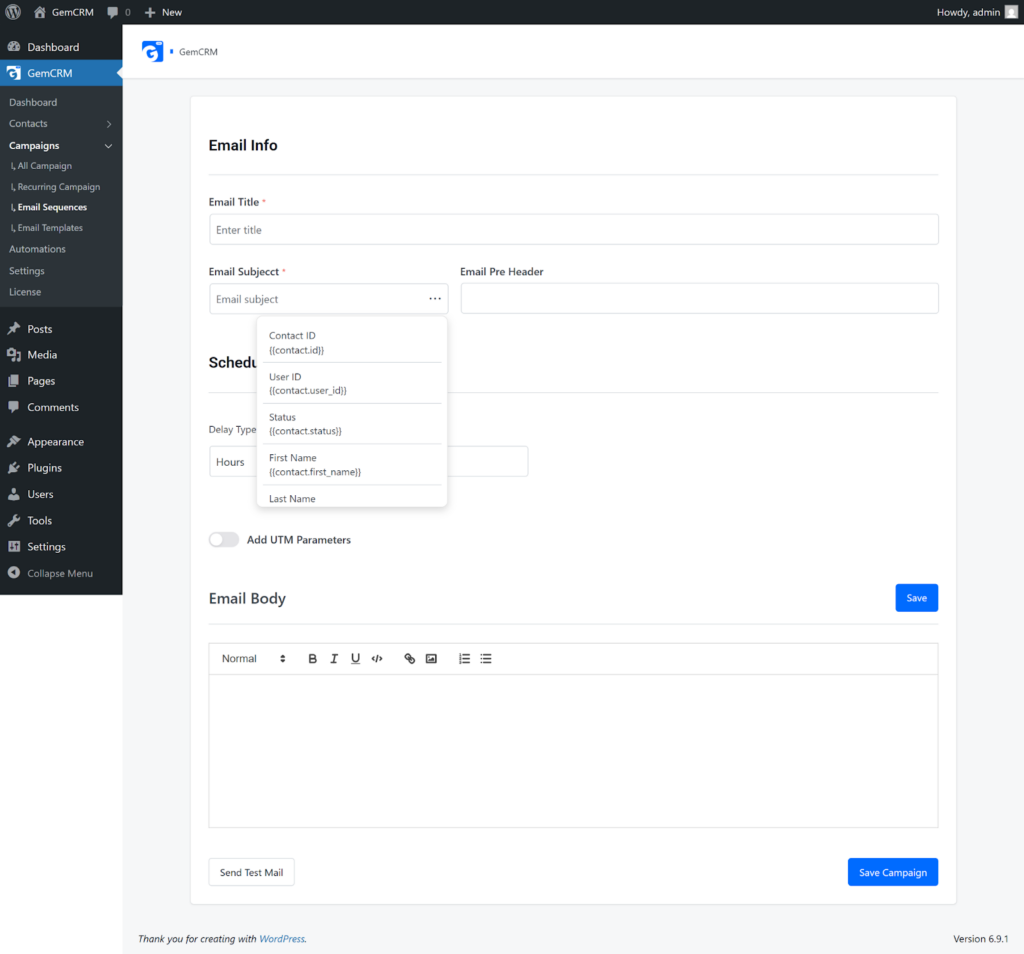
In the email editor, you can fully customize the email’s content and delivery timing.
Email Information
- Email Title: Internal reference name.
- Email Subject: Subject line visible to recipients.
- Email Pre-header: Short preview text shown in inboxes.
Schedule & Delay
- Delay Type: Choose Hours or Days.
- Delay Value: Define when this email should be sent after the previous one.
- Dynamic Variables: Use merge tags like first name, email, or contact status.
Email Body
- Write your email using the built-in editor.
- Format text, add links, and personalize content.
You can also send a Test Email before saving.
5. Selecting Included and Excluded Subscribers
After creating your emails, define who should (and should not) receive the sequence.
Included Subscribers
- Select one or more Lists.
- Select one or more Tags.
- Use the + button to add multiple conditions.
Excluded Subscribers
- Exclude contacts by specific Lists or Tags.
- This helps avoid sending emails to irrelevant or sensitive audiences.
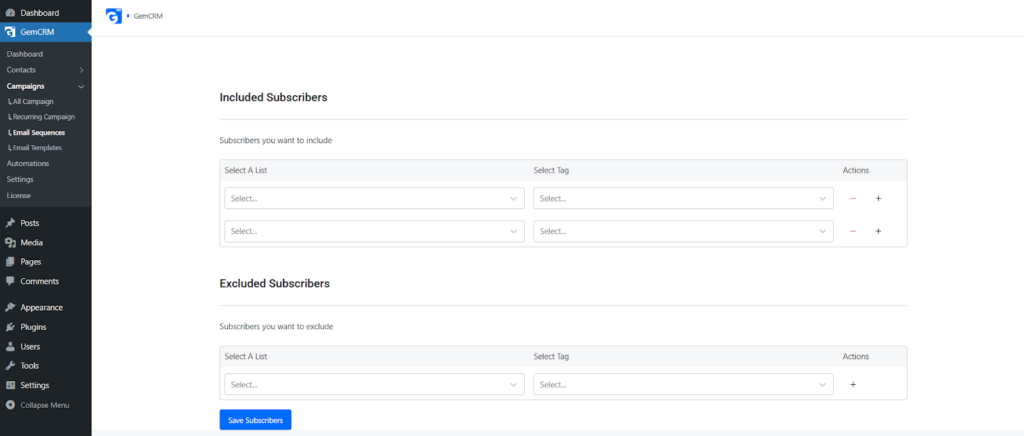
Click Save Subscribers once you’re done.
6. Saving and Activating the Sequence
After:
- Creating the sequence.
- Adding emails.
- Configuring delays.
- Selecting subscribers.
Your email sequence is ready to run automatically. GemCRM will handle delivery based on the defined rules and timing.
Why Use Email Sequences in GemCRM?
- Automate follow-ups and onboarding.
- Send targeted emails using lists and tags.
- Maintain consistent communication.
- Save time with hands-free email marketing.
By combining clean contact management, smart tagging, and automated email sequences, GemCRM helps you deliver personalized experiences that boost engagement and conversions.