


Not sure which subject line will get more opens? GemCRM’s A/B testing lets you send two (or more) subject lines in the same campaign, splits your recipients between them, and shows you which one performed better — open rate and click rate side by side.
Note: A/B testing is available on one-off Campaigns and tests the subject line only. It isn’t available on Email Sequences or Recurring Emails.
Before You Start
Step 1 — Create a New Campaign
The campaign wizard opens with four steps: Subject & Settings → Compose → Recipients → Review & Send.
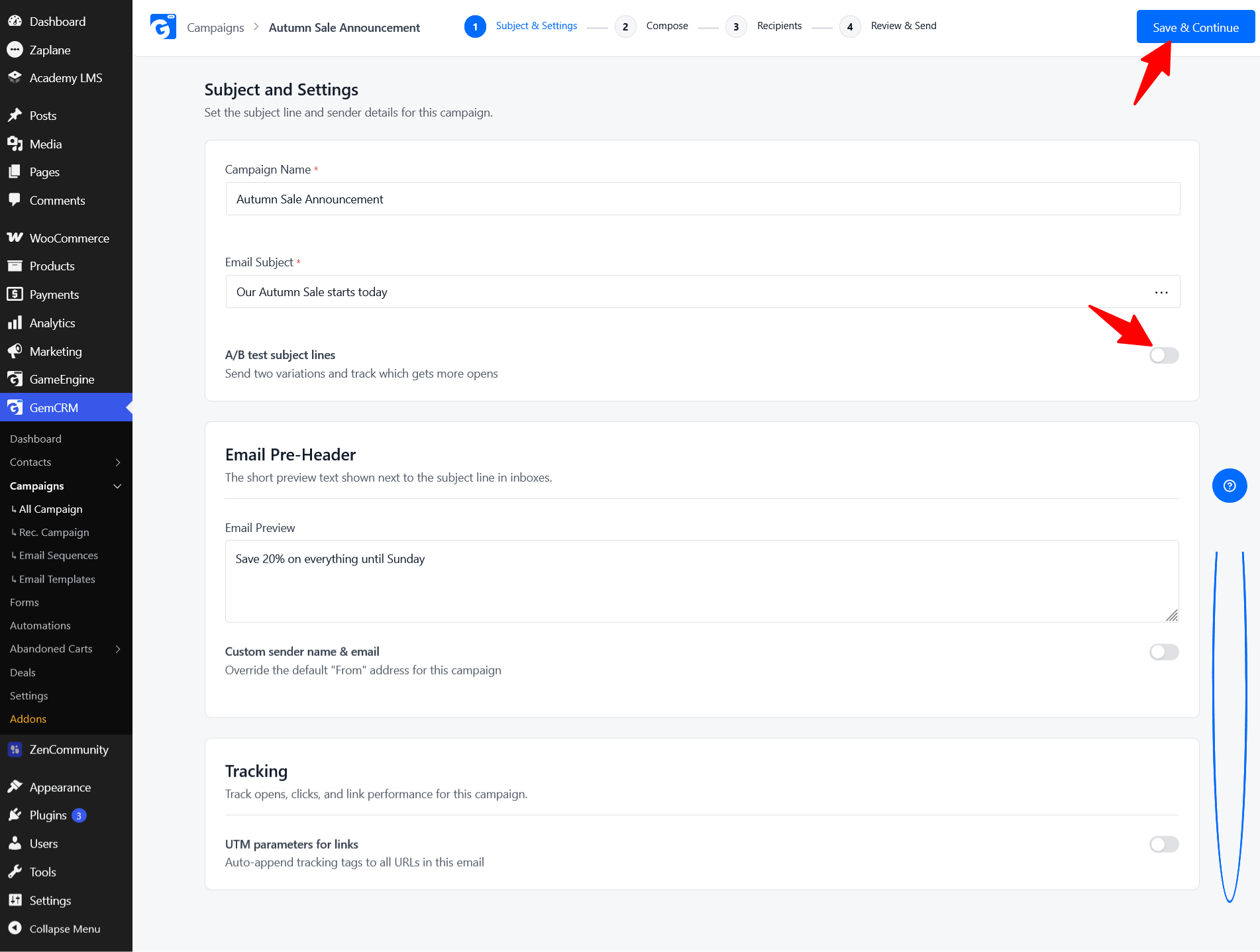
Step 2 — Turn On A/B Testing
On the Subject & Settings step:
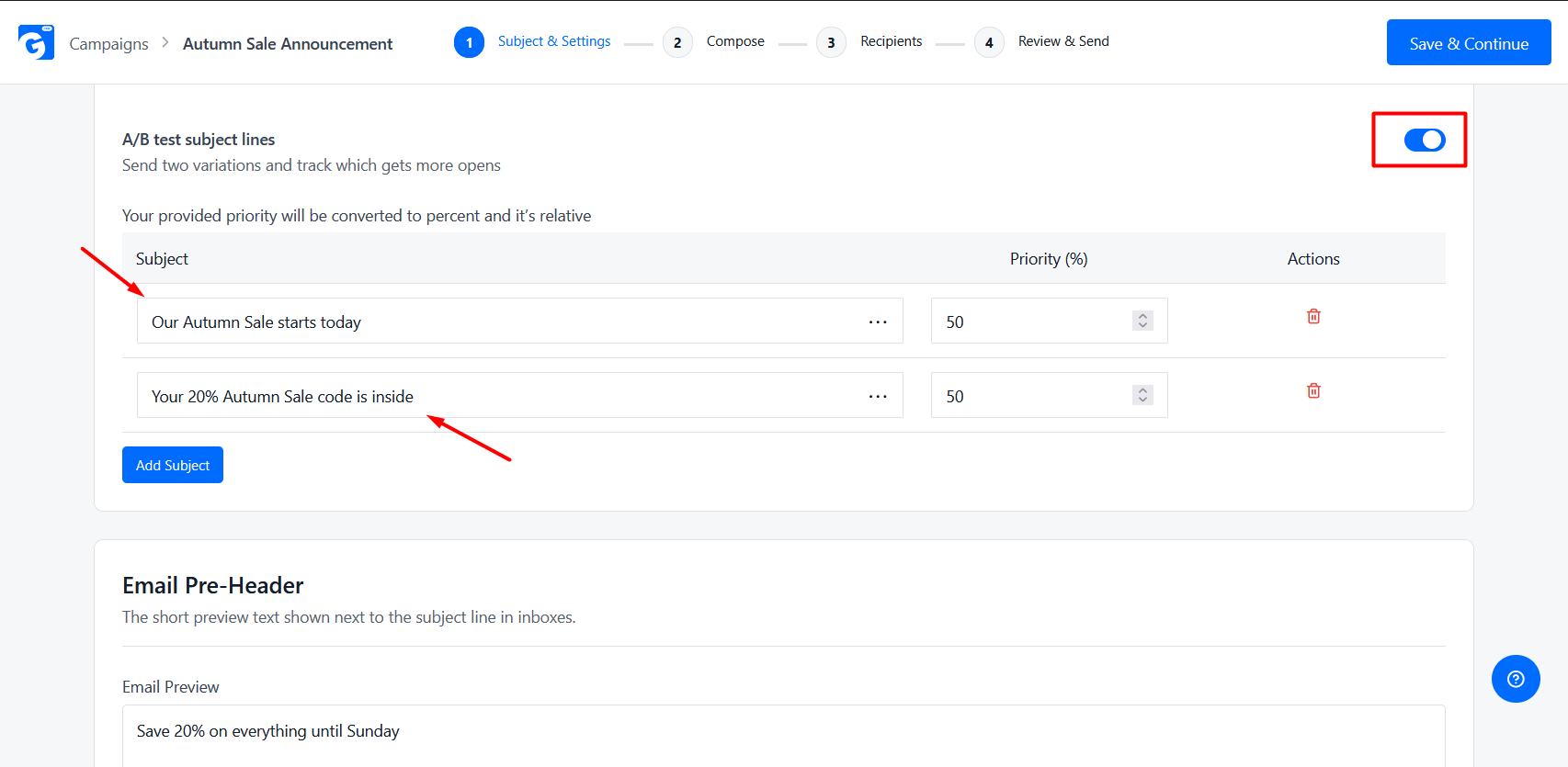
A table with Subject, Priority (%), and Actions columns appears with two empty rows.
Step 3 — Add Your Subject Line Variants
Fill in the table:
|
Column |
What to enter |
|
Subject |
The subject line for this variant. Merge codes work here just like in the main subject field. |
|
Priority (%) |
How large a share of your recipients should get this variant. It’s a relative weight, not a strict percentage. |
|
Actions |
Click the trash icon to remove a row. |
Click Add Subject to add a third, fourth, or further variant.
Example
|
Subject |
Priority (%) |
|
Our Autumn Sale starts today |
50 |
|
Your 20% Autumn Sale code is inside |
50 |
How Priority Works
GemCRM converts your priorities into a proportional split, so the numbers are relative to each other:
|
Priorities |
Result |
|
50 and 50 |
About half of recipients get each subject. |
|
70 and 30 |
About 70% get the first subject, 30% get the second. |
|
1, 1 and 1 |
Each of the three variants gets about a third. |
Tip: Keep the priorities equal for a fair test. Uneven splits are useful only when you want to limit how many people see an untested subject line.
Step 4 — Compose, Choose Recipients, and Send
The rest of the wizard works the same as any other campaign:
GemCRM assigns each recipient one of your subject lines automatically. You don’t need to split your list by hand.
Tip: Use Send a test email on the Compose or Review step to check how the email looks before it goes out.
Step 5 — Read Your Results
Once the campaign has sent and people have had time to open it:
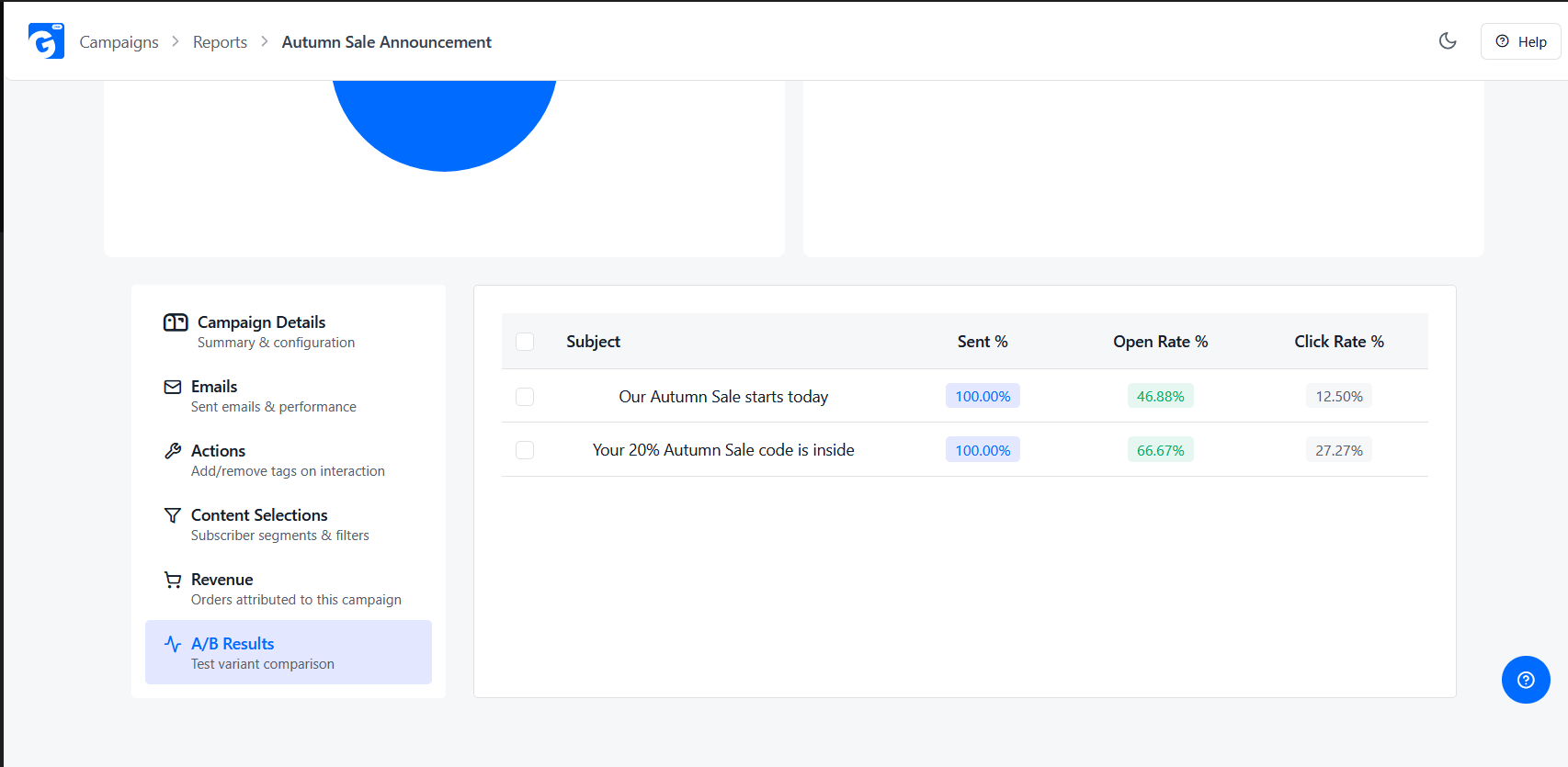
The A/B Results tab lists one row per subject line:
|
Column |
What it tells you |
|
Subject |
The subject line for that variant. |
|
Sent % |
The share of that variant’s emails that were sent successfully. It reads 100% when every email goes out. It is not the audience split. |
|
Open Rate % |
Of the emails sent with this subject, the share that was opened. |
|
Click Rate % |
Of the emails sent with this subject, the share of people who clicked at least one tracked link. |
In this example, “Your 20% Autumn Sale code is inside” wins on both measures: a 66.67% open rate against 46.88%, and a 27.27% click rate against 12.50%.
Getting Trustworthy Results
Things to Know
Frequently Asked Questions
Can I test more than two subject lines?
Yes. Click Add Subject to add more variants. The more variants you add, the fewer recipients see each one, so use this only with a larger list.
Do the priorities have to add up to 100?
No. They’re relative weights, so 50/50, 1/1, and 5/5 all give an even split.
Does every recipient see the same email body?
Yes. Only the subject line changes between variants.
Why is my A/B Results tab missing?
The tab appears only when A/B test subject lines are ticked on the campaign. Check the campaign’s Subject & Settings step.
Why do both variants show 100% in Sent %?
That column shows delivery success for each variant, not the audience split. 100% means every email in that variant went out.
Can I A/B test an Email Sequence step?
Not directly. Run the subject-line test as a one-off campaign, then use the winner in your sequence.