


The Permission Manager gives you precise control over which WordPress users can access GemCRM features. Rather than granting full admin access just so someone can manage contacts or send campaigns, you can assign only the specific permissions they actually need.
Note: This feature requires GemCRM Pro. If Pro is not active, the Permission Manager tab will display an upgrade prompt instead.
How It Works
GemCRM operates its own permission layer on top of standard WordPress roles:
- WordPress Administrators (manage_options) automatically have full access to every GemCRM feature. They do not appear in the Permission Manager and cannot be restricted.
- All other users — Editors, Authors, Subscribers, or any custom role — have no GemCRM access by default. You grant access one permission at a time using this tool.
- Permissions are granular. For example, you can allow someone to view contacts without letting them delete records, or allow them to send campaigns without exposing plugin settings.
Getting to the Permission Manager
- In the WordPress sidebar, navigate to GemCRM → Settings.
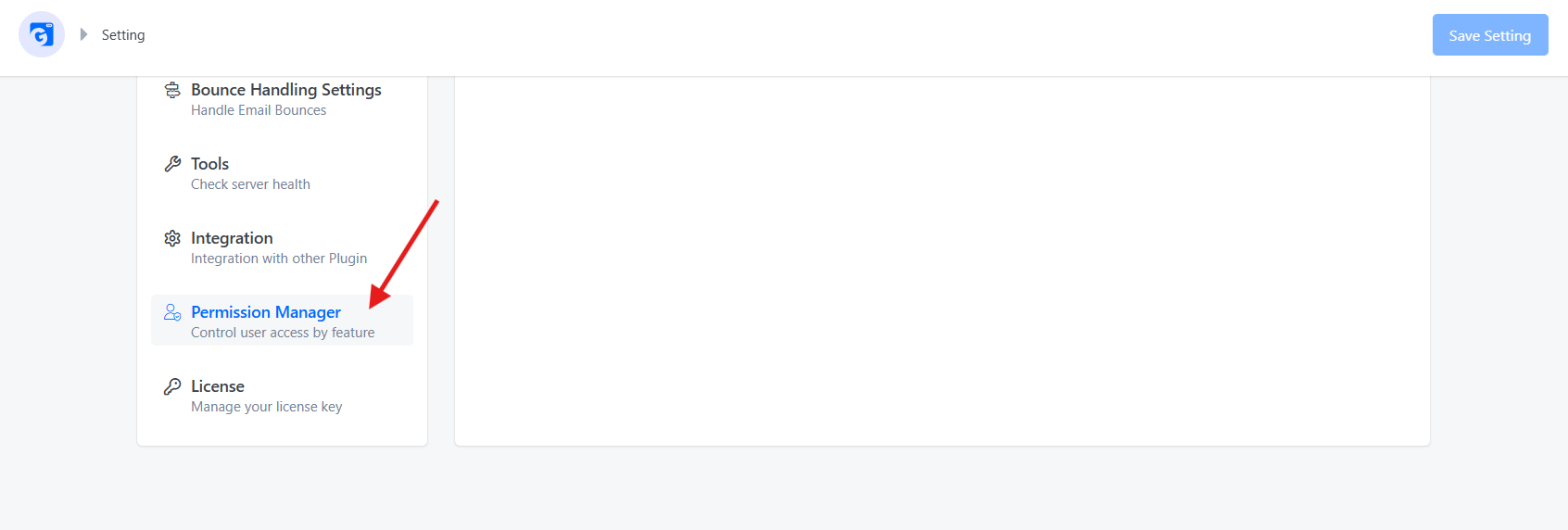
- Click the Permission Manager tab from the left settings menu.
The User List
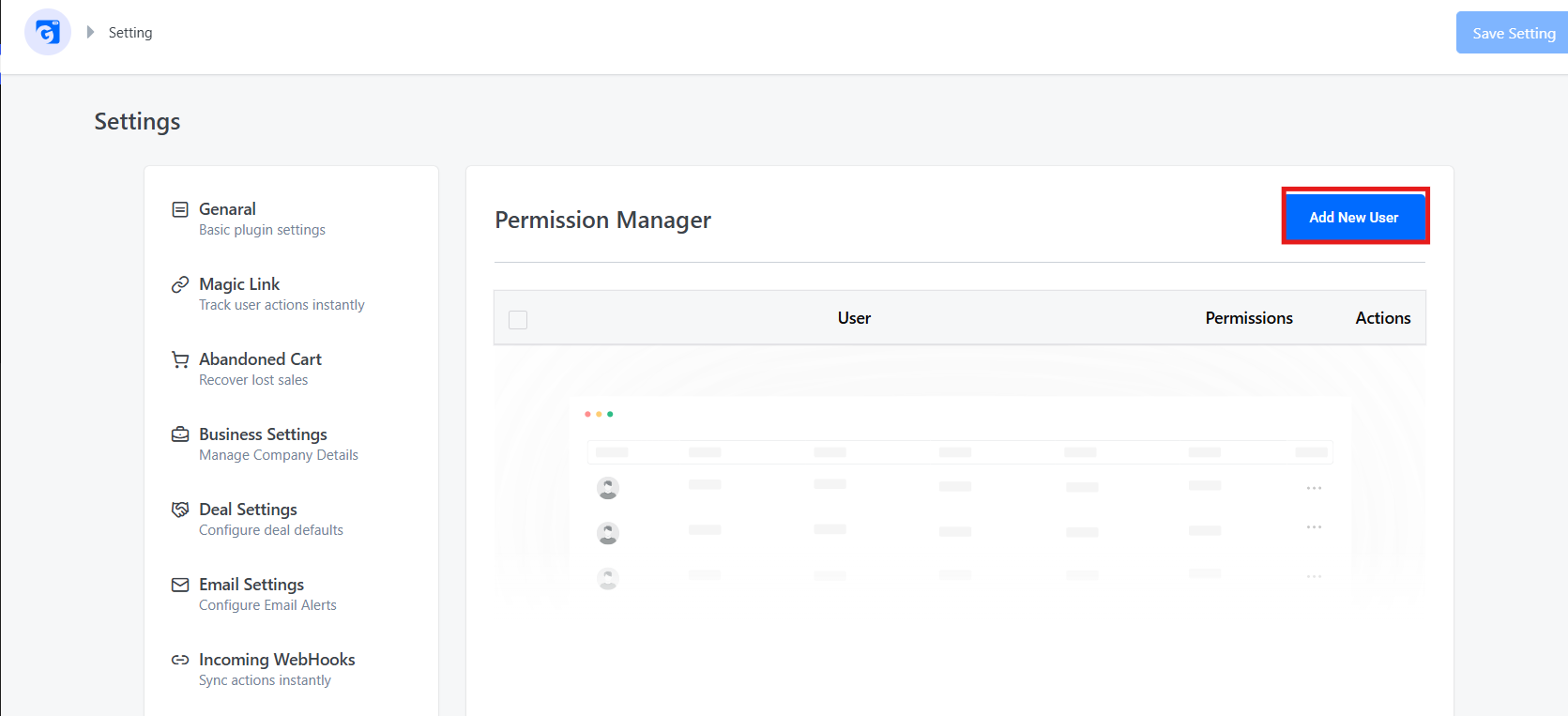
The main screen displays all non-admin WordPress users with one or more GemCRM permissions, along with their name, email address, and the total number of permissions granted.
Adding a User
- Click Add New User (top-right button).
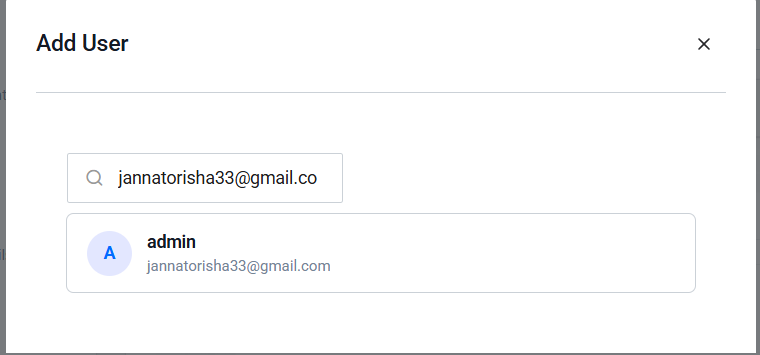
- Type at least 2 characters of the user’s name or email in the search box.
- GemCRM will search all WordPress users on your site and display matching results.
- Click the user’s name to open their permission editor.
Important: Only existing WordPress users can be added. If the person does not yet have a WordPress account, create one first via Users → Add New in WordPress.
Removing All Permissions
Click the Actions (···) icon next to a user in the list and select Remove. This action removes all of the user’s permissions at once, instantly blocking access to all GemCRM screens and APIs.
Editing a User’s Permissions
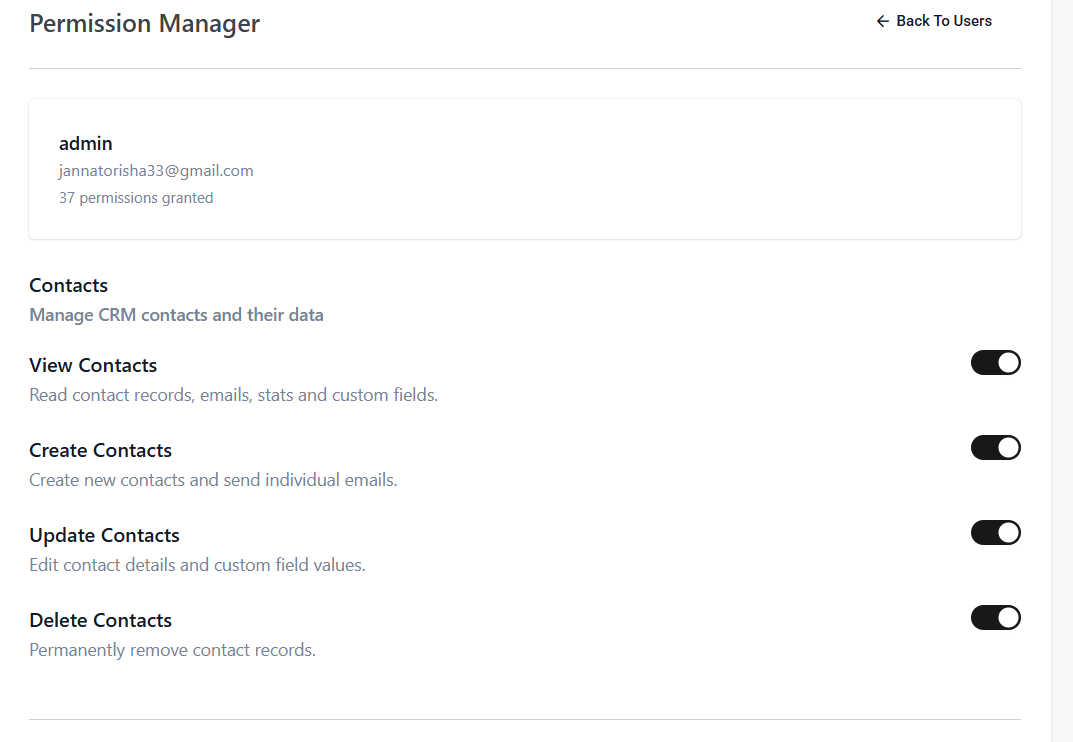
Click a user’s name to open the edit view. At the top, you’ll see their name, email address, and the total number of permissions currently granted (for example, 37 permissions).
Below that, permissions are organized into groups (Contacts, Lists, Tags, etc.). Each permission has a toggle — turn it on to grant access, turn it off to revoke it. Changes save instantly — there is no separate Save button.
Auto-Grant Behavior
Within groups like Contacts and Campaigns, a base “View” permission exists alongside action-level permissions such as Create, Update, and Delete. GemCRM enforces a logical rule: if a user can create, update, or delete records, they must also be able to view them.
When you grant any sub-permission (e.g., Create Contacts), the base View Contacts permission is automatically granted, and its toggle becomes locked. It will display the label:
— Auto-granted. Remove all sub-permissions to revoke.
To disable View access for a group, first revoke all sub-permissions within that group.
Permission Reference
Contacts
Manage CRM contacts and their data
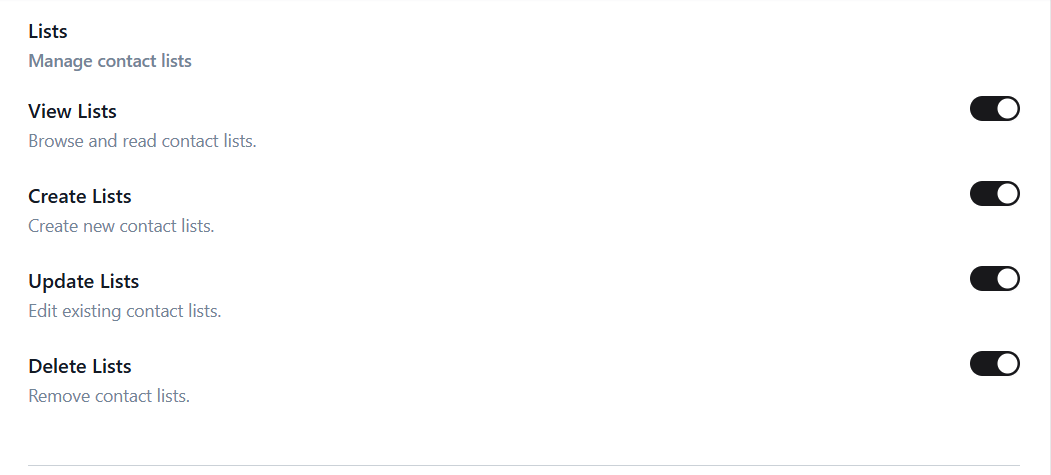
Lists
Manage contact lists
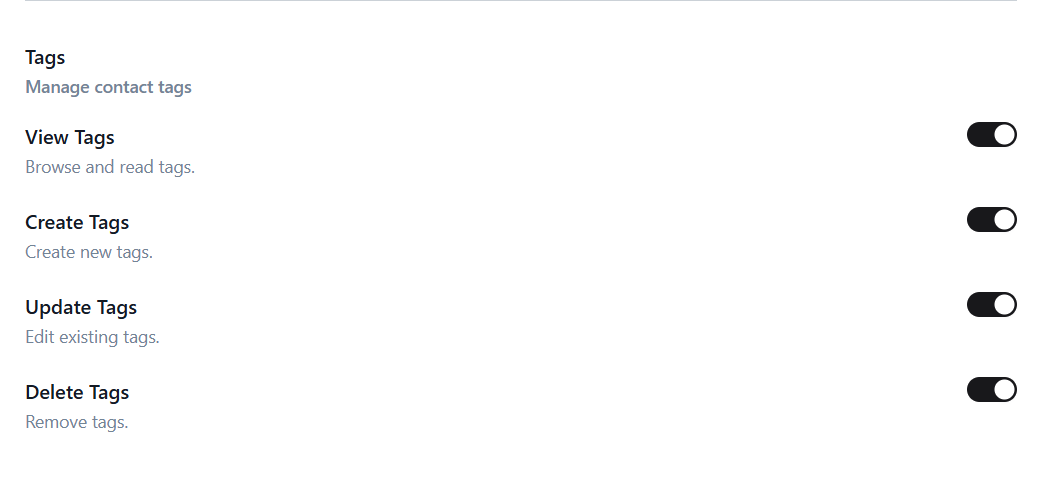
Tags
Manage contact tags
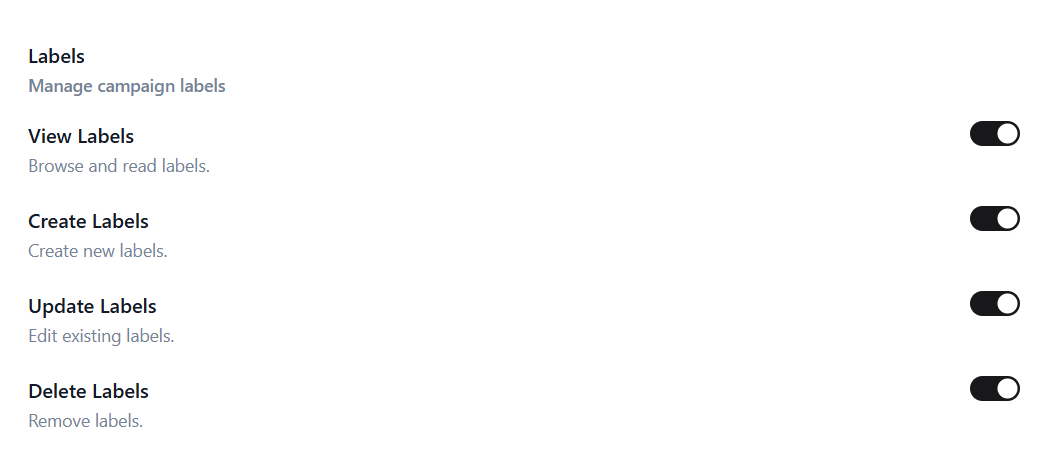
Labels
Manage campaign labels
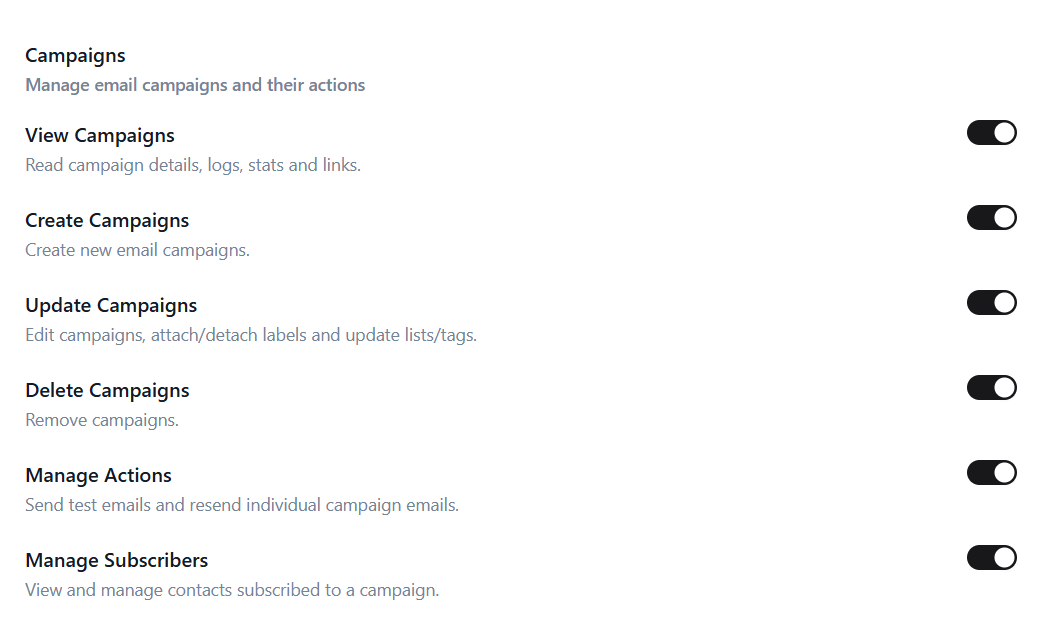
Campaigns
Manage email campaigns and their actions
Single-Permission Features
Companies
Manage company records

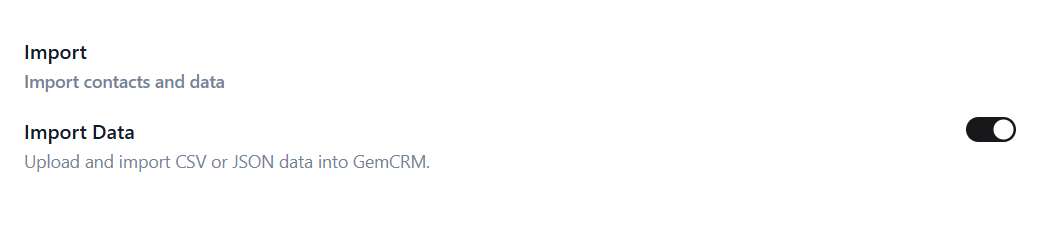
Import
Import contacts and data
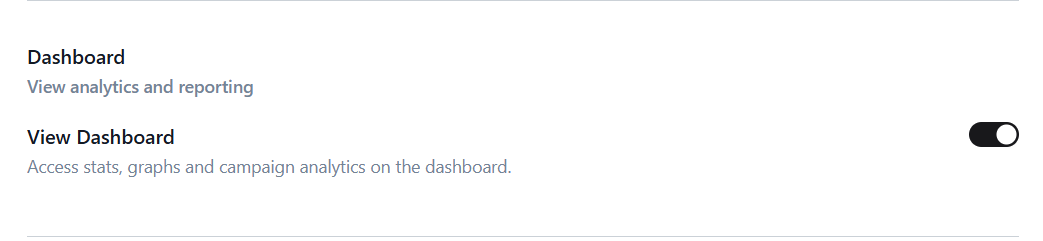
Dashboard
View analytics and reporting
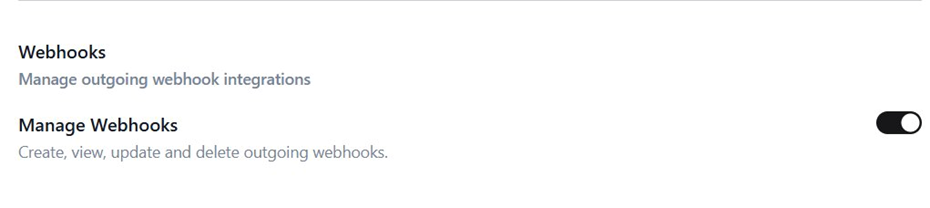
Webhooks
Manage outgoing webhook integrations
Bulk Actions
Perform bulk operations on records

Subscription Forms
Manage opt-in forms

Settings
Access general plugin settings

⚠ The Settings permission grants full read and write access to general plugin settings, including email provider credentials and the Permission Manager itself. Only grant this to users you fully trust
Pro & Addon Permissions
The following permissions are only visible when GemCRM Pro is active. Permissions marked with an addon also require that specific addon to be installed and activated.
Deals
Manage deal pipeline, stages, notes, and tasks

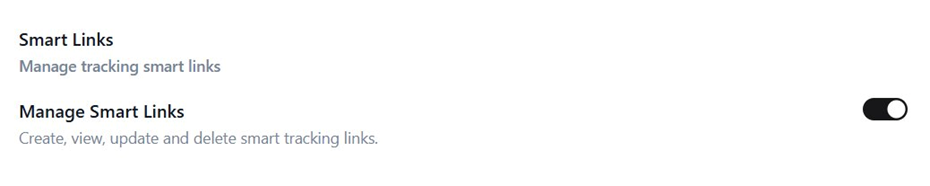
Smart Links
Manage tracking smart links
Advance Filter
Use advanced contact filtering

Tag Mapping
Map WordPress roles to tags

Common Role Configurations
Here are recommended permission sets for typical team roles. Adjust them to fit your specific workflow.
Content / Campaign Manager
Grant: View, Create, Update Campaigns · Manage Actions · Manage Subscribers · View Contacts
Contact Data Manager
Grant: View, Create, Update Contacts · View Lists · View Tags · Import Data
Read-Only Team Member
Grant: View Contacts · View Campaigns · View Dashboard
Full CRM User (Non-Admin)
Grant: Grant all permissions except Manage Settings, unless they need to modify plugin configuration.
Troubleshooting
A user cannot see GemCRM in the WordPress menu
The GemCRM menu appears only for users who have at least one permission. Open their profile in the Permission Manager and enable at least one permission, such as View Dashboard.
A user sees a “You do not have permission” error inside GemCRM
The specific feature they attempted to use requires a permission that has not been granted. Open their profile in the Permission Manager and enable the relevant permission.
The Permission Manager tab is not visible
This tab requires GemCRM Pro. Activate your Pro license under GemCRM → Settings → License.
A toggle appears grayed out and cannot be turned off
The permission has been auto-granted because a sub-permission depends on it. First, revoke all sub-permissions in that group (e.g., Create, Update, and Delete Contacts), and the View toggle will unlock automatically.
I removed all permissions for a user, but they can still access GemCRM
Check whether the user’s WordPress role is Administrator. Administrators bypass the Permission Manager entirely and always retain full access.