


Email Inbox in GemCRM allows you to connect your business email accounts, such as Gmail, Microsoft 365/Outlook, Zoho, or standard IMAP/POP3, directly to GemCRM.
With your mailbox connected, all incoming and outgoing client communications automatically sync with contact records in your CRM, keeping your team updated without manual email logging.
Key Benefits & Capabilities
- 2-Way Email Sync: Sync inbound client messages and outbound replies seamlessly.
- Automatic Contact Matching: Inbound emails automatically attach to existing contacts based on their email address.
- Send-As Connected Account: Reply directly from GemCRM using your official email address so recipients receive messages straight from your real mailbox.
- Auto-Create & Auto-Tag Contacts: Automatically create new CRM contacts when an unknown sender emails you, and assign them default lists and tags.
- Unmatched Mail Queue: Review emails from unknown senders in a dedicated queue if auto-creation is disabled.
- Folder Selection & Sent Folder Mirroring: Choose which IMAP folders to sync and mirror sent items, even if sent from your mobile device or desktop email app.
- Automation Integration: Inbound replies automatically fire CRM workflow events and pause active email marketing sequences.
- Connection Health Monitoring: Real-time health status notifications alert you if credentials expire, with a one-click reconnect option.
Supported Mailbox Providers
GemCRM supports two main ways to receive email:
|
Connection Type |
Supported Services |
Recommended For |
|
OAuth2 Mailbox |
Gmail, Google Workspace, Microsoft 365, Outlook.com, Zoho Mail |
Maximum security, 2-way syncing, Send-As via OAuth |
|
Credentialed IMAP / POP3 |
Any cPanel / Web host email, iCloud, Custom IMAP/POP3 |
Standard email hosting, legacy servers |
|
Inbound Webhook Parsing |
Mailgun, SendGrid, Postmark, Amazon SES |
Transactional or high-volume inbound capture |
Note: PHP Version Requirement: IMAP and OAuth connections require PHP 8.0 or higher. If your server runs on PHP 7.4, you can use Generic POP3 or Inbound Webhooks until your server’s PHP is upgraded.
Step-by-Step Setup & Connection Guide
To manage your mailboxes, log in to WordPress and navigate to:
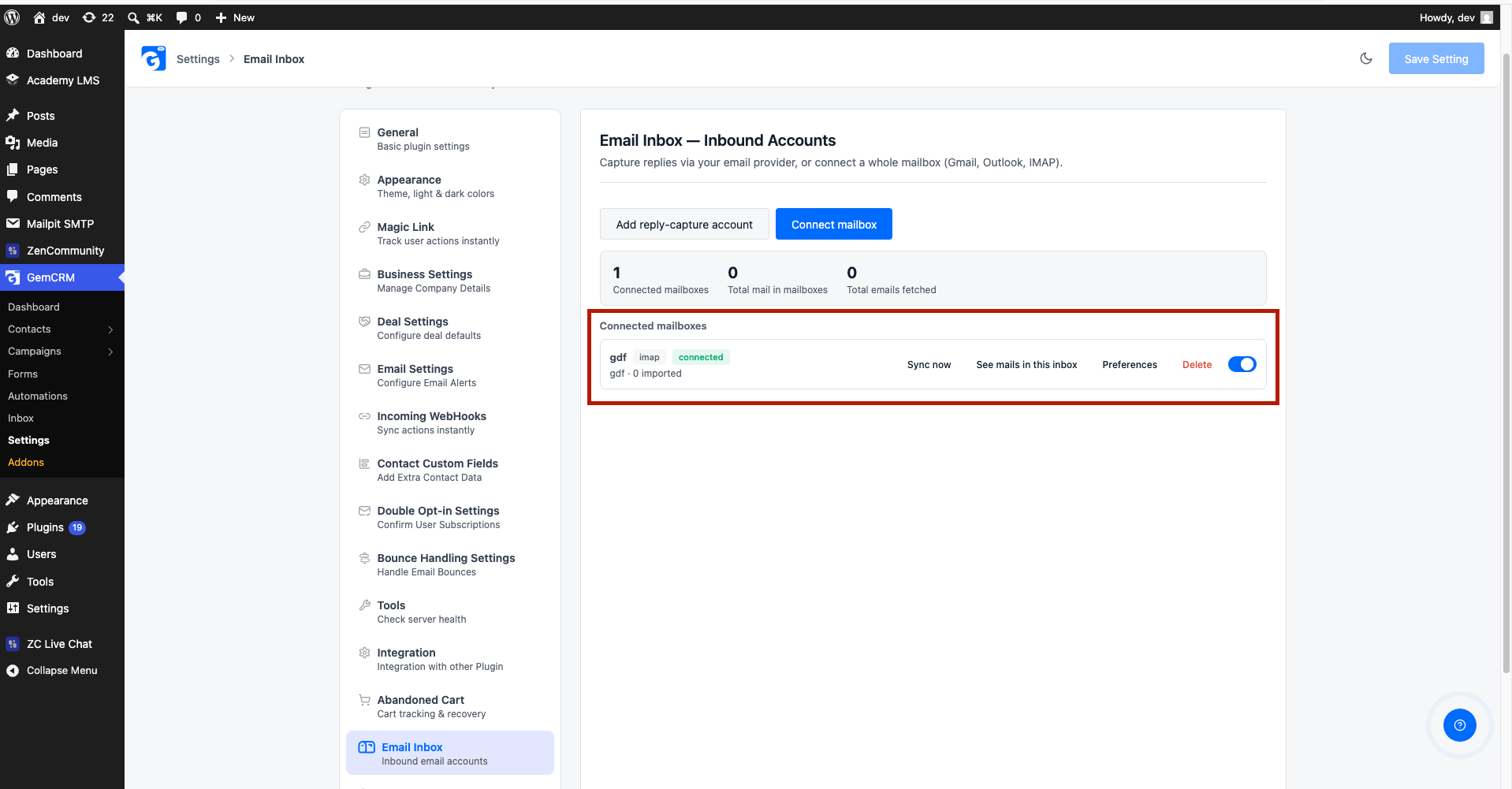
GemCRM → Settings → Email Inbox / Mailbox
Click the Connect Mailbox button to launch the setup wizard.
1. Connecting Gmail (OAuth2)
To connect Gmail or Google Workspace using secure OAuth2:
- Get your Redirect URI: Copy the Redirect URI displayed in the GemCRM setup form (e.g., https://yourdomain.com/wp-json/gemcrm/v1/oauth/callback/gmail).
- Configure Google Cloud Console:
- Go to Google Cloud Console.
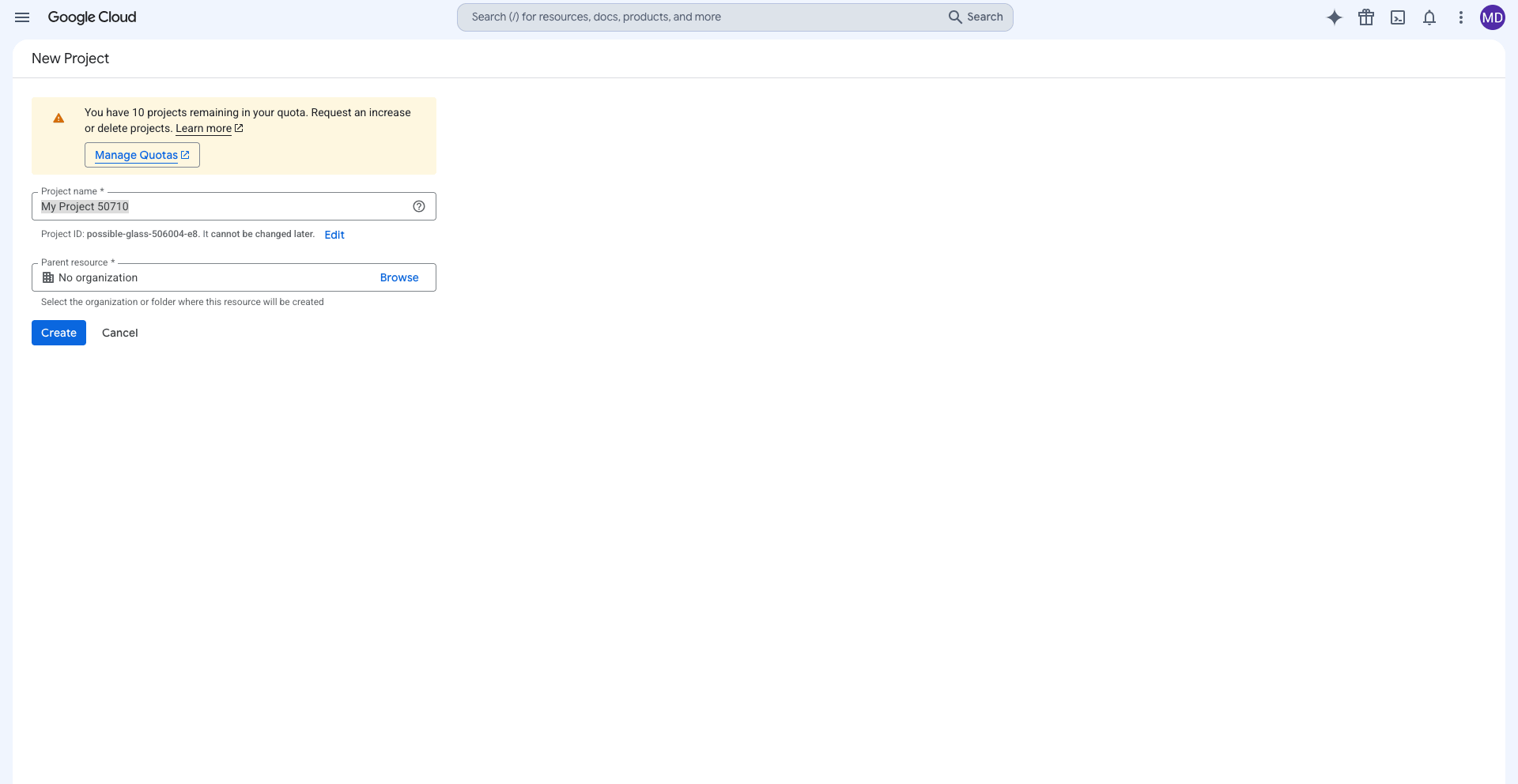
- Create a project (or select an existing one).
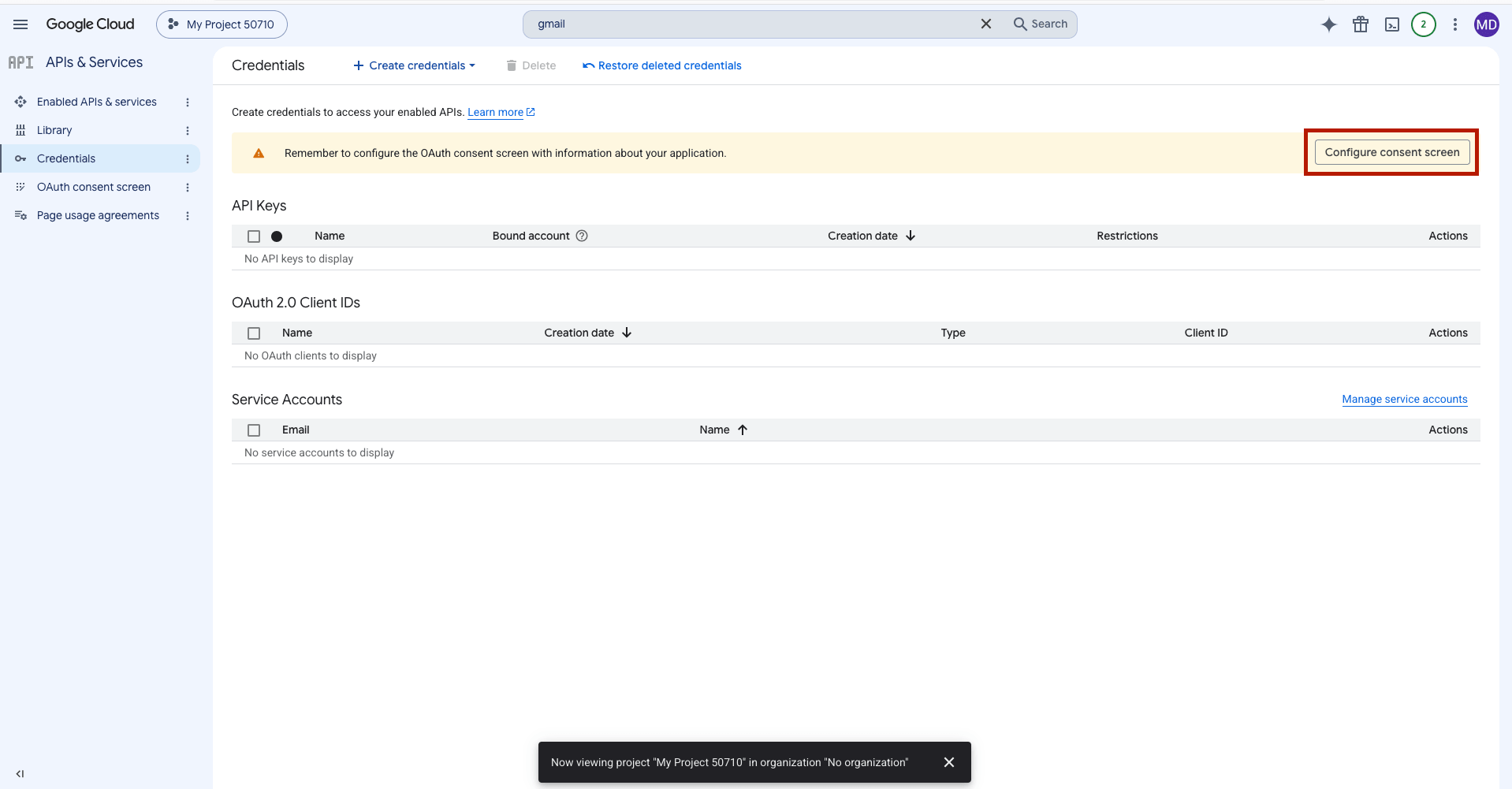
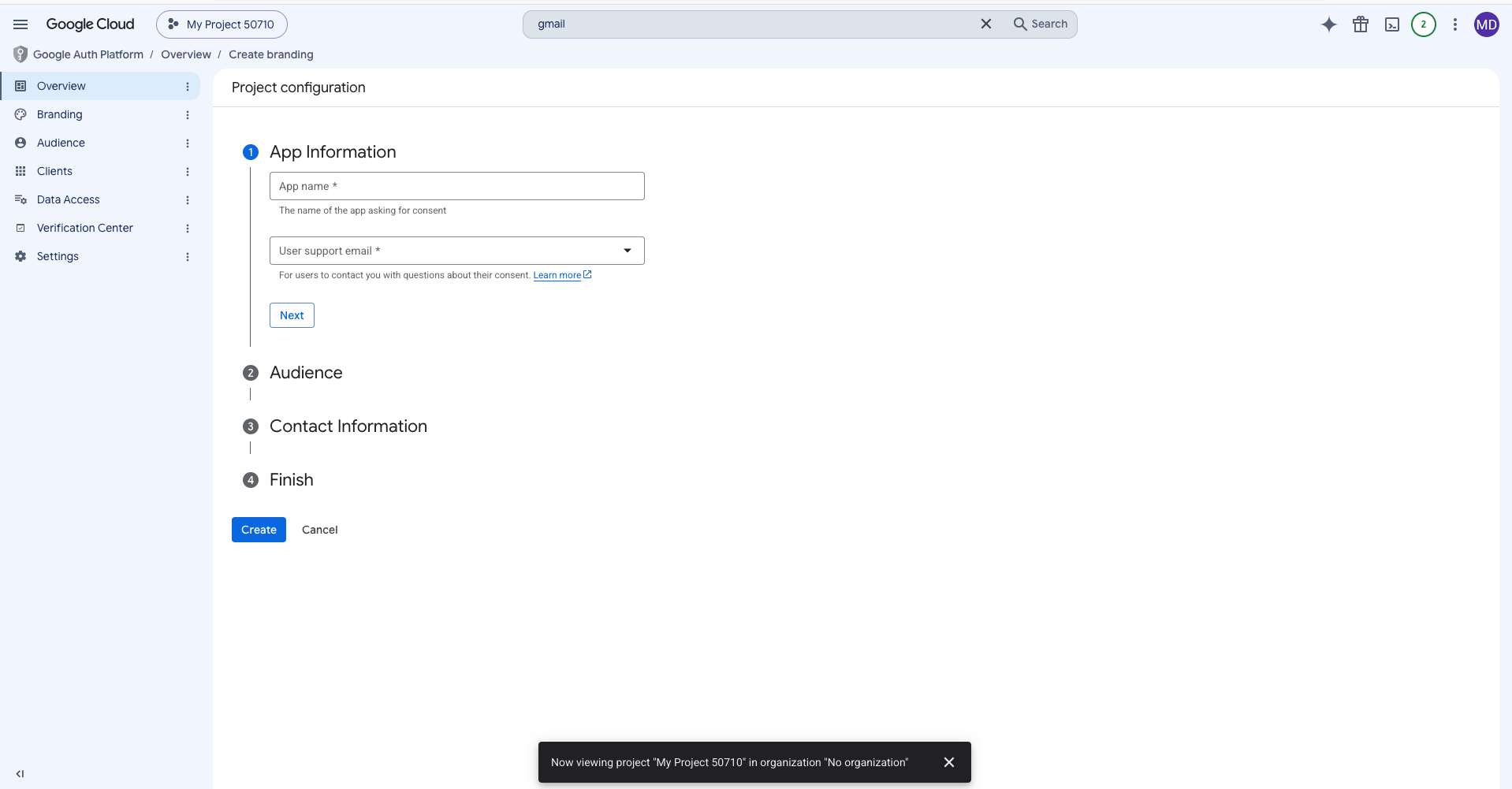
- Under OAuth Consent Screen, choose Internal (for Workspace) or External (for personal Gmail).
- Go to Credentials → Create Credentials → OAuth Client ID.
- Select Web application as the Application Type.
- Add the copied Redirect URI under Authorized redirect URIs.
- Copy the generated Client ID and Client Secret.
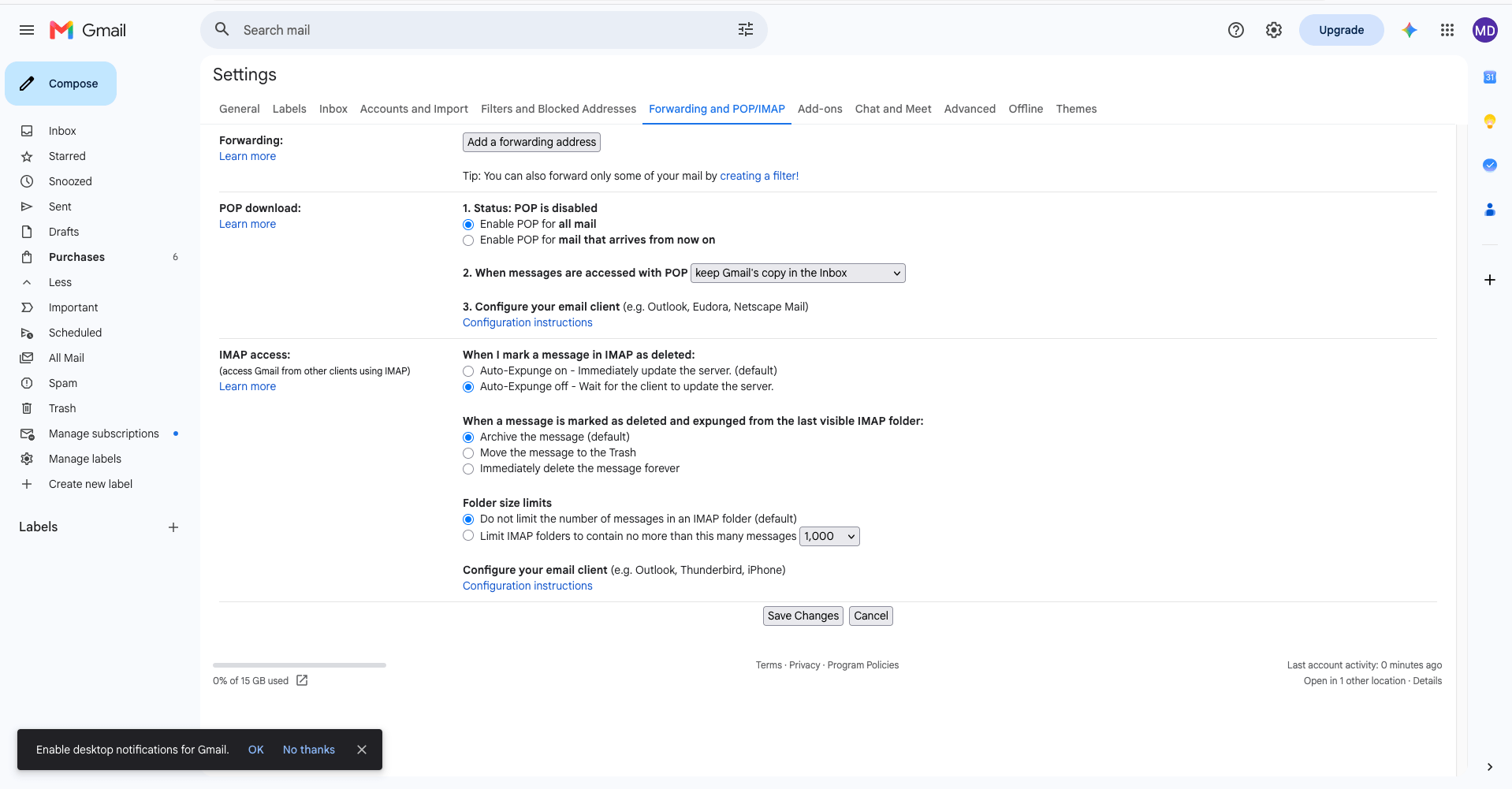
- Enable IMAP in Gmail: Open Gmail Settings → Forwarding and POP/IMAP → Ensure Enable IMAP is checked.
- Authorize in GemCRM:
- In GemCRM, enter your Gmail Address, Client ID, and Client Secret.
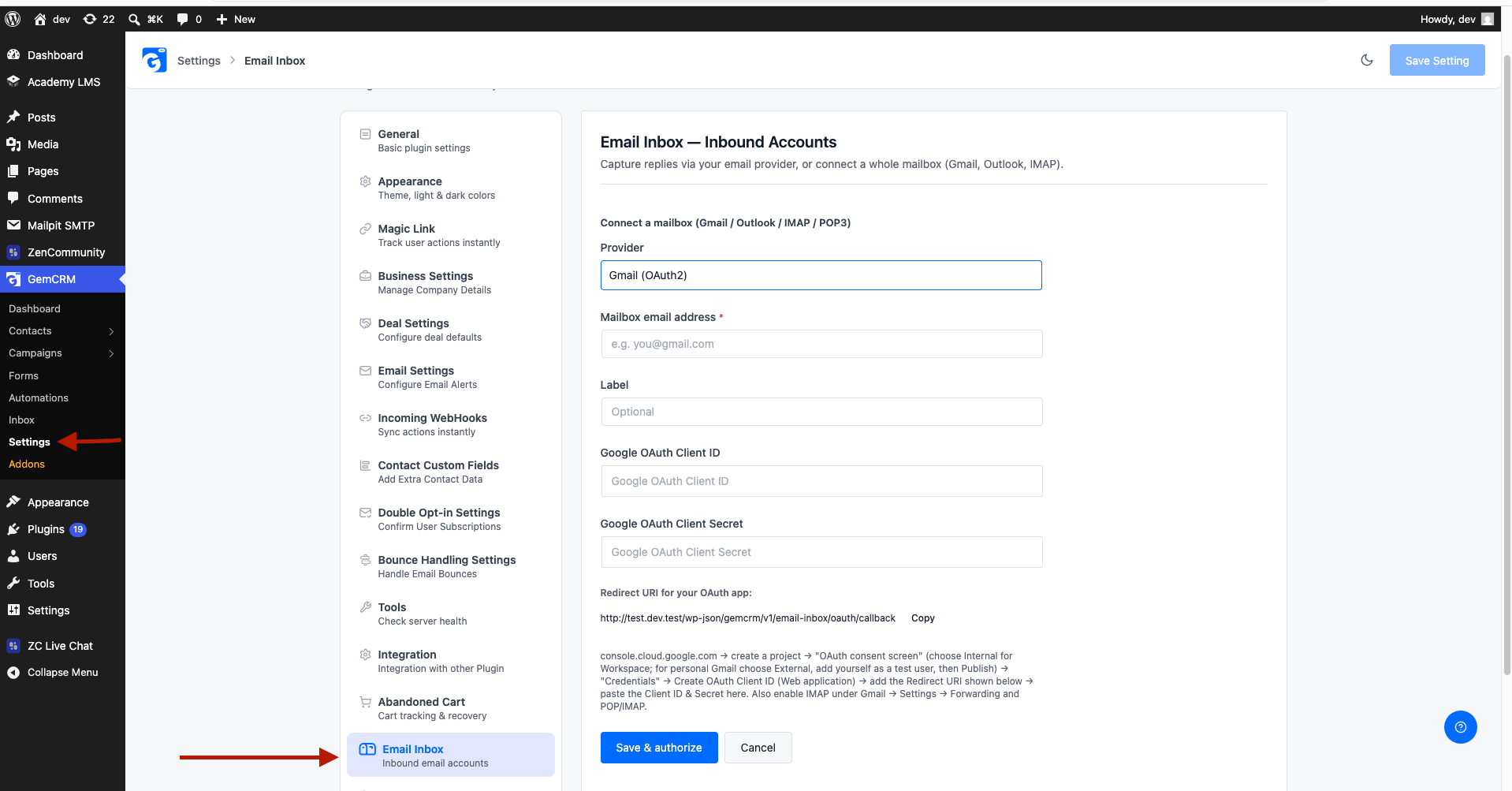
- Click Save & Authorize.
- Log in to your Google Account when prompted and grant permission.
2. Connecting Microsoft 365 / Outlook (OAuth2)
- Get your Redirect URI: Copy the Redirect URI shown in GemCRM for Microsoft 365.
- Configure Azure Portal:
- Log in to the Azure Portal.
- Go to App Registrations → New Registration.
- Choose Accounts in any organizational directory and personal Microsoft accounts.
- Under Redirect URI, select Web and paste your copied Redirect URI.
- Go to Certificates & Secrets → New Client Secret. Copy the secret Value immediately.
- Copy the Application (client) ID from the Overview tab.
- Authorize in GemCRM:
- In GemCRM, enter your Outlook/Microsoft Email Address, Client ID, and Client Secret Value.
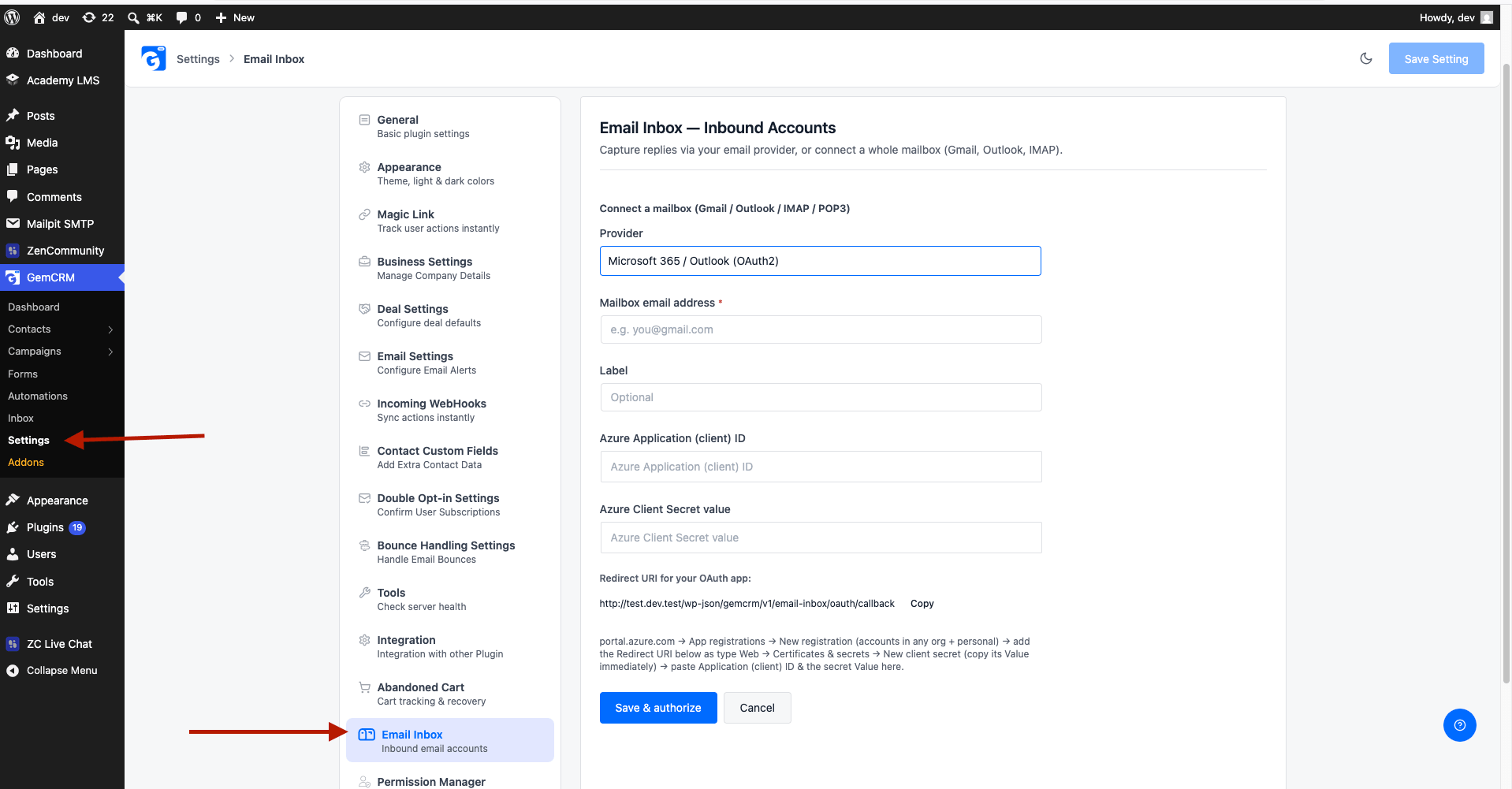
- Click Save & Authorize, then complete the Microsoft login pop-up.
3. Connecting Zoho Mail (OAuth2)
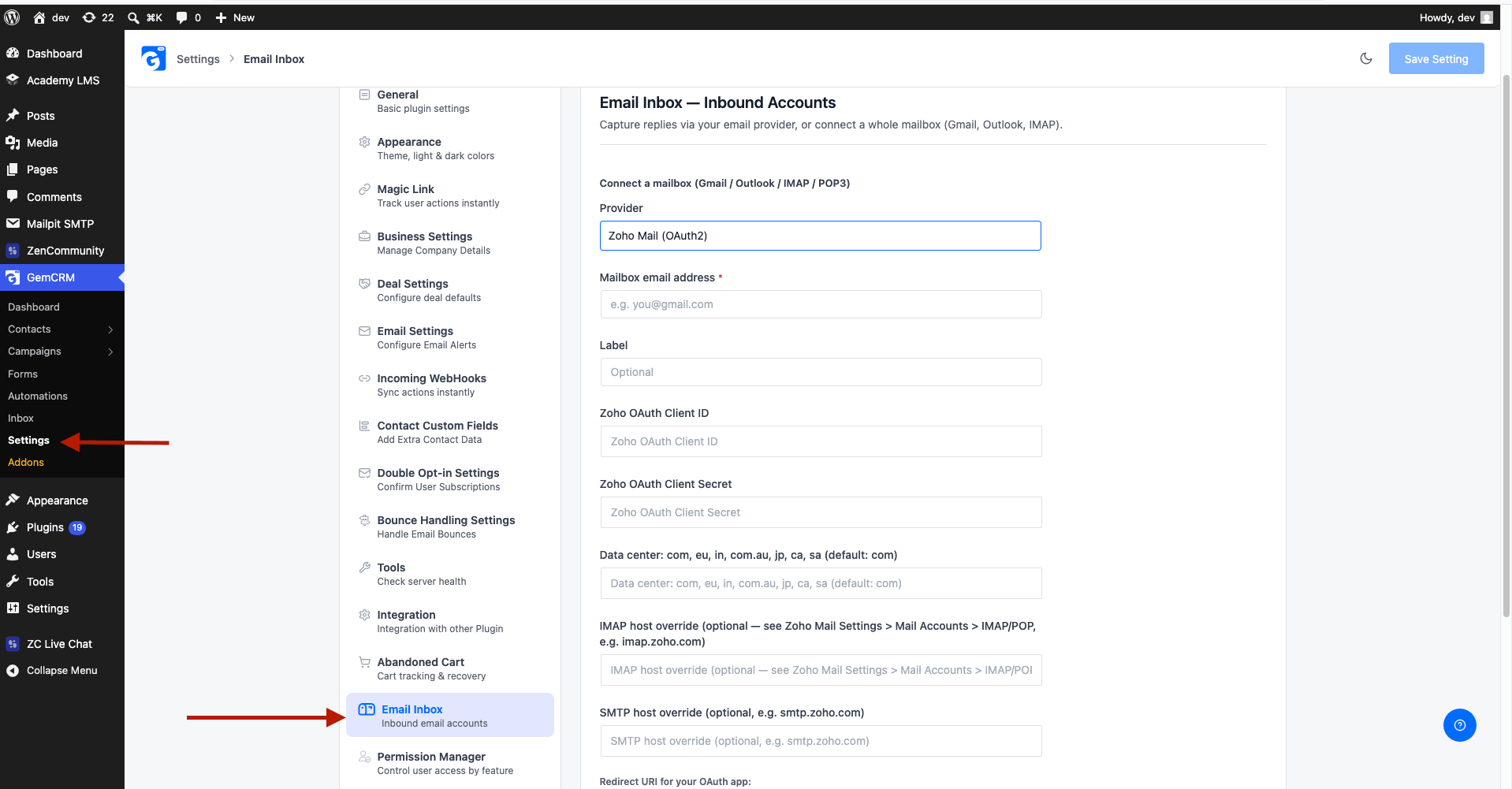
- Get your Redirect URI: Copy lb from GemCRM.
- Configure Zoho API Console:
- Open the Zoho API Console (or your regional console like api-console.zoho.eu).
- Click Add Client → Server-based Application.
- Paste the Redirect URI under Authorized Redirect URIs.
- Note your Zoho Data Center region (e.g., .com, .eu, .in).
- Enable IMAP: In Zoho Mail Settings → Mail Accounts → IMAP Access, enable IMAP.
- Authorize in GemCRM: Enter your email, Client ID, Client Secret, select your Data Center region, and click Save & Authorize.
4. Connecting Generic IMAP or POP3
If you use cPanel, Webmail, or custom mail servers:
- Select Generic IMAP or Generic POP3 from the provider dropdown.
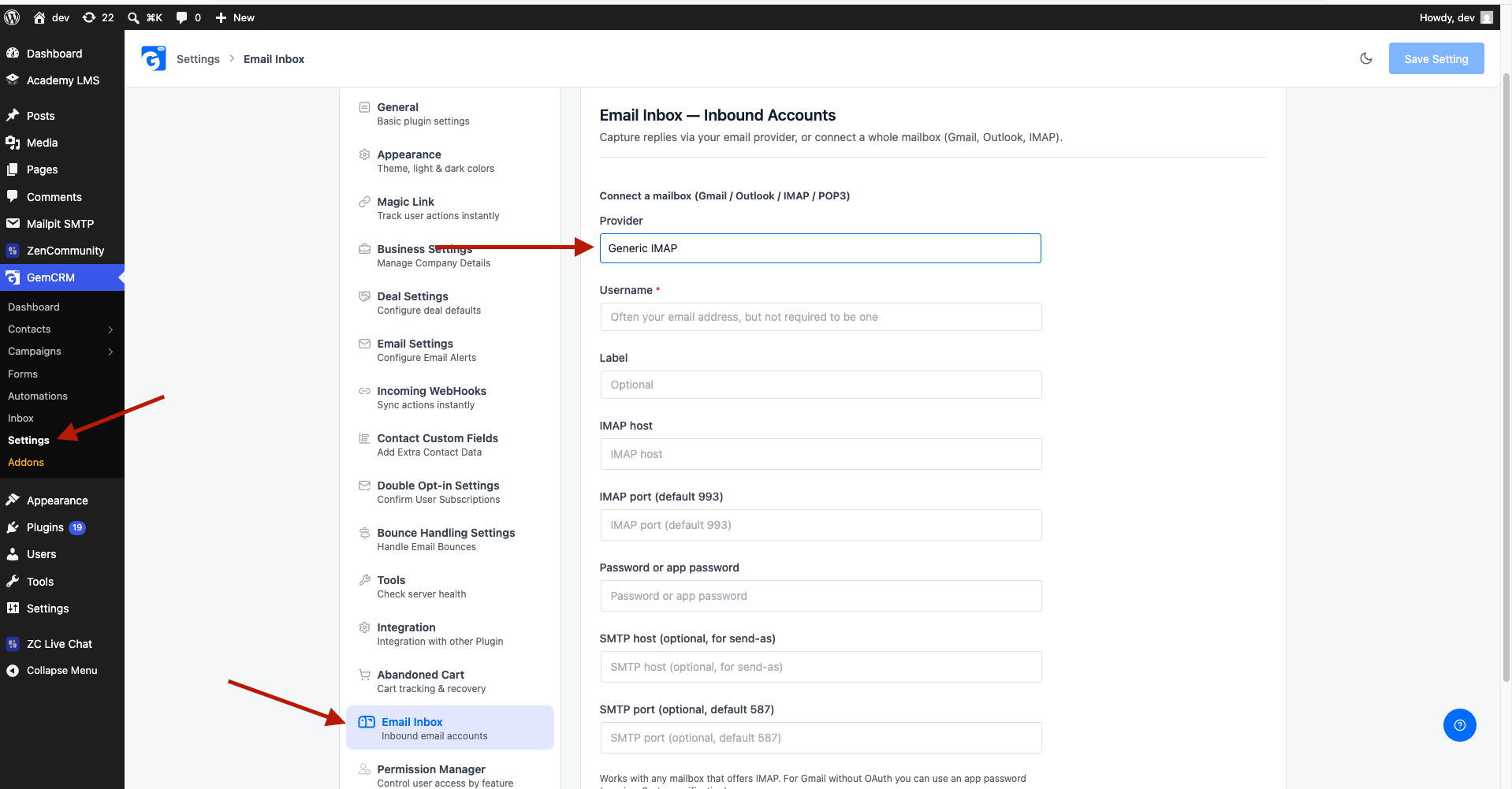
- Enter your Email Address / Username and Password (or App Password).
- Specify server details:
- Host: e.g., mail.yourdomain.com or imap.yourdomain.com
- Port: standard IMAP SSL port 993 or POP3 SSL port 995.
- Encryption: SSL / TLS / STARTTLS.
- Click Connect. GemCRM will verify the socket connection immediately.
Tip: POP3 Drain vs. Leave on Server: For POP3 accounts, GemCRM defaults to Drain Mode (deleting emails from the server after importing them into the CRM). If you want to keep copies on your mail server, toggle Leave mail on server in Preferences.
Configuring Mailbox Preferences
Once your account is connected, click Preferences next to the mailbox row to customize sync settings:
Preference Settings Explained:
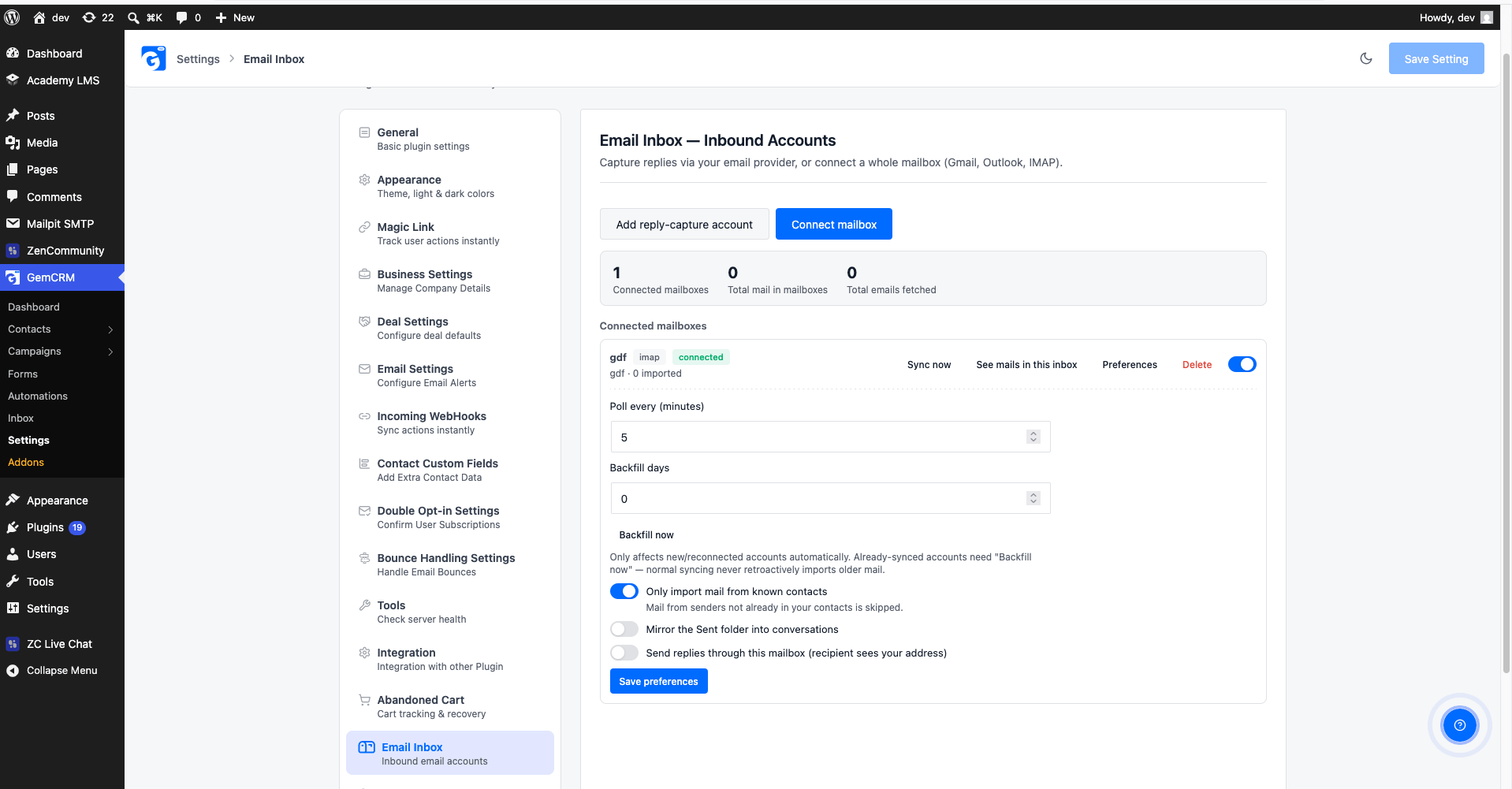
- Poll Every (Minutes): Set how frequently GemCRM checks for new emails (default: 5 minutes, range: 1 to 15 minutes).
- Only Import Mail from Known Contacts:
- ON (Recommended): Ignores emails from unknown senders to prevent CRM inbox clutter.
- OFF: Imports all incoming emails. Unknown senders are automatically created as new contacts!
- Auto-Create Lists & Tags: When Known Contacts Only is OFF, select default Lists and Tags to automatically assign to newly created senders.
- Send Replies Through This Mailbox (Send-As): Outbound replies created in GemCRM are routed through this mailbox’s SMTP server so recipients see your real email address.
- Mirror the Sent Folder: (IMAP only) Automatically syncs emails sent from your phone or desktop client into GemCRM contact timelines.
- Folders to Sync: Choose which folders (e.g., INBOX, Support, Clients) to sync.
- Backfill Historical Mail: Enter the number of past days (1–30 days) and click Backfill Now to pull past conversations into the CRM.
Daily Workflows & Usage
Reading & Replying to Emails
You can interact with mailbox communications in two places:
- Global CRM Inbox (GemCRM → Inbox): View all active email threads across all contacts in a unified inbox layout.
- Contact Detail Page (GemCRM → Contacts → [Select Contact] → Inbox tab): View complete email history, thread attachments, and timeline events for a specific client.
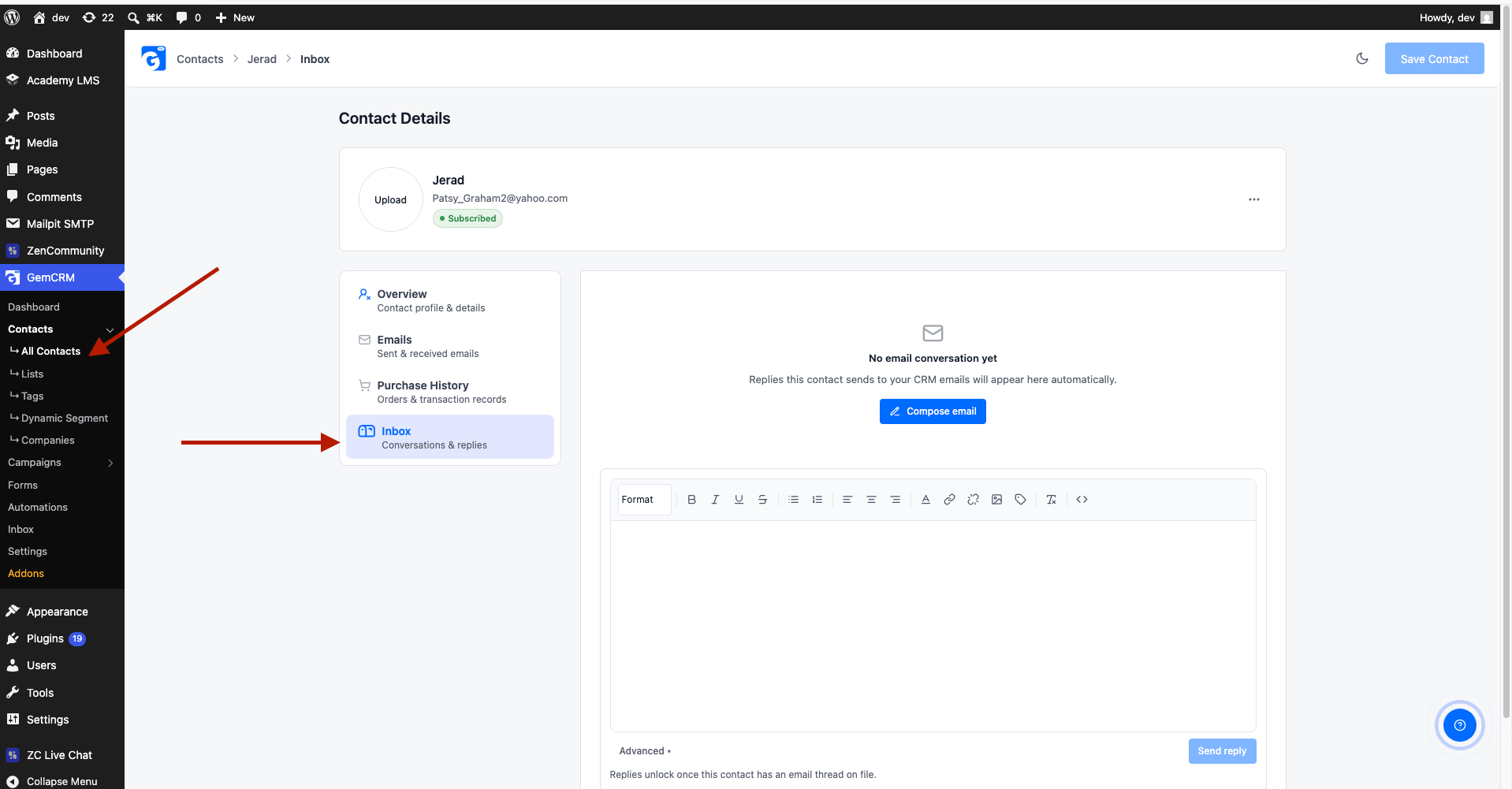
To send a reply:
- Open the contact’s email thread.
- Type your response in the editor.
- Select your connected mailbox in the Send From dropdown.
- Click Send Reply.
Managing Unmatched Emails
If Only import mail from known contacts is enabled, emails from unrecognized senders will not auto-create contacts. Instead, they appear in the Unmatched Emails panel at the bottom of the Email Inbox settings page.
- Click Link to Contact next to any unmatched email.
- Search for an existing contact or create a new contact record to immediately assign the email thread.
Browsing Live Mailbox Messages
To inspect raw emails sitting on your mail server directly:
- Go to GemCRM → Settings → Email Inbox / Mailbox.
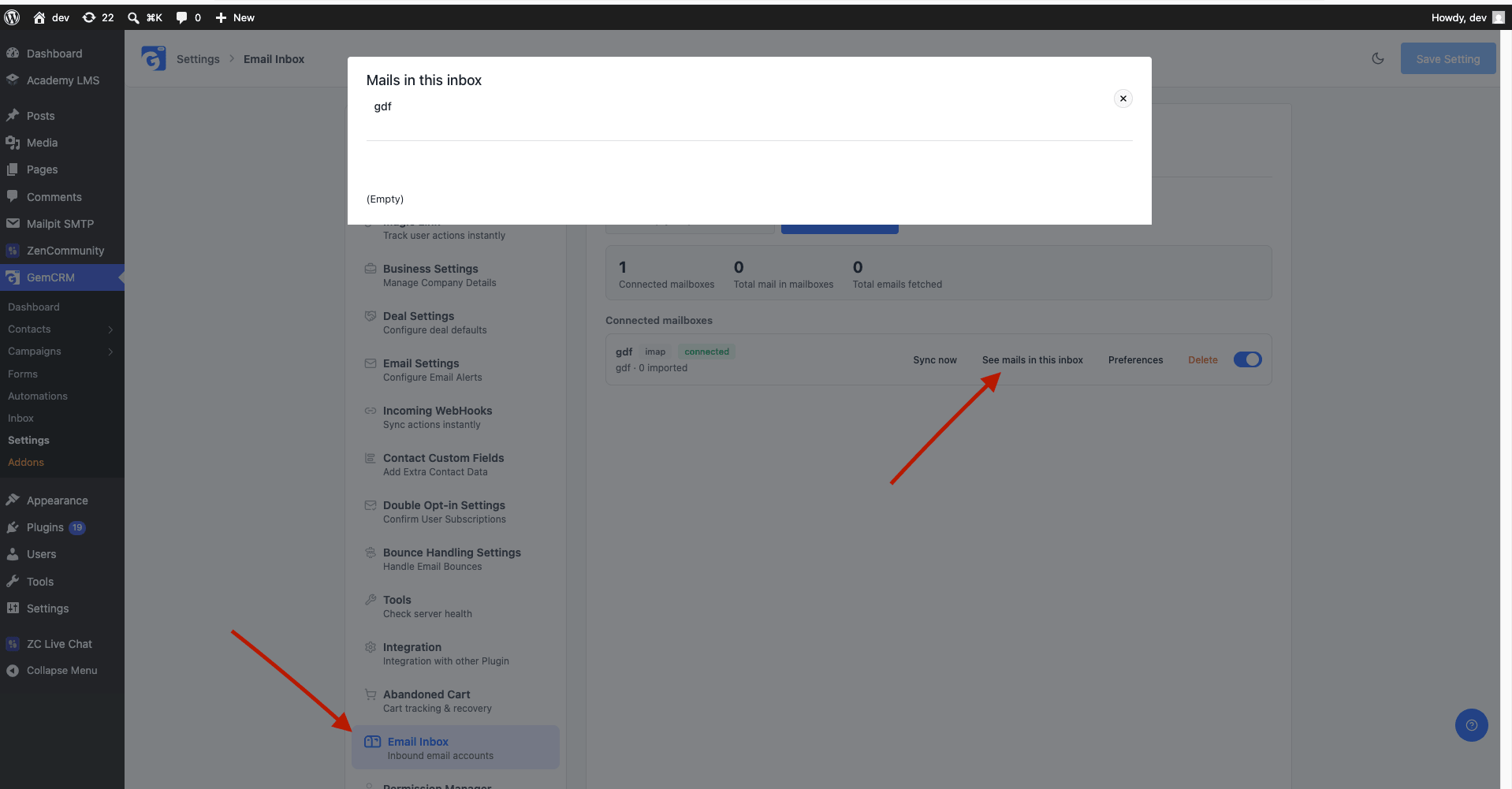
- Click See mails in this inbox next to any connected mailbox.
- A live modal pops up showing real-time subject lines, senders, and dates directly from the server.
Monitoring Health & Troubleshooting
GemCRM continuously checks the status of your mailbox connections.
Health Status Badges
|
Badge Status |
Meaning |
Action Required |
|
Connected |
Syncing normally |
None |
|
Token Expiring |
OAuth refresh token is near expiration |
Click Reconnect to re-authorize |
|
Auth Failed |
Password changed or credentials revoked |
Click Reconnect and re-enter credentials |
|
Sync Lagging |
Sync took longer than expected |
Check WP-Cron status |
Troubleshooting Checklist
- Emails are not syncing automatically:
- GemCRM uses WordPress Action Scheduler (WP-Cron). Ensure WP-Cron is running properly, or set up a real server cron job calling wp-cron.php every 1–5 minutes.
- Click Sync Now on the mailbox row to force an immediate manual sync test.
- OAuth Authorization Error (“Redirect URI Mismatch”):
- Ensure the Redirect URI in Google Cloud / Azure / Zoho matches the exact URL displayed in GemCRM.
- Sent emails are missing from CRM timeline:
- Ensure Mirror the Sent folder is checked in Mailbox Preferences, and verify that the correct Sent folder name is selected under folder settings.