


The Abandoned Cart addon for GemCRM allows you to track and recover lost sales from your WooCommerce store. It automatically captures cart data when a customer provides their email address but leaves before completing the purchase.
Activating the Addon
To use Abandoned Cart tracking, you must first enable the addon:
- Navigate to GemCRM → Addons.
- Locate the Abandoned Cart card.
- Click Activate.
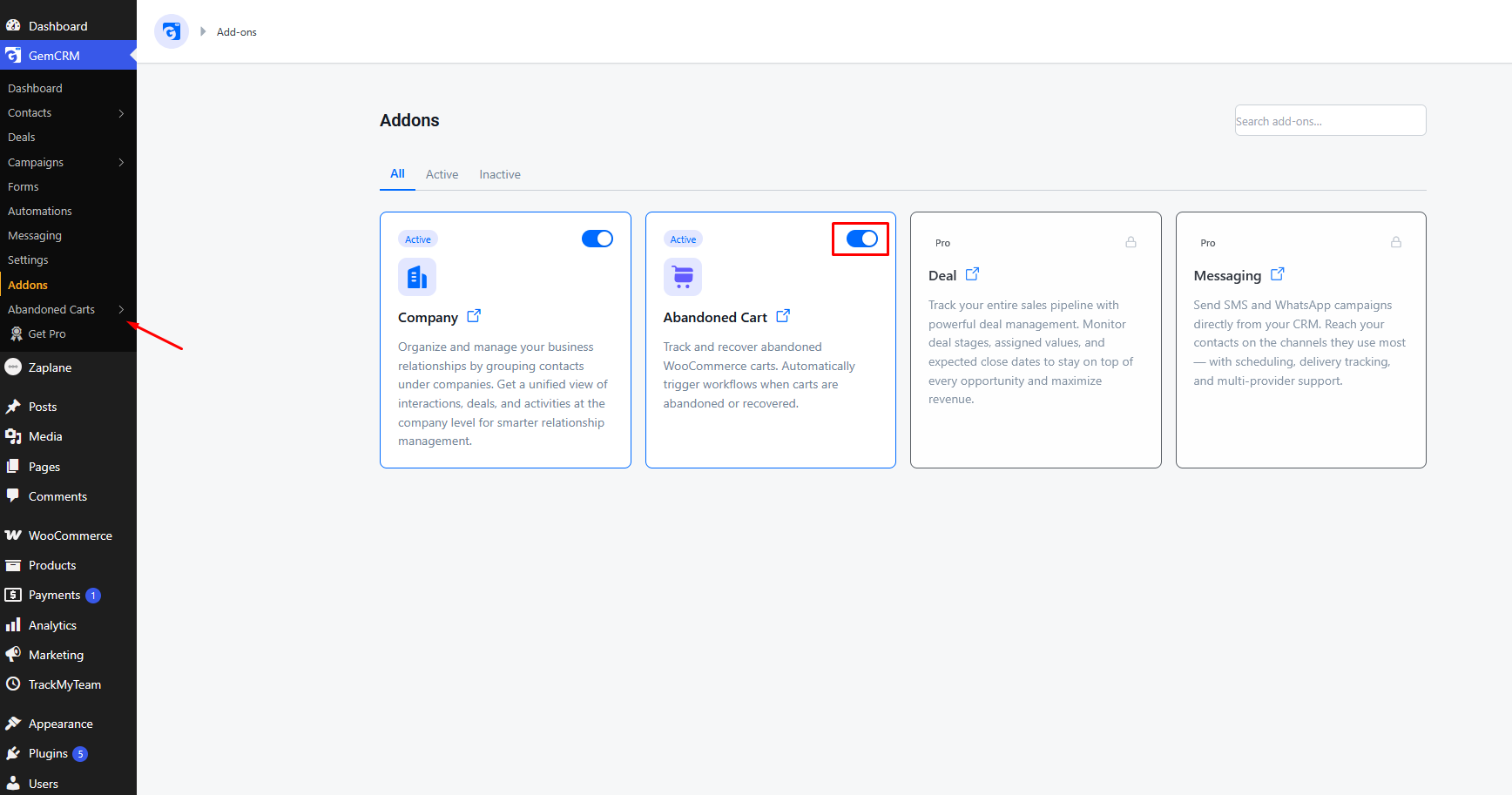
Once activated, a new Abandoned Carts menu item will appear in the GemCRM sidebar.
Reports Overview
The Abandoned Carts dashboard provides a high-level summary of your recovery performance. At the top of the page, you will find five metric cards:
|
Card |
Description |
|
Recovered |
The total revenue and number of orders successfully recovered through your campaigns. |
|
Processing |
Revenue and order count currently in the “Processing” phase (abandoned but not yet recovered or lost). |
|
Lost |
Revenue and order count that exceeded your “Mark as Lost” time limit without being recovered. |
|
Draft |
Carts where data is still being captured but have not yet reached the “Abandoned” threshold. |
|
Recovery Rate |
The percentage of all abandoned carts that were successfully recovered. |

Abandoned Carts Table
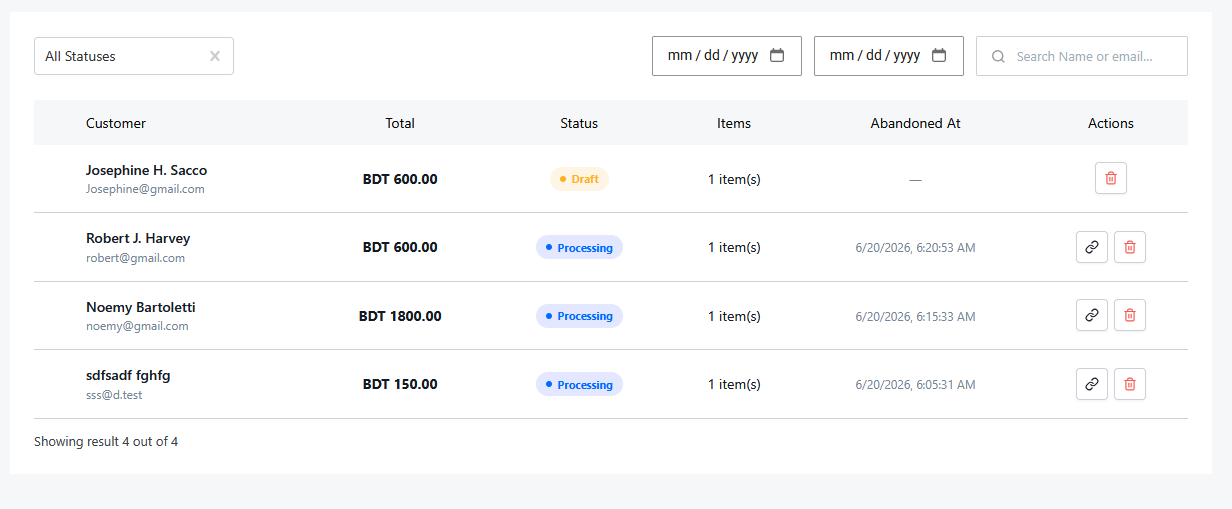
Below the summary cards is a detailed table of every cart tracked by GemCRM.
Table Columns
|
Column |
Description |
|
Customer |
Displays the customer’s name and email. If they were not logged in, they are shown as a “Guest”. |
|
Total |
The value of the items in the cart at the time it was abandoned. |
|
Status |
The current lifecycle stage of the cart (see statuses below). |
|
Items |
The number of unique products in the cart. |
|
Abandoned At |
The exact date and time the cart was officially marked as abandoned. |
Cart Statuses
- Draft: The customer is currently adding items or has just left; GemCRM is waiting for the “Cart Off Time” to pass.
- Processing: The cart is officially abandoned. Recovery workflows or manual follow-ups should happen now.
- Recovered: The customer returned and completed their purchase.
- Lost: The cart remained abandoned longer than your “Mark as Lost” setting allows.
- Opt-out: The customer explicitly opted out of tracking (via GDPR consent).
- Skipped: The cart was ignored based on your exclusion rules (e.g., specific user roles).
Managing Carts
Individual Actions
In the Actions column of the table:
- Copy Recovery Link (Processing only): Click the link icon to copy a unique URL that, when clicked, will restore the customer’s exact cart and take them straight to checkout. You can paste this into a manual email or message.
- Delete: Permanently remove the cart record.
Bulk Actions
You can delete multiple cart records at once by selecting the checkboxes on the left and using the Bulk Action selector that appears at the bottom of the table.