


In a WordPress-powered ecosystem, users often have different levels of access, from Subscribers and Customers to Authors and Administrators. GemCRM allows you to automatically synchronize these WordPress roles with GemCRM Tags.
With User Role Based Tag Mapping, whenever a user’s role is updated in WordPress, GemCRM will automatically add or remove specific tags. This ensures your marketing automation always reflects the user’s current status on your site.
How to Configure Tag Mapping
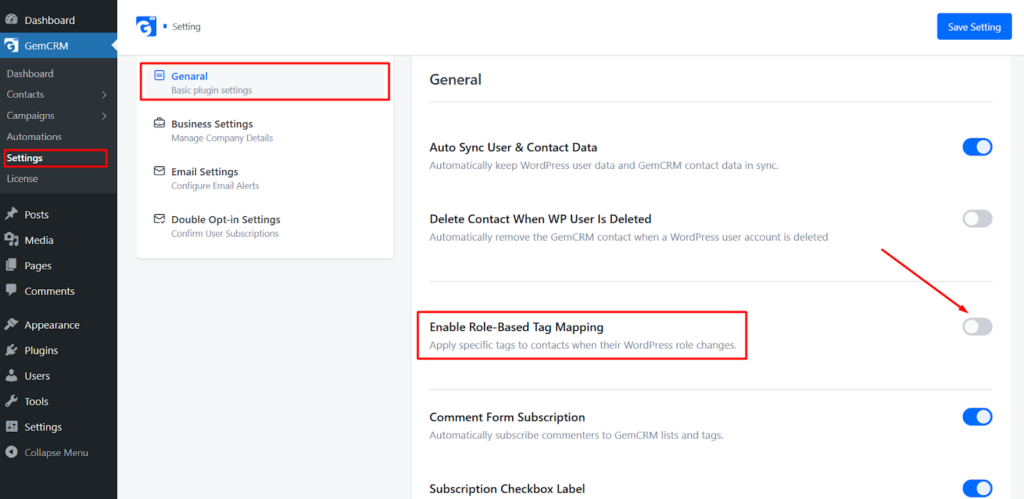
To access these settings, navigate to GemCRM > Settings > General Settings and look for the Role Based Tag Mapping section.
1. Enable the Feature
First, ensure the toggle for “Enable Role Based Tag Mapping” is turned ON. This activates the background synchronization between WordPress roles and GemCRM tags.
2. Mapping Roles to Tags
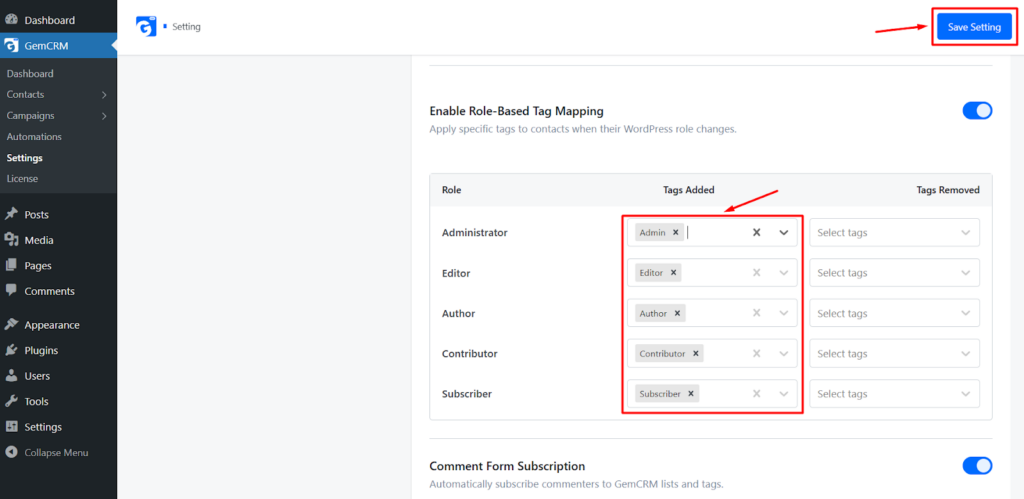
You will see a table listing all available WordPress User Roles on your site (e.g., Administrator, Editor, Author, Subscriber, Customer, etc.). For each role, you have two configuration options:
- Tags to be Added: Select the tag(s) that should be applied to a contact when they are assigned this WordPress role.
Example: If a user is promoted to “Editor,” you might add a “Content Team” tag.
- Tags to be Removed: Select the tag(s) that should be stripped away when a user moves into this role.
Example: When a “Subscriber” becomes a “Customer,” you might want to remove the “Lead” tag.
WP User Role Based Tag Mapping is a “set it and forget it” feature that keeps your database organized without manual intervention. By bridging the gap between WordPress User Roles and GemCRM Tags, you create a dynamic system that responds instantly to your users’ behavior and status.