


Bring your existing Mailchimp contacts into GemCRM in just a few clicks — no CSV exports needed. Connect your account, choose what to import, and GemCRM takes care of the rest.
Step 1: Navigate to Contacts
From your GemCRM dashboard, click on Contacts in the left sidebar. Here you’ll see an overview of your contact stats — Total Contacts, Subscribed, Unsubscribed, and Pending.
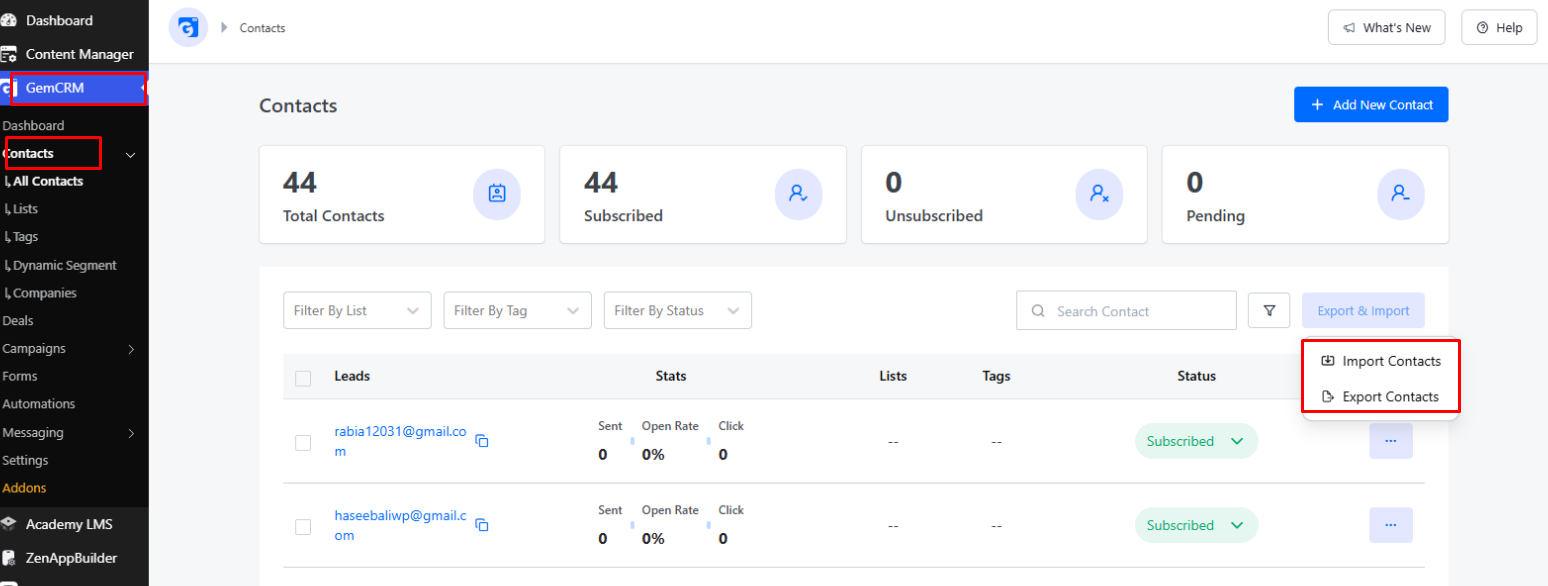
To start importing, click the Import Contacts option (top-right, next to Export Contacts).
Step 2: Start the Import
- Go to Contacts in your GemCRM dashboard.
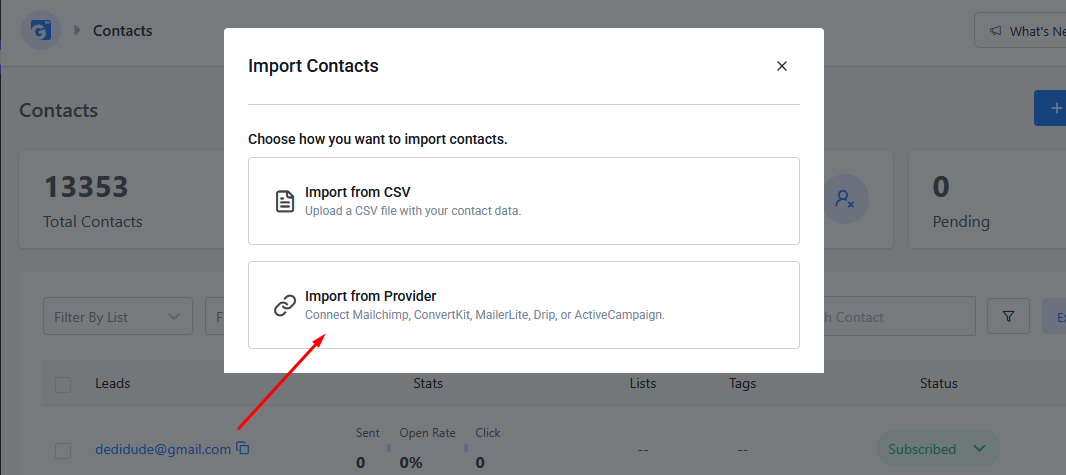
- Click the + button to open the Import Contacts dialog.
- Choose Import from Provider to connect with Mailchimp, ConvertKit, MailerLite, Drip, or ActiveCampaign.
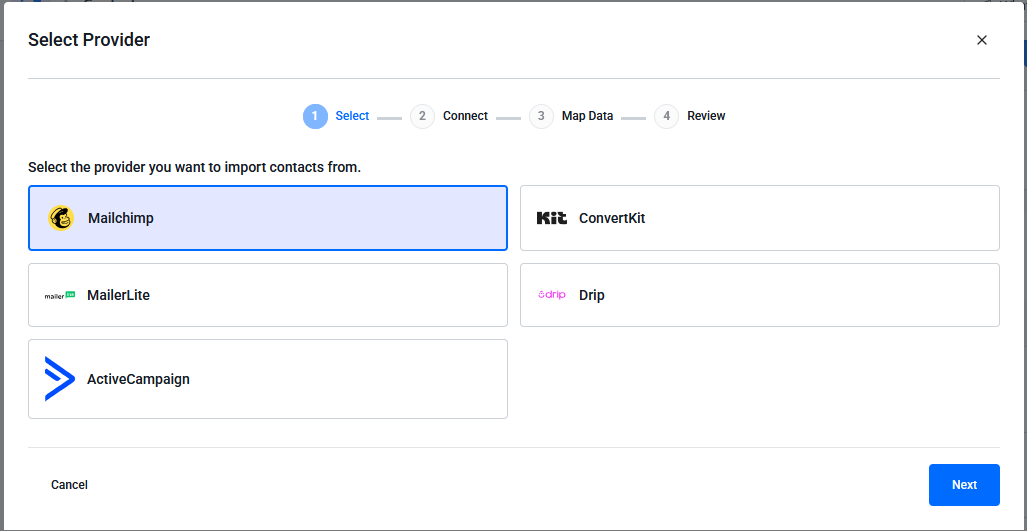
Step 3: Select Your Provider
On the Select Provider screen, choose Mailchimp from the list of available providers, then click Next.
Step 4: Connect Your Account
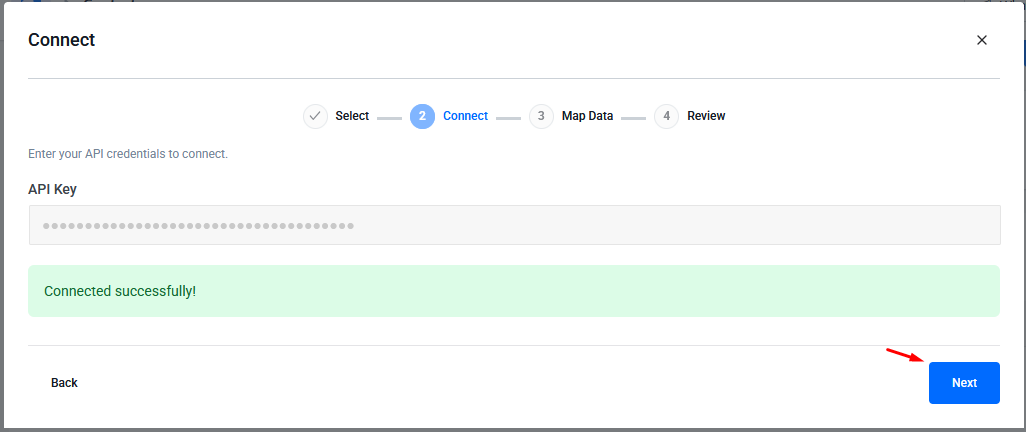
- Enter your Mailchimp API Key in the field provided.
- Once GemCRM verifies the key, you’ll see a Connected successfully! confirmation message.
- Click Next to proceed.
Note: You can find your Mailchimp API key under Account → Extras → API keys in your Mailchimp dashboard.
Step 5: Map Your Data
Choose what you’d like to import:
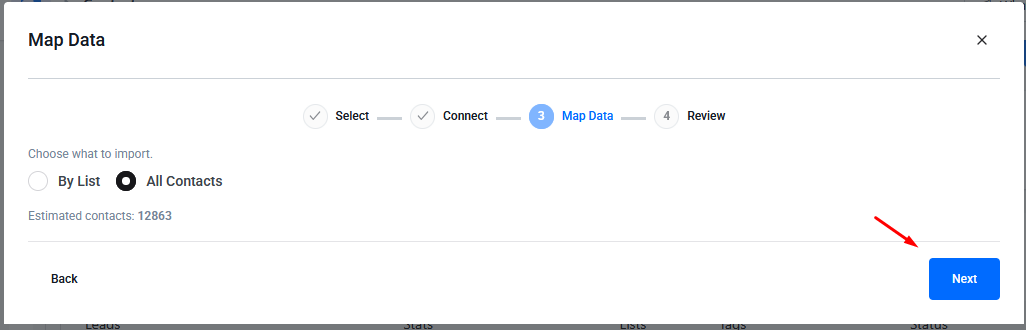
- By List — import contacts from a specific Mailchimp list
- All Contacts — import every contact in your Mailchimp account
GemCRM will display the estimated number of contacts to be imported based on your selection. Click Next to continue.
Step 6: Review & Import
Before finalizing, review your import summary:
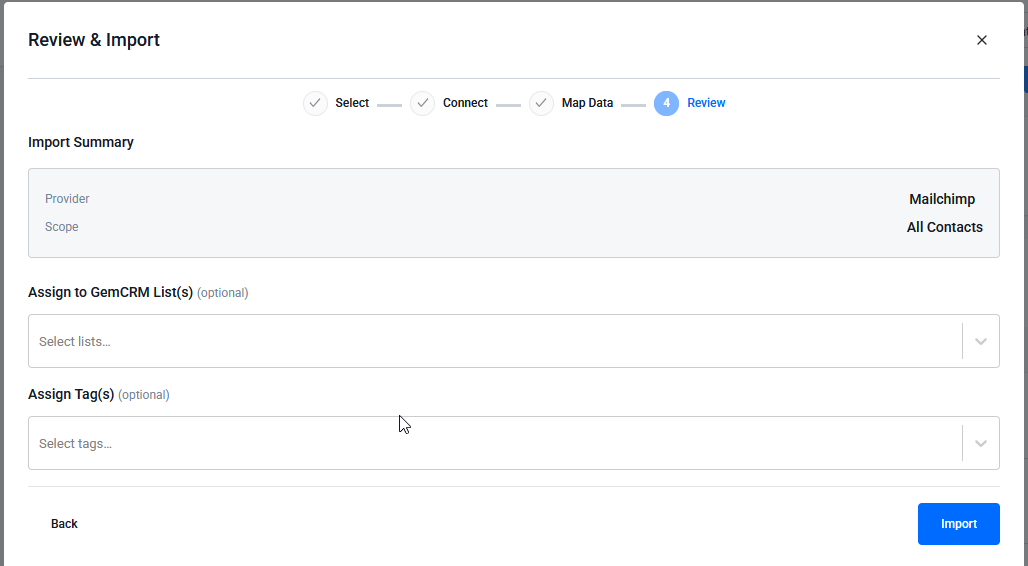
- Provider: Mailchimp
- Scope: All Contacts (or selected list)
You can optionally:
- Assign to GemCRM List(s) — organize imported contacts into an existing or new list
- Assign Tag(s) — apply tags to help segment your contacts later
Click Import to begin.
Step 7: Import in Progress
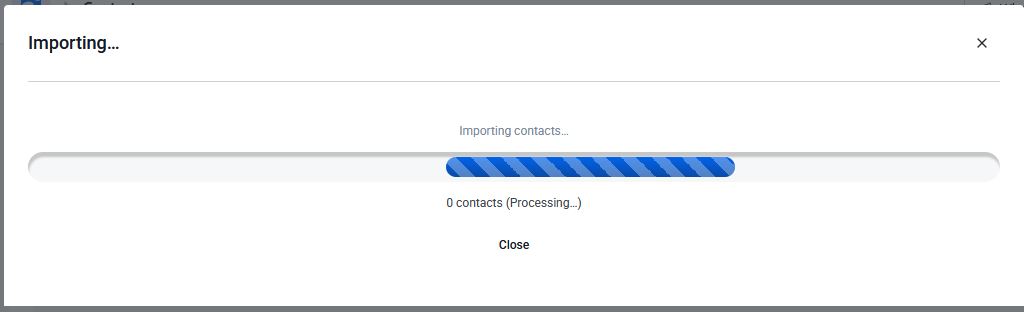
A progress bar will show the import status in real time, along with a live count of contacts processed. You can close this window and continue working — the import will keep running in the background.