


Bulk Actions on Contacts in GemCRM lets you update multiple contacts at once instead of making changes one at a time. You can tag contacts, add them to lists, change their type or status, or delete them in a single step.
Note: Bulk actions require the Bulk Actions permission on your role. This single permission covers every bulk action listed below, including delete — there’s no separate, more restrictive permission just for deleting.
Before You Start
- Tags and Lists must already exist before you can apply them in bulk — you can’t create a new tag or list from inside the bulk-action panel itself. See Managing Tags and Lists below.
Step 1 — Select Contacts
On the Contacts page:
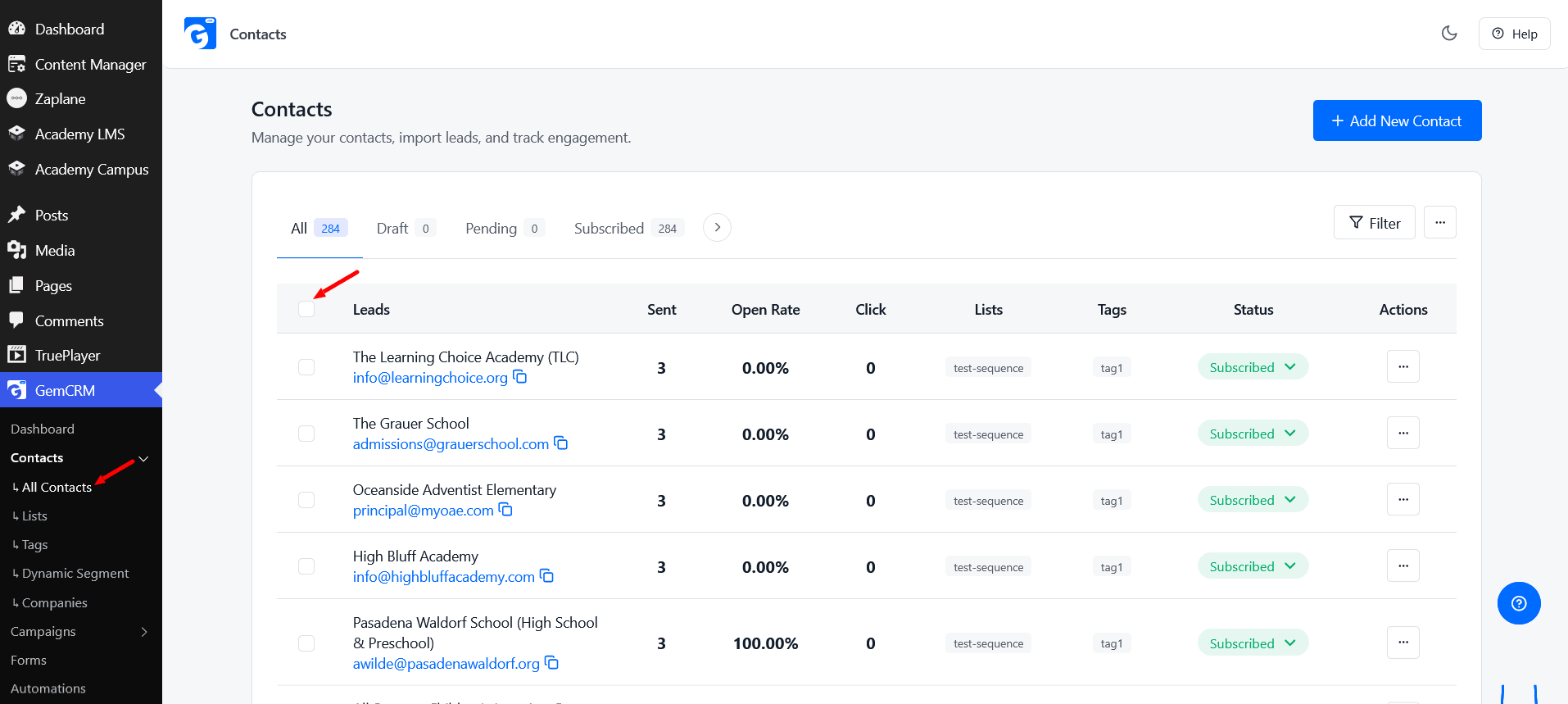
- Check the box next to any contact row to select it, or check the header checkbox to select every contact on the current page.
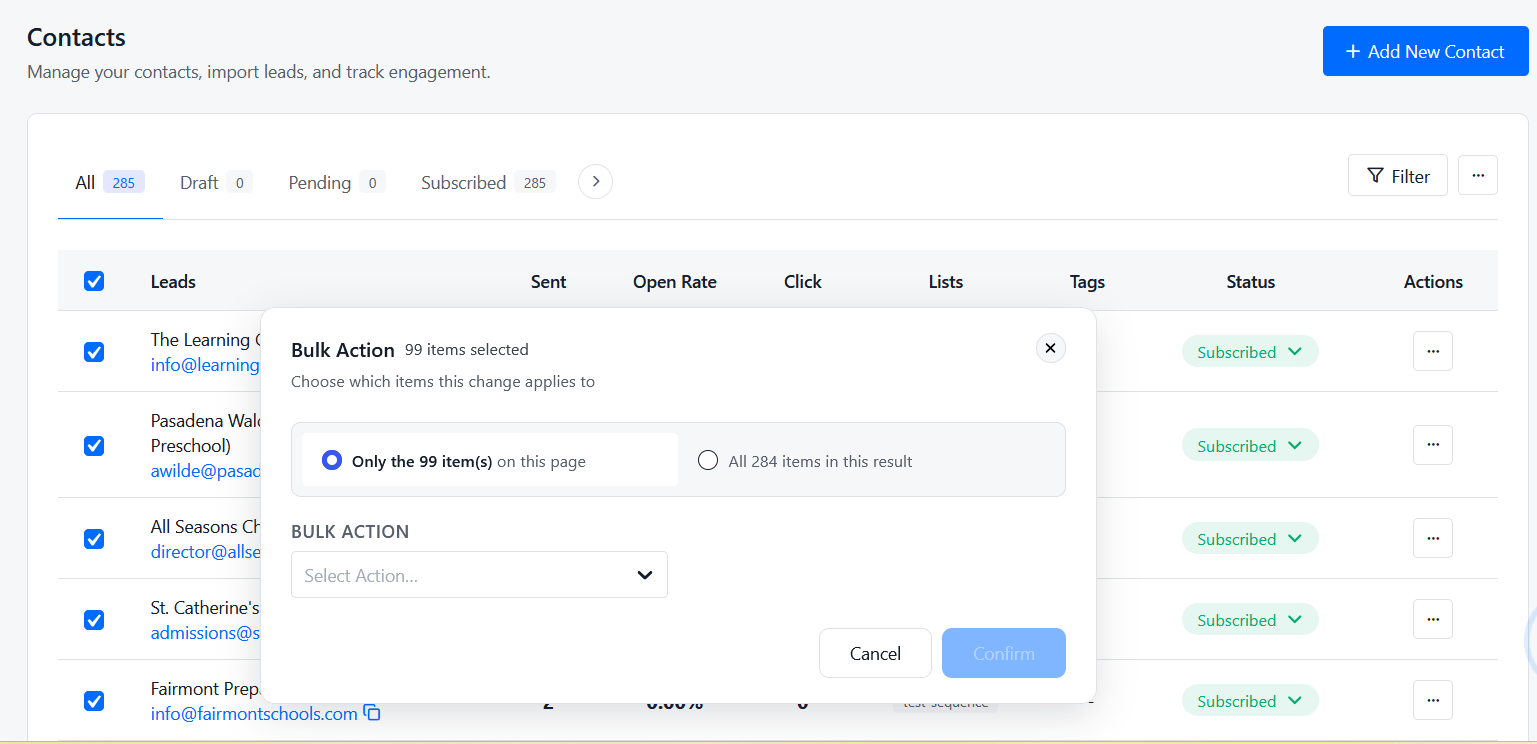
- Once you have a selection, a bulk-action bar appears with a scope choice:
|
Option |
What it selects |
|
Only the N item(s) on this page |
Just the rows you’ve checked on the visible page. |
|
All N items in this result |
Every contact matching your current filters/search — across all pages, not just what’s visible. |
This means you can, for example, apply a tag to every contact matching a filter, even if that’s thousands of contacts across many pages.
Step 2 — Choose an Action
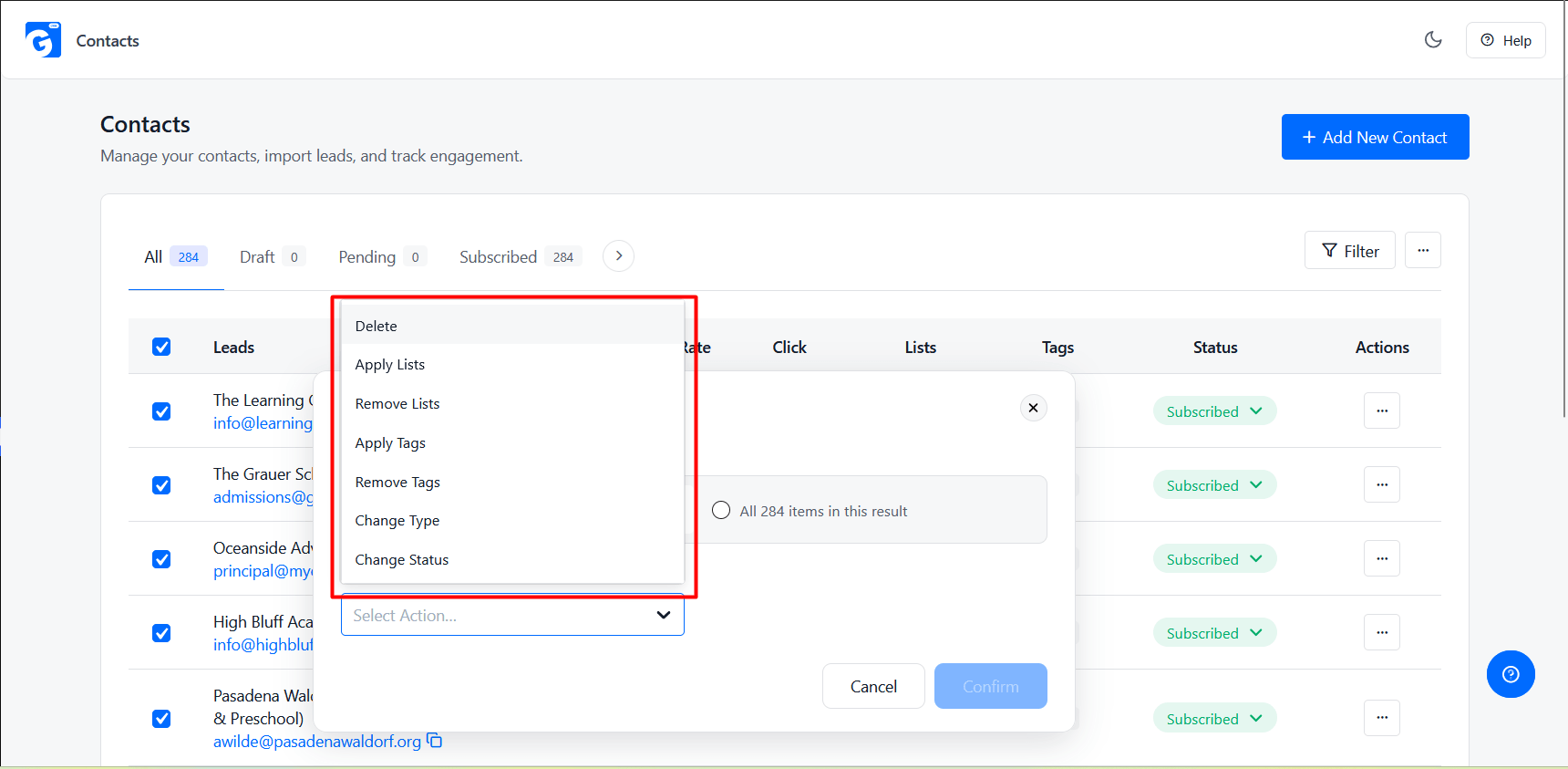
From the Select Action… dropdown in the bulk-action bar, pick one:
|
Action |
What it does |
|
Delete |
Permanently deletes the selected contacts. |
|
Apply Tags |
Adds one or more tags to every selected contact. |
|
Remove Tags |
Removes one or more tags from every selected contact. |
|
Apply Lists |
Adds every selected contact to one or more lists. |
|
Remove Lists |
Removes every selected contact from one or more lists. |
|
Change Type |
Sets every selected contact’s type to Lead or Customer. |
|
Change Status |
Sets every selected contact’s status to one of Draft, Pending, Subscribed, Unsubscribed, Bounced, Complained, or Transactional. |
Step 3 — Fill in the Details
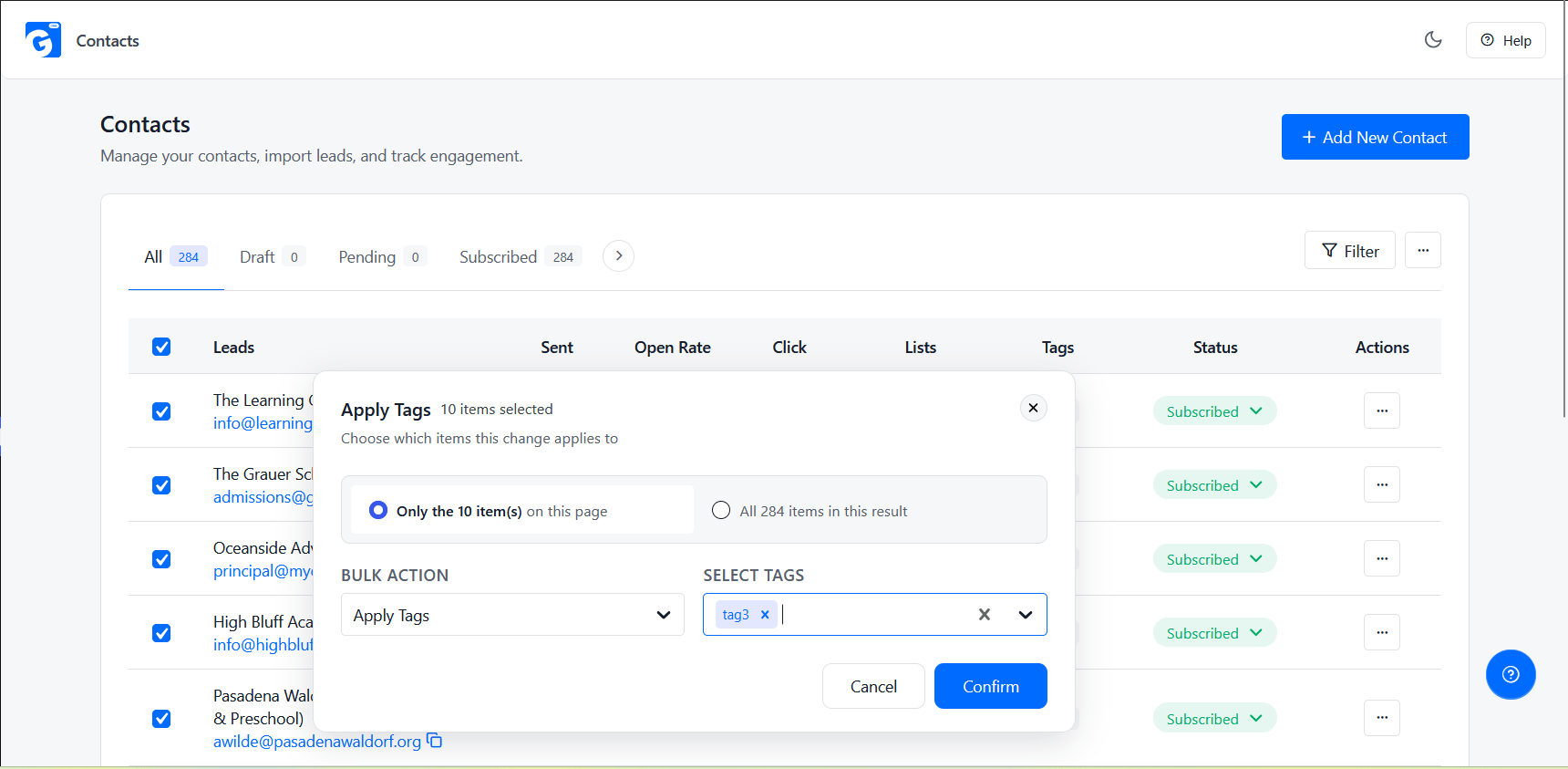
Depending on the action, a second field appears:
- Apply Tags / Remove Tags — a Select Tags / Remove Tags picker; choose from your existing tags.
- Apply Lists / Remove Lists — a Select Lists / Remove Lists picker; choose from your existing lists.
- Change Type — a New Type dropdown (Lead / Customer).
- Change Status — a New Status dropdown (one of the seven statuses above).
- Delete — no extra field; go straight to the confirmation step.
The Confirm button stays disabled until you’ve picked at least one tag/list/option (where required).
Step 4 — Confirm
- Tags, Lists, Type, and Status actions: a simple confirmation dialog — click Confirm to apply, or Cancel to back out. These are not permanent in the sense that you can always run another bulk action to reverse them (e.g. Remove Tags to undo an Apply Tags).
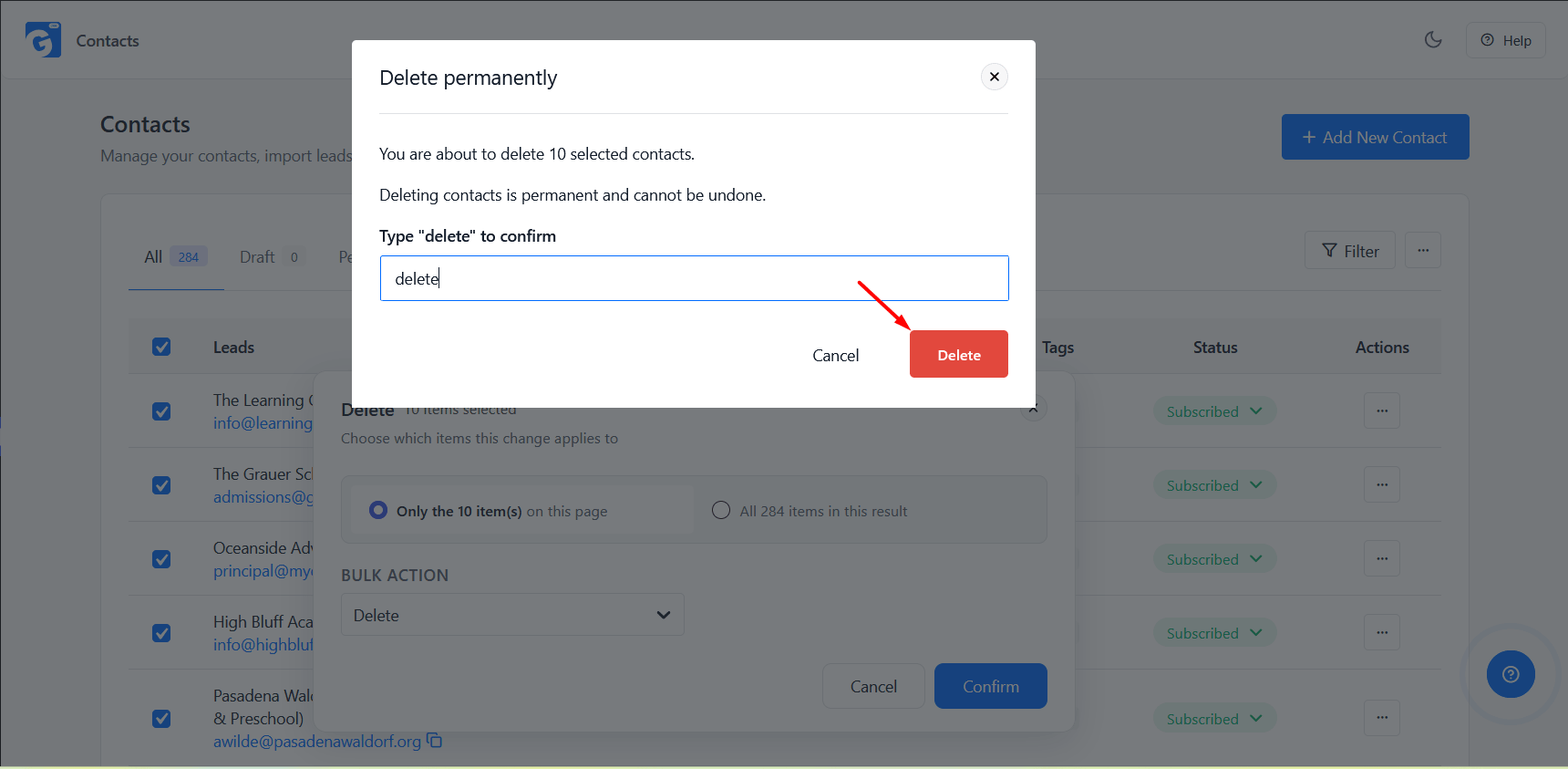
- Delete: a stricter confirmation modal titled “Delete permanently”, showing “You are about to delete N selected contacts” and warning that “Deleting contacts is permanent and cannot be undone.” You must type delete into the confirmation field before the Delete button becomes clickable.
There is no undo for bulk delete. Double-check your selection — especially if you chose “All items in this result” — before typing “delete” to confirm.
Frequently Asked Questions
Can I bulk-tag contacts across every page, not just the ones I can see?
Yes — pick “All N items in this result” in the scope choice after selecting contacts. It applies to everything matching your current filters, not just the visible page.
Can I create a new tag or list on the fly while running a bulk action?
No. The tag/list picker only shows tags and lists that already exist — create them first from the Tags or Lists page, then come back and apply them.
Can I undo a bulk delete?
No. Deleting is permanent, which is why it requires typing “delete” to confirm — there’s no separate, softer permission for it, so anyone with Bulk Actions access can delete contacts.
Is there a limit to how many contacts I can update in one bulk action?
There’s no hard cap in the tool itself, but very large “All items in this result” selections are processed in a single request — for extremely large contact lists, consider narrowing your filter first if you notice the action taking a long time.
What’s the difference between a Tag and a List?
Structurally, nothing — both groups contact the same way under the hood. Use whichever fits how you think about your audience: Tags for quick, flexible labeling; Lists for defined groups you’ll target directly (e.g., in a campaign or Email Sequence audience).