


This guide walks you through the complete process of running your first email campaign using GemCRM. From creating contacts and setting up a campaign to composing emails, configuring subject and sender settings, selecting recipients, and finally sending or scheduling the campaign, each step is explained clearly to help you get started with confidence.
Before You Begin
Please note: To use the Campaign feature, you must create a contact first. Please follow the Contact Creation Guideline. Also, ensure the contact has the Subscribed role, as campaigns will not work with any other role.
How to create a Campaign of GemCRM
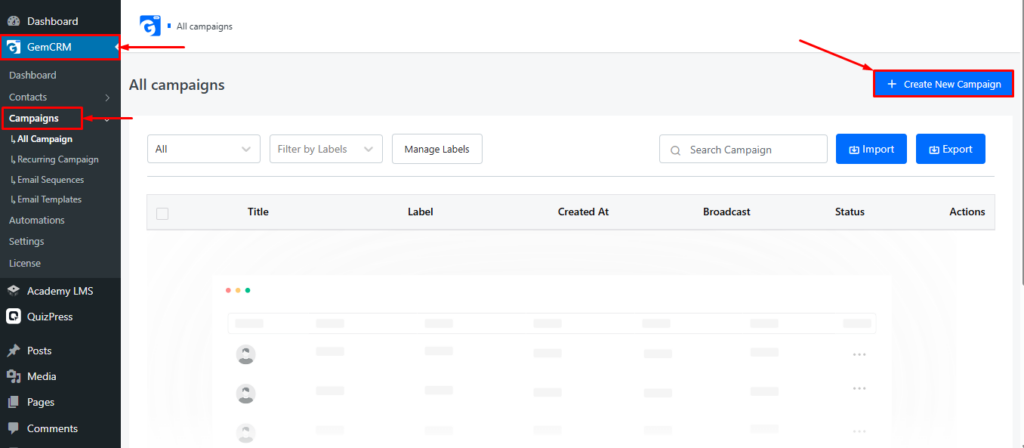
To create a campaign, go to the Campaigns section in the GemCRM dashboard. Then click the Create New Campaign button located at the top-right of the Campaign page.
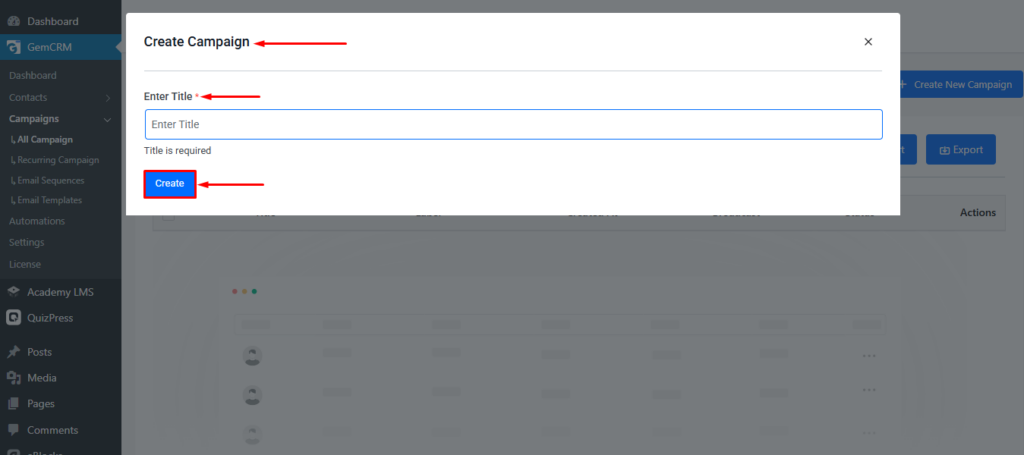
After clicking Create New Campaign, a Create Campaign pop-up will appear. Enter your desired campaign name, then click the Create button to create the campaign.
Compose Your Campaign
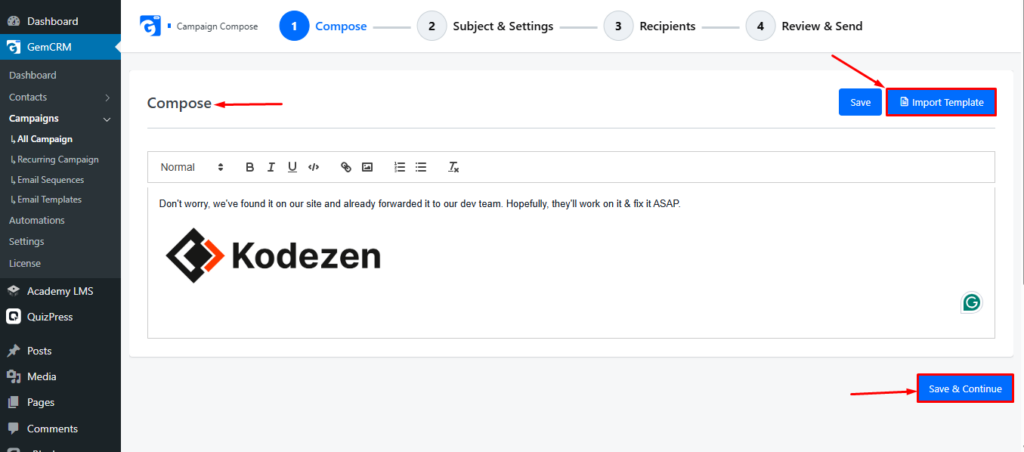
After completing these steps, you’ll be redirected to the Compose page of the campaign. Here, you can add your email content, including text, images, or any other elements you need. If you’ve created an email template earlier, you can import it using the Import Template option in the top-right corner of the Compose page.
Once you’re done, click Save & Continue at the bottom of the page to proceed to the next step.
Subject & Settings
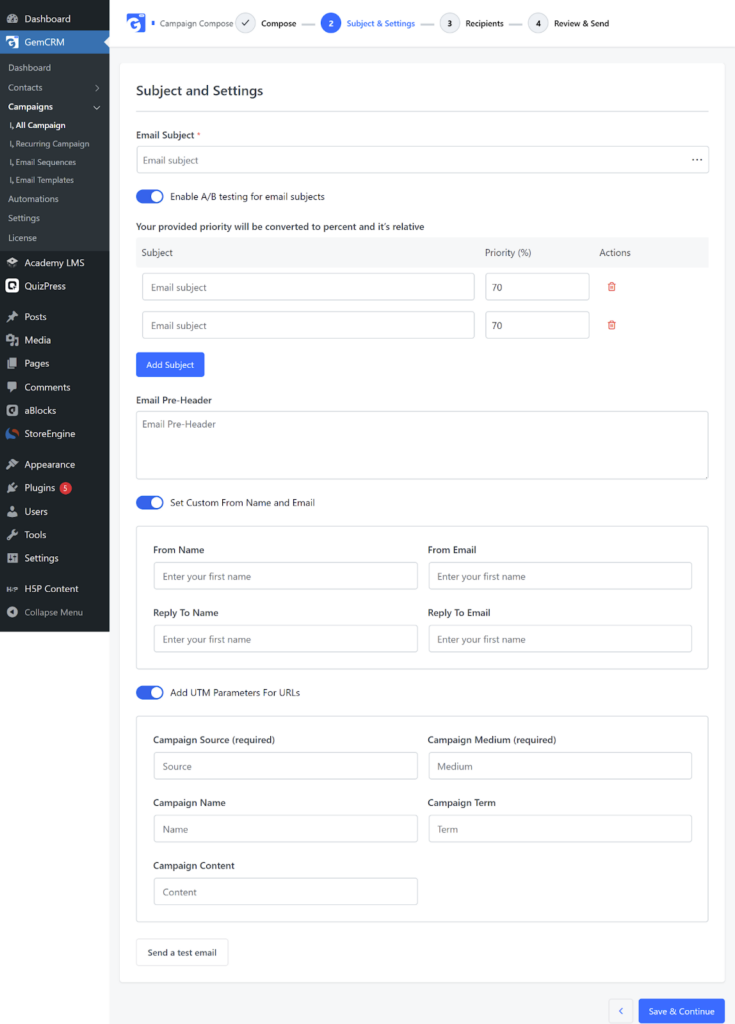
After clicking “Save & Continue”, you’ll reach the Subject & Settings page. Here’s a quick guide to configure your email professionally:
- Email Subject: Set your email’s subject line.
- Enable A/B Testing: You can send one email subject to a portion of your users (e.g., 10%) and a different subject to another portion (e.g., another 10%). This setting allows you to configure multiple email subjects and send them to the user.
Please note: The system automatically distributes emails dynamically to all users.
- Pre-header: Add a short text that appears in inbox previews. Helps grab attention before the email is opened.
- Custom From Name & Email:
- From Name / From Email: Who the email appears from.
- Reply-To Name / Reply-To Email: Where replies are sent and under what name.
- From Name / From Email: Who the email appears from.
- Add UTM Parameters: Track link clicks in your email via Google Analytics by adding UTM tags automatically.
- Send Test Email: Test your email campaigns instantly with our send test email feature.
After completing these steps, proceed to the next step by clicking the “Save & Continue” button at the bottom right of this page.
Select Recipients
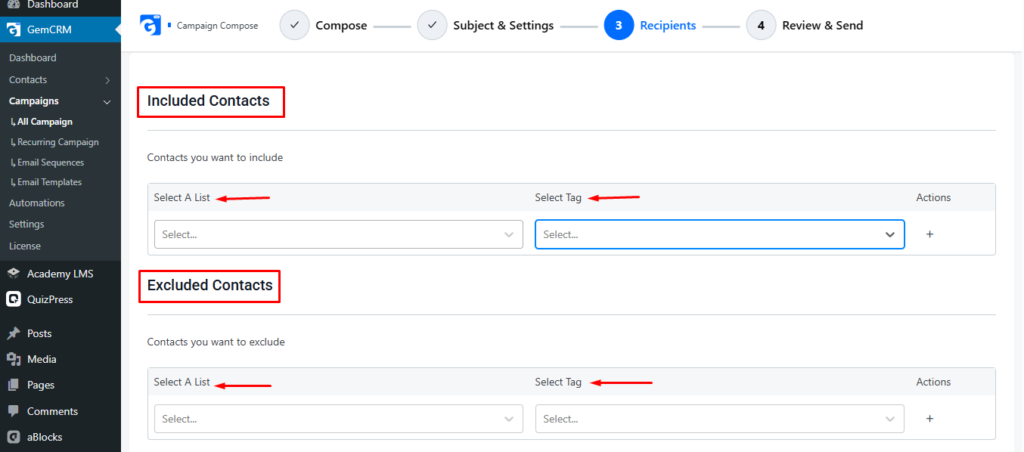
After clicking “Save & Continue”, you’ll be redirected to the Recipients page. On this page, you’ll find two options:
- Included Contacts: Select how many contacts you want to include in this campaign.
- Excluded Contact: Select how many contacts you want to exclude from this campaign.
After completing these steps, proceed to the next step by clicking the “Save & Continue” button at the bottom right of this page.
Review & Send
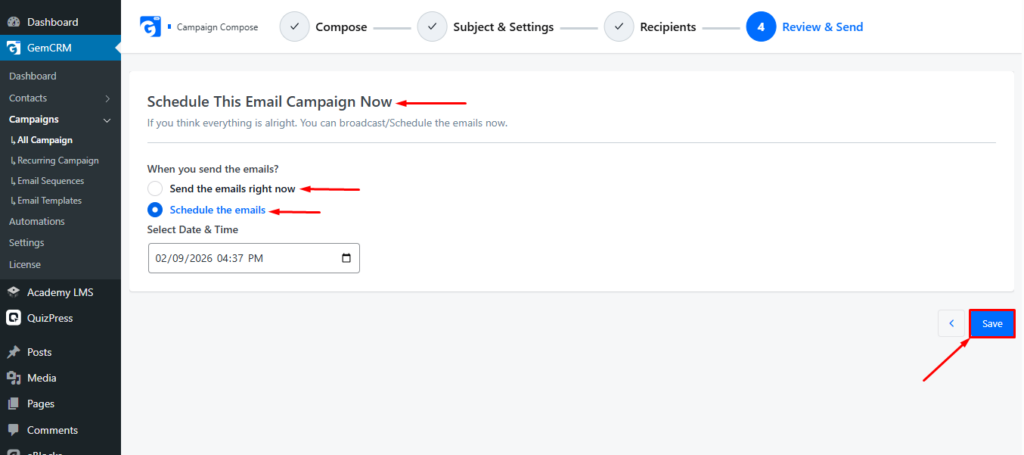
After clicking “Save & Continue”, you’ll be redirected to the Review & Send page. On this page, you’ll find two options:
- Send the email now: Select this option to send the email immediately.
- Schedule the email: Select this option to send the email on a specific date and time based on your configuration.
After completing these steps, finalize your configuration by clicking the Save button at the bottom right of this page.
By following this guide, you can successfully create, configure, and run your first campaign in GemCRM. From preparing subscribed contacts to reviewing and sending your campaign, each step helps ensure your message reaches the right audience at the right time.
Once your campaign is live, you can track performance, optimize future campaigns, and take full advantage of GemCRM’s powerful contact and campaign management features to grow your engagement and results.