


GemCRM provides a Contact Custom Field feature that allows you to create and manage custom fields for your contacts based on your specific needs. You can easily define a custom field, add it to your contacts, and use it to store additional information that is important for your business processes.
This feature is flexible and can be tailored to suit different types of contact data, such as text, number, date, dropdown options, or checkboxes. Once created, the custom fields will appear in your contact profiles, making it easy to input, track, and manage your data efficiently.
Accessing the Contact Custom Field Settings
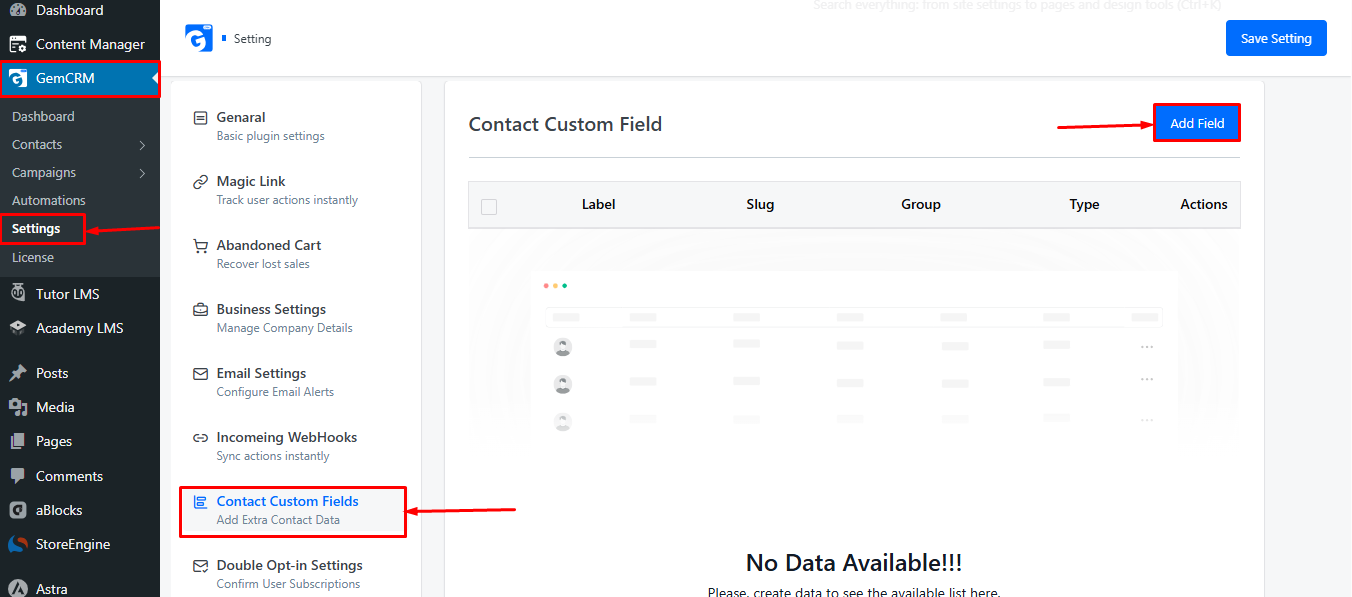
To access the Contact Custom Field settings, go to GemCRM → Settings → Contact Custom Field. To create a new field, simply click on the Add Field button.
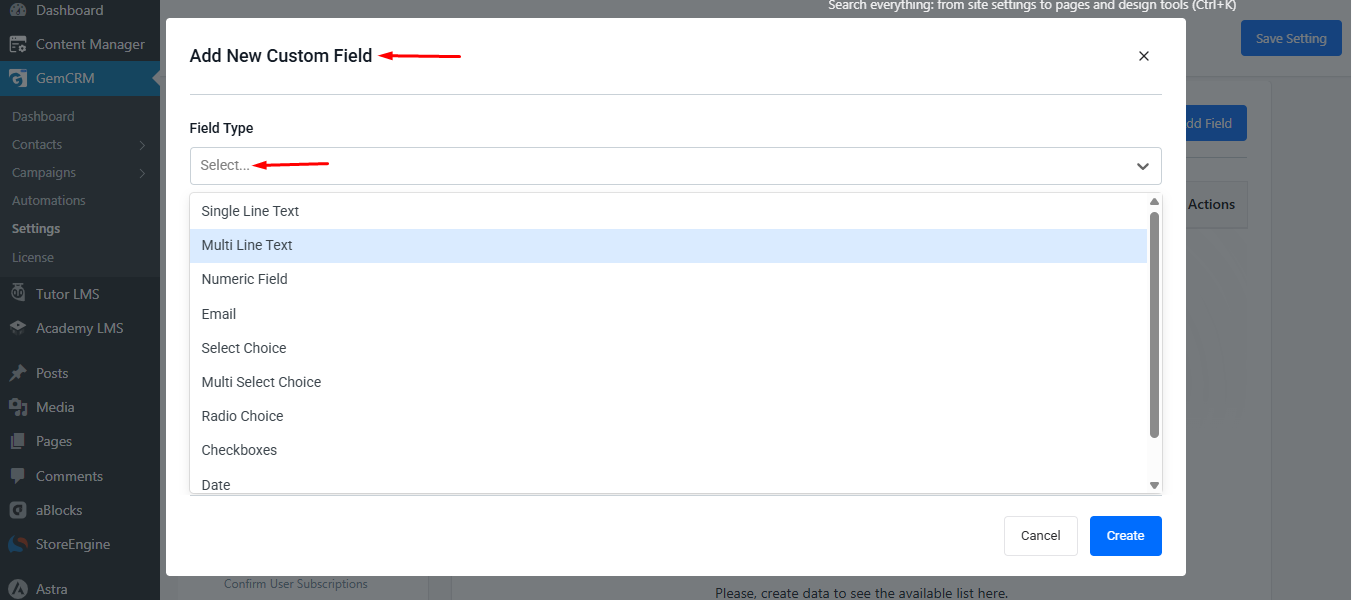
From there, you can define the Field Type. When you click on the field type option, you will see various choices such as: Single Line Text, Multi-line Text, Email, Date, Checkbox, and more. Select the type that best fits the information you want to collect for your contacts.
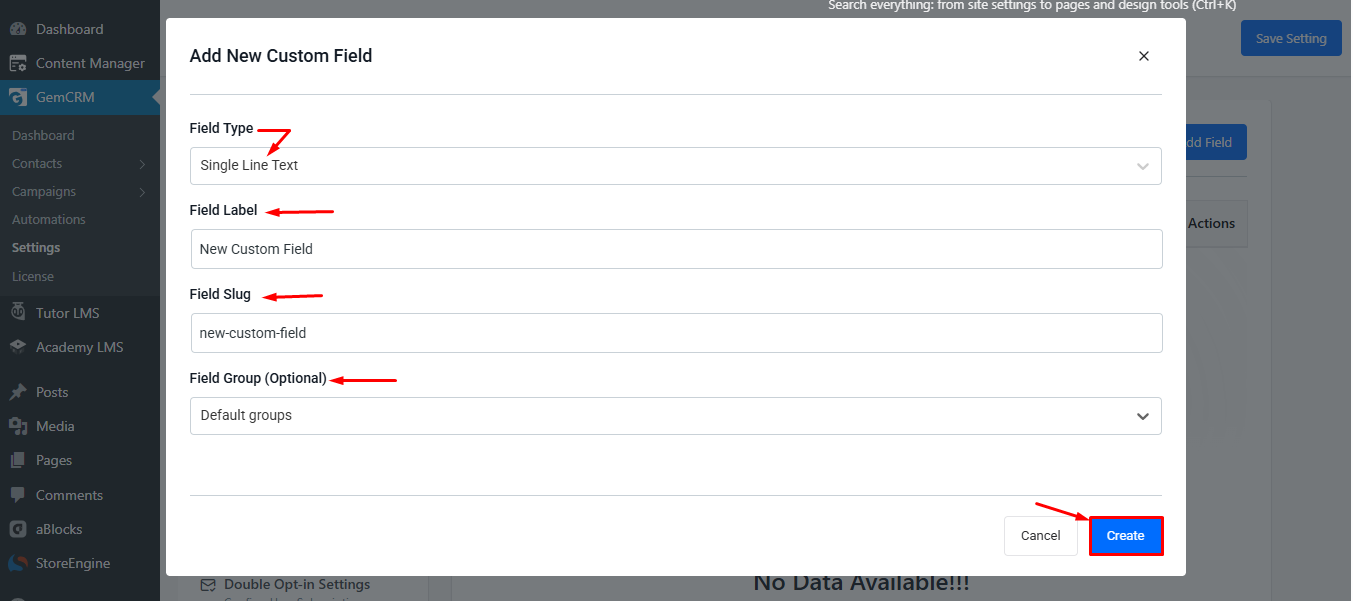
Please note: After selecting the field type according to your needs, make sure to fill in all the required details and click the “Create” button to successfully create the custom field.
Adding Custom Fields to Contacts
To add a custom-created field to a contact, navigate to the GemCRM → Contact section. You can then add the custom field to an existing contact or a new contact as needed.
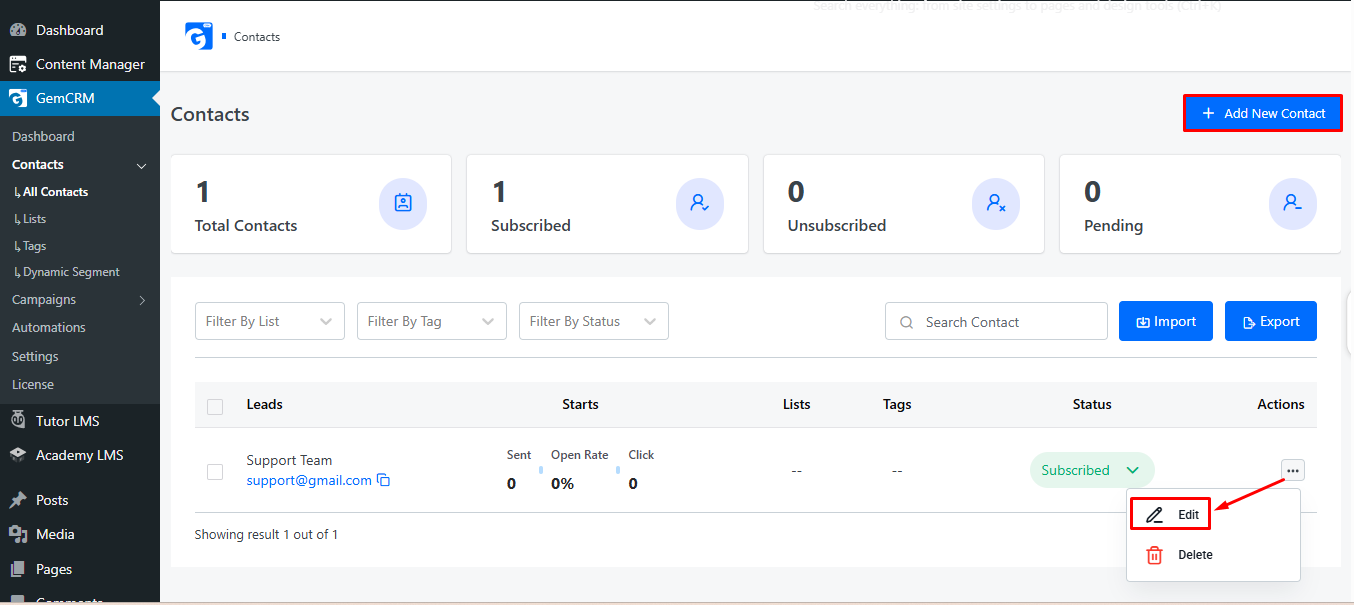
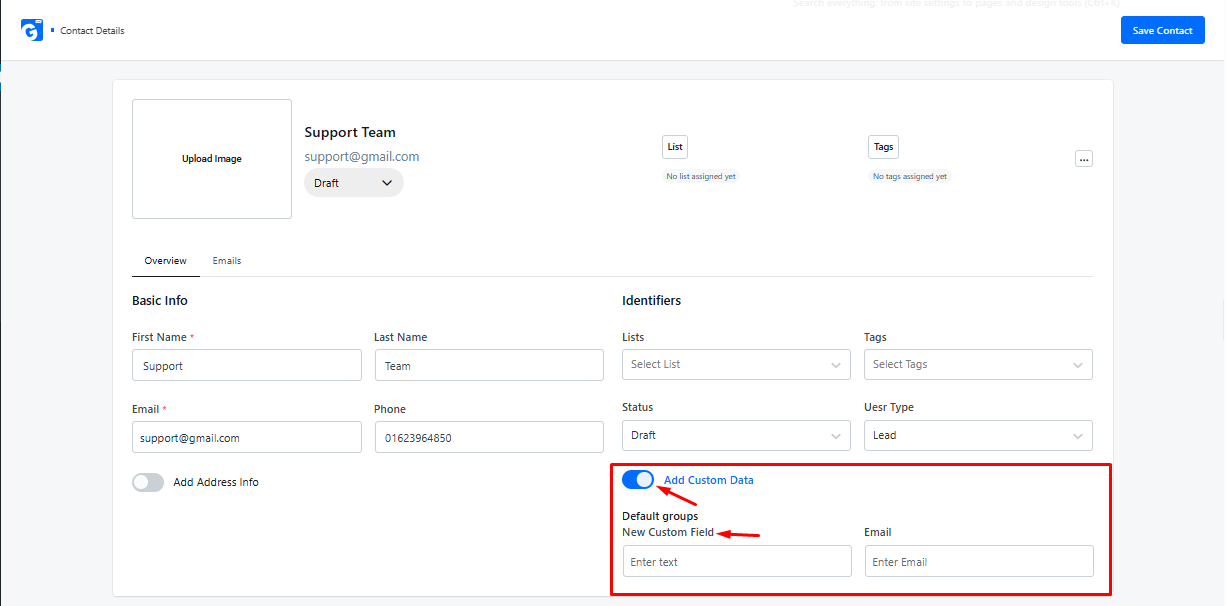
In the Contact section, when you enable the “Add Custom Data” option, you will be able to see all the custom contact fields you have created.
The Contact Custom Field feature in GemCRM lets you capture and manage additional information for your contacts. By creating and adding custom fields, you can keep your contact data organized and tailored to your business needs. Enabling “Add Custom Data” makes all custom fields visible in contact profiles, simplifying data management and improving workflow.