


The General Settings in GemCRM allow you to configure the core aspects of your CRM system to align with your business needs. This section provides the foundation for efficiently managing your account, campaigns, notifications, and overall user experience.
Accessing GemCRM General Settings
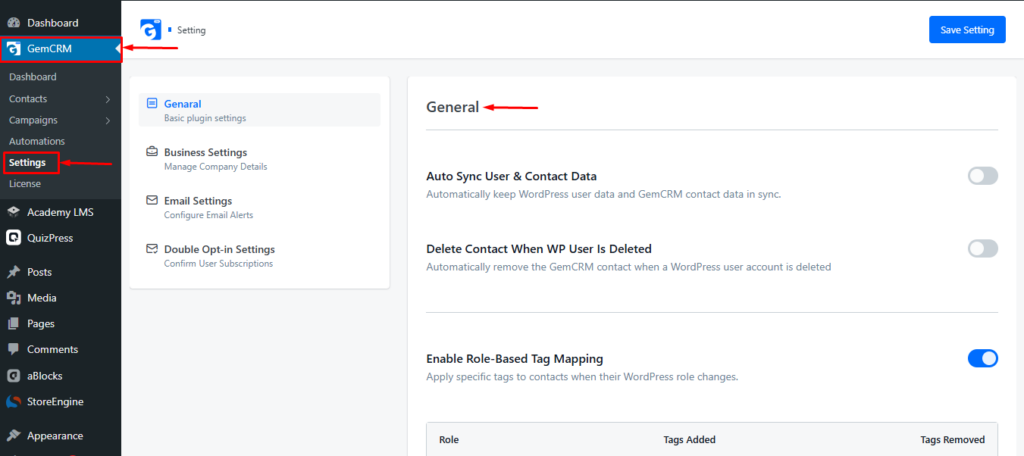
To configure your CRM, go to GemCRM Settings from the main menu on the left side of your dashboard.
Key Options in General Settings
- Auto Sync User & Contact Data: Automatically keeps your WordPress users and GemCRM contacts in sync, ensuring your data is always up-to-date.
- Delete Contact When WP User Is Deleted: Automatically removes the associated GemCRM contact if a WordPress user is deleted.
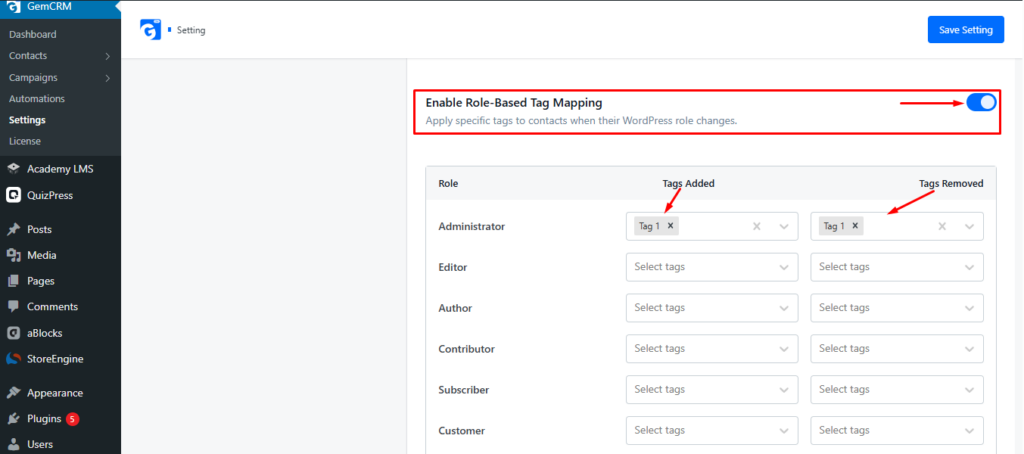
- Enable Role-Based Tag Mapping: Automatically add or remove tags when a user’s role changes. Example: Upgrading an Editor to Administrator will apply the tags configured for that role.
- Comment Form Subscription: Allow visitors to subscribe to your email list directly from WordPress comment forms.
- Subscription Checkbox Label: Customize the text of the subscription checkbox on forms to match your brand or messaging.
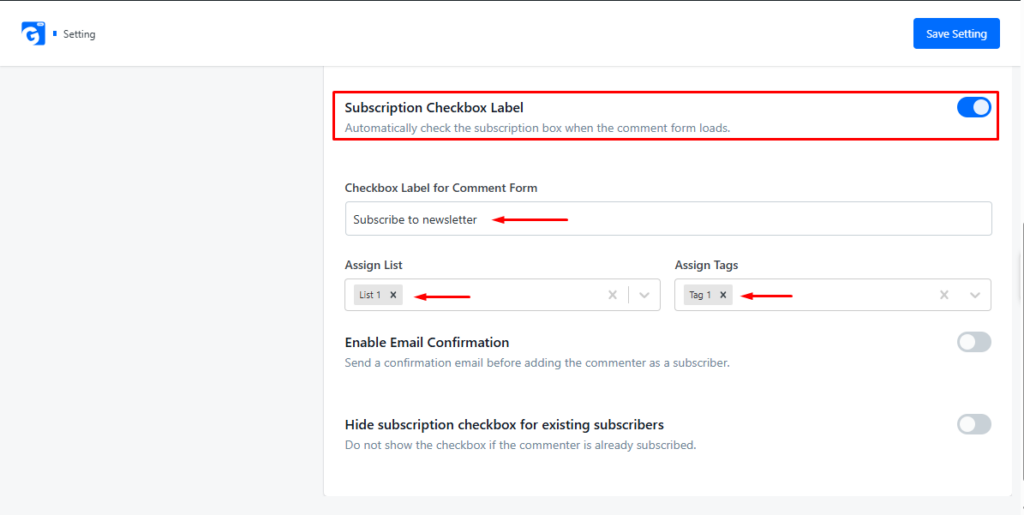
- Enable Email Confirmation: Require new subscribers to confirm their email before being added to your list, ensuring higher-quality and verified contacts.
- Hide Subscription Checkbox for Existing Subscribers: Prevents existing subscribers from seeing the subscription checkbox, reducing confusion and avoiding duplicate subscriptions.
Properly configuring the General Settings in GemCRM ensures your CRM operates smoothly and efficiently. By syncing users and contacts, managing role-based tags, customizing subscription options, and enabling email confirmations, you can maintain accurate data, streamline workflows, and deliver a consistent experience to your subscribers.
These settings form the backbone of your CRM, allowing you to optimize campaign performance, improve user management, and ensure that your email communications are professional, targeted, and effective.