


Field mapping tells GemCRM which part of the data your tool sends belongs in which contact field. Use it when the sending tool does not call its fields email, first_name and so on.
When you need it
{"data":{"email":"…"}}.With no mapping rows, GemCRM writes incoming fields as they are. Existing webhooks keep working that way until you add rows.
Step 1: Open the webhook
Go to GemCRM → Settings → Incoming WebHooks. In the Actions column click …, then Edit. Scroll down to Field Mapping.
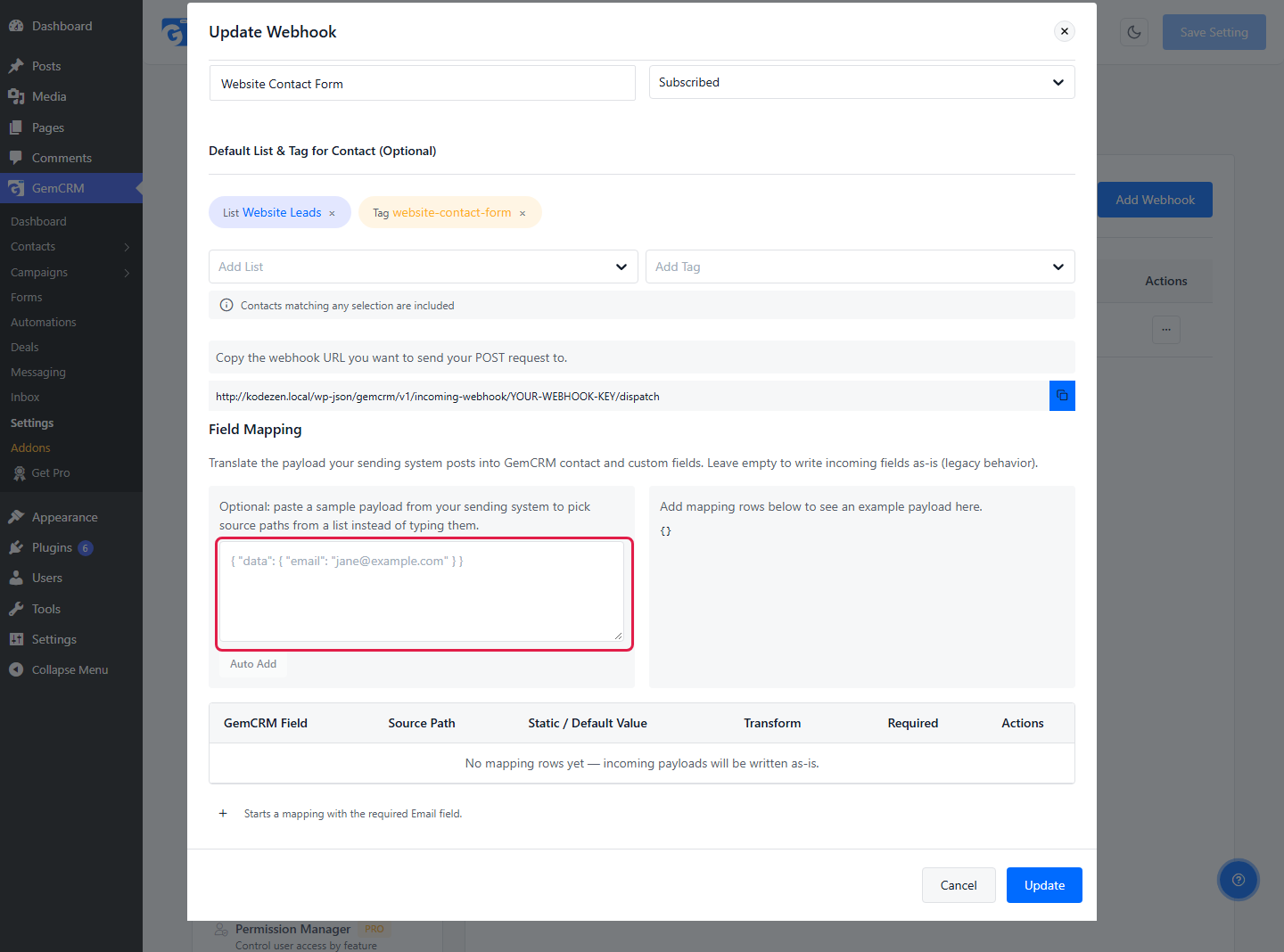
Field Mapping is empty at first.
Step 2: Paste a sample of your data
Copy one real example of the data your tool sends, in JSON format, and paste it in the sample box. GemCRM lists every field it finds under Detected fields. Nested fields show with dots, for example data.email.
This step is optional, but it saves typing and avoids mistakes in field names.
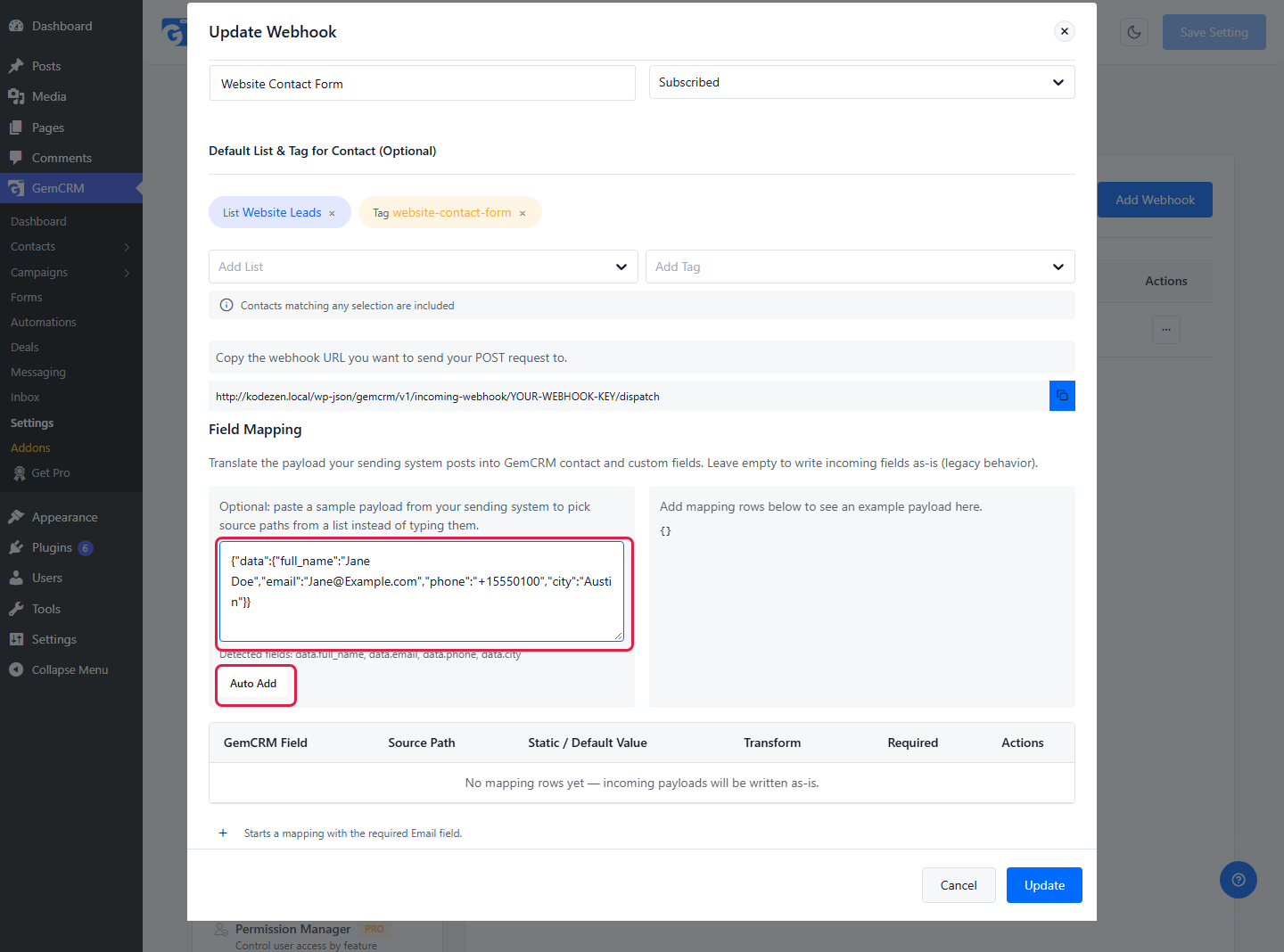
Detected fields: data.full_name, data.email, data.phone, data.city.
Step 3: Click Auto Add
GemCRM guesses matching rows from the field names. In this example it adds First Name, Last Name, Email and Phone. The full name is split into first and last name for you.
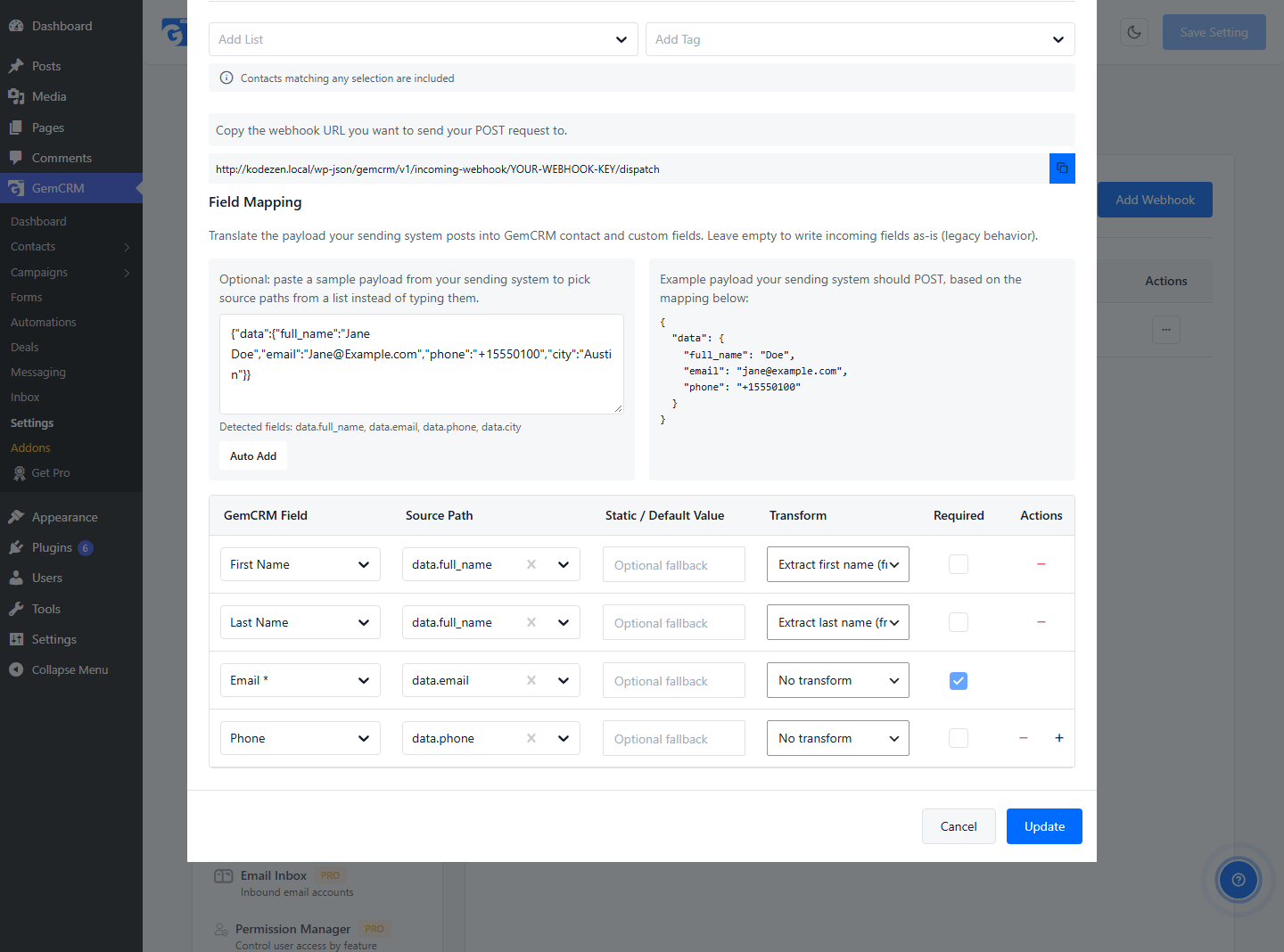
Auto Add fills the table. You can still change every row.
Step 4: Check each row
|
Column |
What it does |
|
GemCRM Field |
Where the value is saved: a contact field or one of your custom fields. |
|
Source Path |
Where to find the value in your data. Use dots for nested data, such as |
|
Static / Default Value |
A fallback used when the source is empty, or a fixed value if you leave the source path blank. |
|
Transform |
Cleans the value before saving. See the list below. |
|
Required |
If the value is missing, GemCRM rejects the request and creates no contact. Email is always required. |
Transform options:
Email is saved exactly as it arrives. If senders type [email protected], the contact keeps the capital letters. Pick Lowercase on the Email row to avoid that.
Step 5: Add a row for anything missing
Auto Add only knows common names. For other fields, click the + button at the end of the last row. Choose the GemCRM Field (here, City), then type or pick the Source Path (data.city).
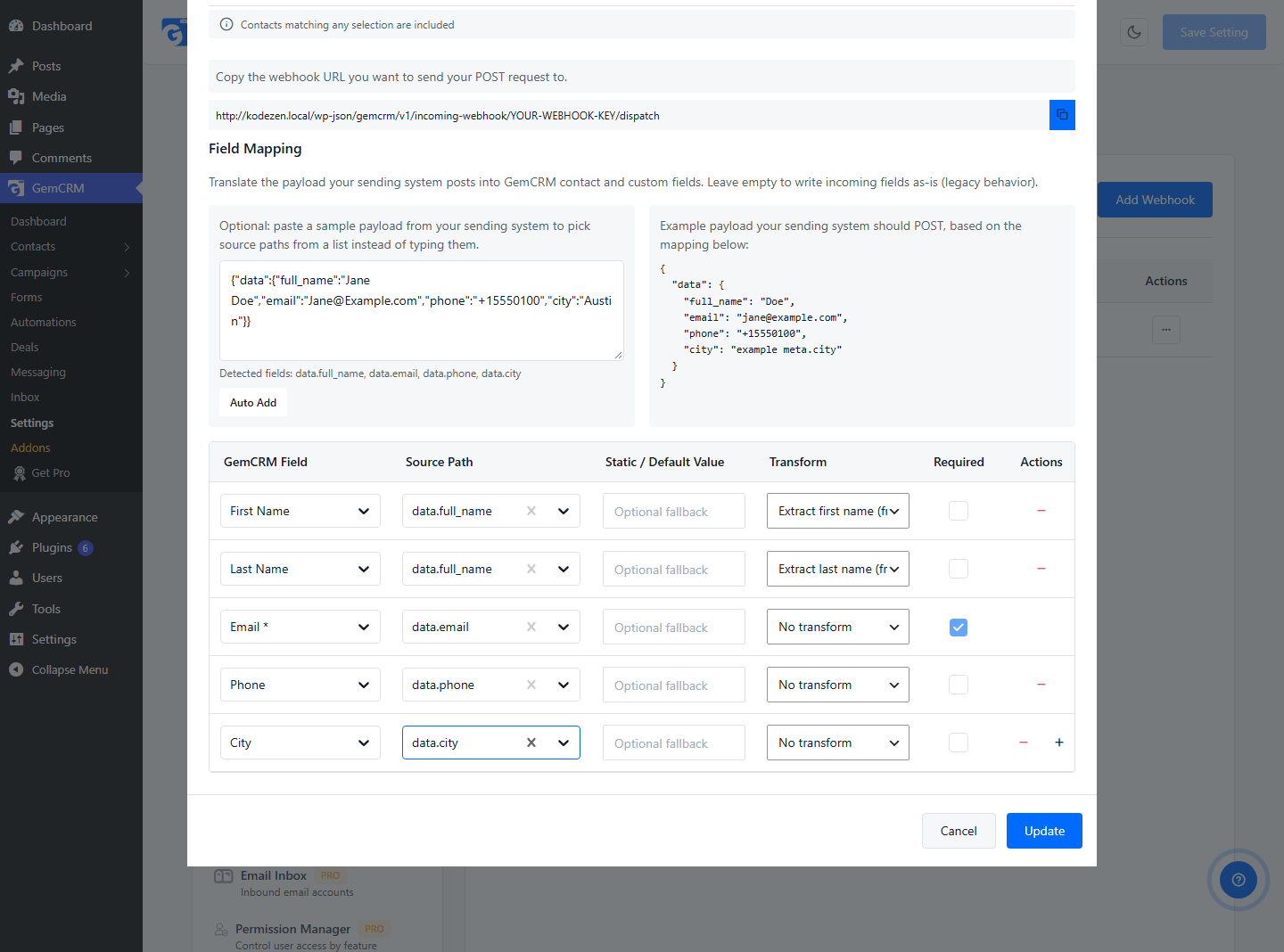
A City row added by hand.
You can map these contact fields: First Name, Last Name, Email, Phone, Date of Birth, Type, Status, Photo (Attachment ID), Address Line 1, Address Line 2, City, State, Zip and Country. Custom fields appear in the same list under Custom Fields. Create a custom field first in Settings → Contact Custom Fields.
Step 6: Save
Click Update. You see “Webhook updated successfully.”
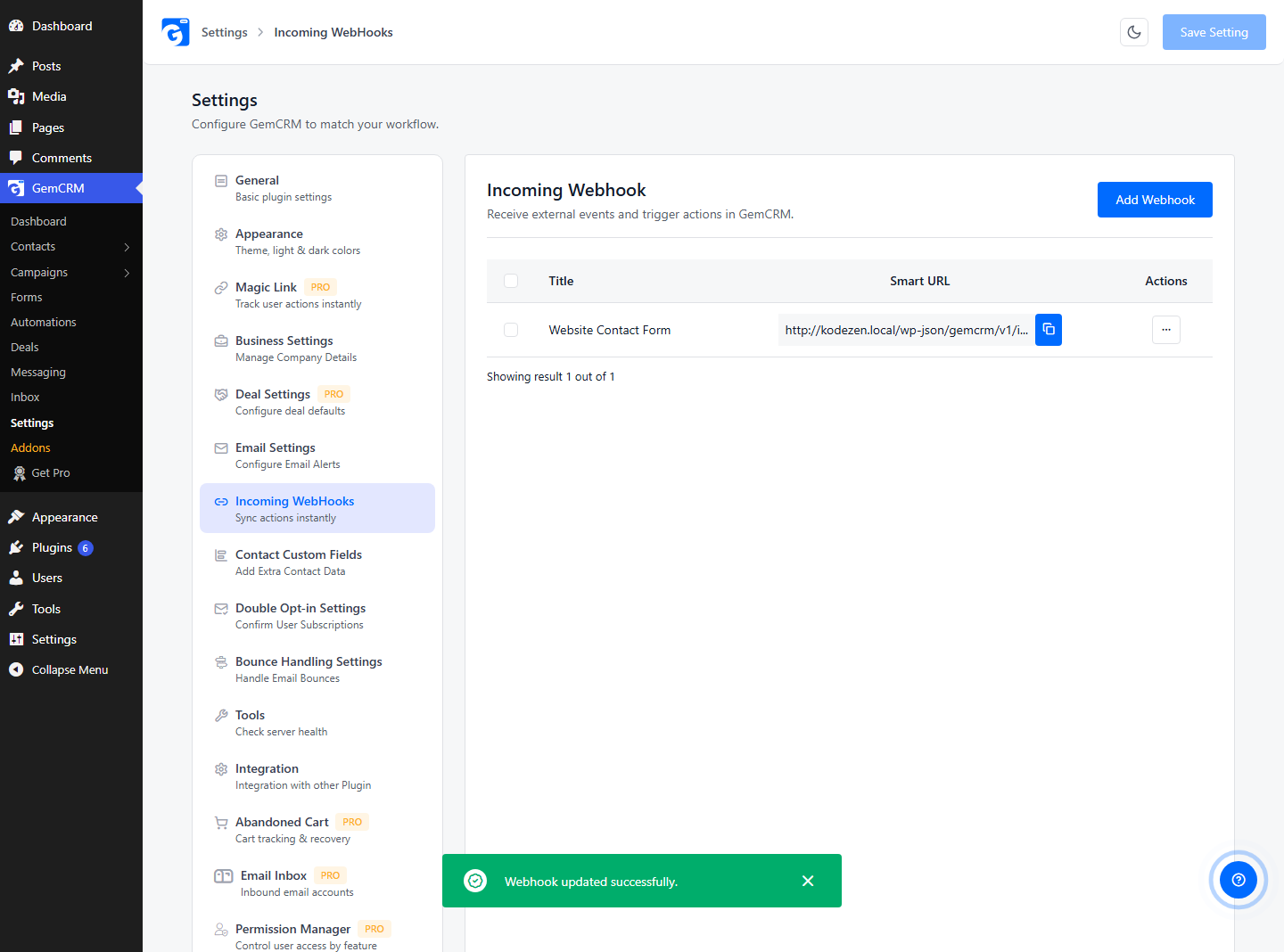
Saved. New requests use the mapping straight away.
To remove a row, click the − button on that row. The Email row cannot be removed, but you can change its source path and transform.