


GemCRM allows you to send a custom, one-off email directly to any individual contact from their Contact Details page.
Step 1: Configure Email Settings (One-Time Setup)
Before sending emails, make sure your sender details are properly configured:
- Go to GemCRM → Settings → Email Settings.
- Under Sender From Settings, fill in:
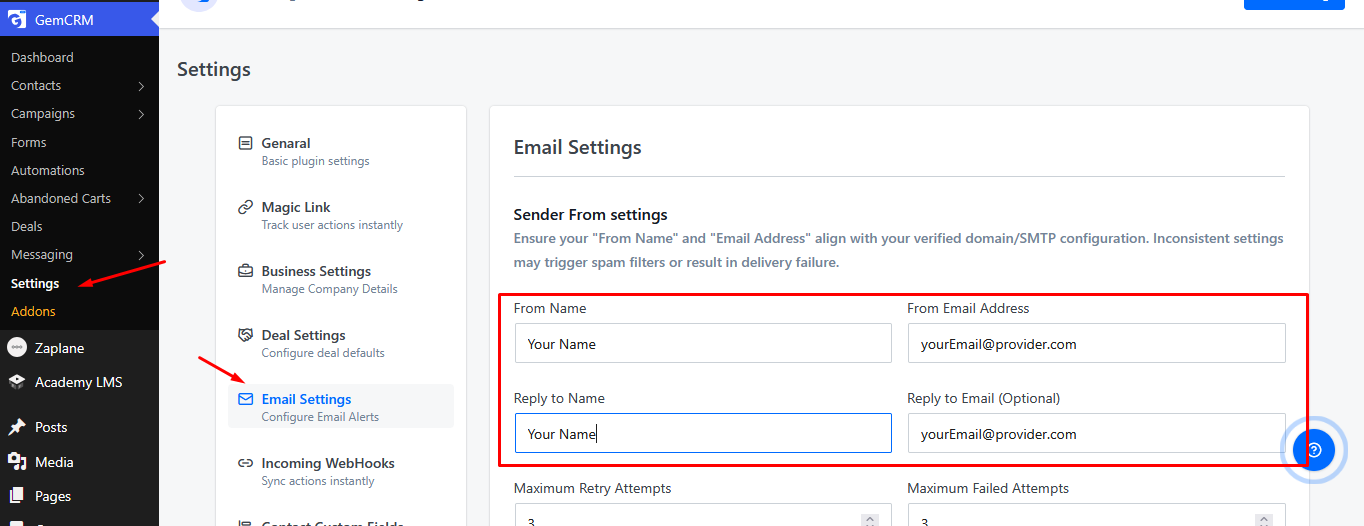
- From Name – the name that will appear as the sender.
- From Email Address – your verified sending email address.
- Reply to Name – the name shown when a recipient replies.
- Reply to Email Address – the email address replies will be sent to.
⚠️ Note: Ensure your “From Name” and “Email Address” align with your verified domin/SMTP configuration. Inconsistent settings may trigger spam filters or cause delivery failures.
Step 2: Open a Contact’s Details
- Go to GemCRM → Contacts → All Contacts.
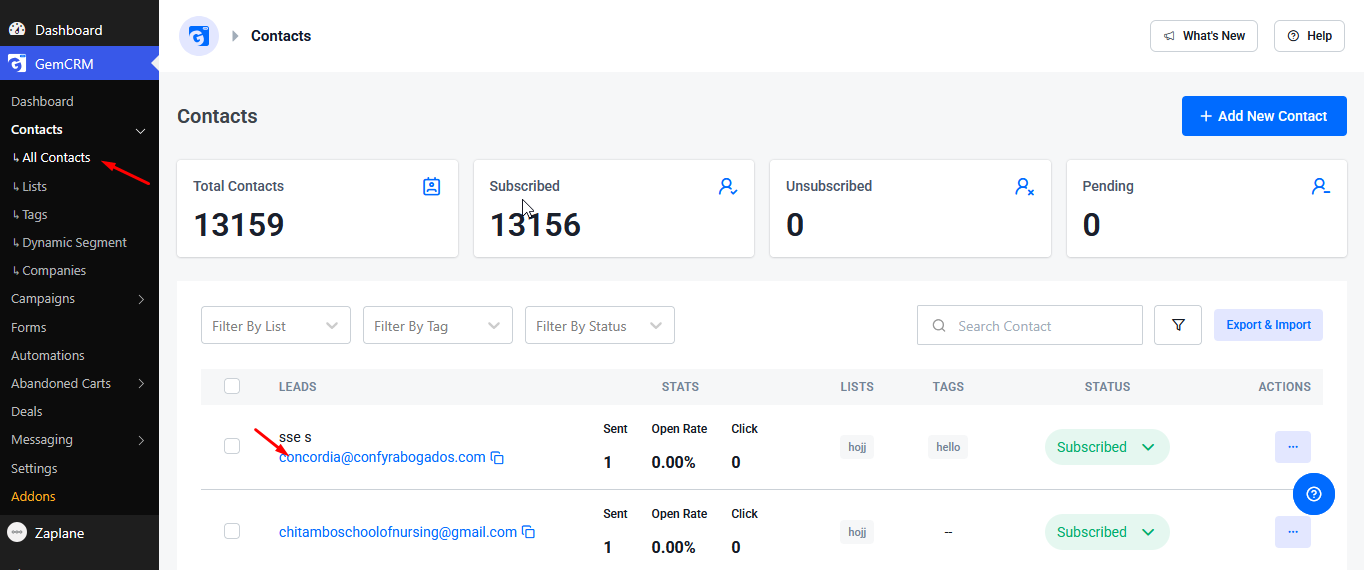
- Find the subscriber you want to email from the contacts list.
- Click on the contact’s name/row to open their Contact Details page.
Step 3: Send the Email
- On the Contact Details page, click the Send Email button (top-right corner, next to the contact’s name and status).
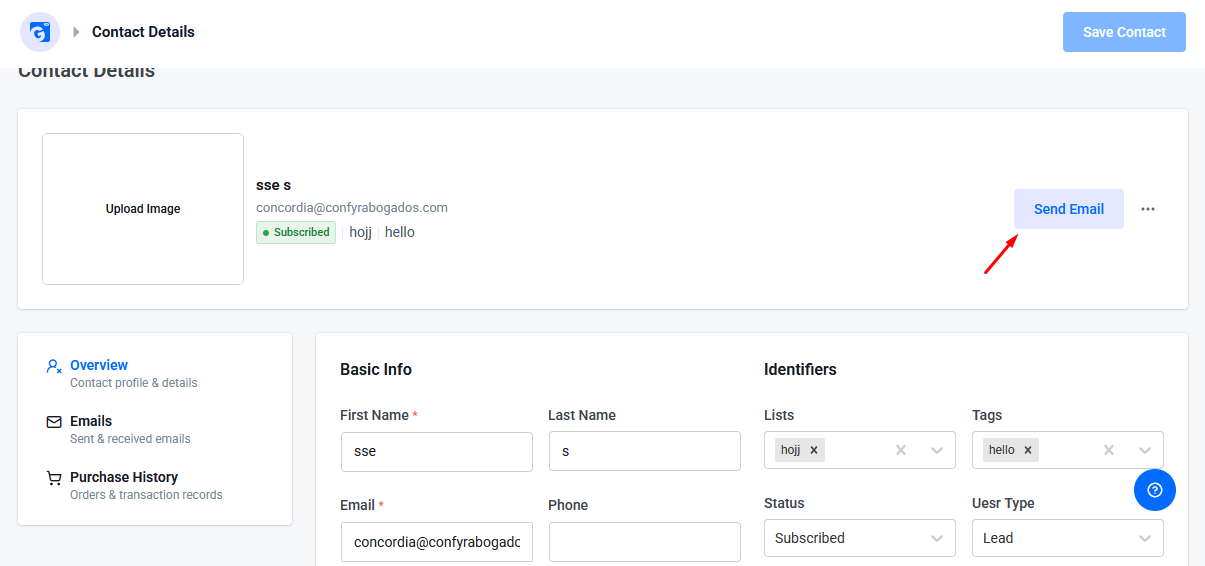
- A Send Custom Mail modal will open. Fill in:
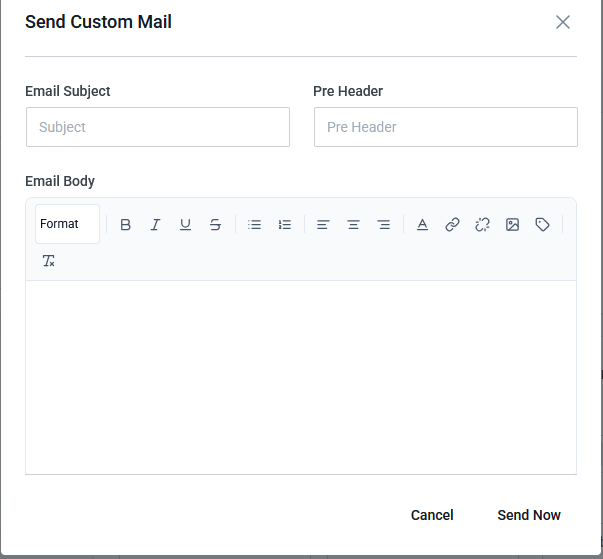
- Email Subject – the subject line of your email.
- Pre Header – short preview text shown after the subject line in most inboxes.
- Email Body – compose your message using the rich text editor. You can format text (bold, italic, underline, strikethrough), add lists, alignment, links, images, and merge tags.
- Once your email is ready, click Send Now to deliver it instantly to the subscriber.
You can click Cancel at any time to discard the email without sending.
Note: This feature is useful for personalized, one-to-one outreach — such as following up with a lead, answering a support query, or sending a targeted offer — without needing to create a full campaign.