Campaign Actions add or remove tags and lists on contacts, based on how they used your email. For example, tag everyone who opened the email, or everyone who clicked one link. Only subscribed contacts are changed. Unsubscribed and bounced contacts are skipped.
Open the campaign report
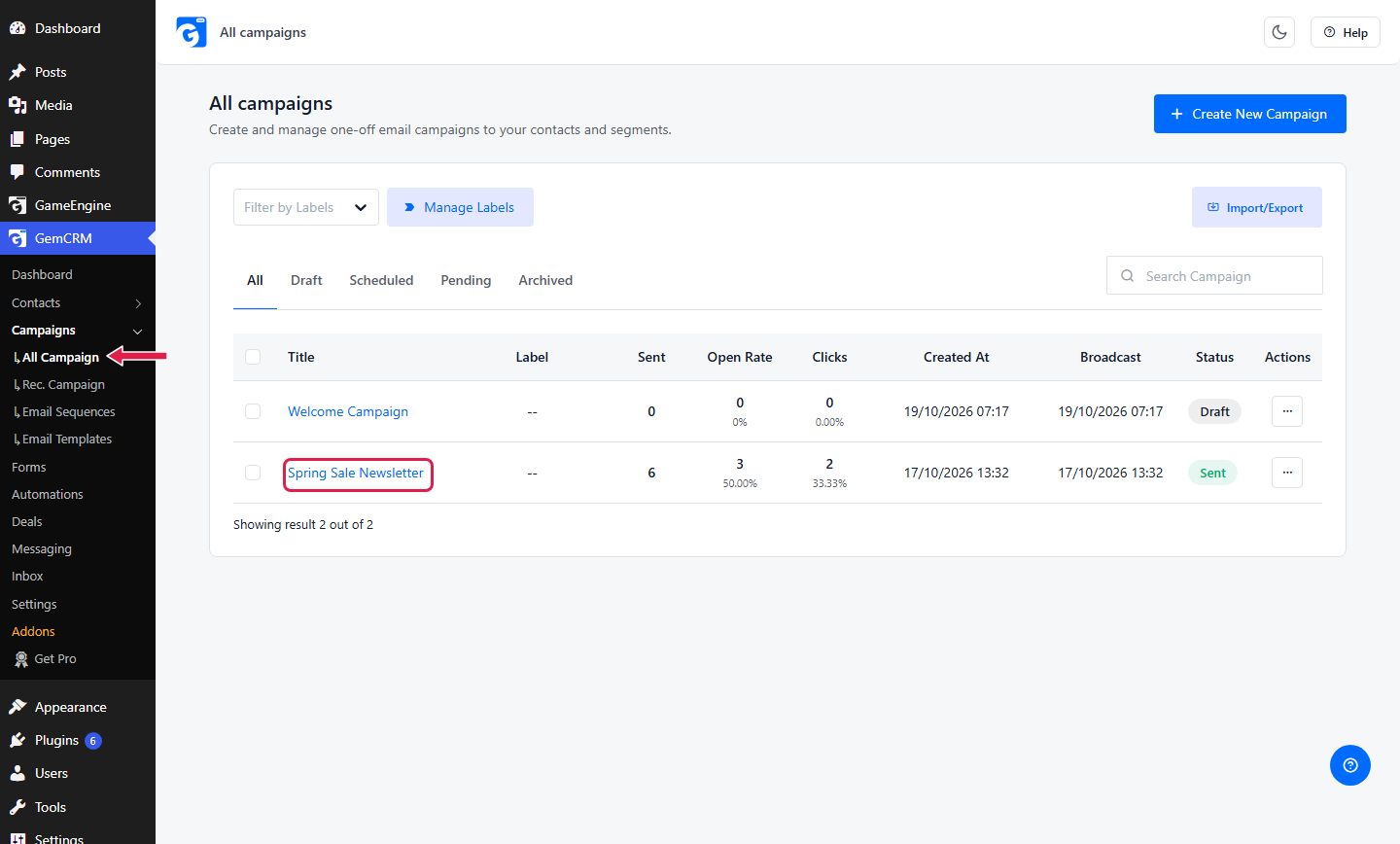
Go to GemCRM → Campaigns → All Campaign. Click the campaign name.
Open the Actions tab
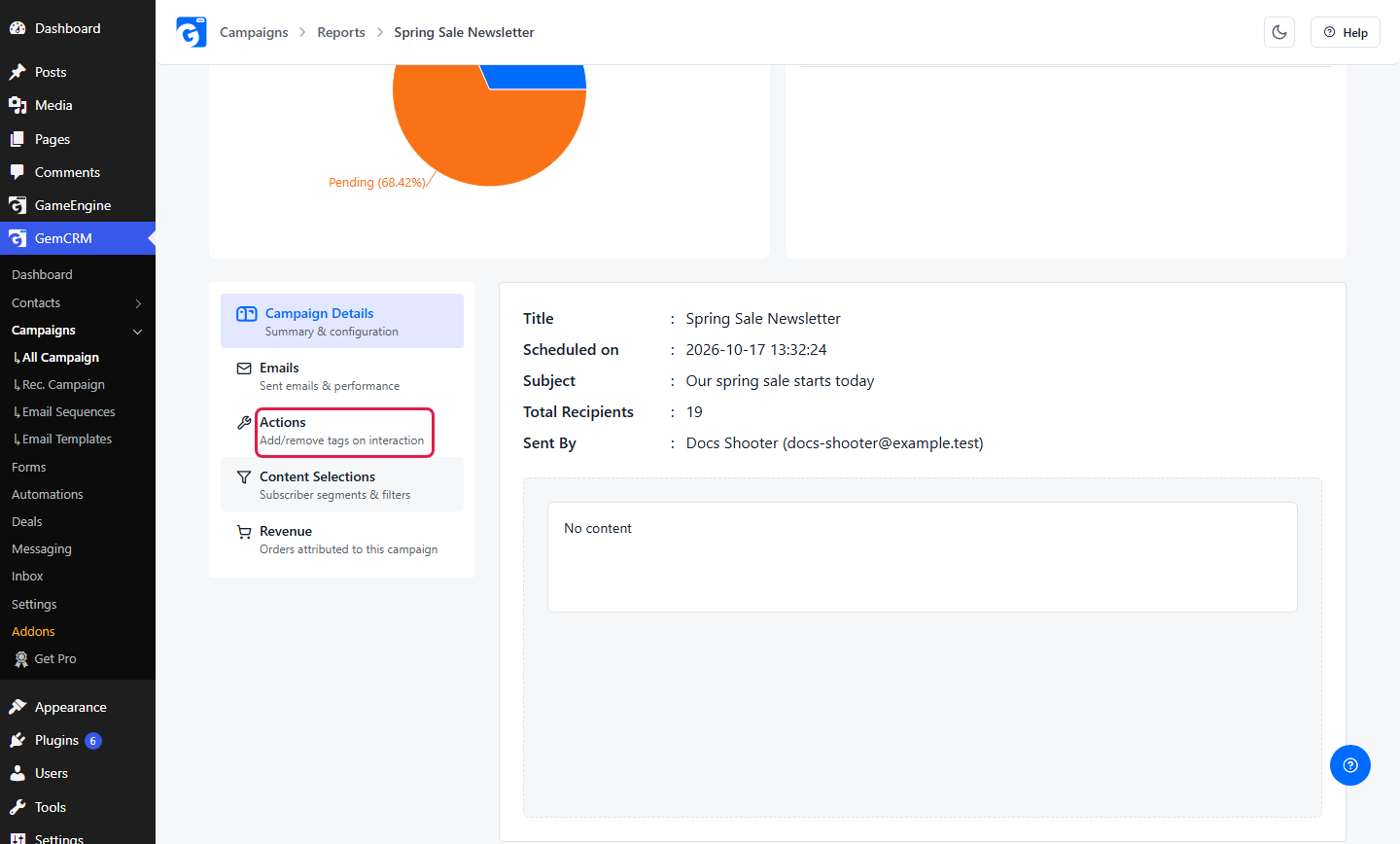
On the report page, scroll down. Click Actions in the tab list.
Know the rule card
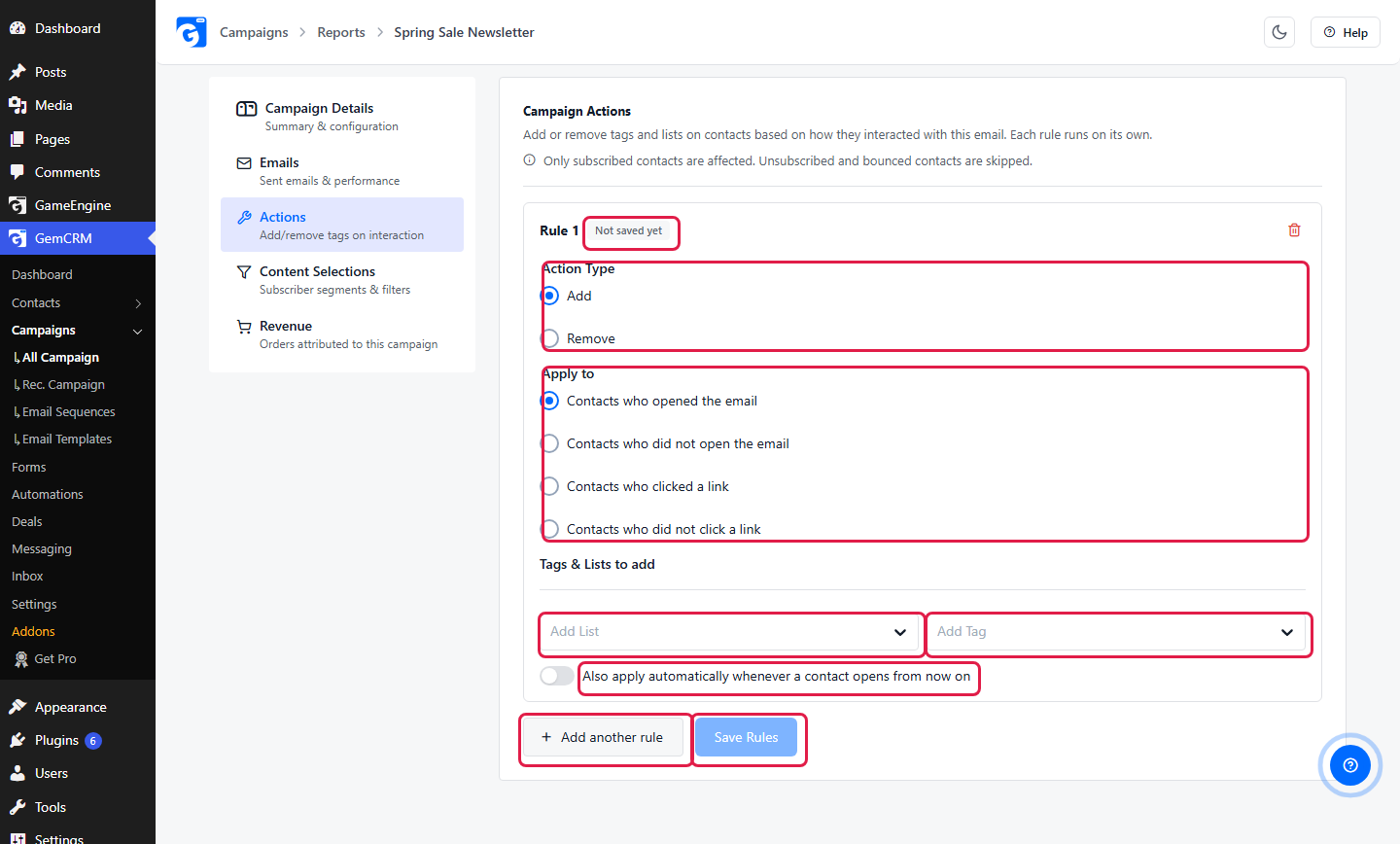
Each rule is one card. A campaign can have up to 10 rules. Each rule runs on its own.
|
Apply to |
Who gets the rule |
|
Contacts who opened the email |
Contacts who opened it. This is the default. |
|
Contacts who did not open the email |
Contacts who received it but did not open it. |
|
Contacts who clicked a link |
Contacts who clicked any link, or only the links you pick. |
|
Contacts who did not click a link |
Contacts who did not click. |
Tag contacts who opened the email
Keep Add and Contacts who opened the email. Pick a tag in Add Tag. Click Save Rules.
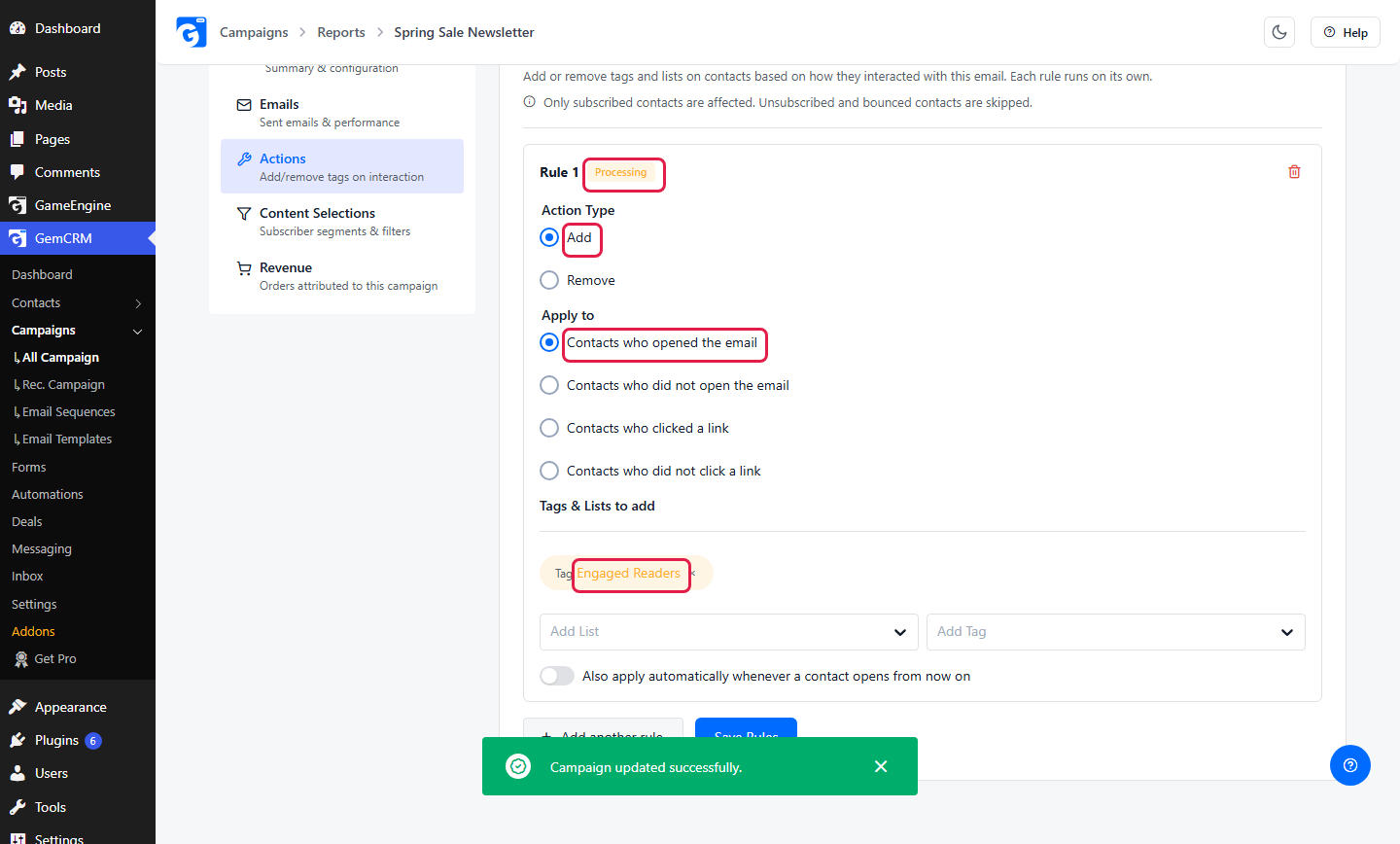
A rule needs at least one tag or list. A rule with none is not saved.
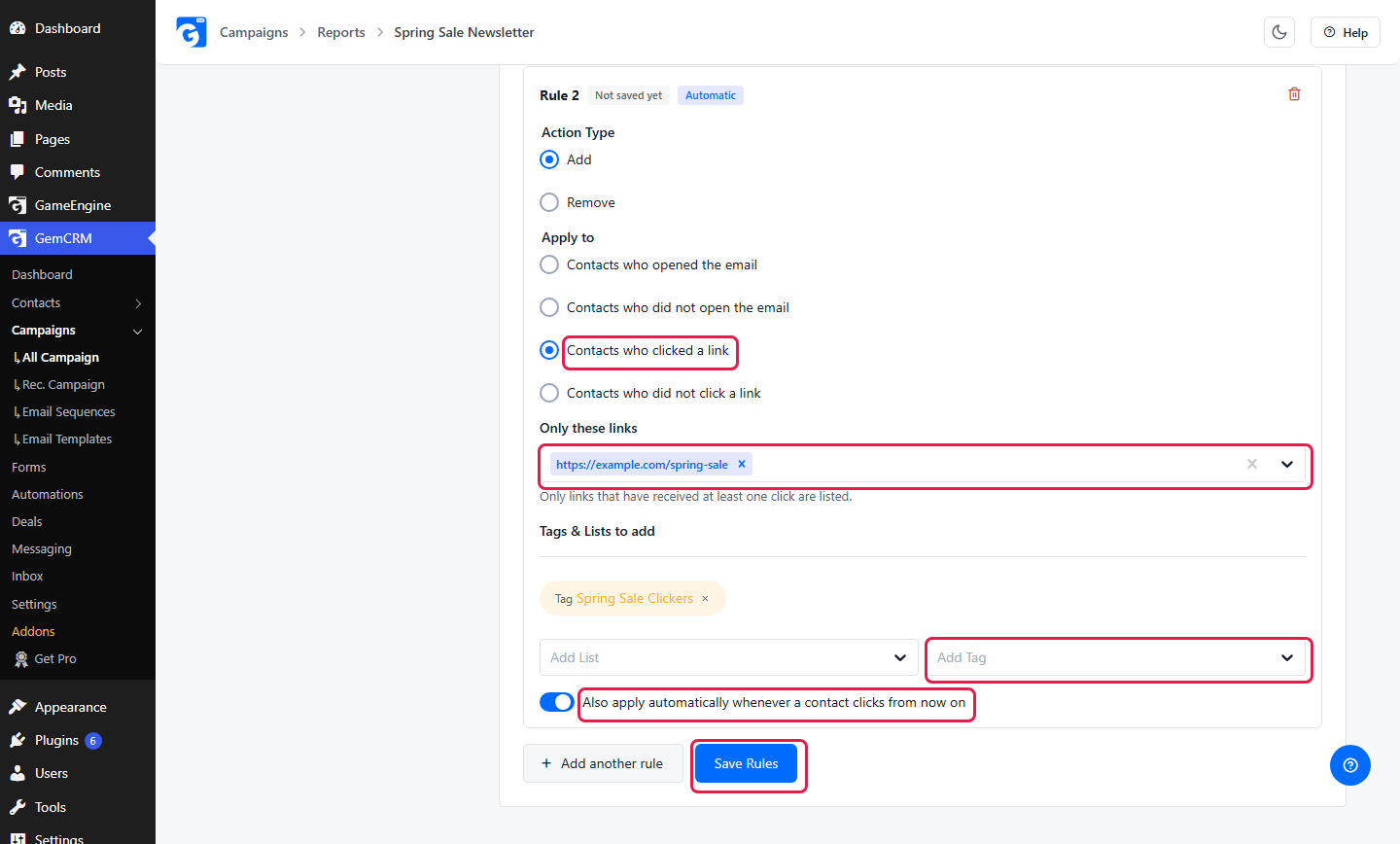
Tag contacts who clicked one link
Click Add another rule. Choose Contacts who clicked a link. In Only these links, pick the link. Leave it empty to use all links. Pick a tag. Turn on the switch if you want new clicks tagged too. Click Save Rules.
Read the rule status
After you save, each rule shows a status. A rule with the switch on also shows an Automatic badge.
|
Status |
Meaning |
|
Not saved yet |
You have not clicked Save Rules. |
|
Runs when the campaign completes |
Saved. It waits until the campaign finishes sending. |
|
Processing |
The campaign is done and the rule is running. |
|
Applied to past activity |
The rule has finished for everything that already happened. |
If you change a rule’s action, filter, tags, lists or links, it runs again from the start.
Check the result
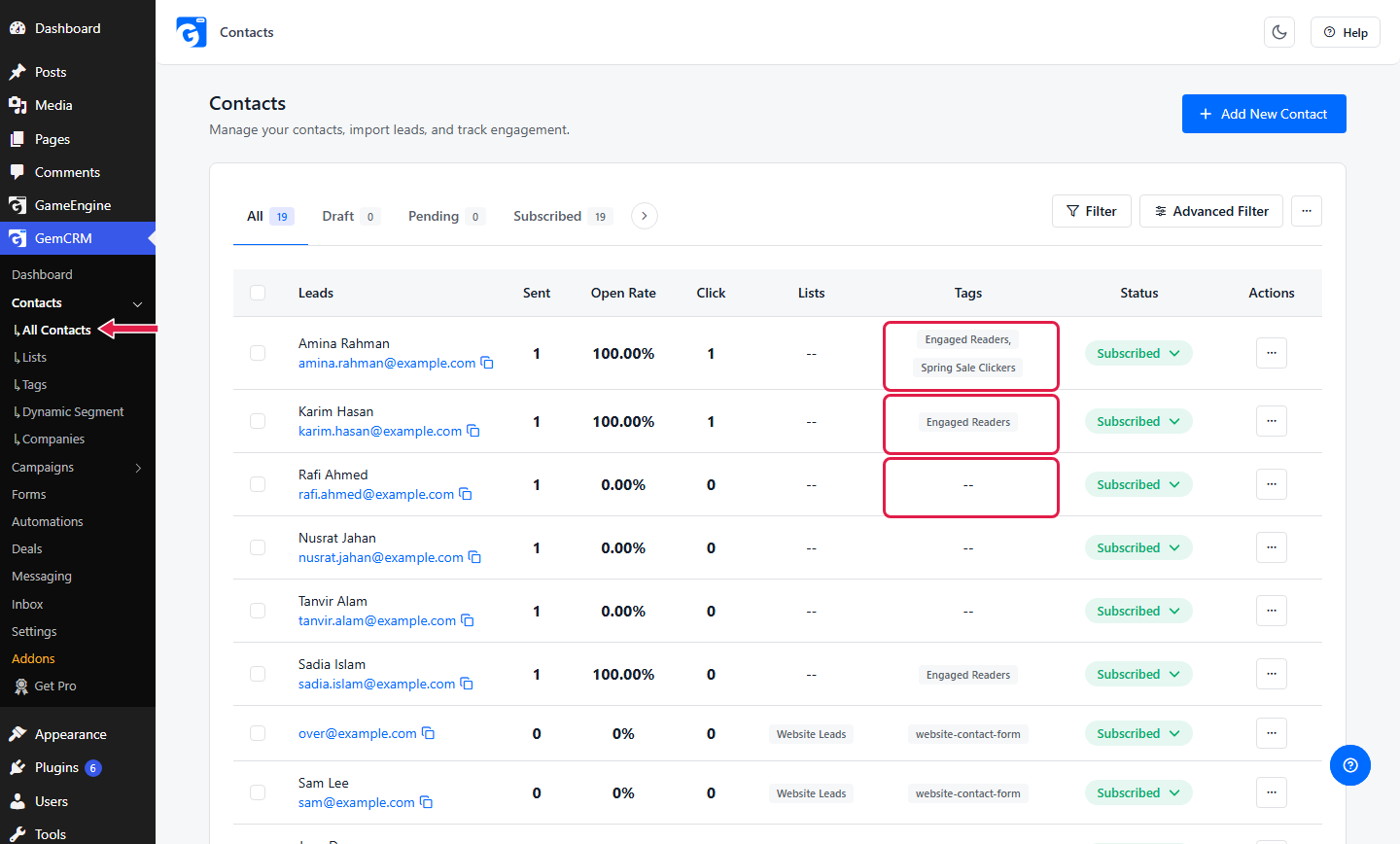
Go to GemCRM → Contacts → All Contacts. See the Tags column.