


The Incoming Webhooks feature allows GemCRM to receive data from external applications. By setting up a webhook, you can ensure that whenever a user submits a form on a different platform, they are instantly added to your GemCRM database with the correct organization.
How to Create a New Webhook
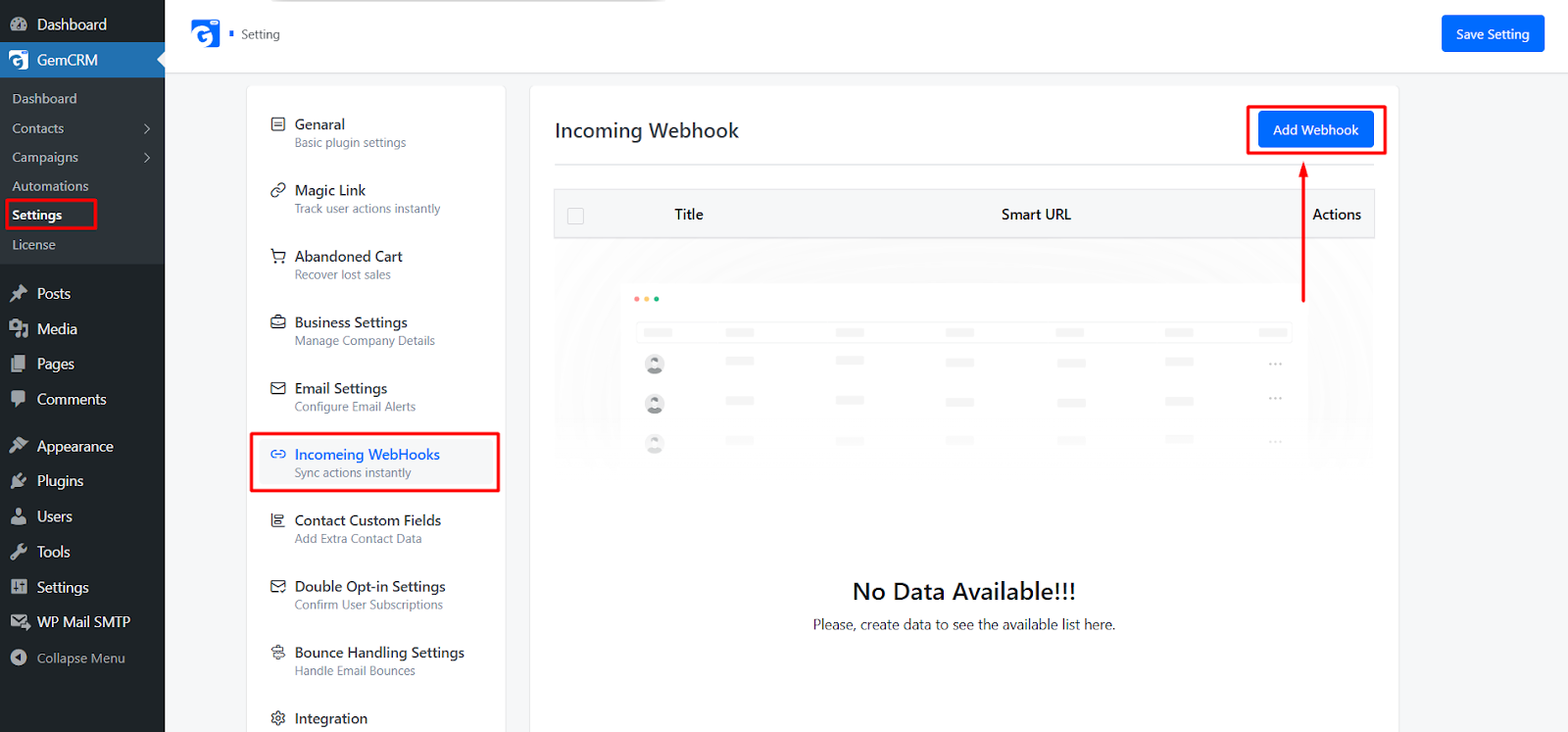
To set up an incoming connection, go to GemCRM > Settings > Incoming Webhooks click on Add New.
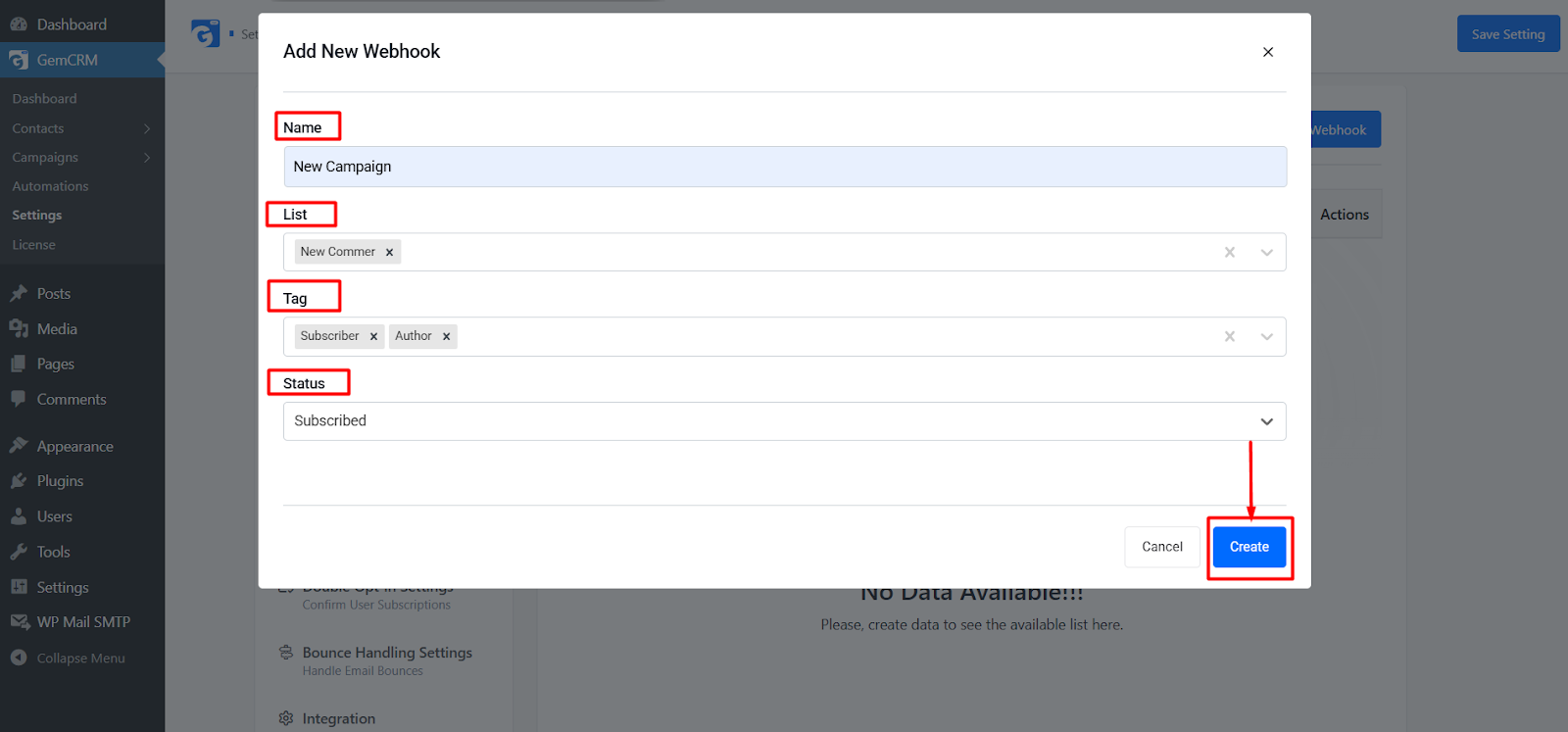
You will need to configure the following fields as seen in the setup modal:
- Name: Enter a recognizable name for your webhook. This is for internal reference so you can identify which external source is sending the data. List: Select the specific
- Contact List where these incoming contacts should be stored.
- Tag: Choose one or more Tags to be automatically applied to every contact that arrives through this webhook.
- Status: Define the subscription status for incoming contacts. You can typically choose from:
Technical Workflow
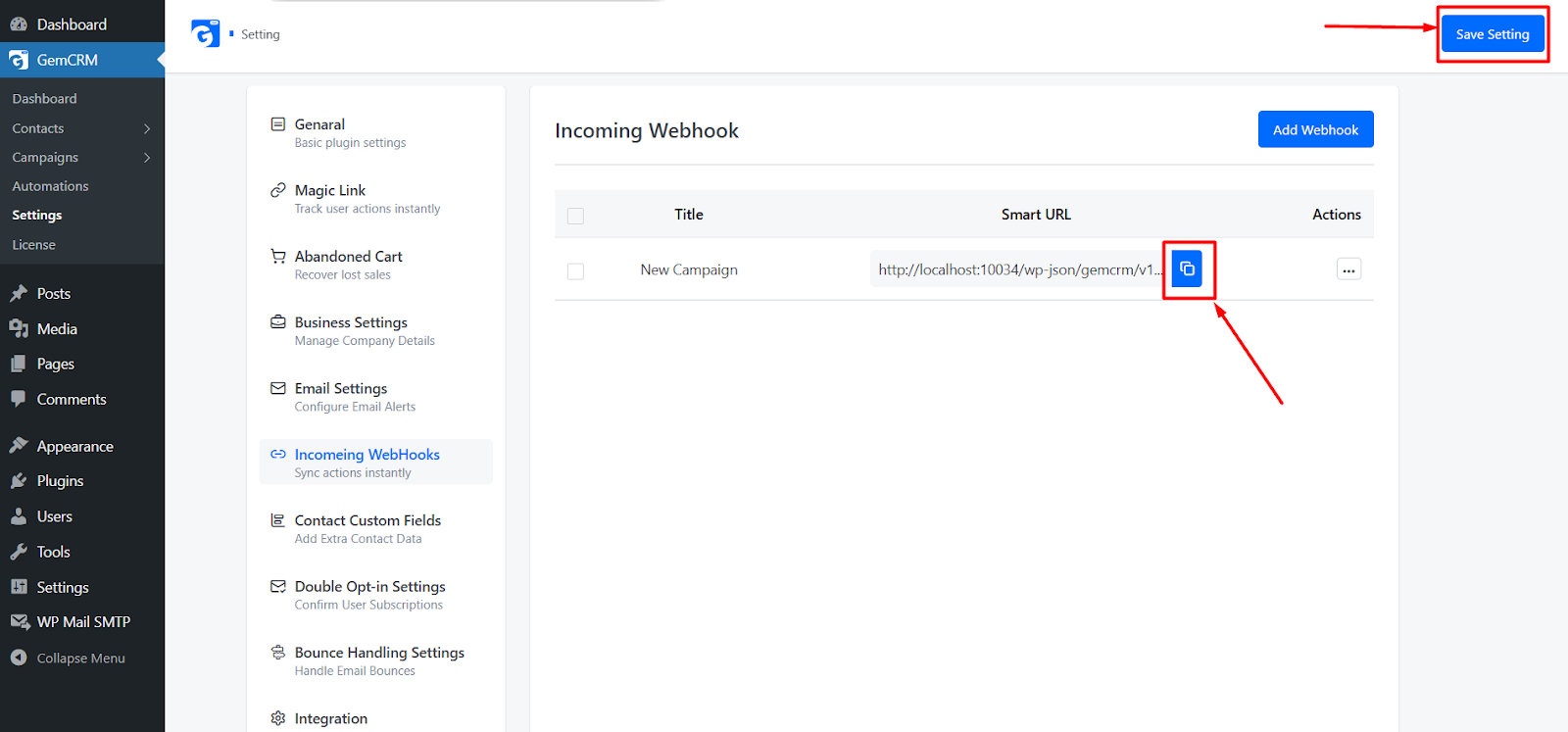
- Generate URL: Once you click Create, GemCRM will generate a unique Webhook URL.
- Paste into External App: Copy this URL and paste it into the “Webhook” or “Notifications” settings of your external form or app.
- Data Mapping: After the first test submission, you will be able to map the external data fields to GemCRM’s internal fields (First Name, Email).
- Instant Capture: Moving forward, every submission will automatically create a contact in your selected List with your chosen Tags and Status.
Benefits of Incoming Webhooks
- Zero Manual Entry: No more exporting CSVs from one app and importing them into GemCRM.
- Real-Time Automation: Trigger “Welcome Emails” or “Auto-responders” the exact second a lead is captured.
- Source Tracking: Know exactly which external forms are performing best based on the tags applied.
Setting up your Add New Webhook screen is the first step toward a fully automated marketing ecosystem. By correctly assigning a List, Tag, and Status, you ensure your incoming data is organized and ready for your automation funnels immediately.