


GemCRM Automation with Zaplane helps you build automated workflows using triggers, actions, recipes, and Email Sequence automation.
Note: Building and running automations requires the Zaplane plugin to be installed and active. A few automation actions (enrolling, removing, or re-triggering contacts in an Email Sequence) additionally require GemCRM Pro.
Before You Start
Make sure you have:
- Zaplane is installed and active.
- GemCRM Proactive: If your automation needs to enroll, remove, or re-trigger contacts in an Email Sequence — the sequence-related actions won’t work without it.
Step 1 — Open the Workflow Builder
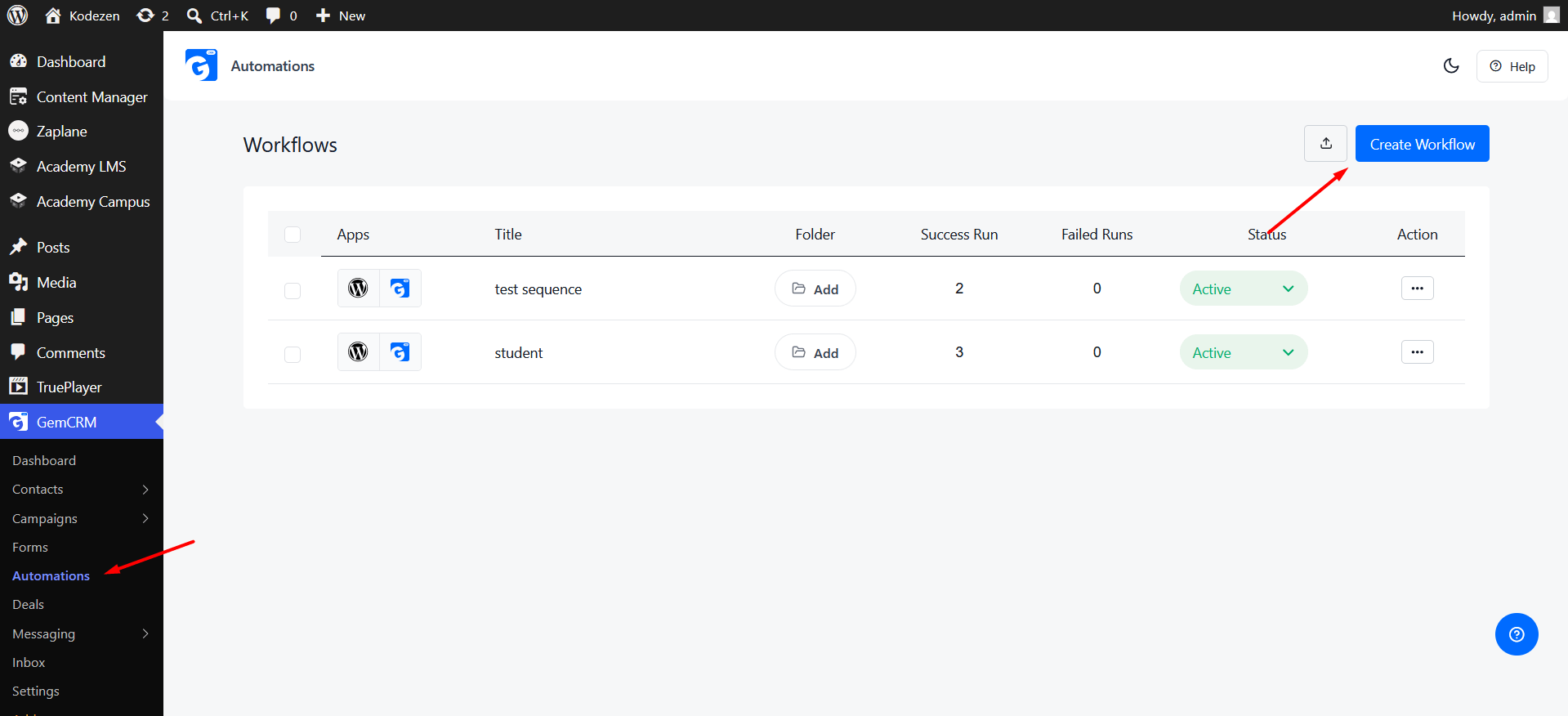
Go to GemCRM → Automations and click Create Workflow (or open an existing draft) to land on the canvas editor.
Step 2 — Add a Trigger
Every automation starts with a trigger — the event that kicks it off.
- Click the trigger node on the canvas.
- In the panel that opens, choose GemCRM as the app.
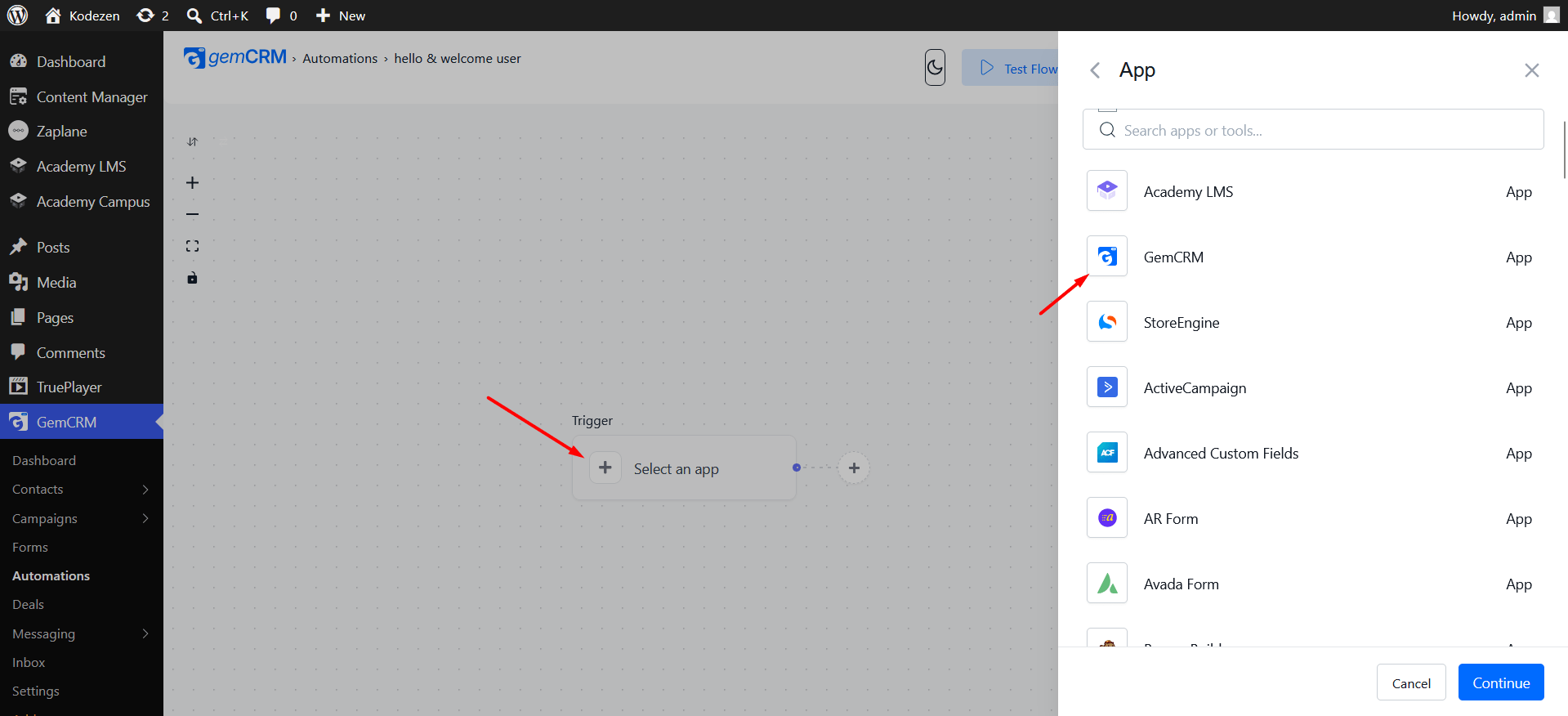
- Pick the event you want to trigger on (see the full list below).
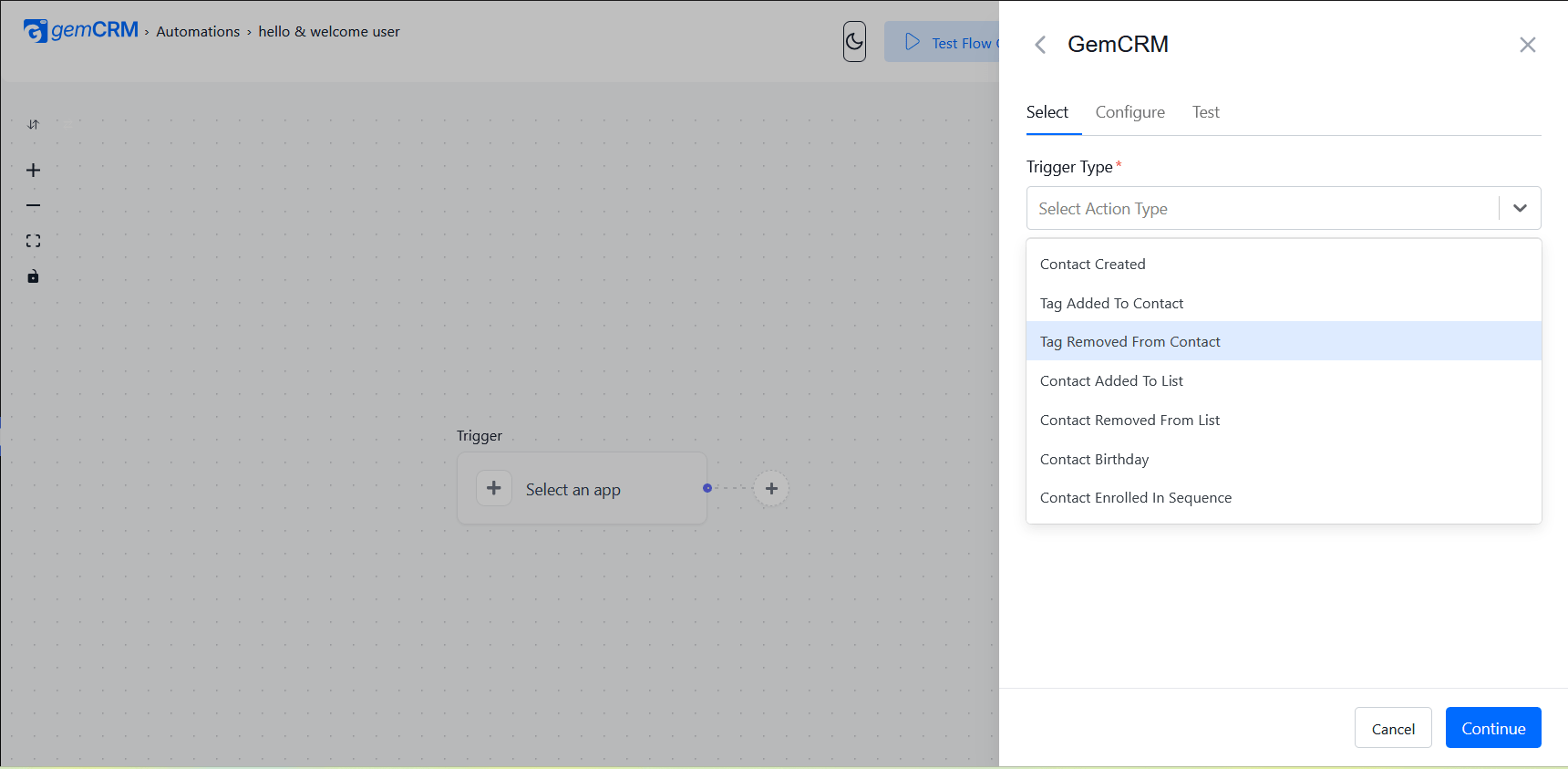
- Choose or create a Connection — since GemCRM and Zaplane run on the same site, this is usually a one-click “connect” with no API keys to enter.
GemCRM triggers you can choose from:
|
Trigger |
Fires when… |
|
Contact Created |
A new contact is added to GemCRM. |
|
Tag Attached |
A tag is applied to a contact. |
|
Tag Removed |
A tag is removed from a contact. |
|
List Attached |
A contact is added to a list. |
|
List Removed |
A contact is removed from a list. |
|
Contact’s Birthday |
A contact’s birthday occurs (checked once a day). |
|
Sequence Enrolled (requires GemCRM Pro) |
A contact is enrolled into an Email Sequence. |
|
Sequence Completed (requires GemCRM Pro) |
A contact finishes every step of an Email Sequence. |
Step 3 — Add an Action
After the trigger, add one or more action steps — what should happen in response.
- Click + to add the next node.
- Choose GemCRM as the app (or any other connected app, if you want the automation to reach outside GemCRM).
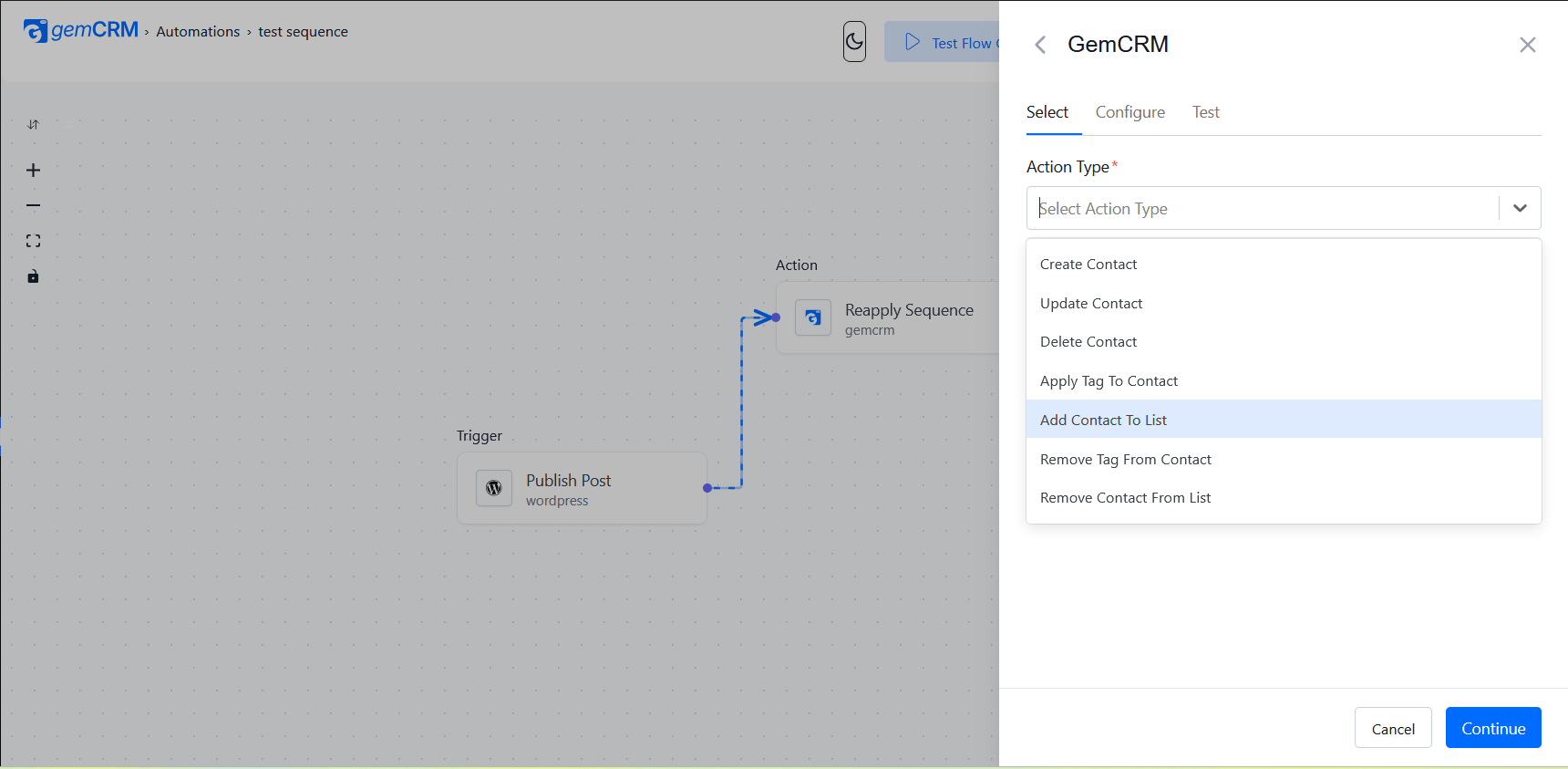
- Pick the action and fill in its fields.
GemCRM actions you can choose from:
|
Action |
What it does |
|
Create Contact |
Adds a new contact to GemCRM. |
|
Update Contact |
Edits an existing contact’s details. |
|
Delete Contact |
Removes a contact. |
|
Apply Tag |
Adds a tag to a contact. |
|
Remove Tag |
Removes a tag from a contact. |
|
Apply to List |
Adds a contact to a list. |
|
Remove from List |
Removes a tag from a contact. |
|
Send Campaign |
Sends an existing GemCRM email campaign to a contact. |
|
Send Email |
Send a one-off custom email — to a contact, a whole list, or a custom address — with your own subject, body, and from/reply-to. |
|
Enroll in Sequence (requires GemCRM Pro) |
Adds a contact into an Email Sequence, with the option to start from the first email or keep their existing progress. |
|
Remove from Sequence (requires GemCRM Pro) |
Takes a contact out of an Email Sequence. |
|
Reapply Sequence (requires GemCRM Pro) |
Re-checks a sequence’s audience and re-arms any steps that had finished sending, so newly matching contacts get picked up again. |
Heads-up: If GemCRM Pro isn’t active, the three sequence-related actions will fail with a clear “GemCRM Pro is not installed” message instead of silently doing nothing — the rest of your workflow still runs normally.
Step 4 — Test the Step
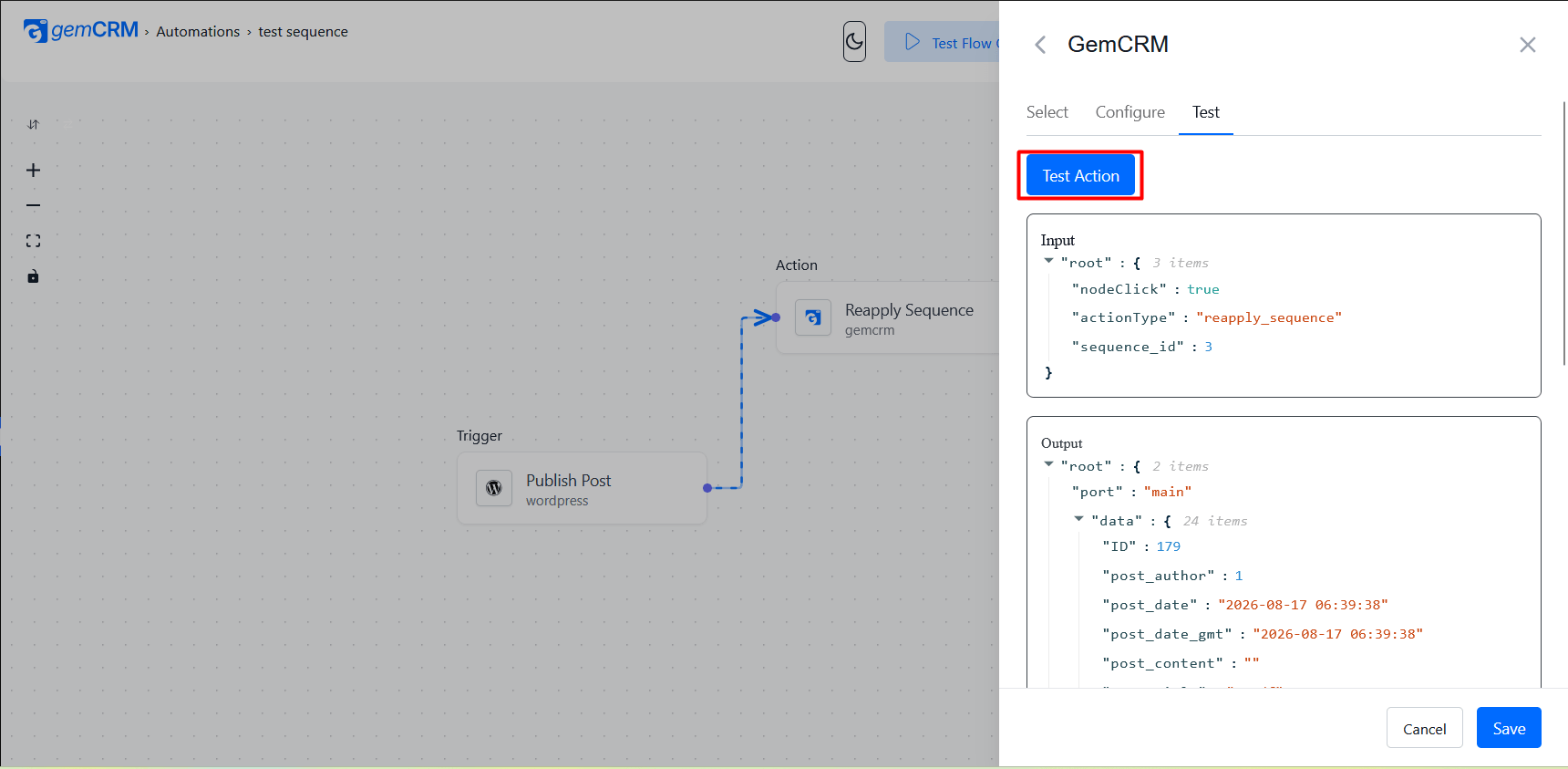
Use Test Run on any node to confirm it fires (or executes) as expected before you rely on it — this runs the trigger or action once using sample or live data so you can check the result without waiting for a real event.
Step 5 — Save and Publish
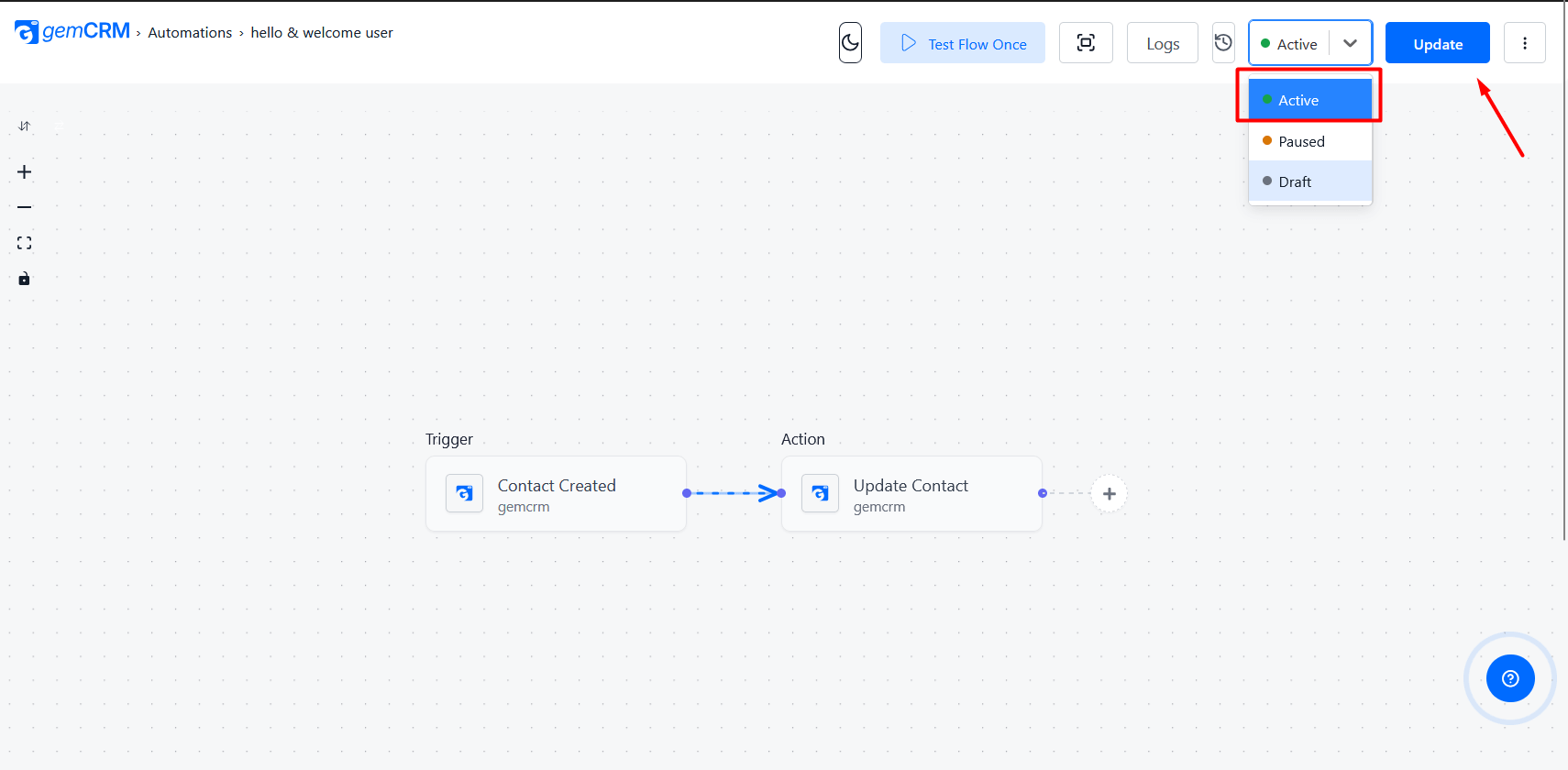
Once every step looks right, Save the workflow, then Publish/Activate it so it starts running for real. A workflow that’s saved but not published won’t fire.
Using Recipes (Ready-Made Templates)
If you don’t want to build a workflow from scratch, check Zaplane → Recipes for pre-built templates you can drop in and customize — for example, “tag a contact when they’re created” or “send a welcome email when someone joins a list.” You can also save any workflow you build as a Recipe to reuse later, and turn a Recipe into a new draft workflow to edit.
Frequently Asked Questions
Do I need Zaplane to automate anything in GemCRM?
Yes. GemCRM’s own “Automations” menu is just an entry point to Zaplane’s workflow builder — without Zaplane active, there’s no automation to build.
Is automation available on the free version of GemCRM?
The Automations menu is visible on free GemCRM, but you still need Zaplane active to actually build a workflow. GemCRM Pro is only required for the Email Sequence triggers/actions listed above — everything else (contacts, tags, lists, campaigns) works without it.
What happens if I add a Sequence action but GemCRM Pro isn’t active?
That specific step will fail with a message telling you that GemCRM Pro is required. Other steps in the same workflow are unaffected.
Can an automation react to something happening outside GemCRM and still update GemCRM?
Yes — pick a trigger from any other app you’ve connected to in Zaplane, then use a GemCRM action (like Create Contact or Apply Tag) as the response step.