


In GemCRM, an Email Campaign and a Recurring Campaign use the same email content and setup. The main difference is that Recurring Campaigns allow you to automate sending at specific intervals (daily, weekly, or monthly) and apply conditions for targeting specific users.
How to create a Recurring Campaign
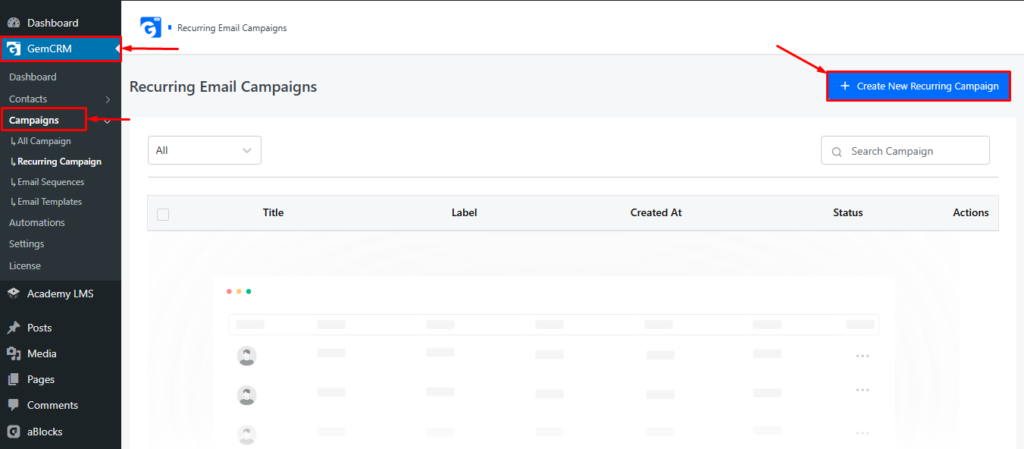
To create a Recurring Campaign, go to the Recurring Campaign menu from the GemCRM dashboard and click the Create New Recurring Campaign button in the top-right corner.
Start section setup guidelines
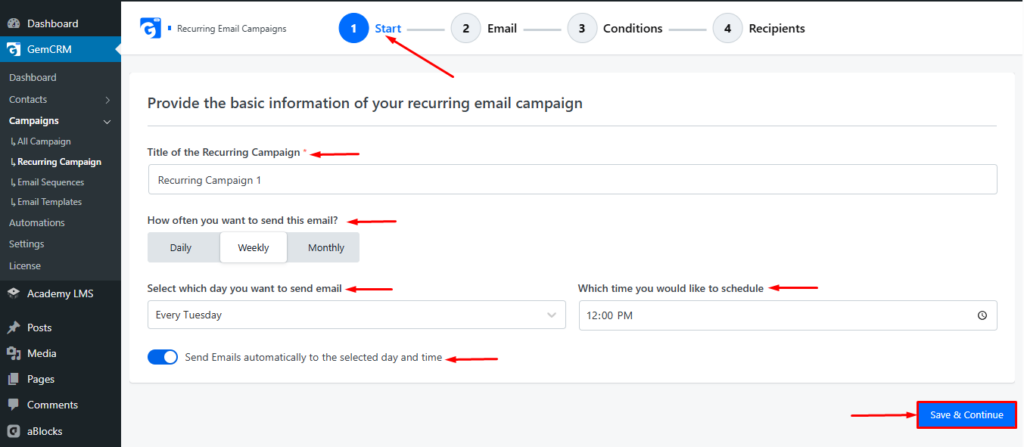
You’ll redirect to the Start section of the Recurring Campaign after clicking the Create New Recurring Campaign button. On this page, you will see the following options:
Title of the Recurring Campaign: Enter the name of your recurring campaign.
How often do you want to send this email?: Select the frequency at which the campaign should run:
- Daily
- Weekly
- Monthly
You can also choose the specific days and times based on your schedule. Additionally, you can decide whether the campaign should be sent automatically or manually on the selected date.
Once you’ve configured these settings, click Save & Continue at the bottom of the page to proceed to the next step.
Email Page Setup Guidelines
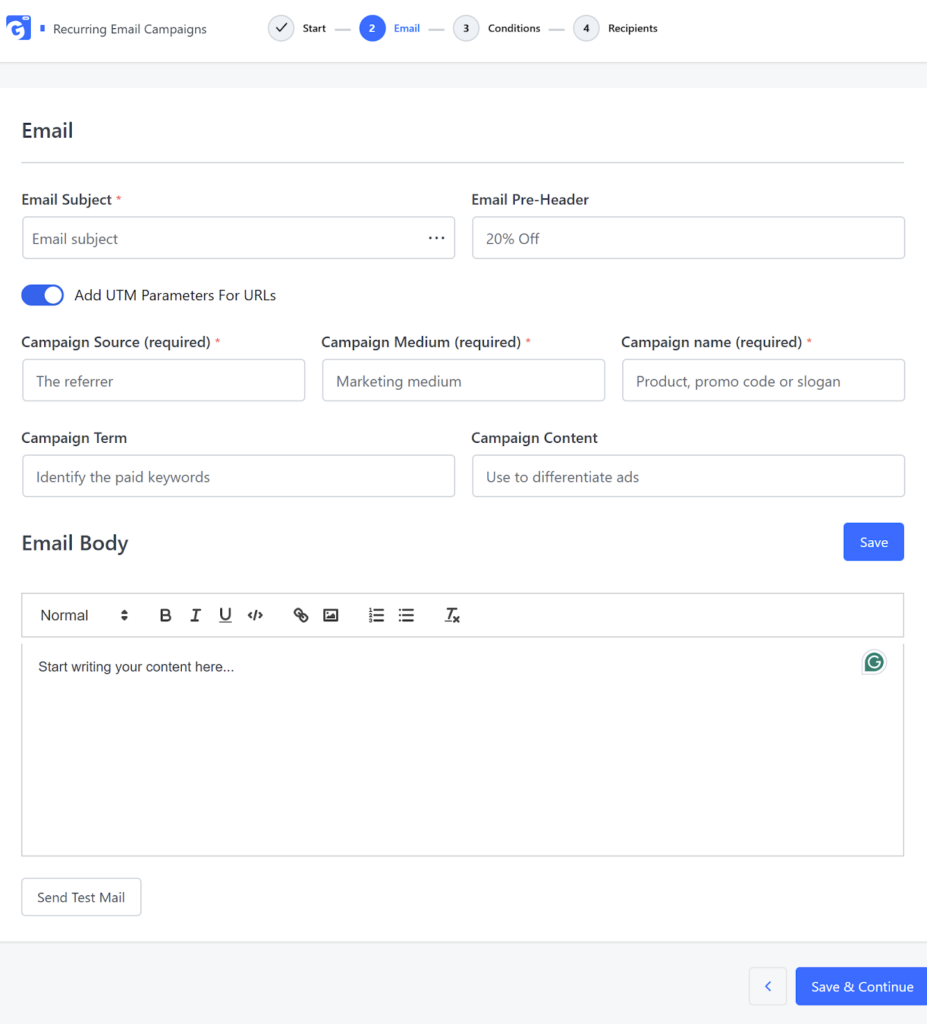
On the Email page, you’ll find the following options. Use this guide to configure your email professionally:
- Email Subject: Set the subject line of your email.
- Pre-header: Add a short preview text that appears in the inbox before the email is opened. This helps grab the recipient’s attention.
- Add UTM Parameters: Enable this option to automatically add UTM tags to your links and track email performance in Google Analytics.
- Email Body: Create your email content here. You can add images, text, or any description based on your campaign needs.
- Send Test Email: Use this feature to instantly test your email campaign before sending it to your audience.
After completing these steps, click the Save & Continue button at the bottom-right corner of the page to proceed to the next step.
Conditions Guidelines for Recurring Campaign
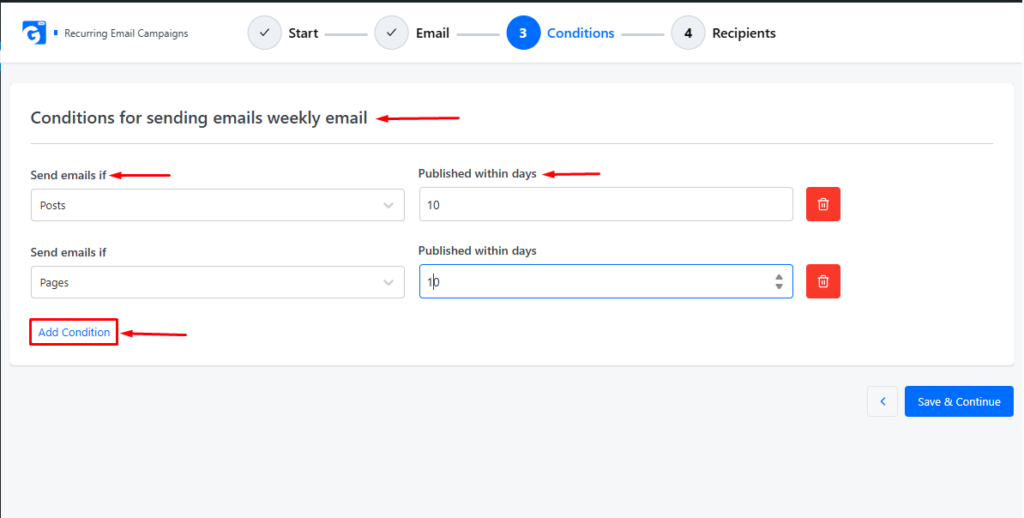
On the Conditions page, you can define when and to whom the recurring campaign emails should be sent. Use the options below to configure your campaign accurately:
- Send Email If: Set conditions based on user interactions with specific posts, pages, media, or other content. If a user has not completed or interacted with the selected content, the email will be sent automatically.
- Publish Within Date: Specify a date range during which the email should be sent. The recurring campaign will only send emails to users whose activity falls within the selected date range.
Please note: If you want to set multiple content conditions, you can add multiple fields. To add more fields, click the Add Condition button located at the bottom-left of this page & click the “Save & Continue” button to proceed to the next step.
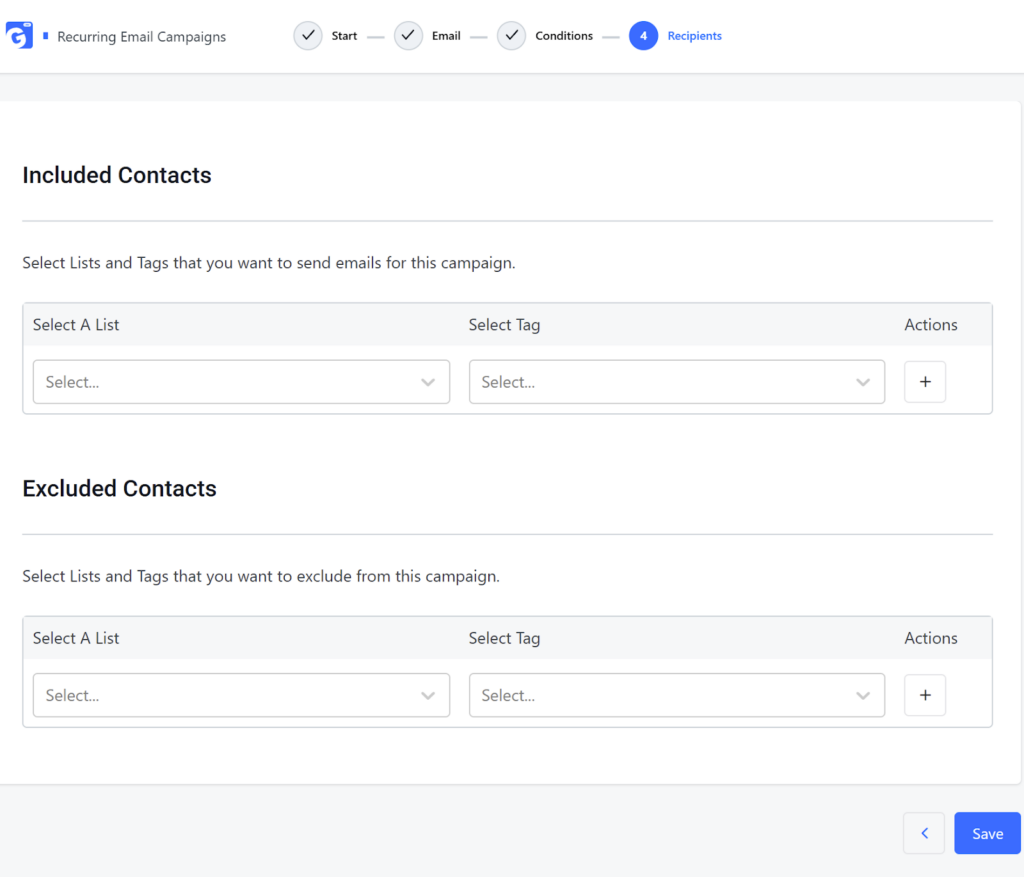
Select Recipients
You’ll redirect to the Start section of the Recurring Campaign after clicking the Create New Recurring Campaign button. On this page, you will see the following options:
- Included Contacts: Select how many contacts you want to include in this campaign.
- Excluded Contact: Select how many contacts you want to exclude from this campaign.
After completing these steps, click the Save button at the bottom-right corner of the page to save your changes and proceed.
Recurring Campaigns in GemCRM combine the flexibility of email campaigns with the power of automation and conditional targeting. By setting up schedules and conditions, you can ensure that the right message reaches the right audience at the right time. This reduces manual work, improves engagement, and makes email marketing more efficient and reliable