


Recurring campaigns are part of GemCRM Pro. Their Actions tab works like the one in a normal campaign. It adds or removes tags and lists on contacts, based on opens and clicks. Only subscribed contacts are changed. This page shows what is different when the campaign repeats.
Open the recurring campaign report
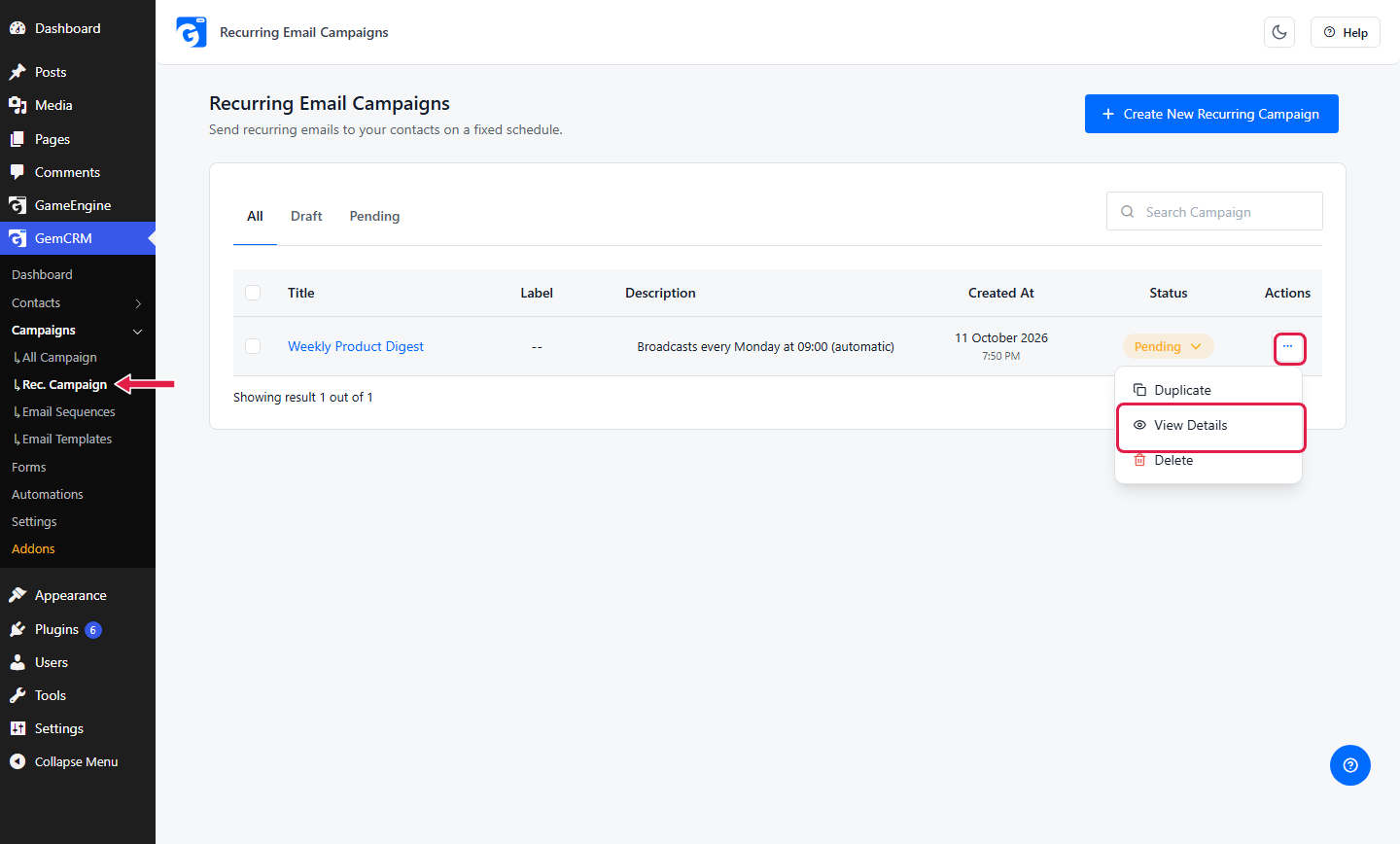
Go to GemCRM → Campaigns → Rec. Campaign. Click the ⋯ button on the campaign row, then click View Details.
Go to GemCRM → Campaigns → Rec. Campaign. Click the ⋯ button on the campaign row, then click View Details.
Step 2: Open the Actions tab
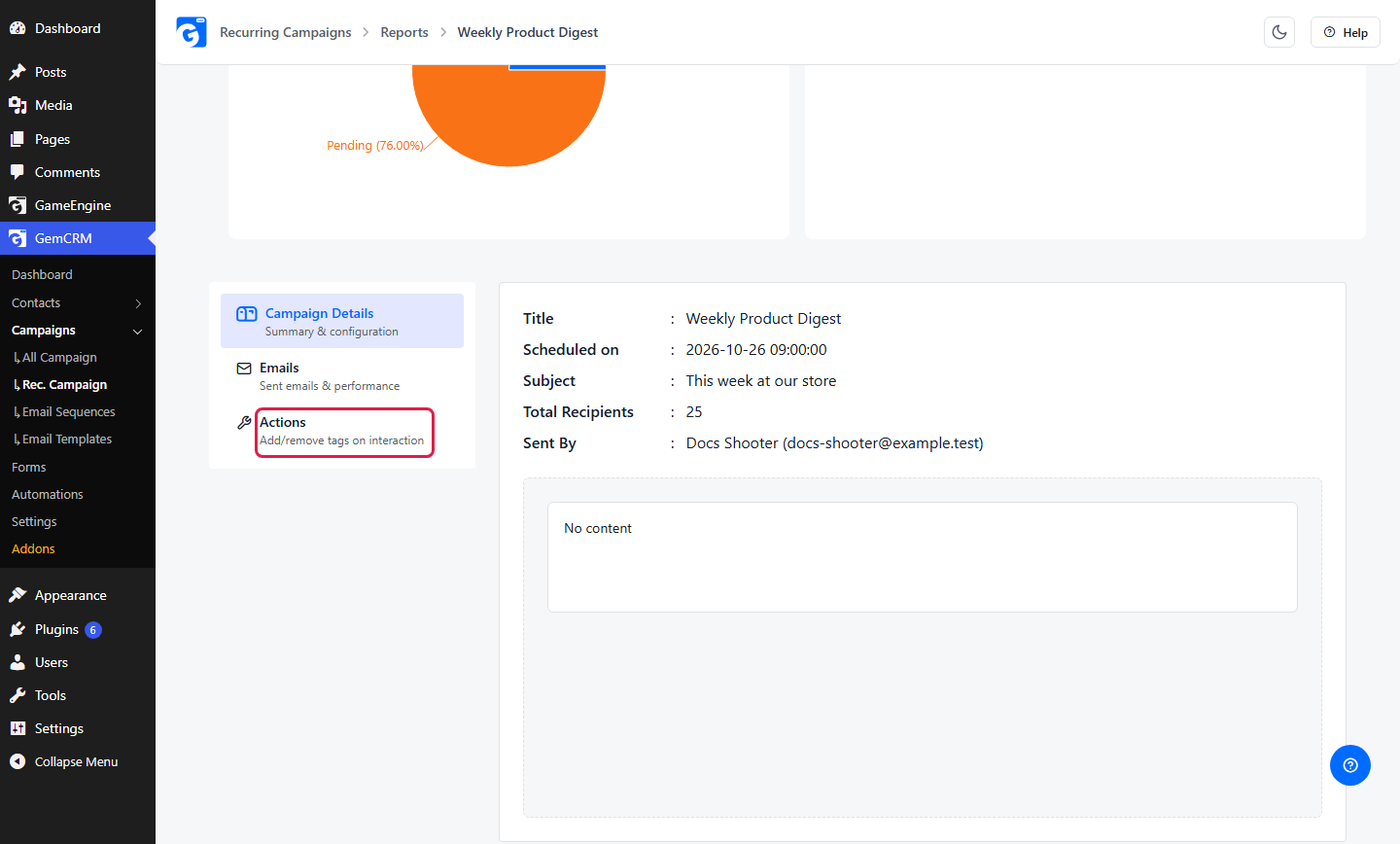
Open the Actions tab
On the report page, scroll down. Click Actions.
Tag contacts who opened, and keep tagging
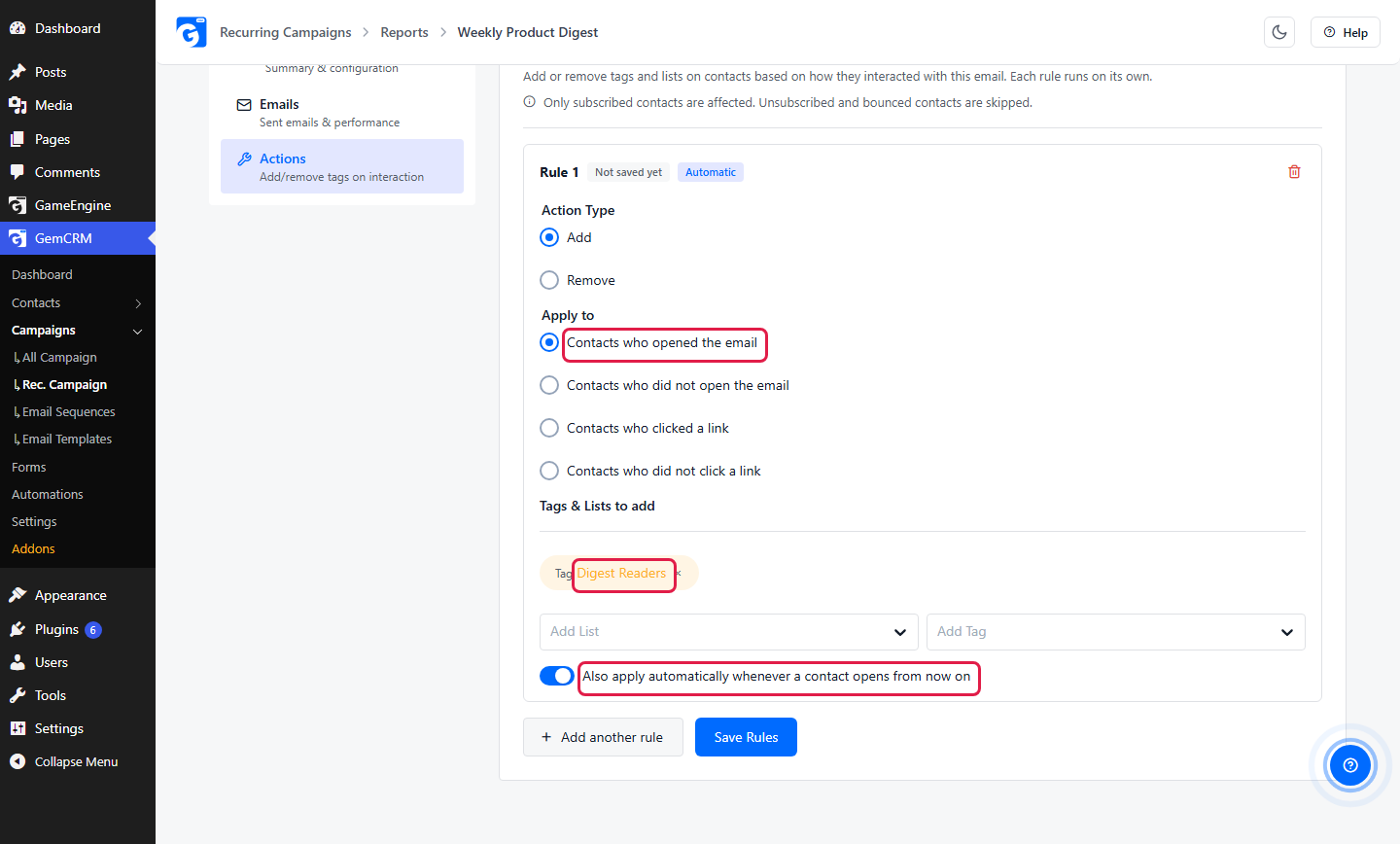
Keep Add and Contacts who opened the email. Pick a tag. Turn on Also apply automatically. This matters for a recurring campaign. See the table at the end.
Tag contacts who clicked one link
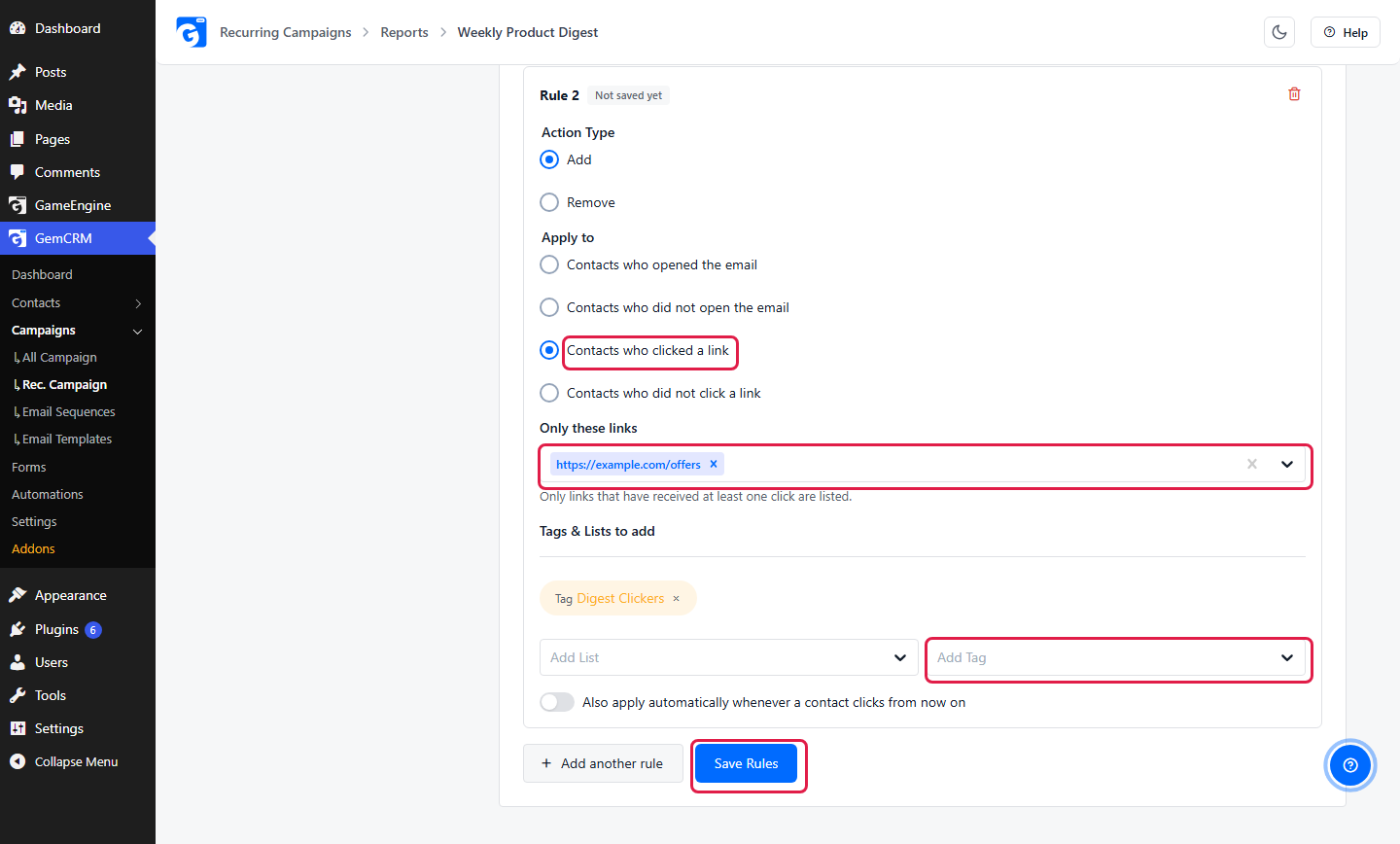
Click Add another rule. Choose Contacts who clicked a link. In Only these links, pick the link. Pick a tag. Click Save Rules.
Read the rule status
After you save, each rule shows a status. A rule with the switch on also shows Automatic.
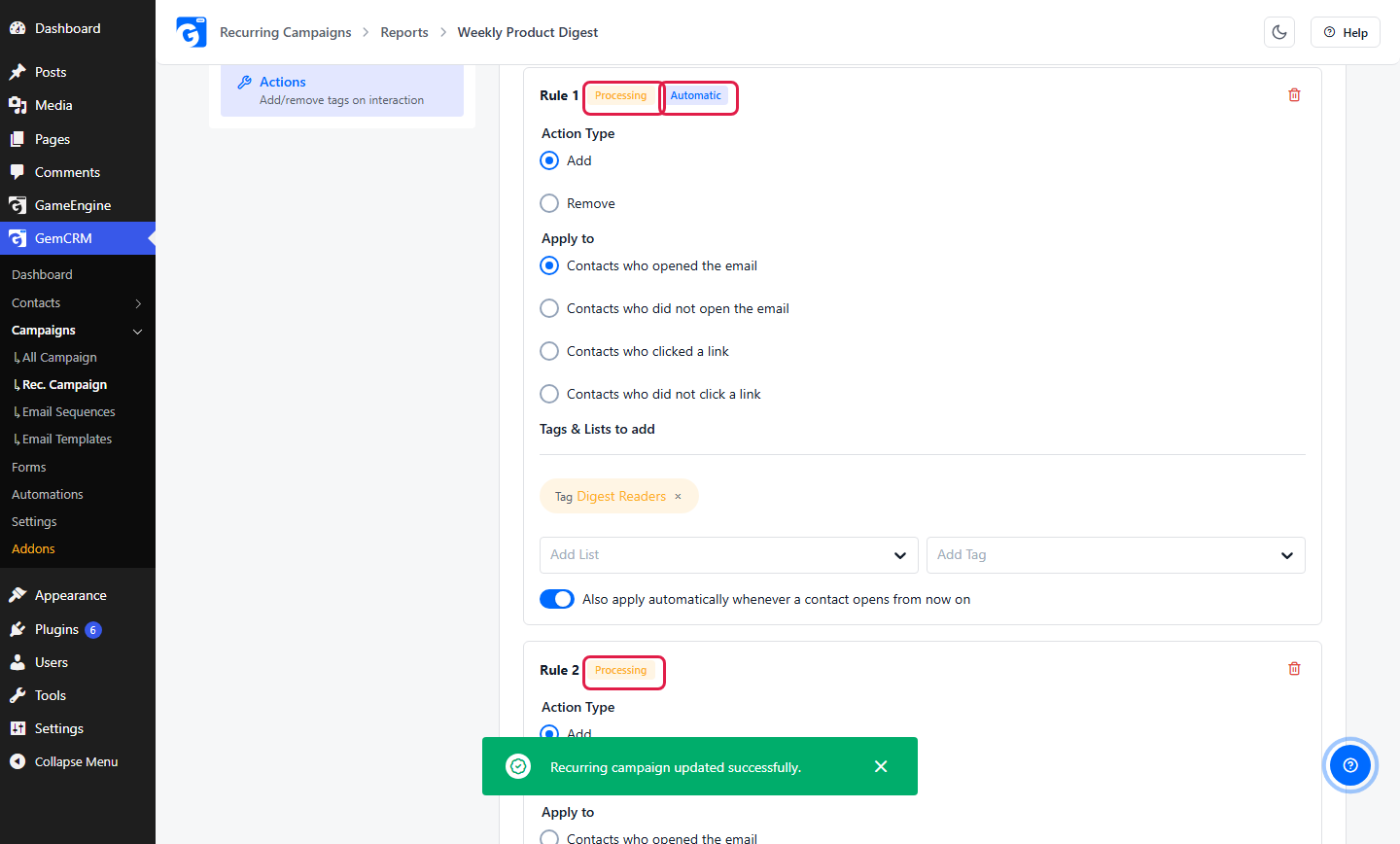
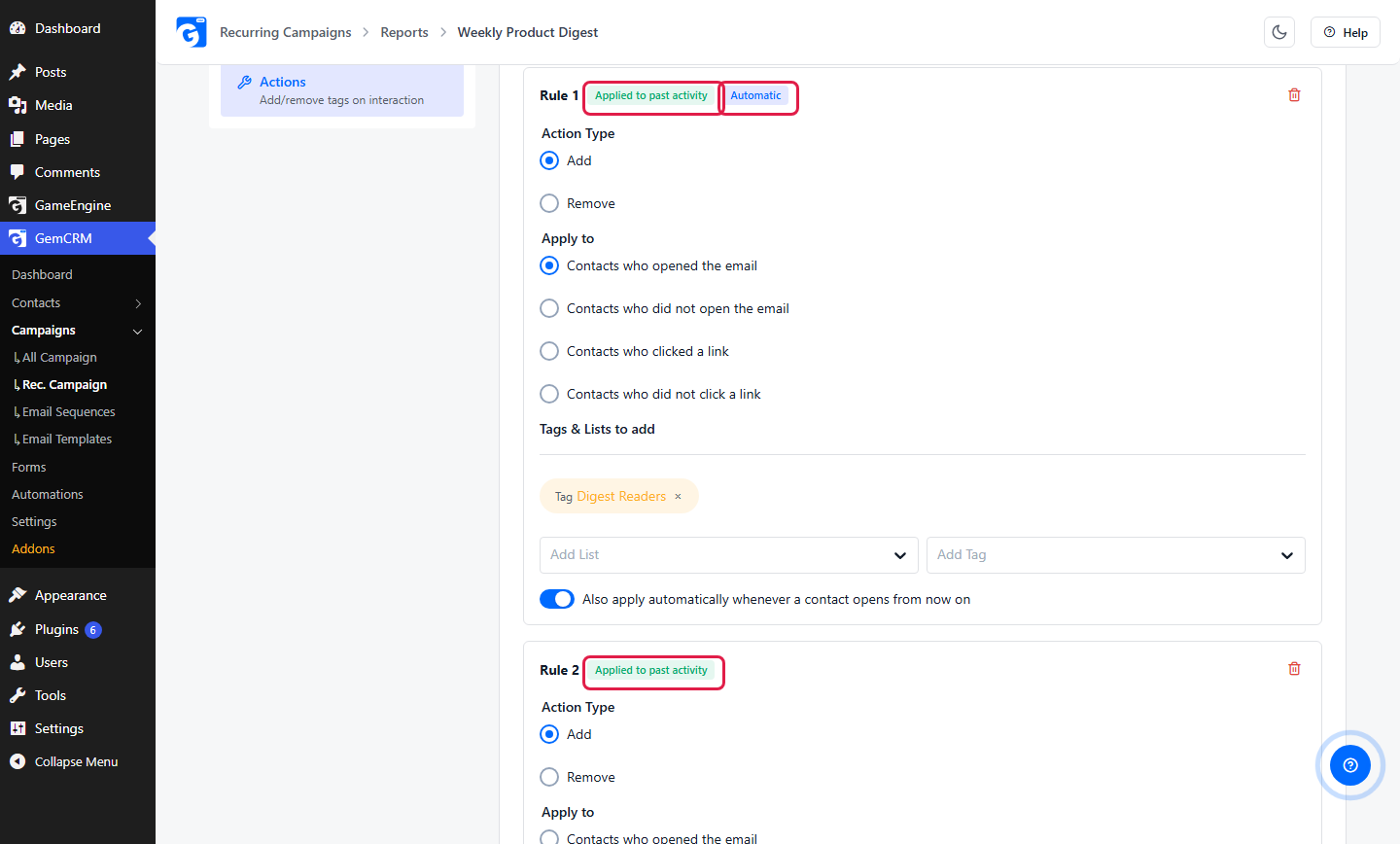
When the rule has finished, the status changes to Applied to past activity. This can take a few minutes.
Check the result
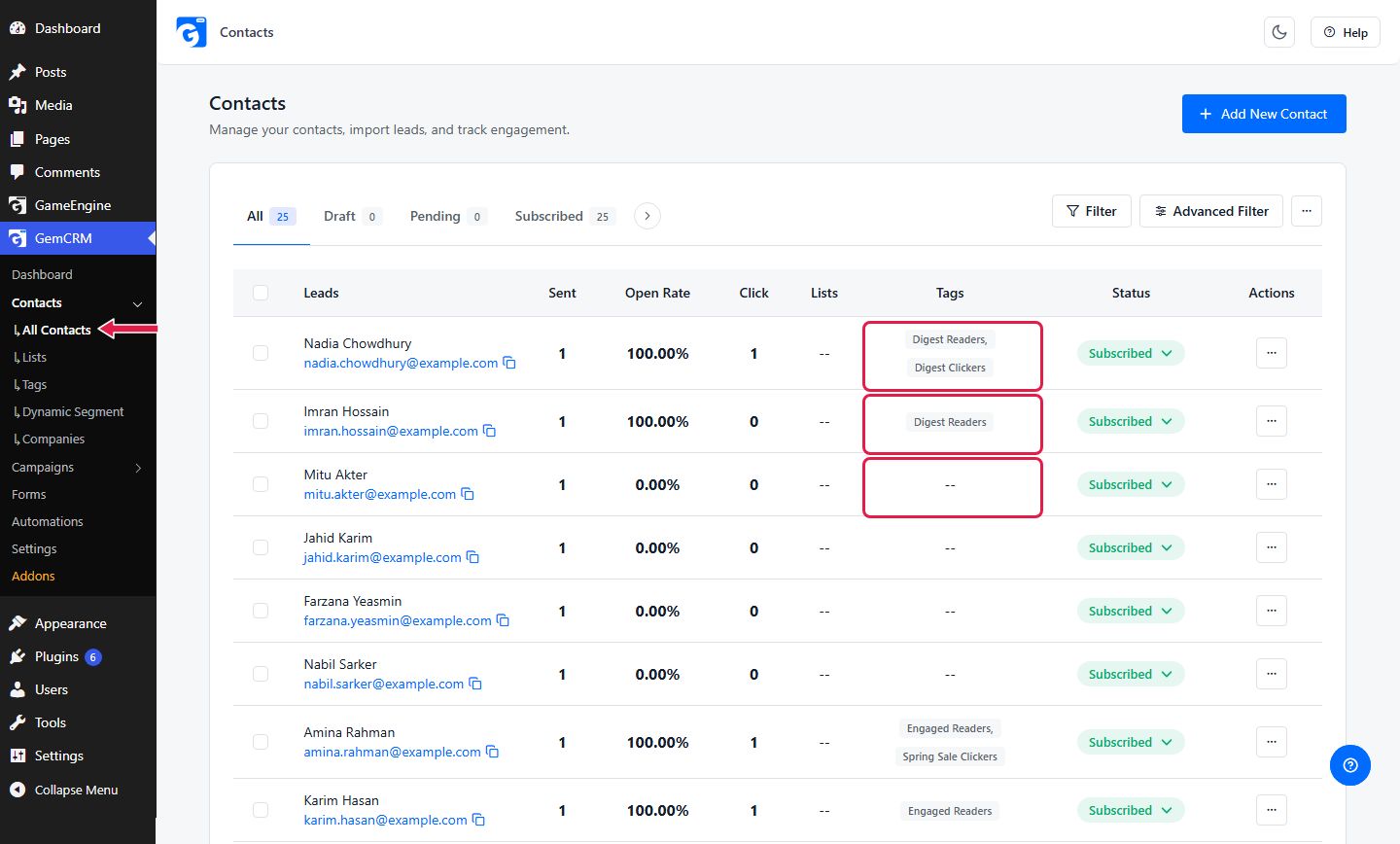
Go to GemCRM → Contacts → All Contacts. See the Tags column.
What is different for a recurring campaign
|
Topic |
Recurring campaign |
|
When a rule runs |
A recurring campaign never finishes. It goes back to Pending after each send. Rules run while it is Pending, so you do not wait for the end. |
|
Runs once |
After Applied to past activity, the rule does not check old activity again. Opens and clicks from later sends are not picked up unless Also apply automatically is on. |
|
Automatic |
Only for opened and clicked rules. It tags the contact at the moment of the open or click, on any send of this campaign. |
|
Did not open / did not click |
No Automatic switch. These rules run once on past activity only. |
If you change a rule’s action, filter, tags, lists or links, it runs again from the start.