


Magic Links are special tracked URLs that, when clicked by a contact, automatically trigger actions on that contact’s record in GemCRM. Instead of requiring manual updates, you embed a Magic Link in an email or landing page, and any contact who clicks it is instantly updated.
Magic Links can be used to:
• Add or remove a contact from a specific List.
• Add or remove a Tag from a contact.
• Update a contact’s subscription status (e.g. Subscribed, Unsubscribed, Pending).
• Update contact preferences automatically through link-click-based segmentation.
💡 Magic Links is a Pro feature. It requires the gemcrm. smart_links capability to be enabled for your user role in GemCRM → Settings → Roles & Permissions.
Creating a Magic Link
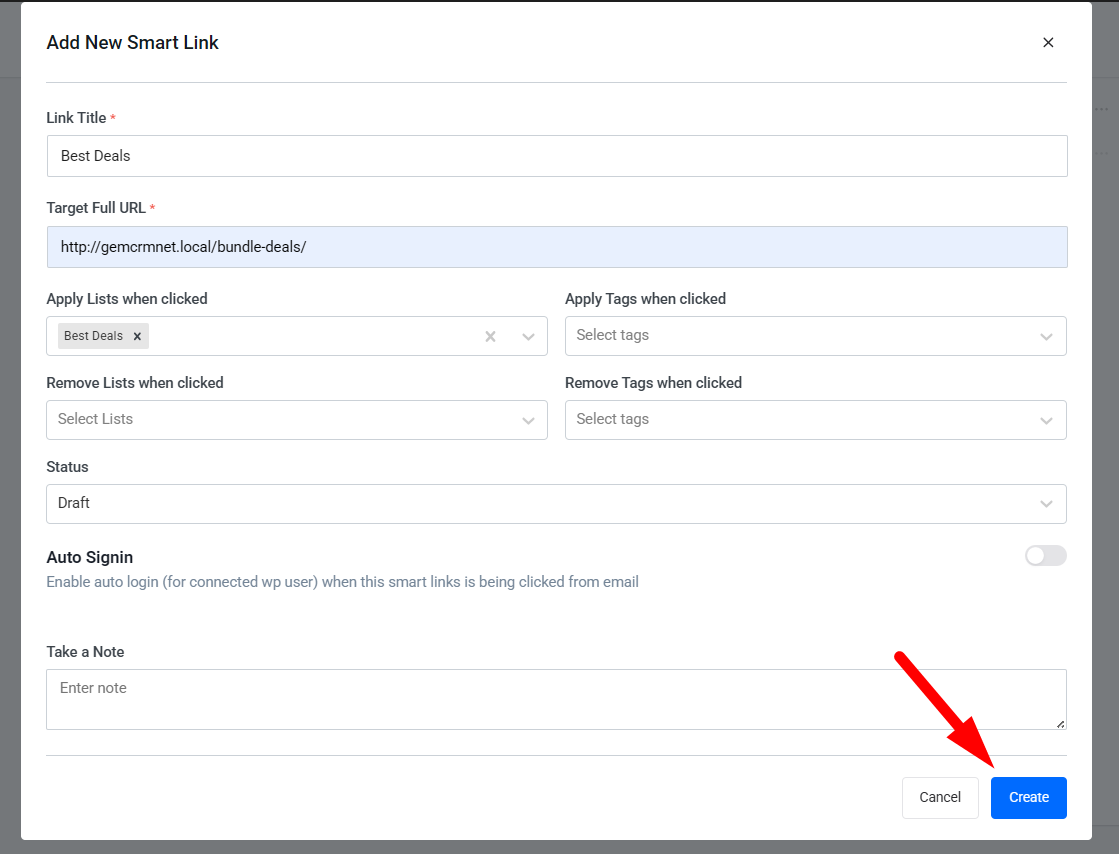
Navigate to GemCRM → Magic Link → Add New Magic Link.
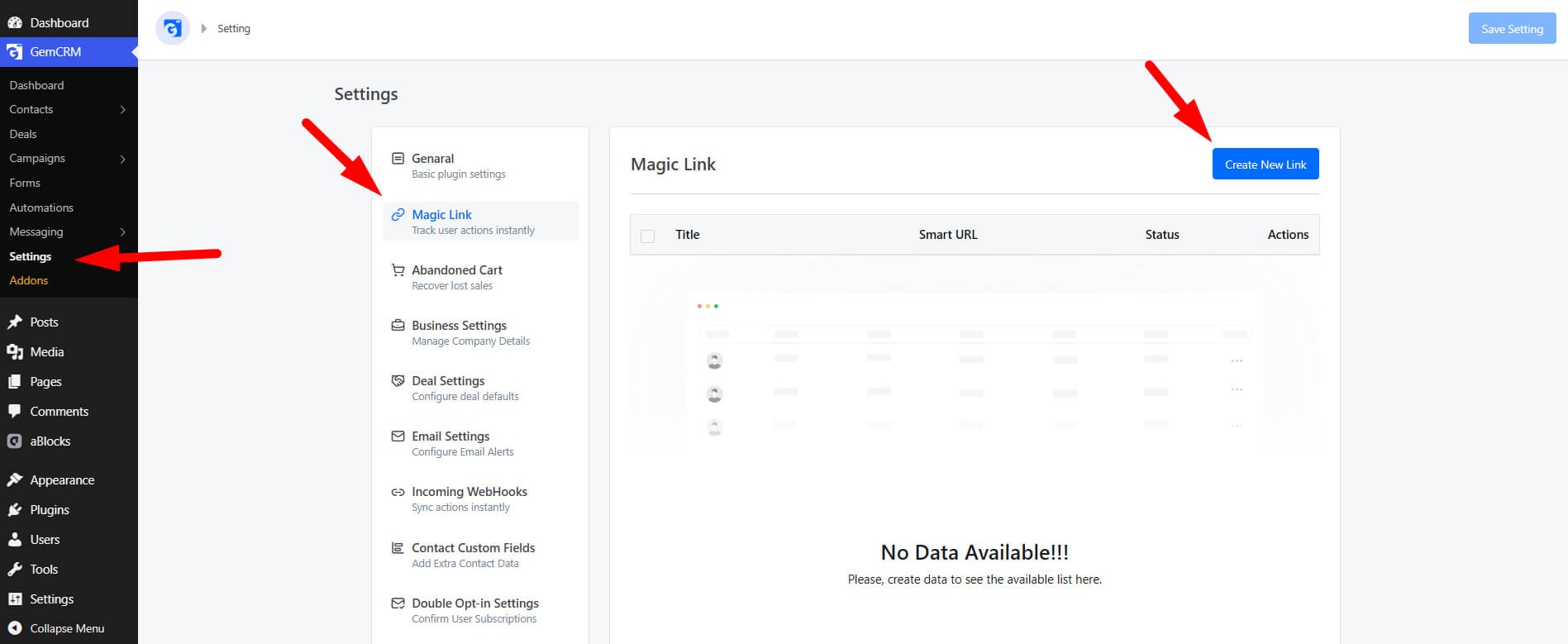
Basic Settings
|
Field |
Description |
|
Name |
Internal label for this Magic Link. Used only for your reference in the admin panel. |
|
Redirect URL |
The URL the contact is sent to after the action is performed. |
|
Actions |
One or more automated actions to execute when the link is clicked (see Section 4). |
|
Status |
Active or Inactive. Only Active Magic Links process actions when clicked. |
Available Magic Link Actions
Each Magic Link can trigger one or more of the following actions when clicked:
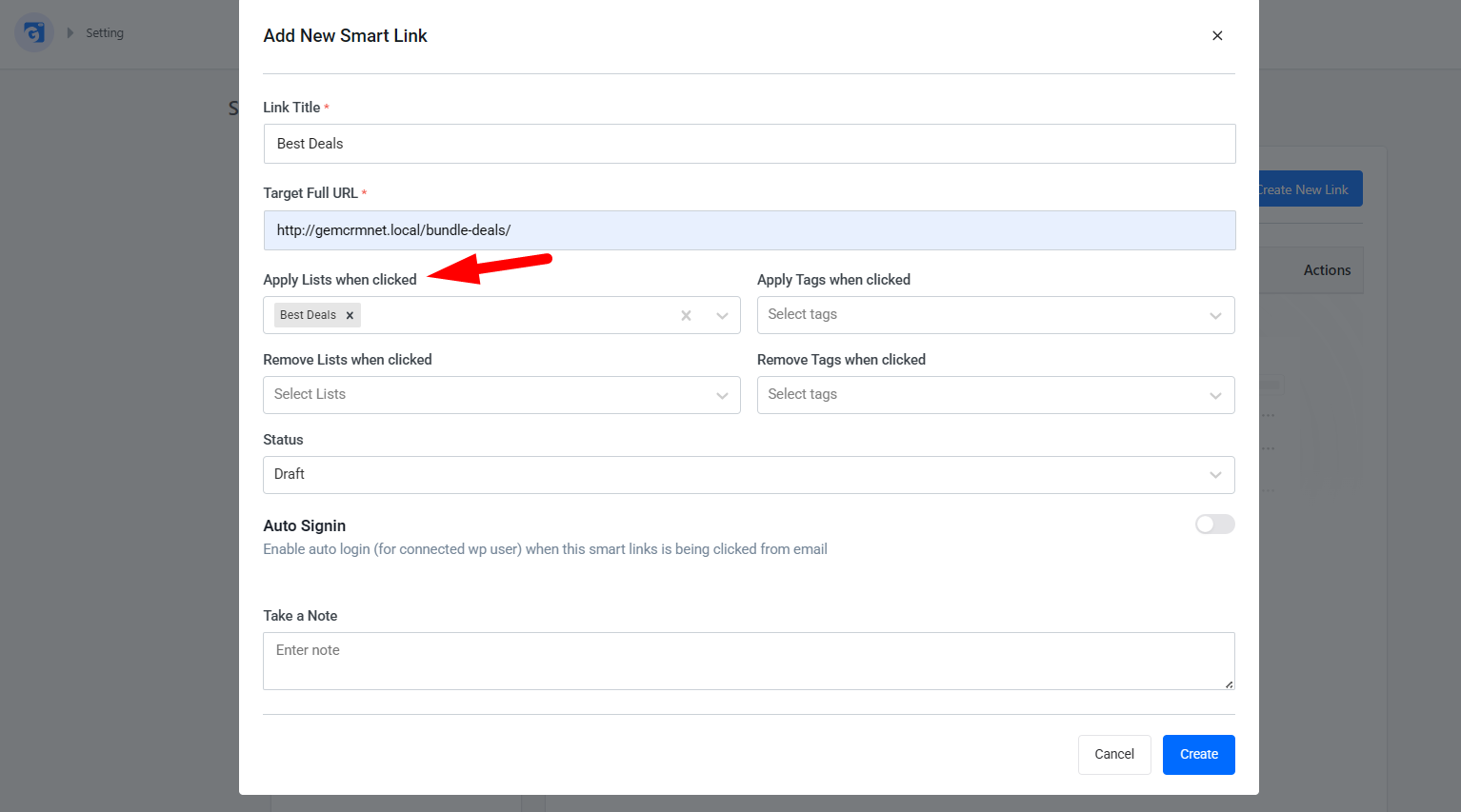
Add to List
Adds the contact to one or more specified Lists. Useful for building segments from email click behavior — for example, adding everyone who clicks a product link to an “Interested in Product X” list.
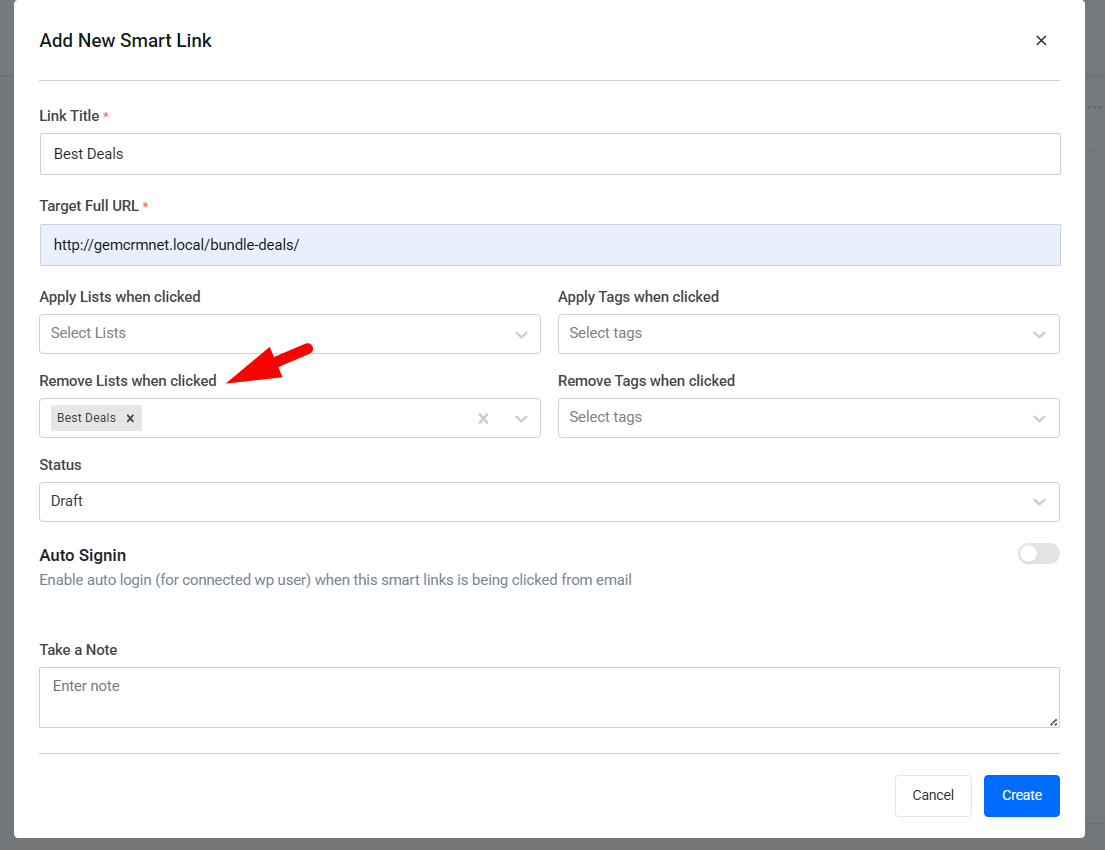
Remove from List
Removes the contact from one or more specified Lists. Useful for preference management — for example, letting a contact opt out of a specific content category by clicking a link.
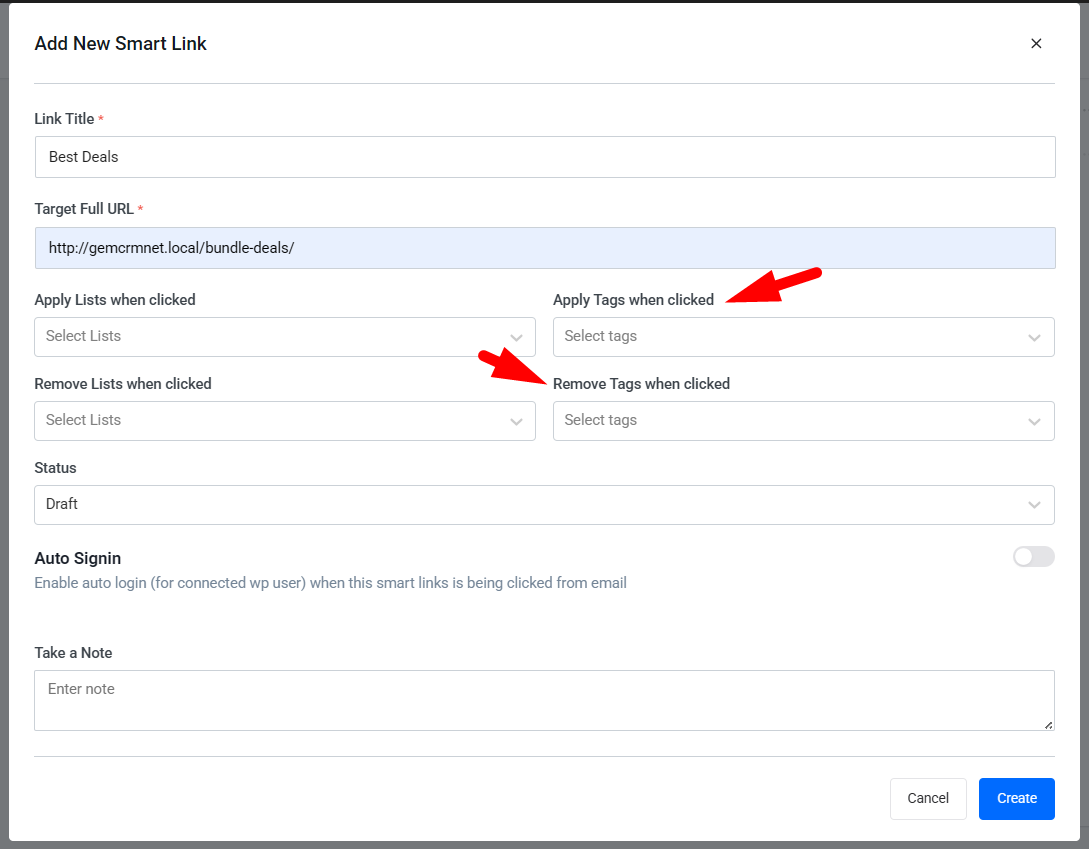
Add Tag
Applies one or more Tags to the contact. Tags help further segment contacts without moving them between lists. Example: tag a contact as “Clicked Promo” when they click a promotional link.
Remove Tag
Removes one or more Tags from a contact. Useful for cleaning up temporary tags after a campaign action is taken.
Update Status
💡 Multiple actions can be combined on a single Magic Link. For example, a “Subscribe to Newsletter” link could simultaneously Add to List “Newsletter”, Add Tag “Newsletter Subscriber”, and Set Status to “Subscribed”.
Using Magic Links in Campaign Emails
After creating a Magic Link, use the following merge tag inside your campaign email body to embed it:
{{smart_link.LINK_ID}}
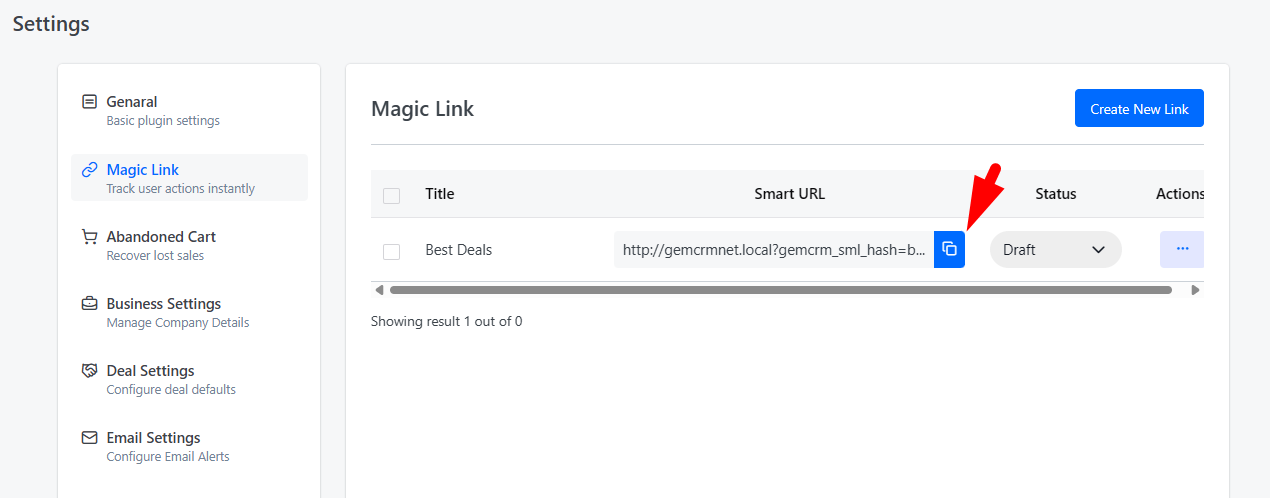
Replace LINK_ID with the numeric ID of your Magic Link (visible in the Magic Links list in GemCRM admin).
Example:
Click here to subscribe to our newsletter
When GemCRM sends the campaign, this merge tag is replaced with a unique URL for each contact that includes their secure token, ensuring that only the intended contact’s record is updated when the link is clicked.
Magic Link URL Structure
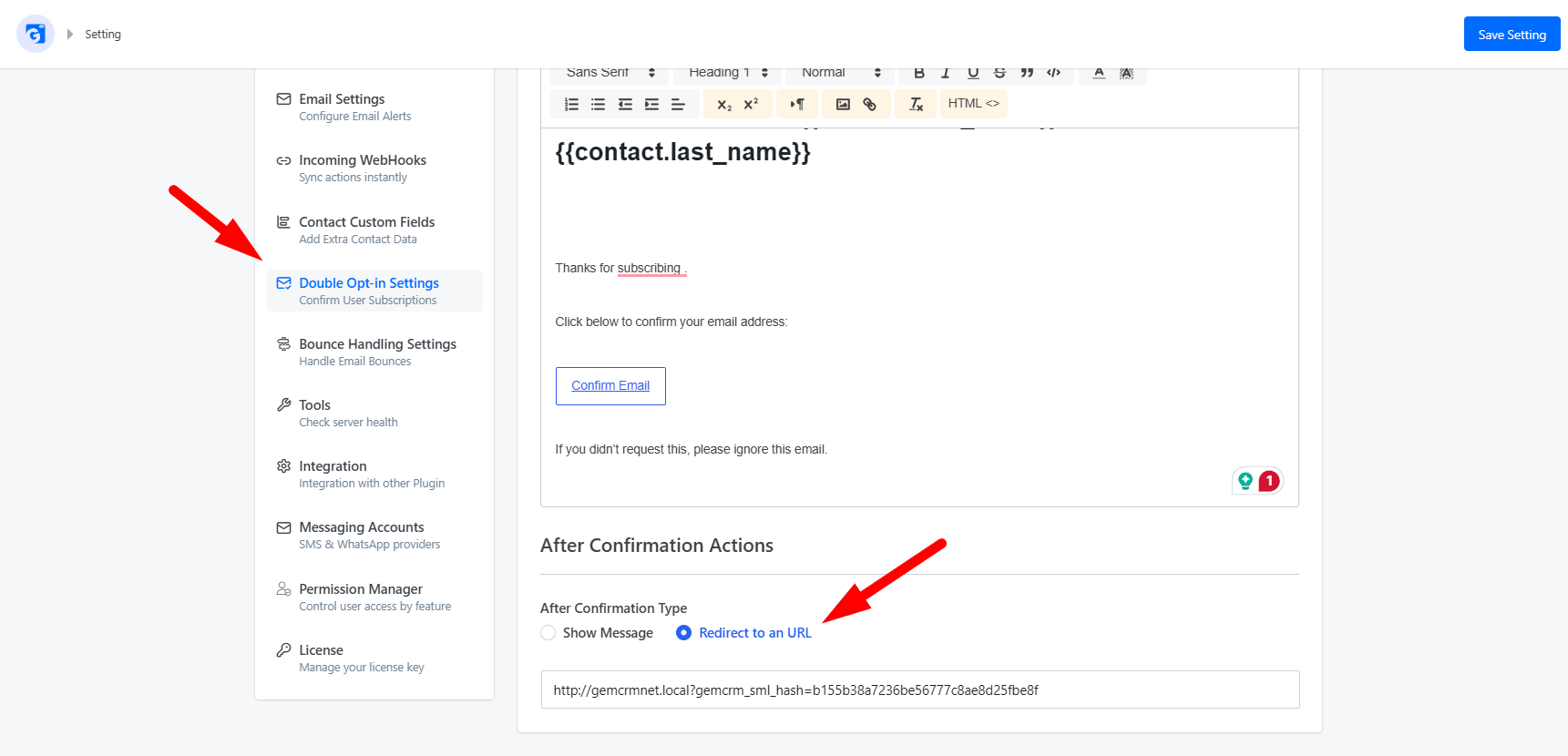
Magic Links follow a URL pattern similar to the Double Opt-in confirmation link:
http://gemcrmnet.local?gemcrm_sml_hash=b155b38a7236be56777c8ae8d25fbe8f
Security details:
• token — A secure hash (wp_hash) unique to the contact and Magic Link. Cannot be forged without server access.
• ct — The contact’s internal ID used to look up the record.
• sl — The Magic Link’s internal ID, used to determine which actions to execute.
• Token validation occurs before any action is taken. Invalid or expired tokens result in no changes.