


Bulk campaigns let you reach multiple contacts at once with a single SMS or WhatsApp message. Each campaign goes through four steps — Basics, Message Body, Audience, and Schedule & Limit — before it’s ready to send.
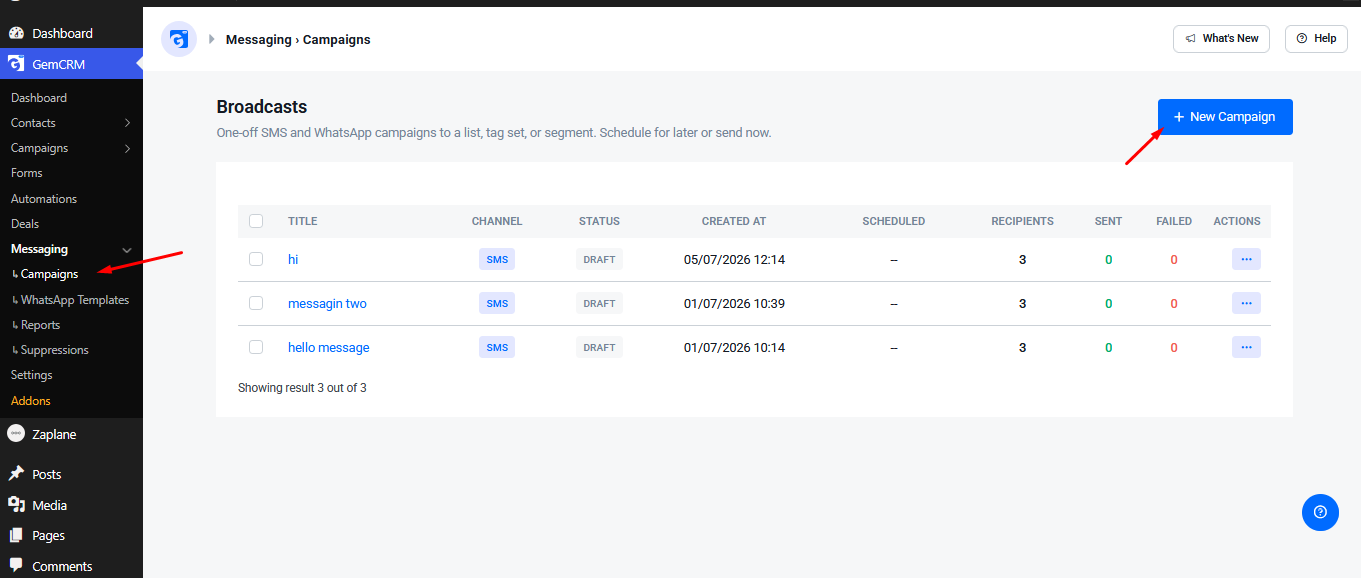
Go to the campaign list
Click Messaging > Campaigns. This opens the Broadcasts page, where you’ll see all existing campaigns (title, channel, status, sent/failed counts). To create a new one, click + New Campaign.
Step 1: Basics
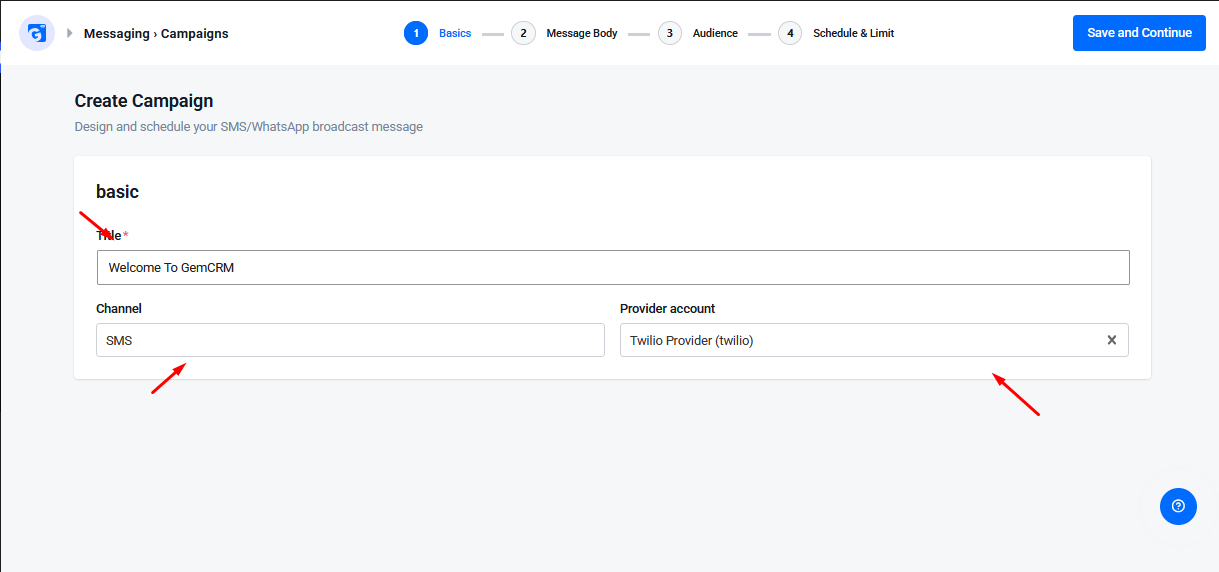
- Title — an internal name for the campaign, not visible to recipients. E.g., “Welcome To GemCRM”
- Channel — select SMS or WhatsApp
- Provider account — select the connected provider (e.g., Twilio) that will send the messages. This list is populated from the provider accounts configured under Settings
- Click Save and Continue
Step 2: Message Body
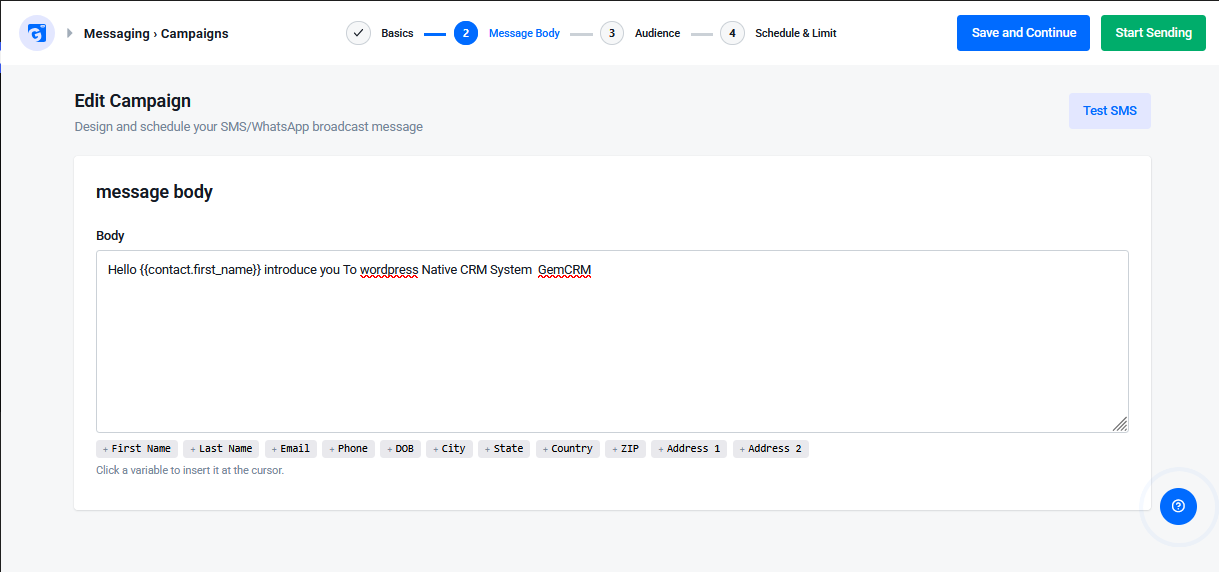
- Write your message in the Body box
- Personalize it using the merge tag buttons below the box — clicking one inserts it at the cursor: First Name, Last Name, Email, Phone, DOB, City, State, Country, ZIP, Address 1, Address 2
- Example: “Hello
{{contact.first_name}}introduce you to wordpress Native CRM System GemCRM” - Use Test SMS to send yourself a preview before broadcasting
- Click Save and Continue
Step 3: Audience
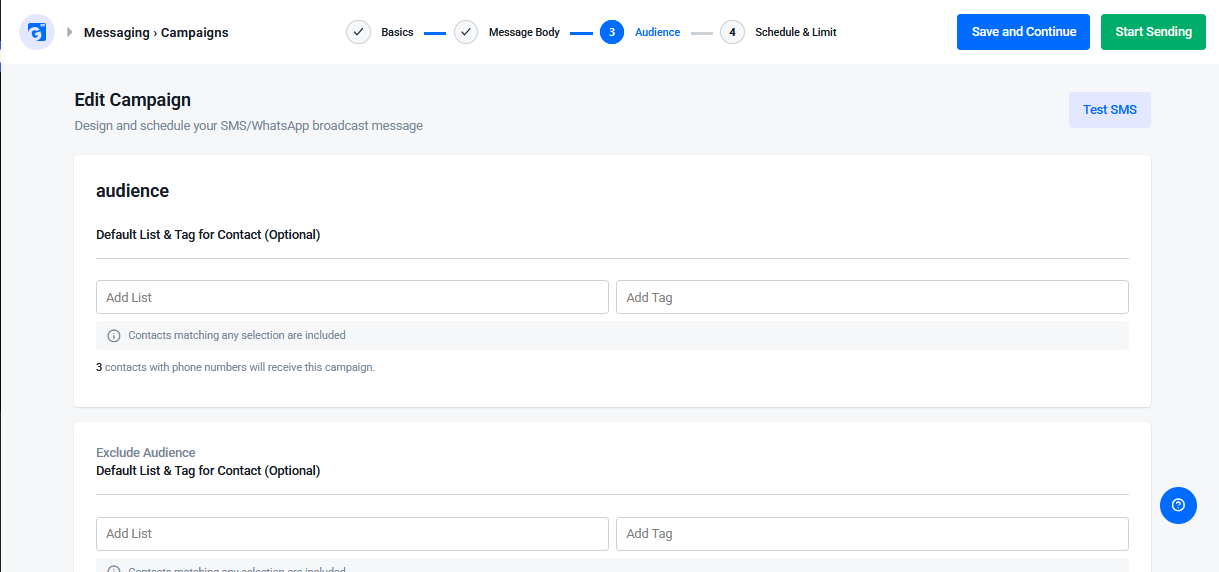
- Default List & Tag for Contact — choose which list/tag’s contacts should receive the message
- If multiple are selected, any contact matching at least one is included
- Exclude Audience — exclude contacts from a specific list/tag, even if they’d otherwise match
- A contact must have a valid phone number to receive the SMS/WhatsApp message
- A live count below shows how many contacts with valid phone numbers will receive the campaign (e.g., “3 contacts”)
- Click Save and Continue
Step 4: Schedule & Limit
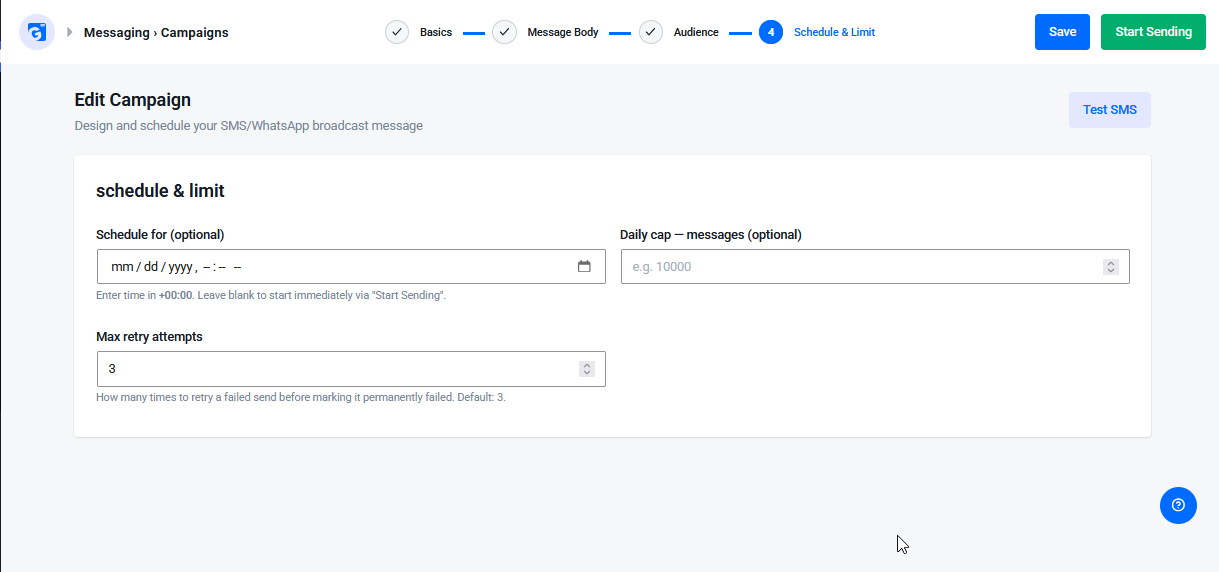
- Schedule for — set a future date/time to send later; leave blank to send immediately once you click Start Sending
- Daily cap — optional limit on how many messages go out per day
- Max retry attempts — how many times a failed send is retried before being marked permanently failed. Default is 3
Step 5: Send
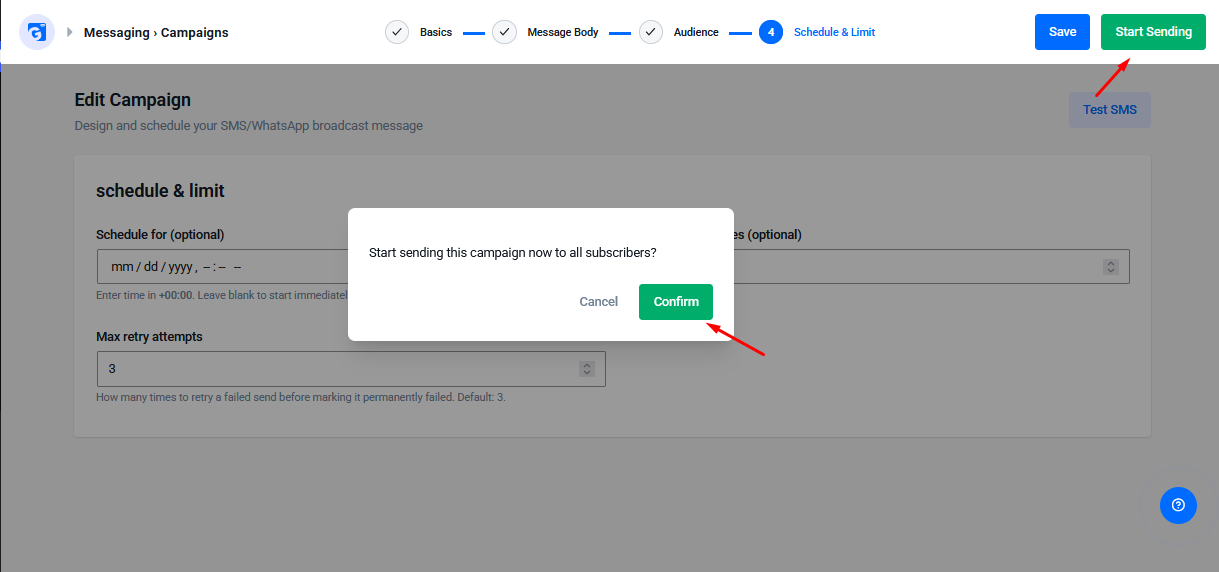
- Click Start Sending — a confirmation popup appears: “Start sending this campaign now to all subscribers?”
- Click Confirm to begin sending
- Or click Save to keep it as a draft instead
Step 6: View the report
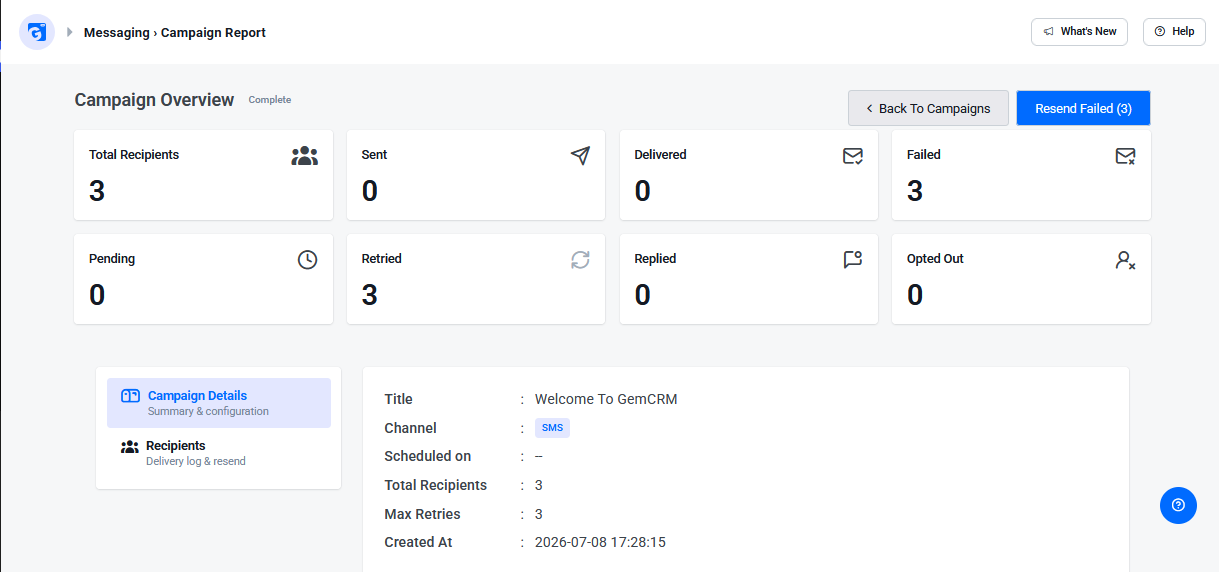
Open the campaign to see the Campaign Overview report — Total Recipients, Sent, Delivered, Failed, Pending, Retried, Replied, Opted Out. If any messages failed, use Resend Failed to retry them.