


The Tools page gives you a quick overview of your server’s health and lets you manually control GemCRM’s background tasks. You do not need to visit this page day-to-day — it is mainly useful when something is not working as expected.
How to open: Go to GemCRM → Settings → Tools.
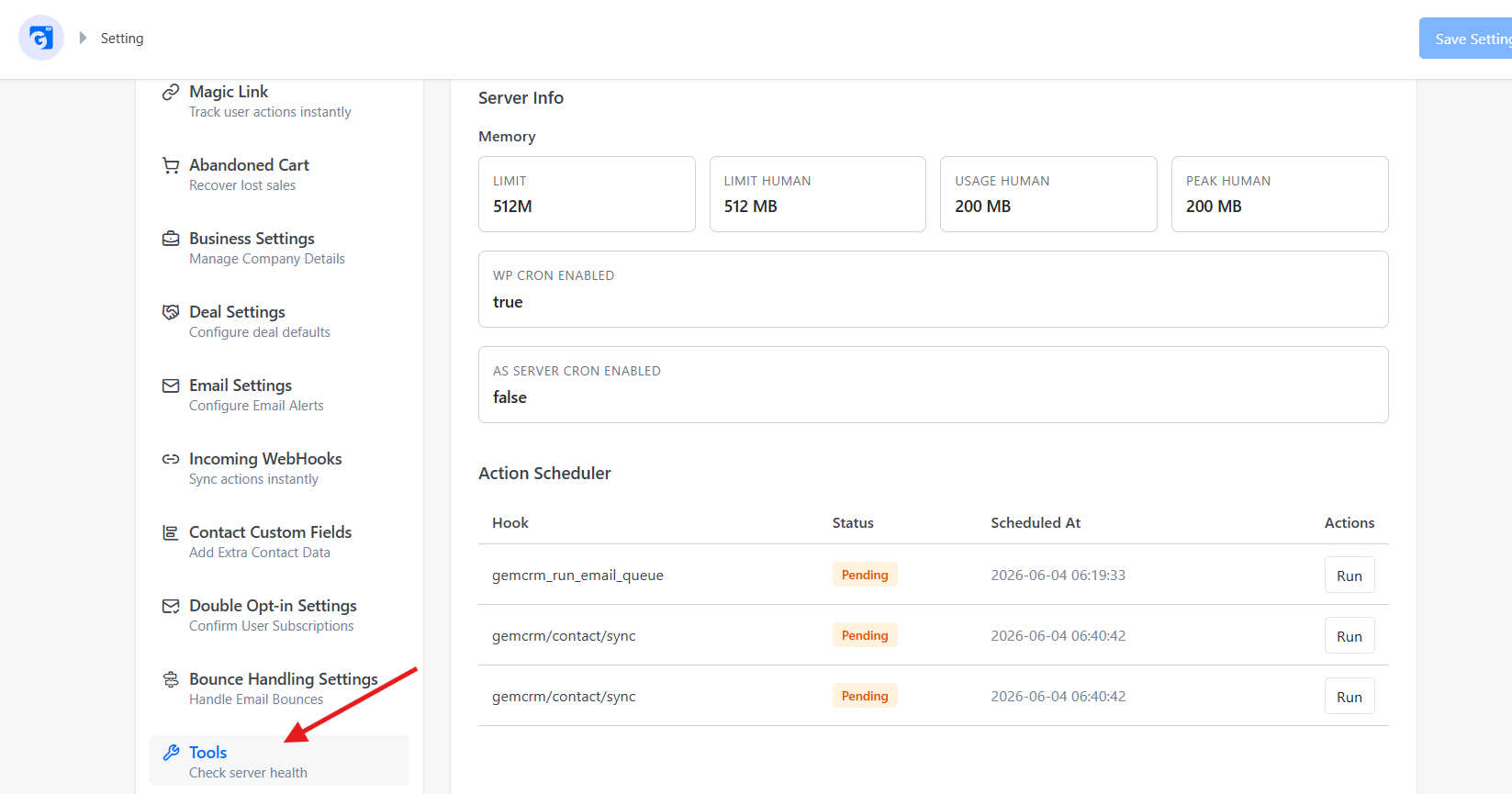
Server Info
This section displays technical details about your hosting environment. GemCRM reads these values automatically — you cannot change them here.
|
Item |
What it means |
|
Memory Limit |
The maximum amount of RAM PHP is allowed to use on your server (set by your host). For example: 512M. |
|
Memory Usage |
How much RAM is currently being used? |
|
Memory Peak |
The highest amount of RAM used during this page load. |
|
WP Cron Enabled |
true means WordPress’s built-in task scheduler is running normally. |
|
AS Server Cron Enabled |
true means your server is using a real server-side cron job instead of WordPress’s built-in scheduler (more reliable for high-traffic sites |
What to look for
- If Memory Usage or Memory Peak is close to your Memory Limit, some background tasks may fail silently. Contact your hosting provider to increase the PHP memory limit.
- At least one of WP Cron Enabled or AS Server Cron Enabled should be true. If both are false, GemCRM’s background tasks will not run automatically.
Action Scheduler
GemCRM uses background tasks (called “actions”) to do things like syncing contacts, sending emails, and processing campaign steps. This section shows all GemCRM tasks that are currently waiting to run or are actively running.
Table columns
|
Column |
What it means |
|
Hook |
The internal name of the background task. |
|
Status |
pending = waiting to run. in-progress = currently running. |
|
Scheduled At |
The date and time the task is next due to run. |
|
Actions |
A Run button to trigger the task immediately. |
Running a task manually
If a task seems stuck or you want it to run right away instead of waiting for its scheduled time:
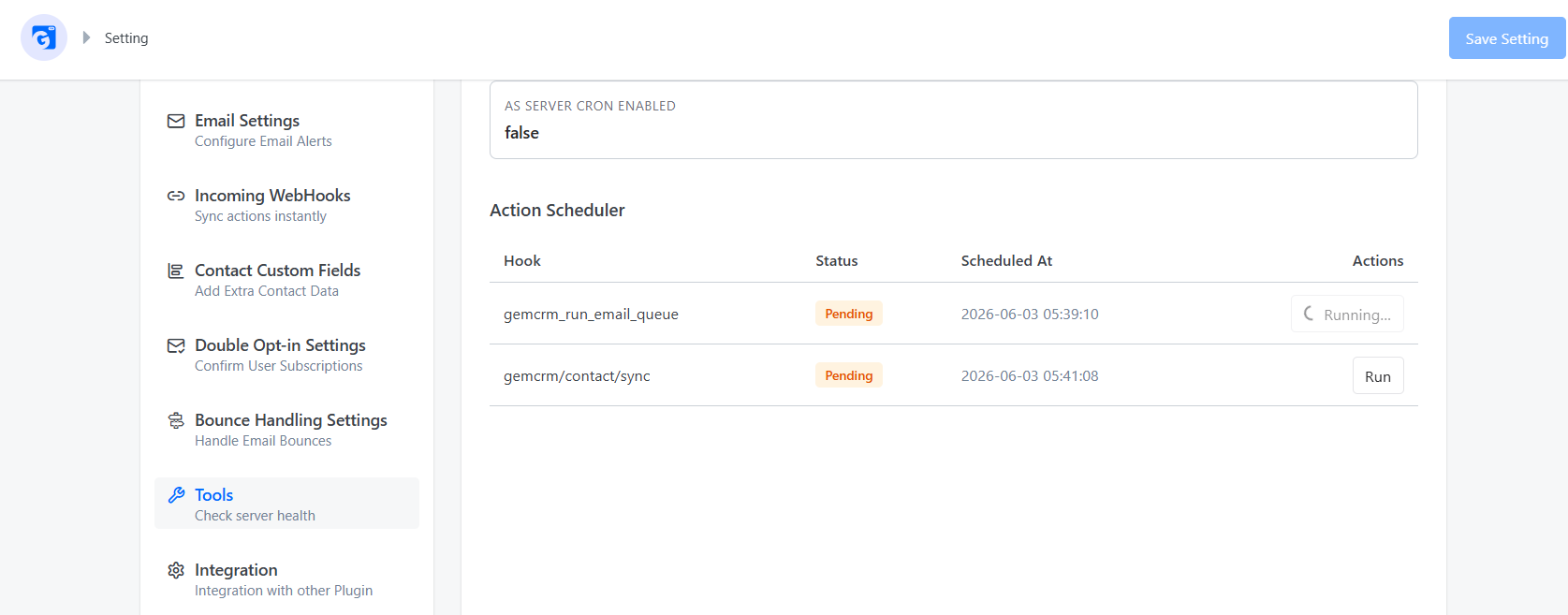
- Find the task in the table.
- Click the Run button on that row.
- The button will show “Running…” while it processes.
- The table refreshes automatically when it finishes.
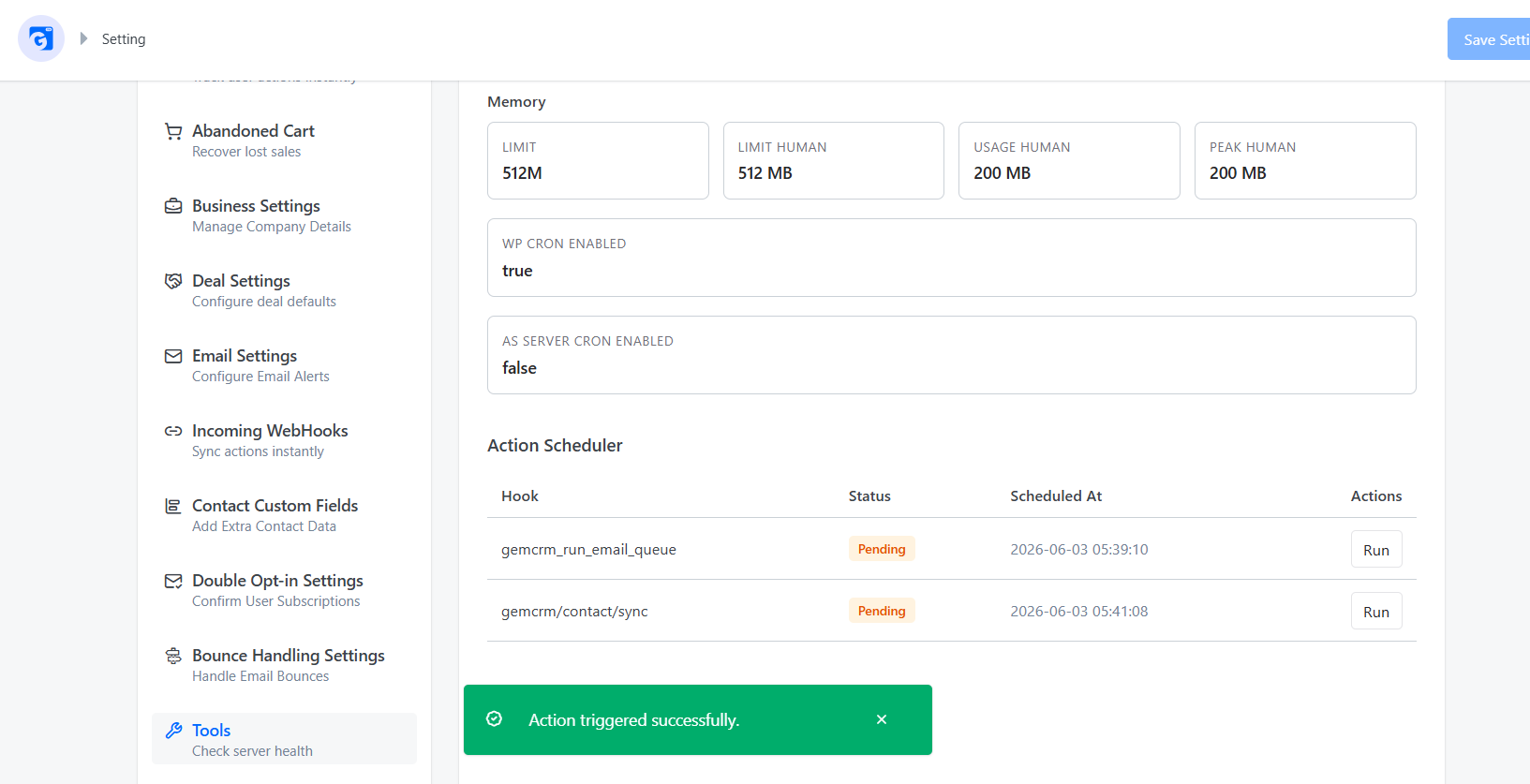
Note: You can only manually run GemCRM’s own tasks from this page. Tasks from other plugins are not shown here.
When the table is empty
If the table shows “No scheduled actions found”, there are no GemCRM background tasks currently waiting. This is normal when nothing is queued — for example, when no campaigns are active, and no syncs are pending. GemCRM Tools.
Common Questions
Why is the table empty even though I have active campaigns?
Campaign tasks are added to the queue only when they are triggered — for example, when a contact enters a sequence. If no contacts are currently being processed, the queue will be empty.
A task has been “pending” for a long time — what should I do?
This usually means WP Cron is not firing. Check that WP Cron Enabled shows true in the Server Info section. You can also click Run to trigger the task manually right away.
What does the hook name mean?
Hook names are internal identifiers — they are not meant to be human-readable. They always start with GemCRM, so you know they belong to GemCRM.
Will clicking Run cause duplicates or other problems?
Running a task manually simply processes it now instead of waiting for the scheduled time. It is safe to do if a task is stuck. Avoid clicking Run repeatedly on the same task.