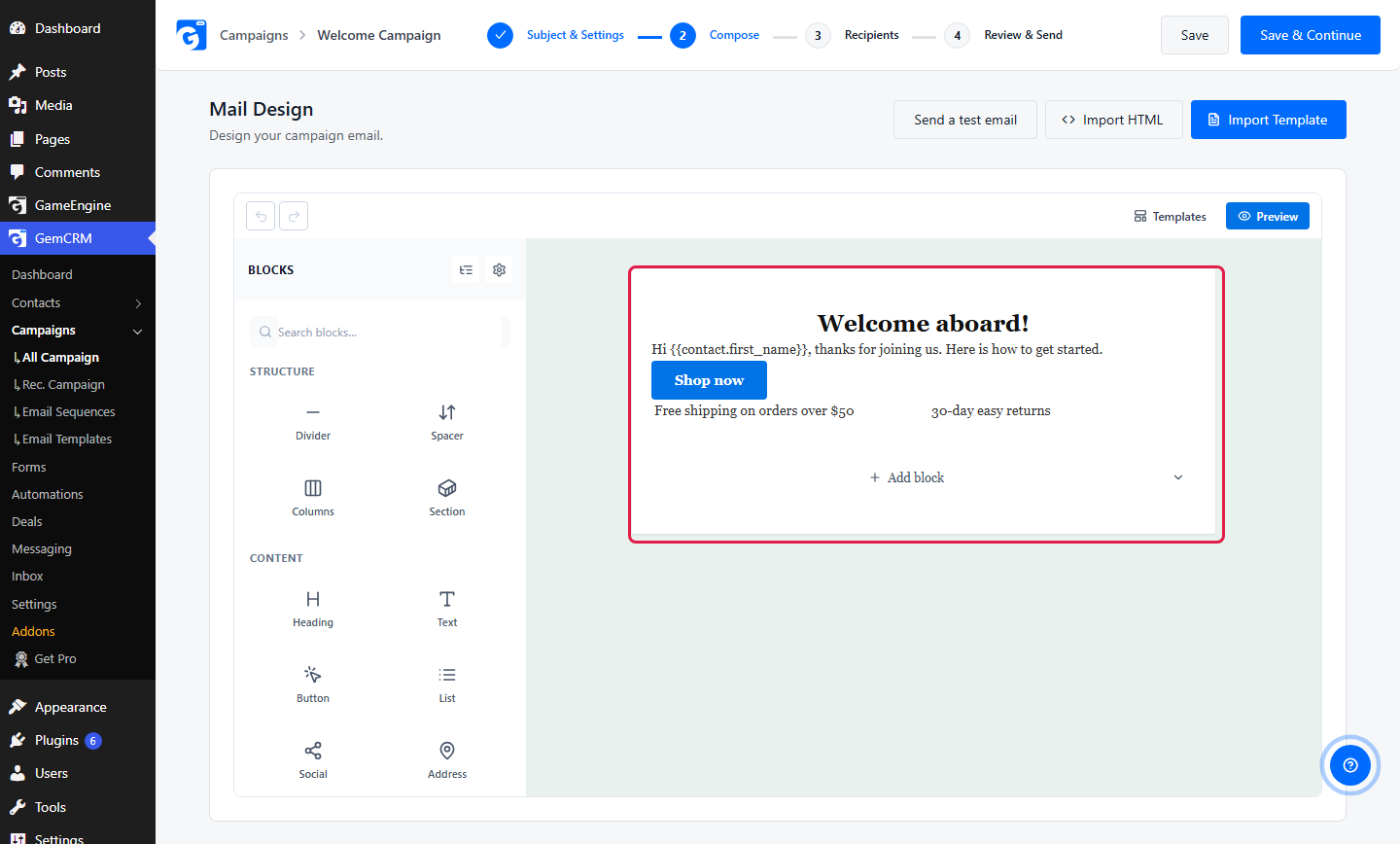
Build an email by dragging blocks onto a page. You do not write code. The same builder is used for email templates and for the Compose step of a campaign.
Open the builder
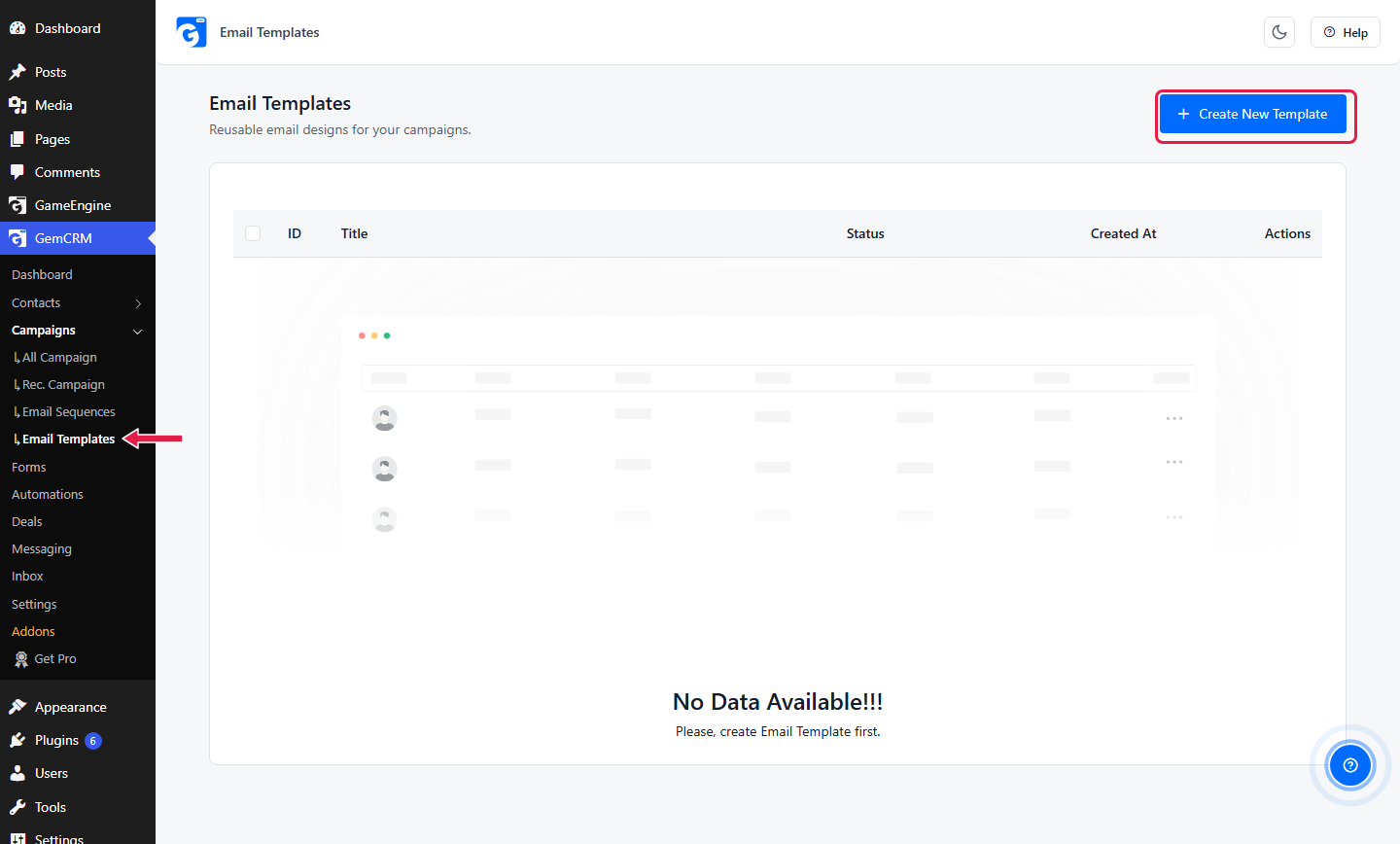
Go to GemCRM → Campaigns → Email Templates. Click Create New Template.
Name the email
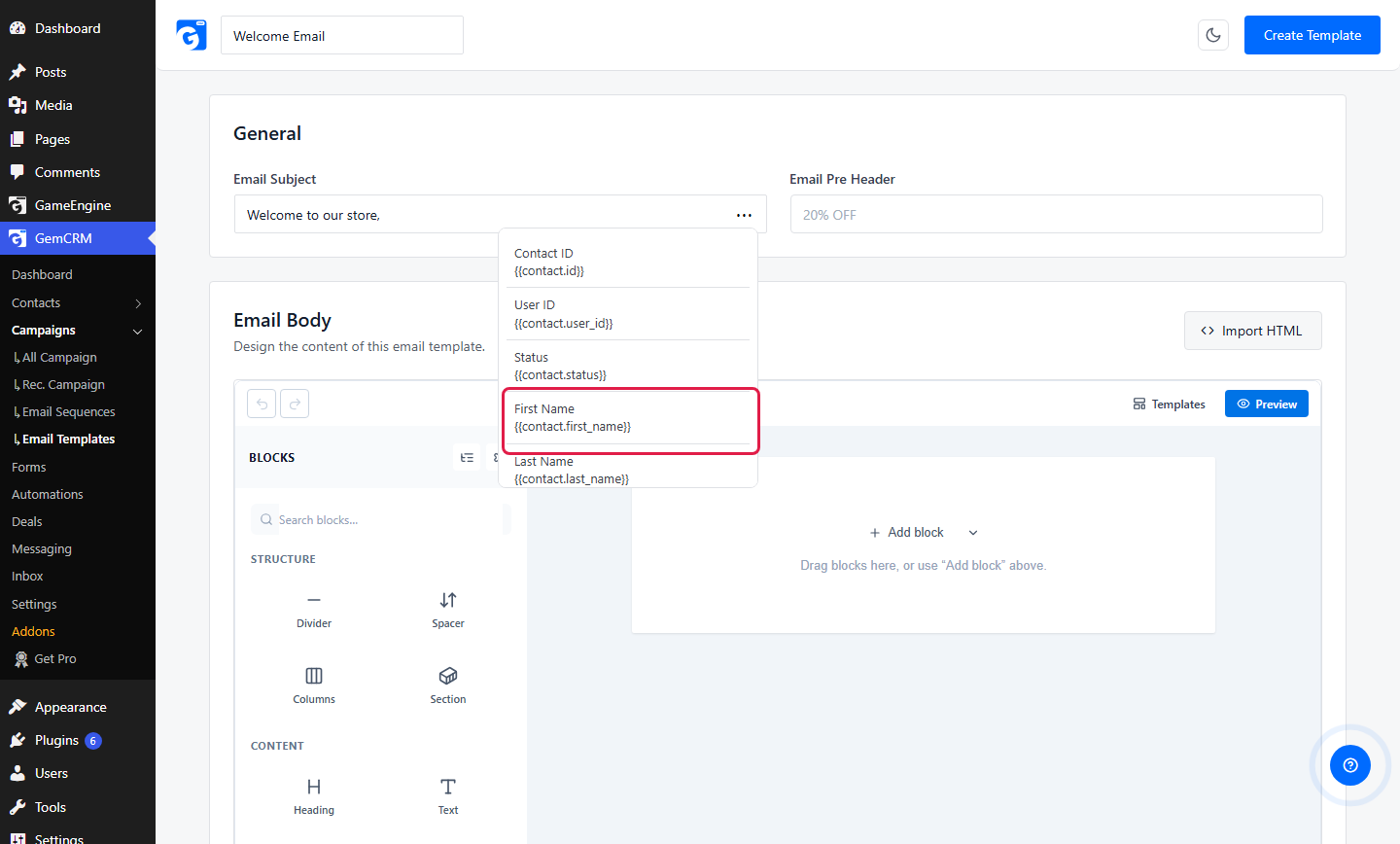
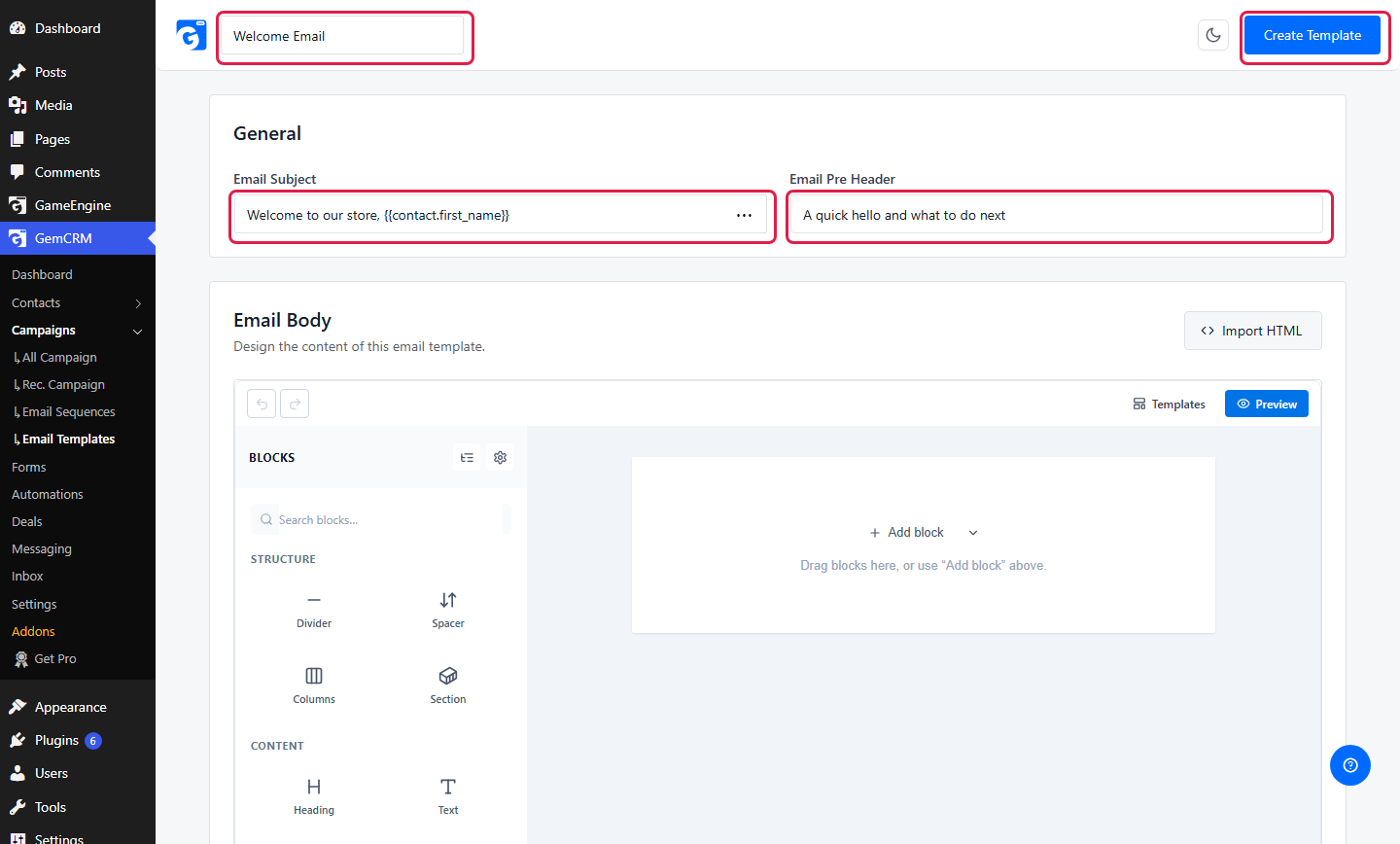
Type a Template title, an Email Subject and an Email Pre Header. To add a contact name to the subject, click ⋯ in the subject field and pick a merge tag.
Know the screen
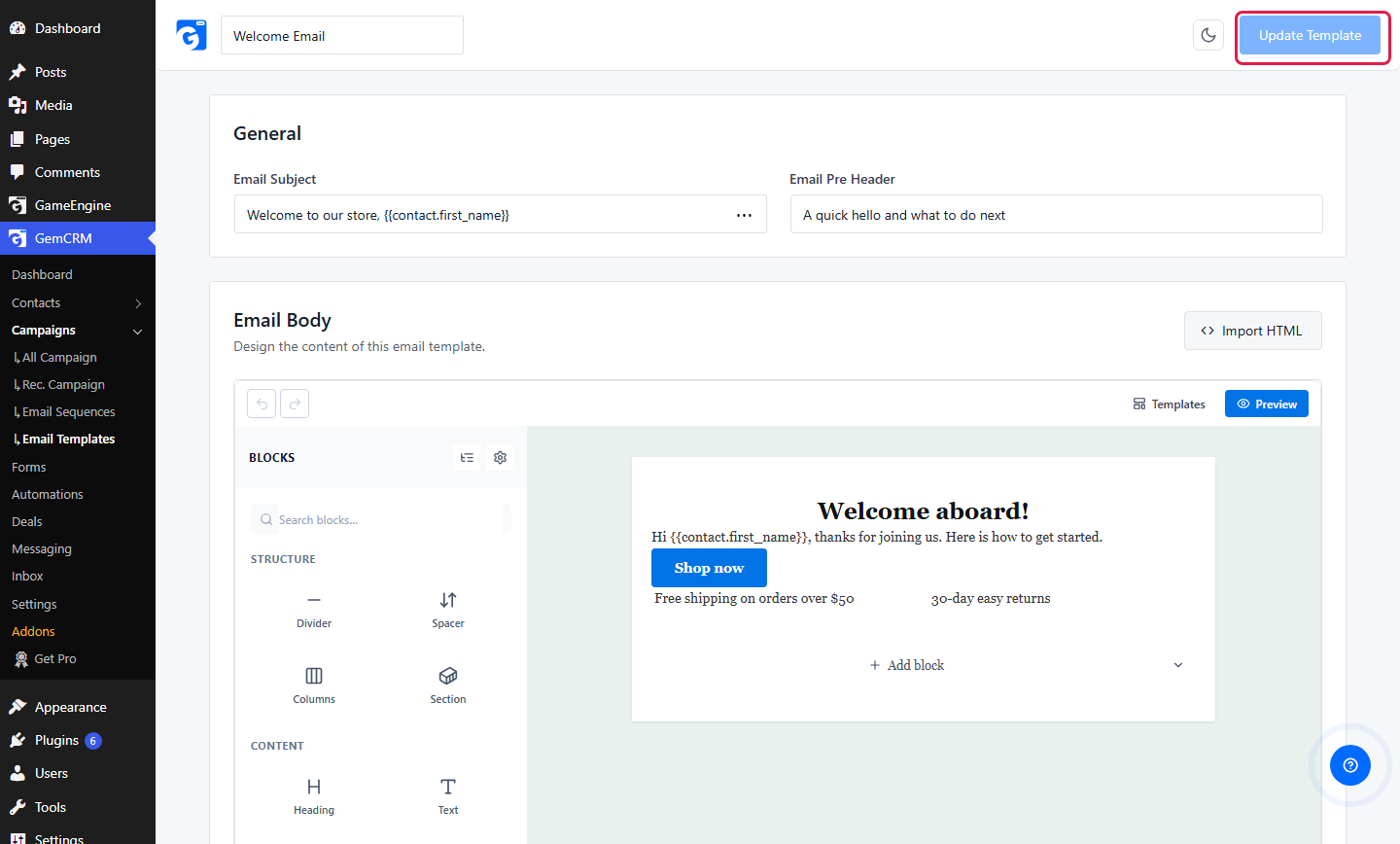
Scroll down to Email Body. The blocks are on the left. The email is on the right.
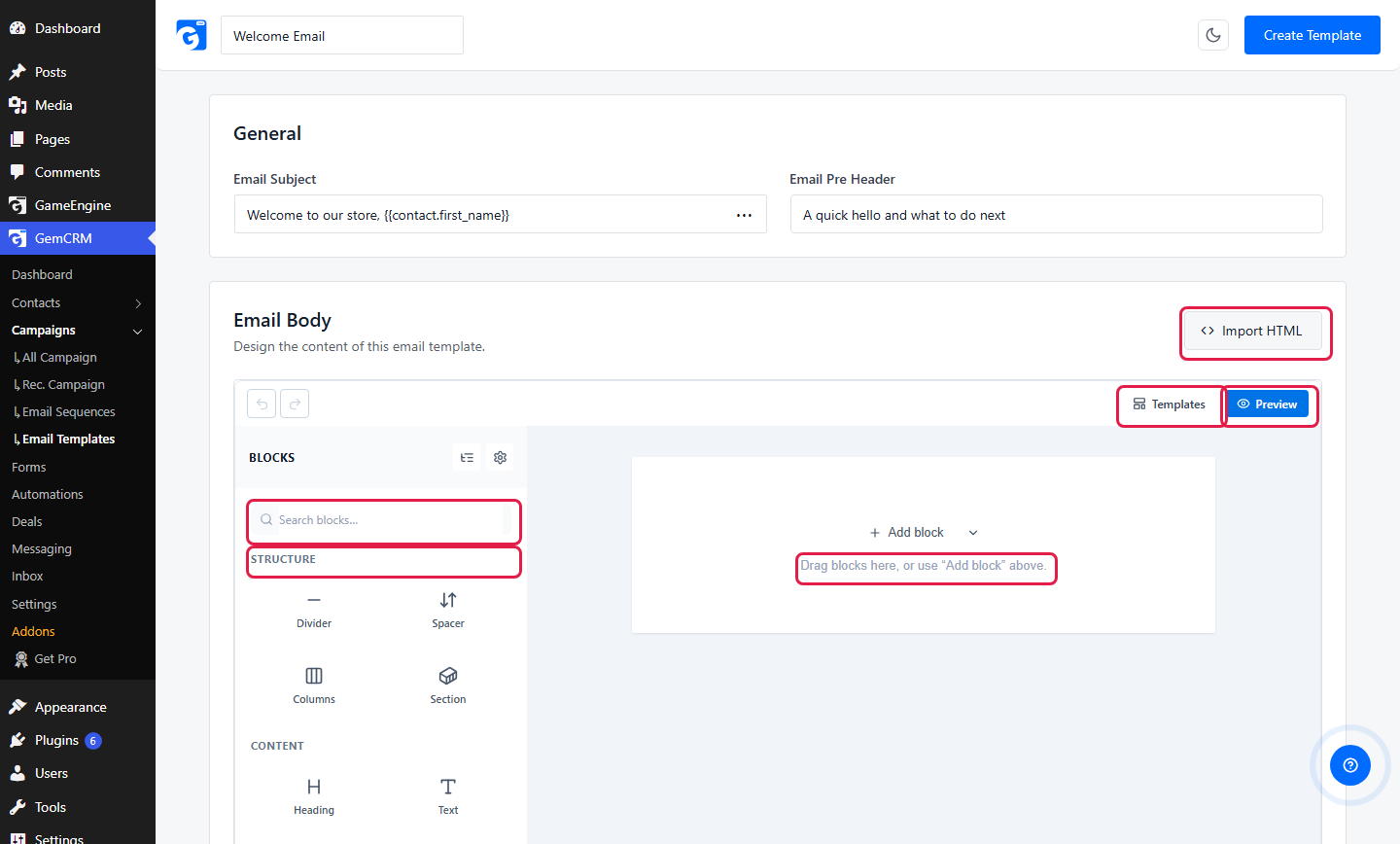
|
Group |
Blocks |
|
Structure |
Divider, Spacer, Columns, Section |
|
Content |
Heading, Text, Button, List, Social, Address, Signature, Date, Timer, Custom HTML |
|
Media |
Image, Video |
Add a block
Drag a block from the left and drop it on the email. Or click Add block. Click the small arrow next to it to pick a block from a list.
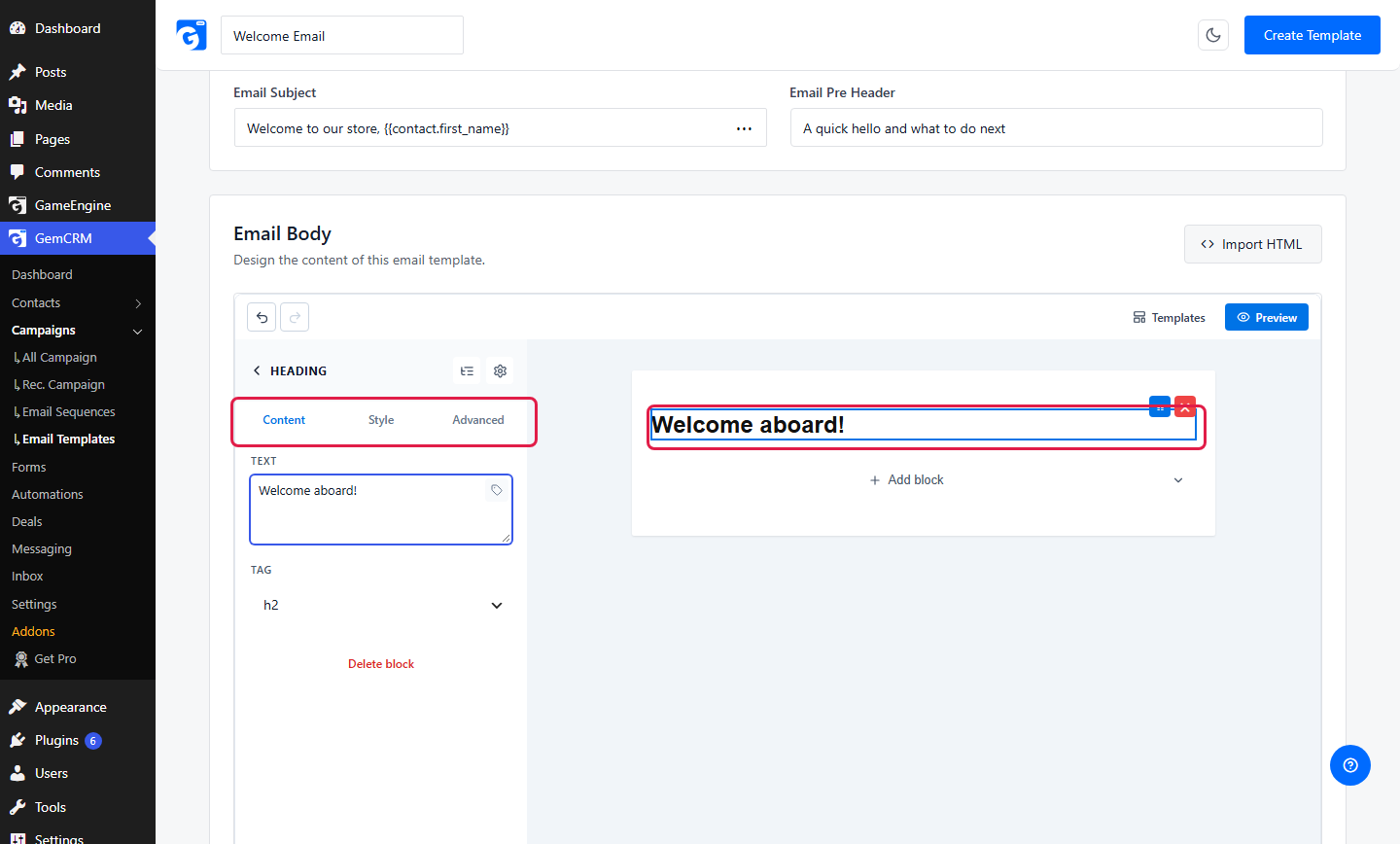
Click a block to edit it. The left panel shows three tabs: Content, Style and Advanced. Type your words in the Text box.
Style a block
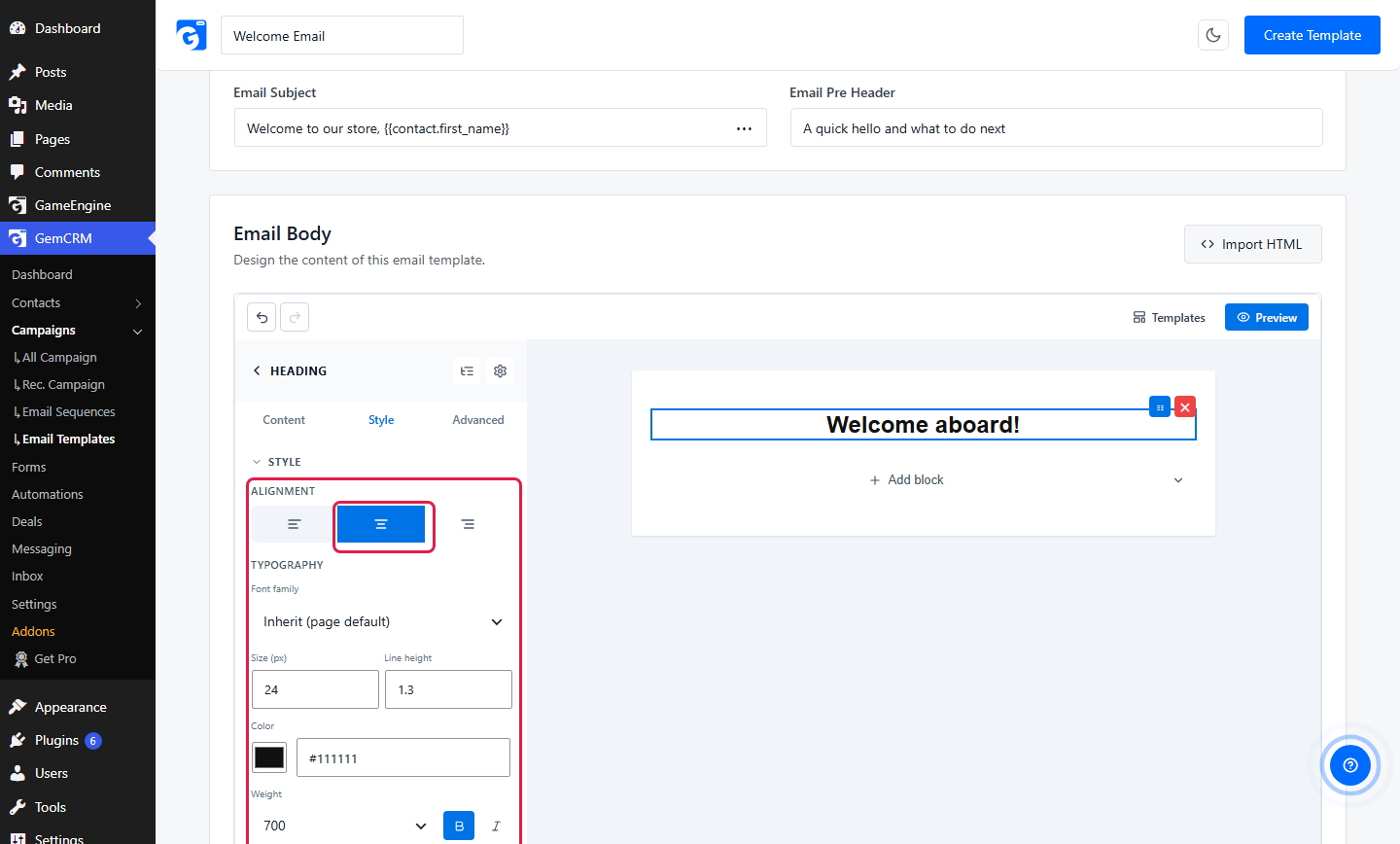
Open the Style tab. Pick an alignment. Change the size, color and weight.
Add a merge tag to text
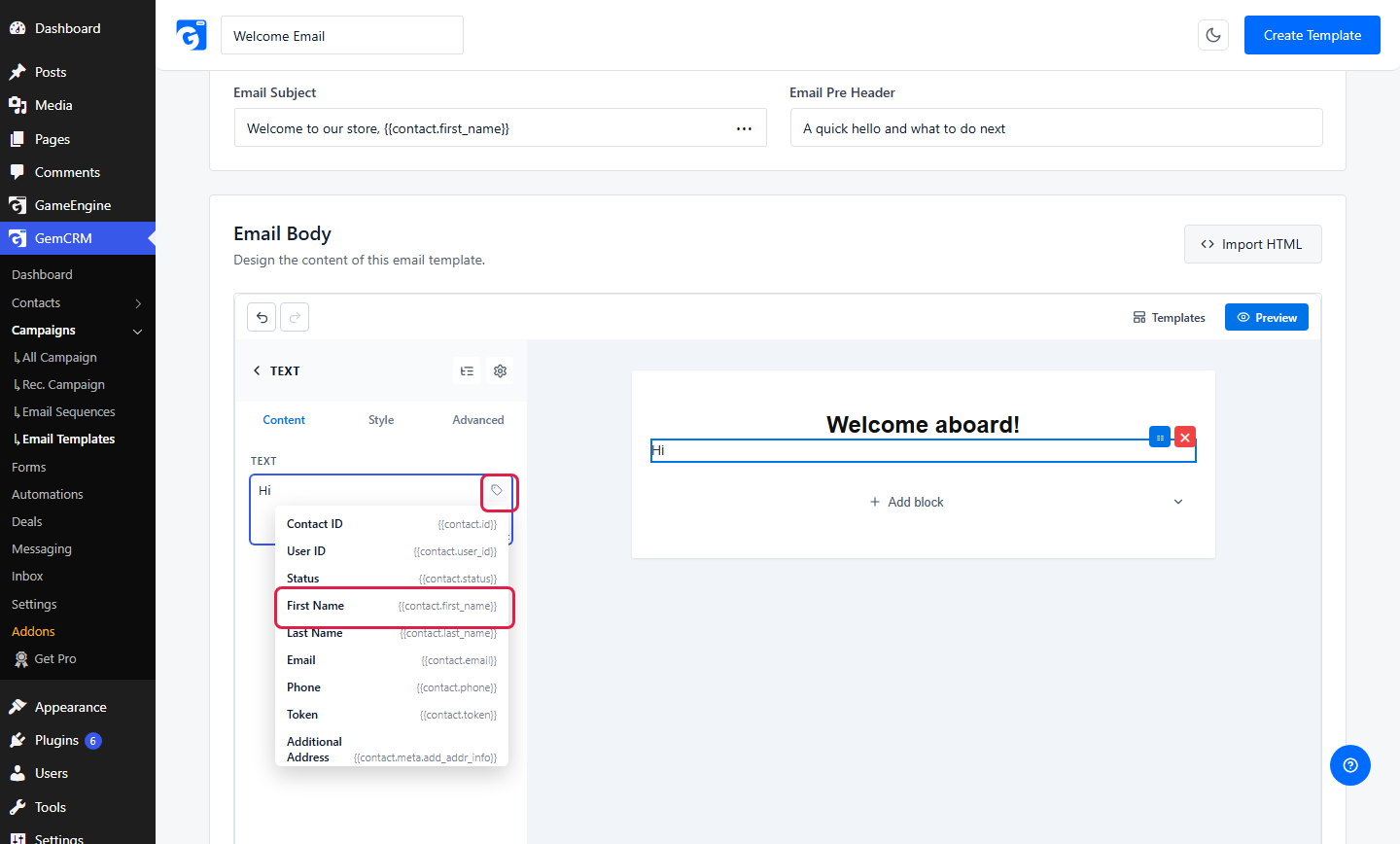
Add a Text block. Click the tag icon in the Text box. Pick a merge tag. It fills in each contact’s own details when the email is sent.
Add a button
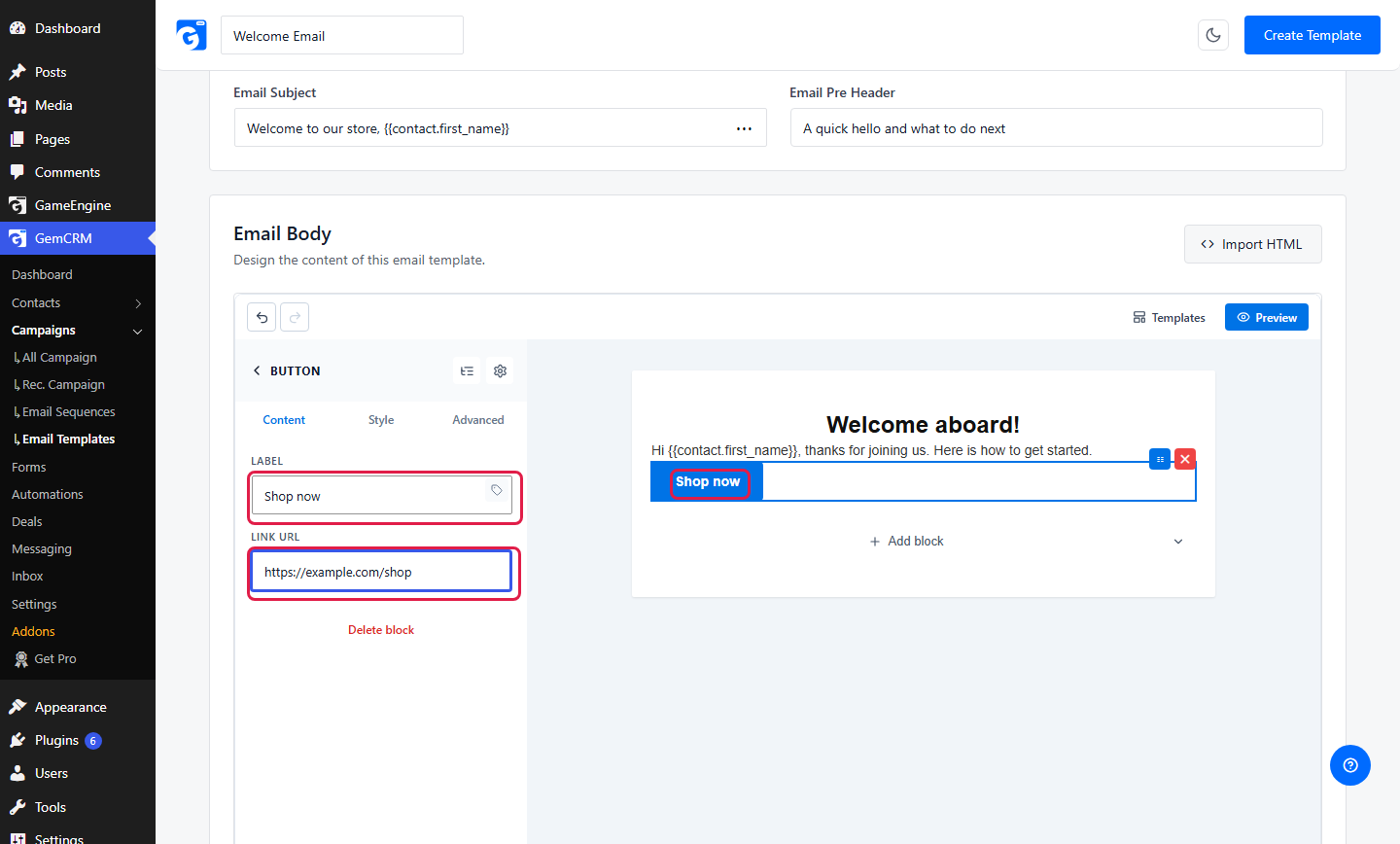
Drag a Button block. Type the Label and the Link URL.
Put blocks side by side
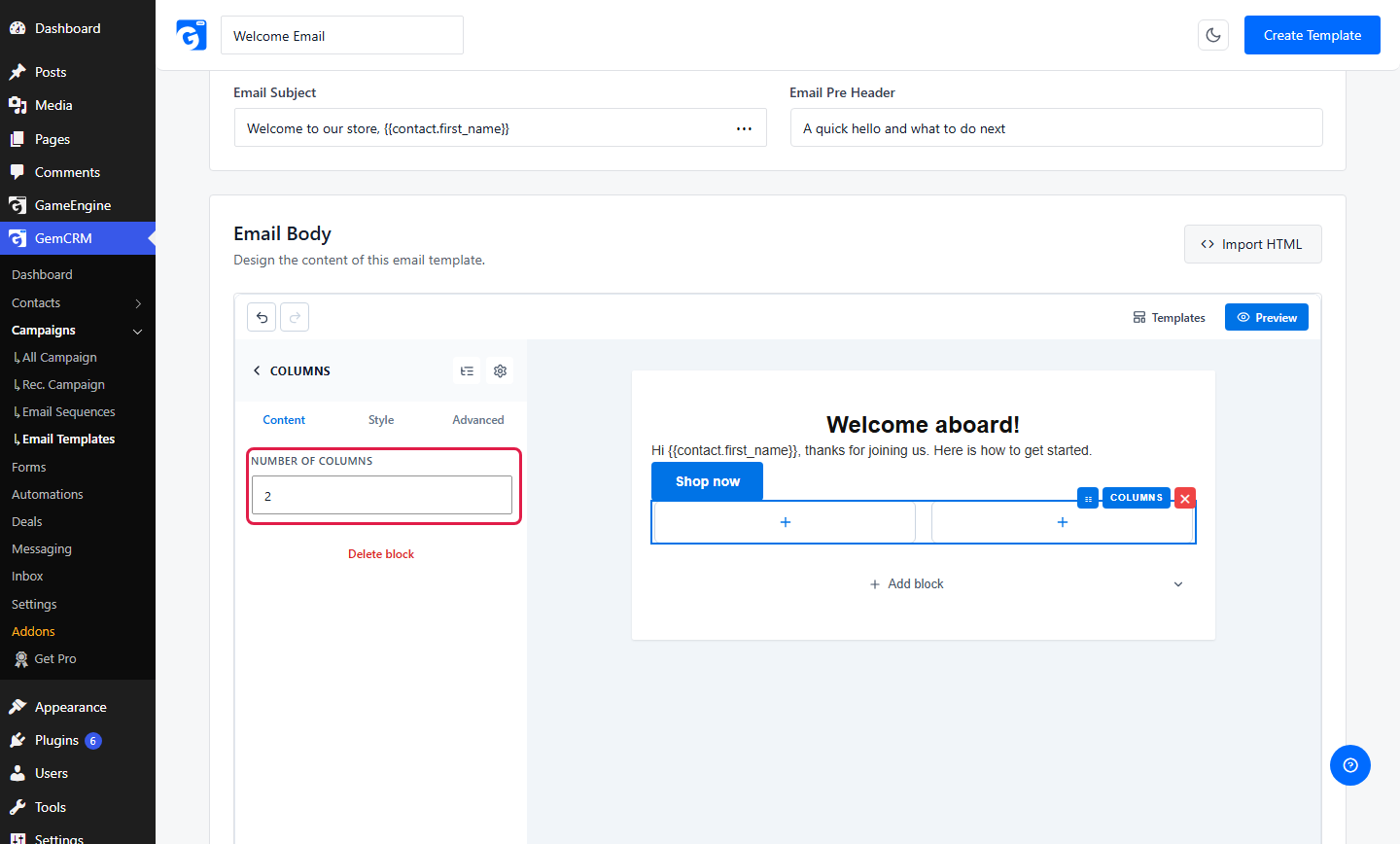
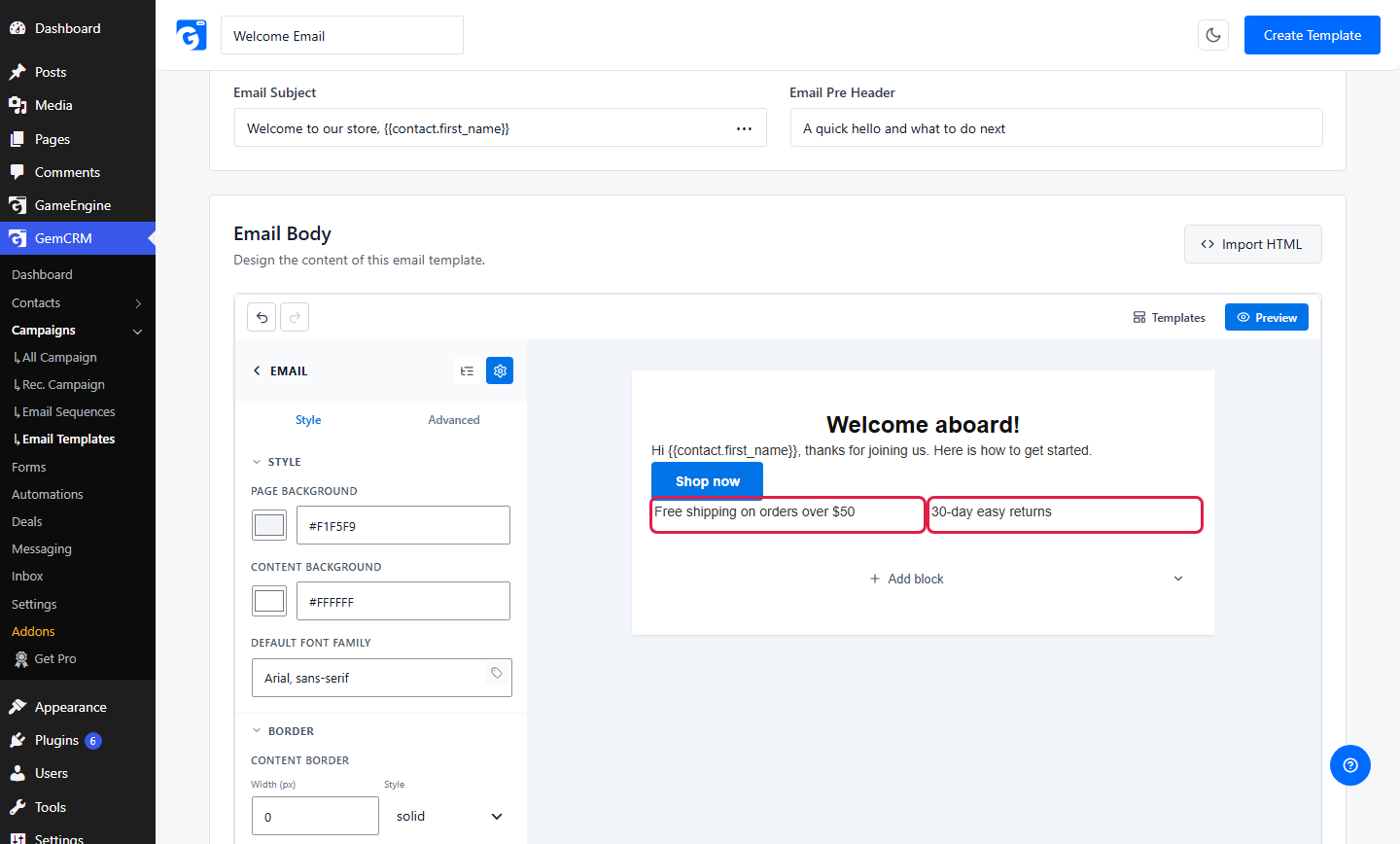
Drag a Columns block. Set Number of columns. Then drag a block into each column.
Change the order
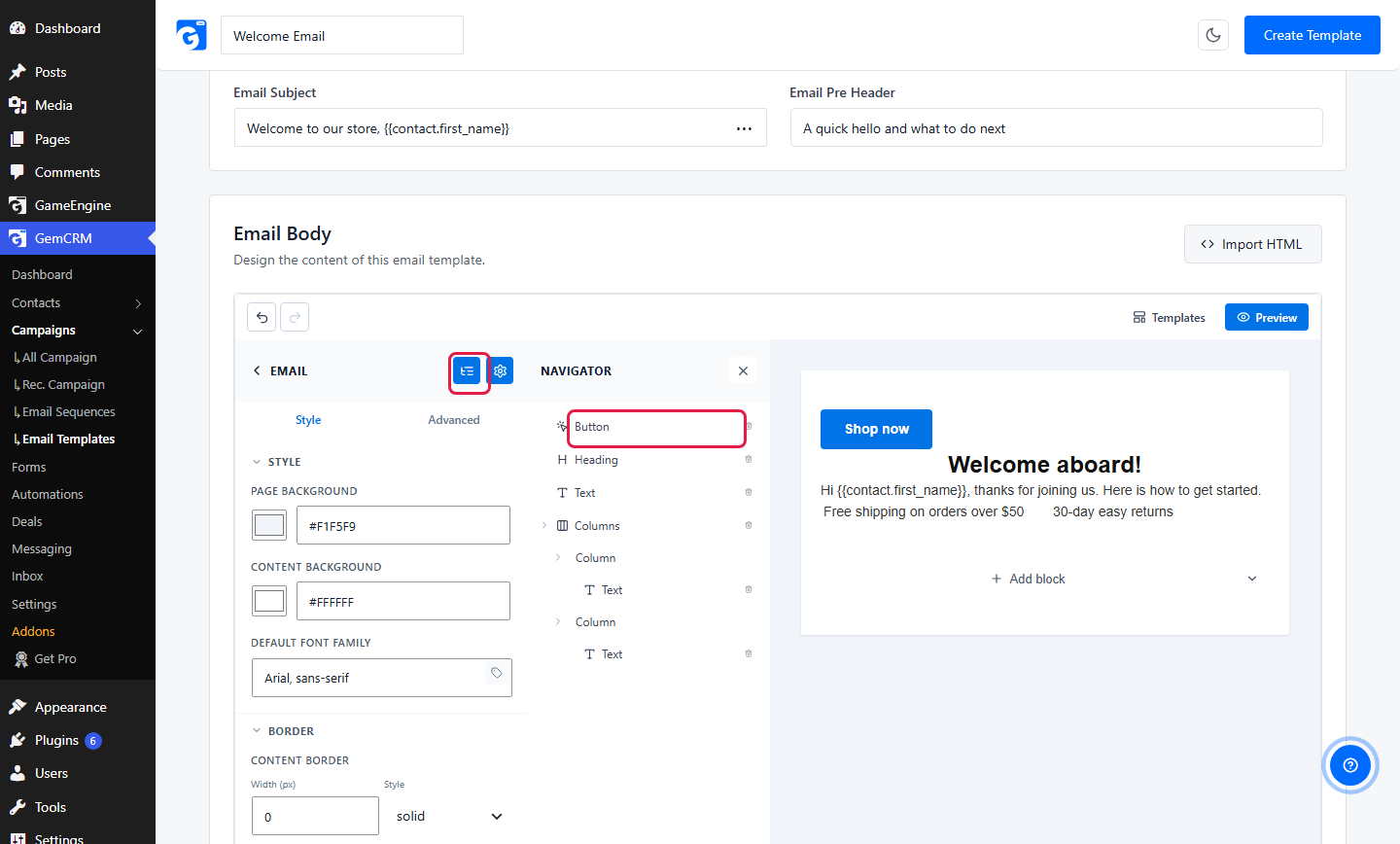
Click the list icon to open the Navigator. It lists every block. Drag a row up or down to move that block.
Set the email look
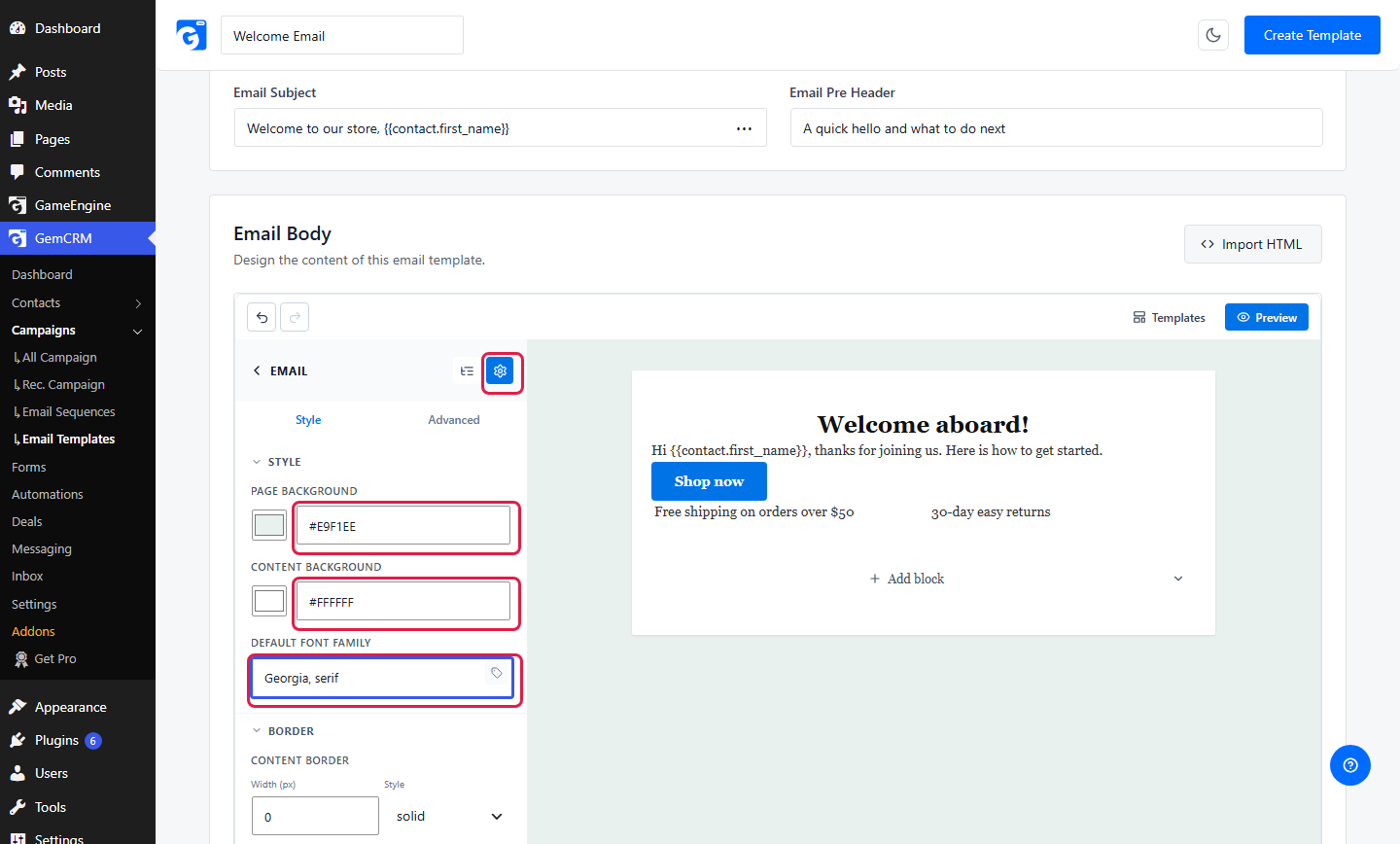
Click the gear icon (Email Settings). Change the page color, the content color and the default font. These apply to the whole email.
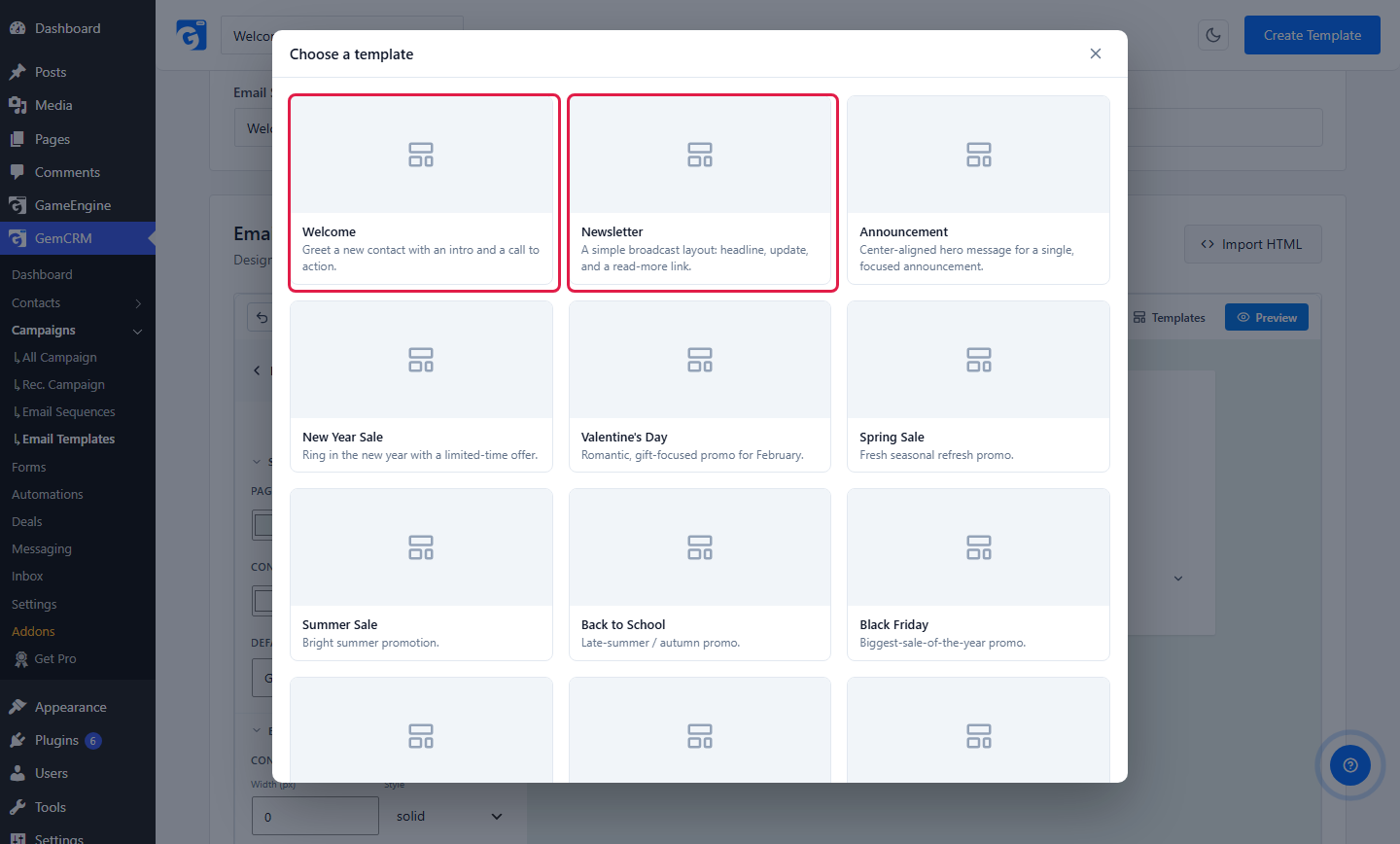
Start from a ready-made email
Click Templates. Pick a design such as Welcome or Newsletter.
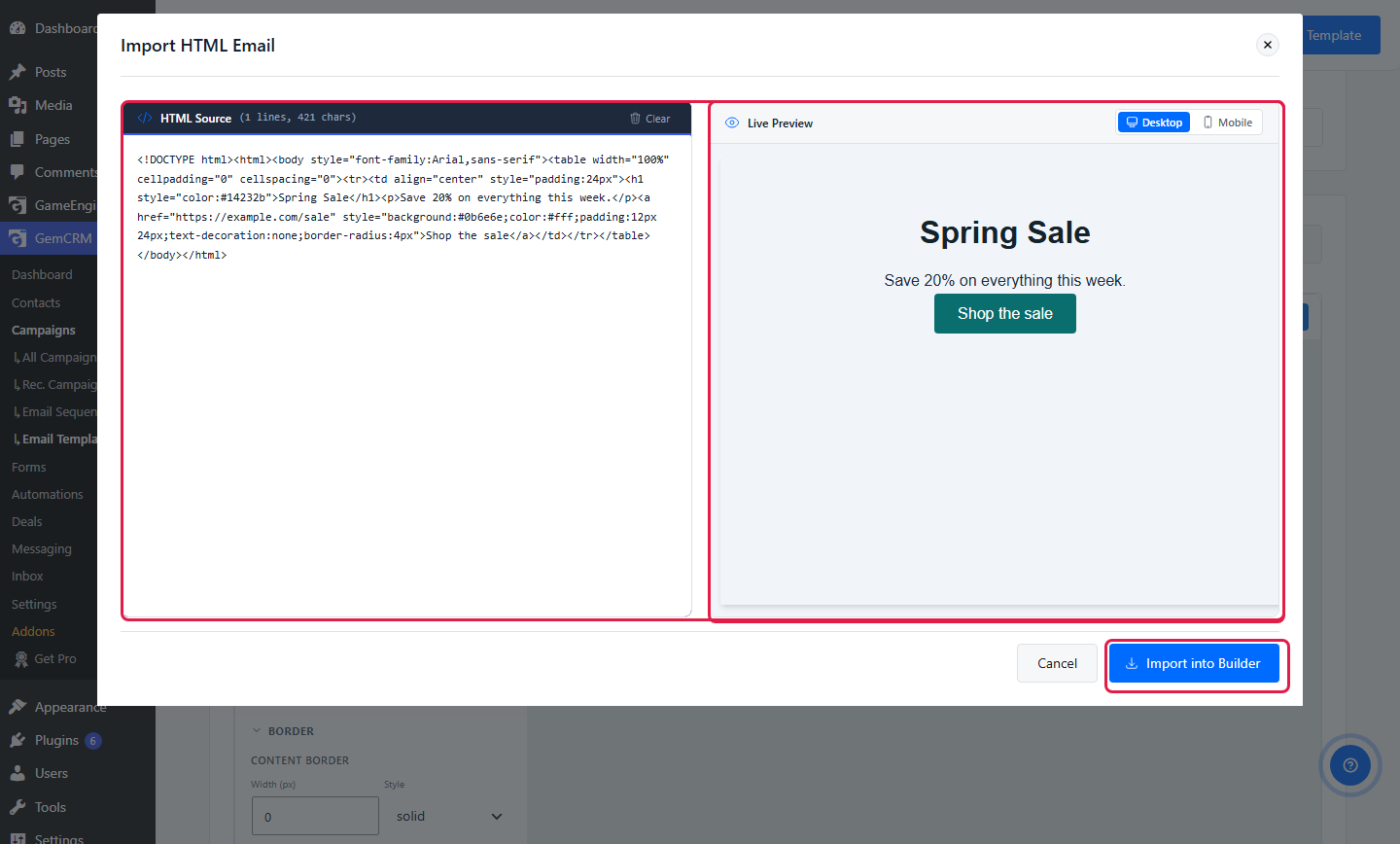
Already have an HTML email? Click Import HTML. Paste the code. Check the live preview. Click Import into Builder.
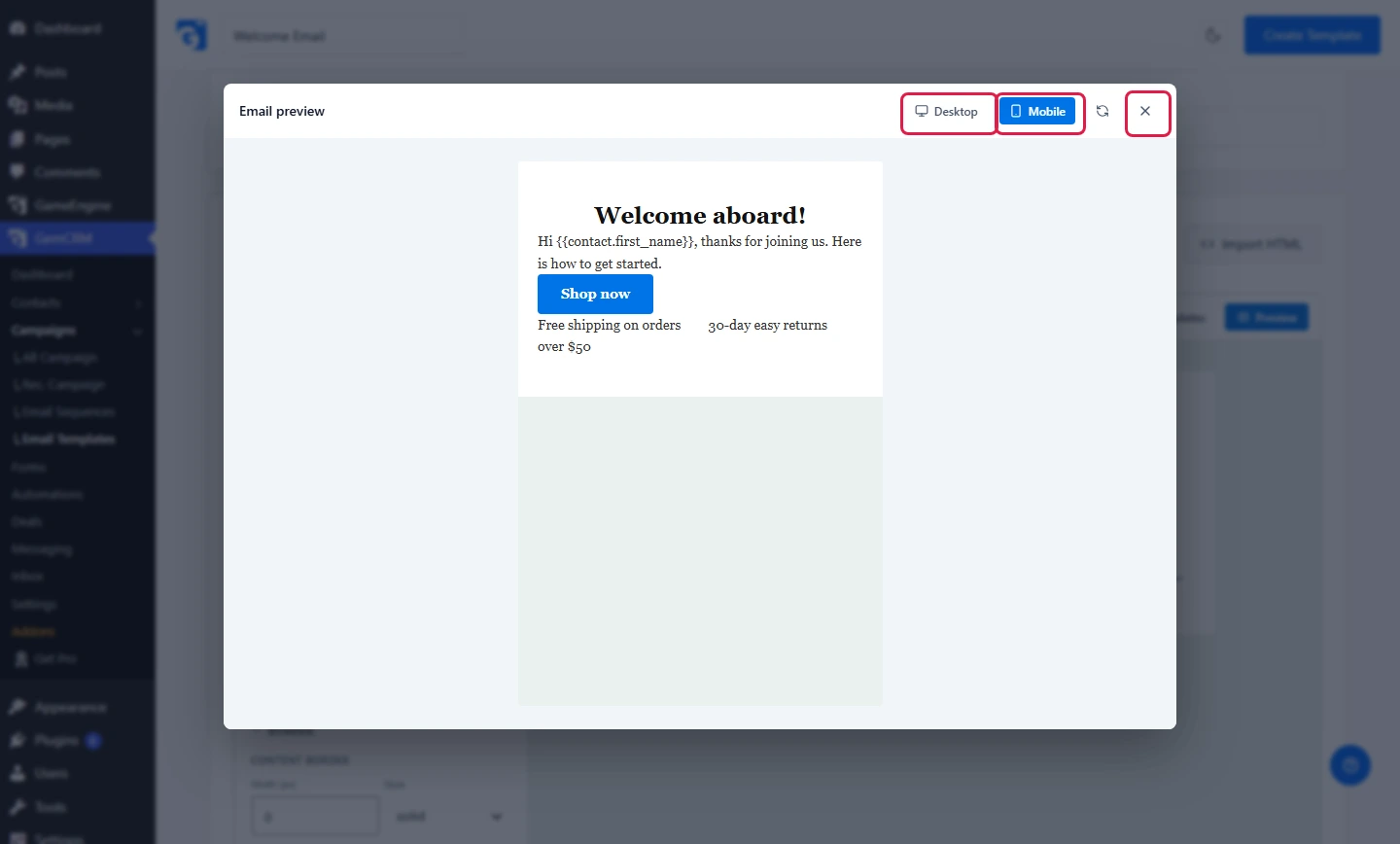
Preview
Click Preview. Switch between Desktop and Mobile.
Save
Click Create Template. A message says the template was created. The button changes to Update Template.
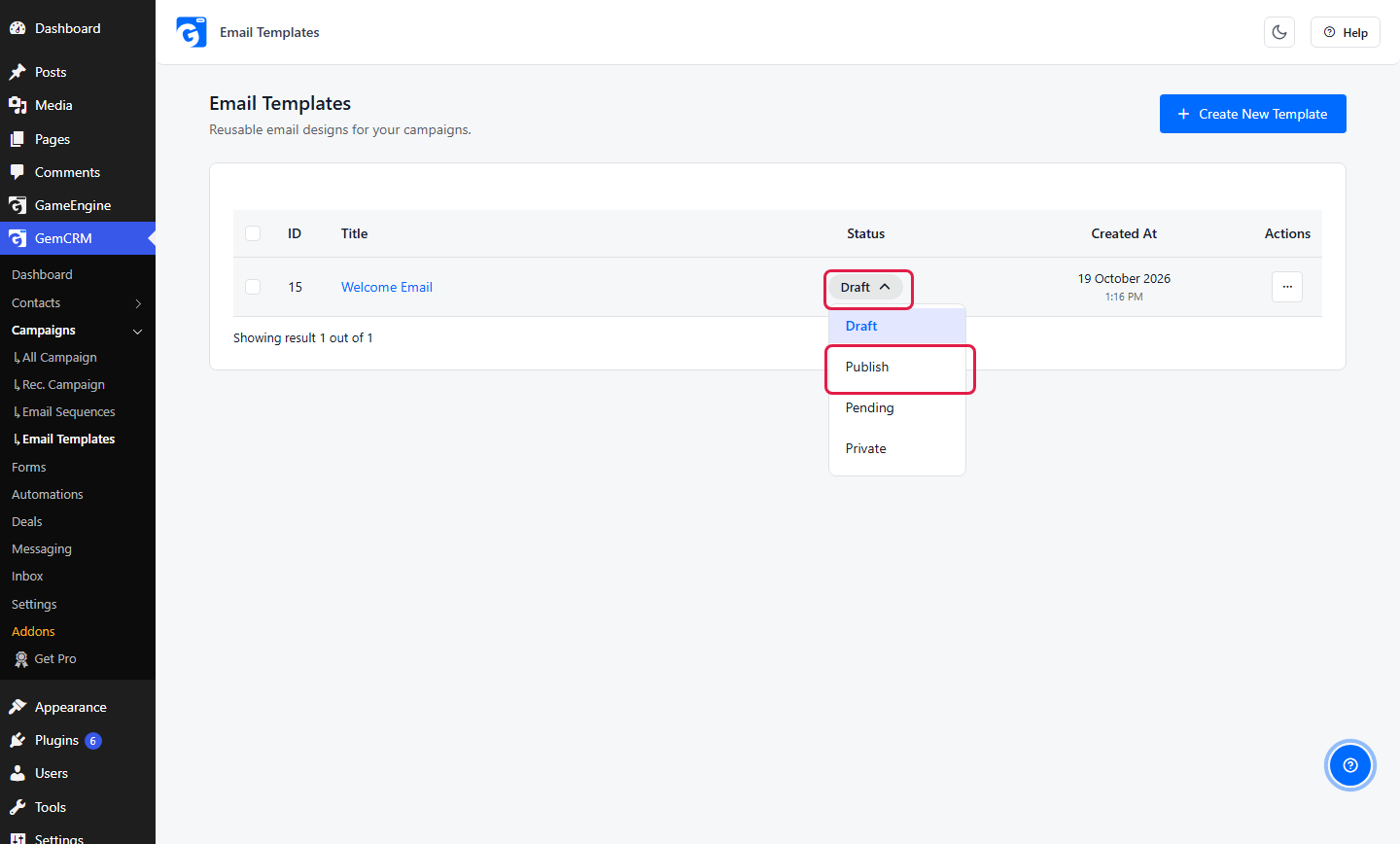
A new template starts as Draft. To change it, click the status in the list and pick Publish, Pending or Private. A Draft template can still be used in a campaign.
Use it in a campaign
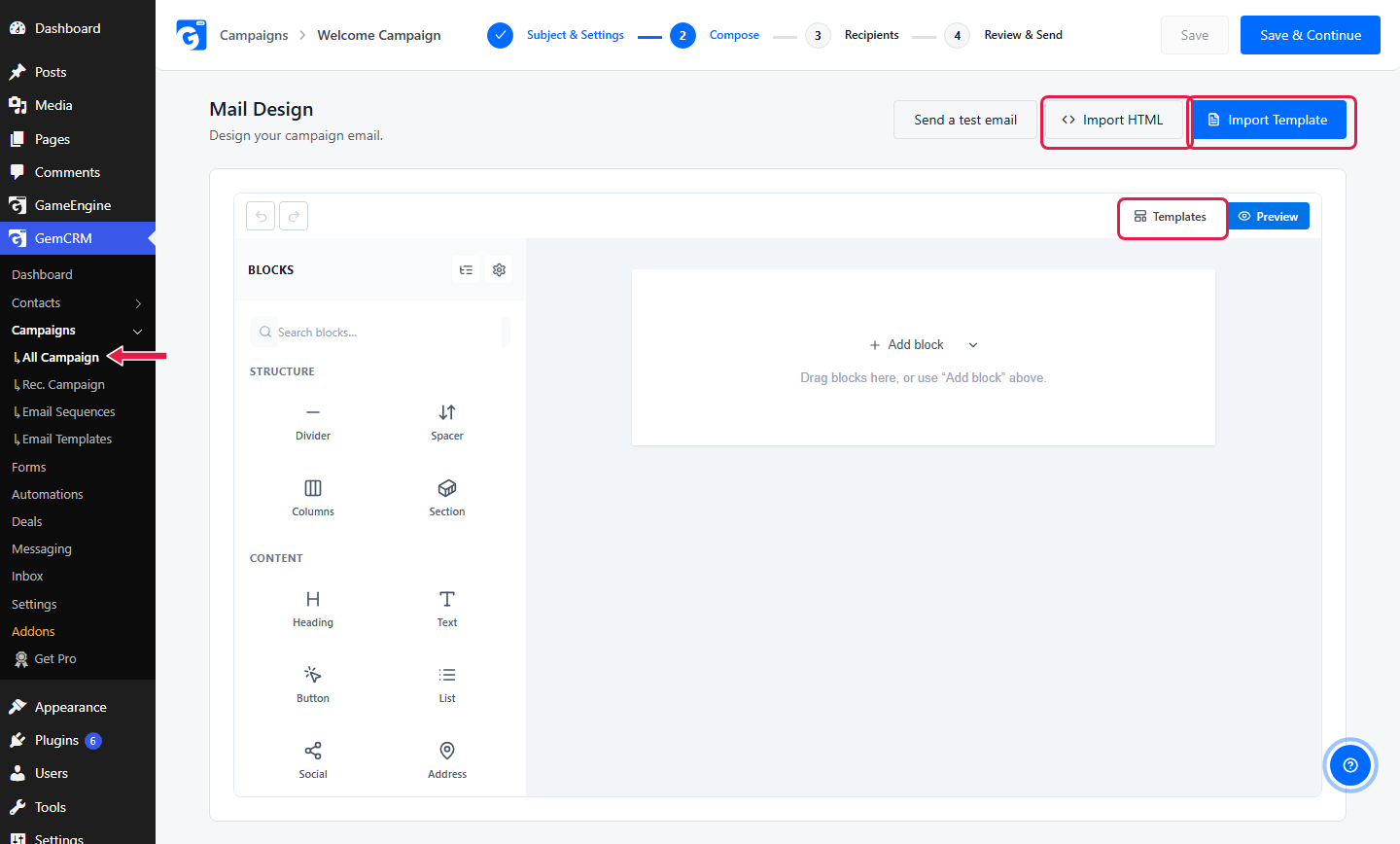
Go to GemCRM → Campaigns → All Campaign and create a campaign. On the Compose step, click Import Template.
Click Import next to your template.
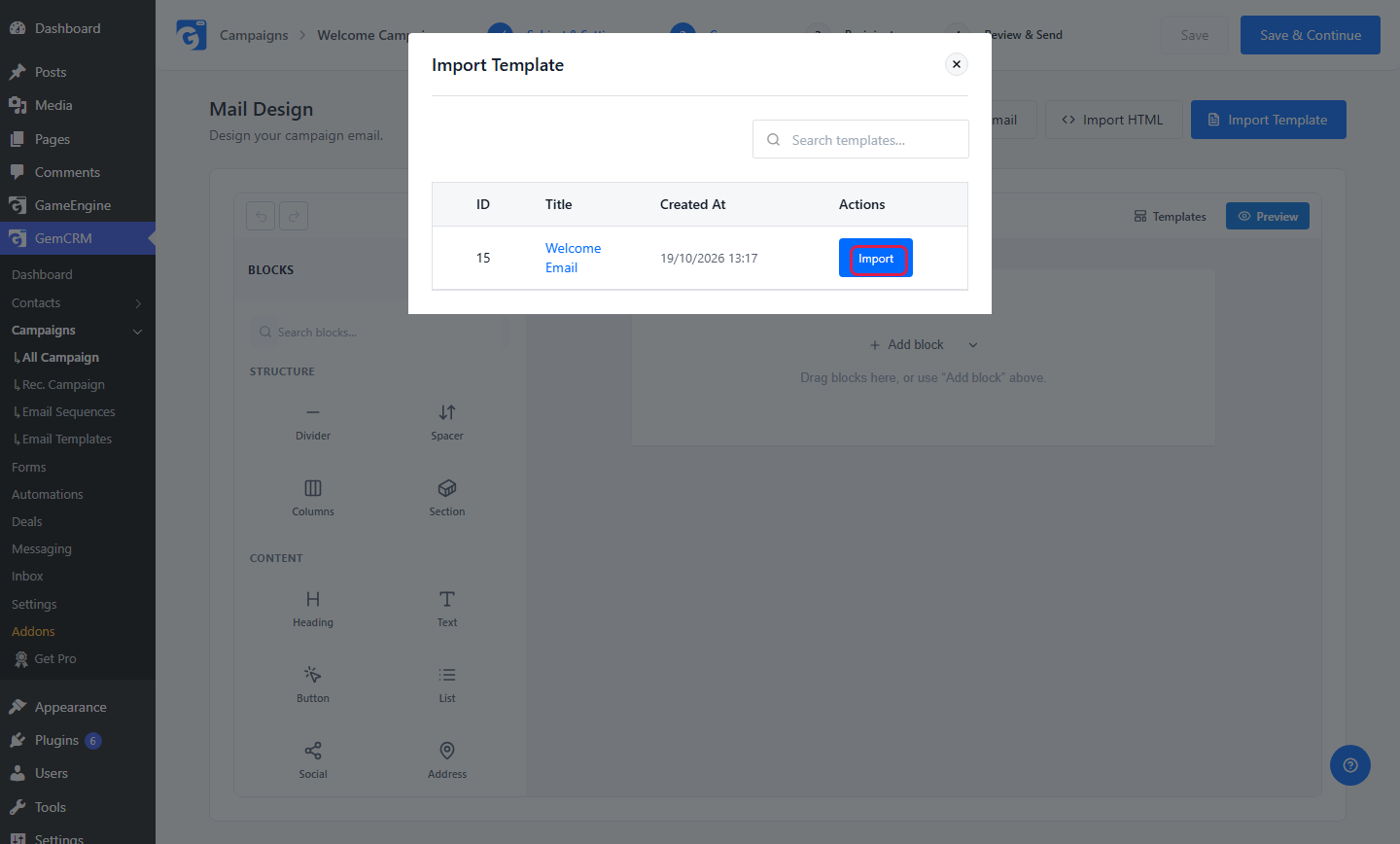
The blocks load into the campaign. Edit them the same way.