


GemCRM includes a GemBooking integration that keeps booking users in sync with your CRM contacts. When the integration is enabled, GemCRM can automatically attach booking contacts to lists, tags, and a default status so follow-up stays organized from the moment a booking is created.
What It Does
GemBooking sync is designed for booking-driven sites that want contact data to flow into GemCRM without manual entry.
When enabled, the integration:
- connects GemBooking bookings with GemCRM contacts
- adds synced contacts to one or more lists
- applies one or more tags
- assigns a default contact status to new synced contacts
Where To Find It
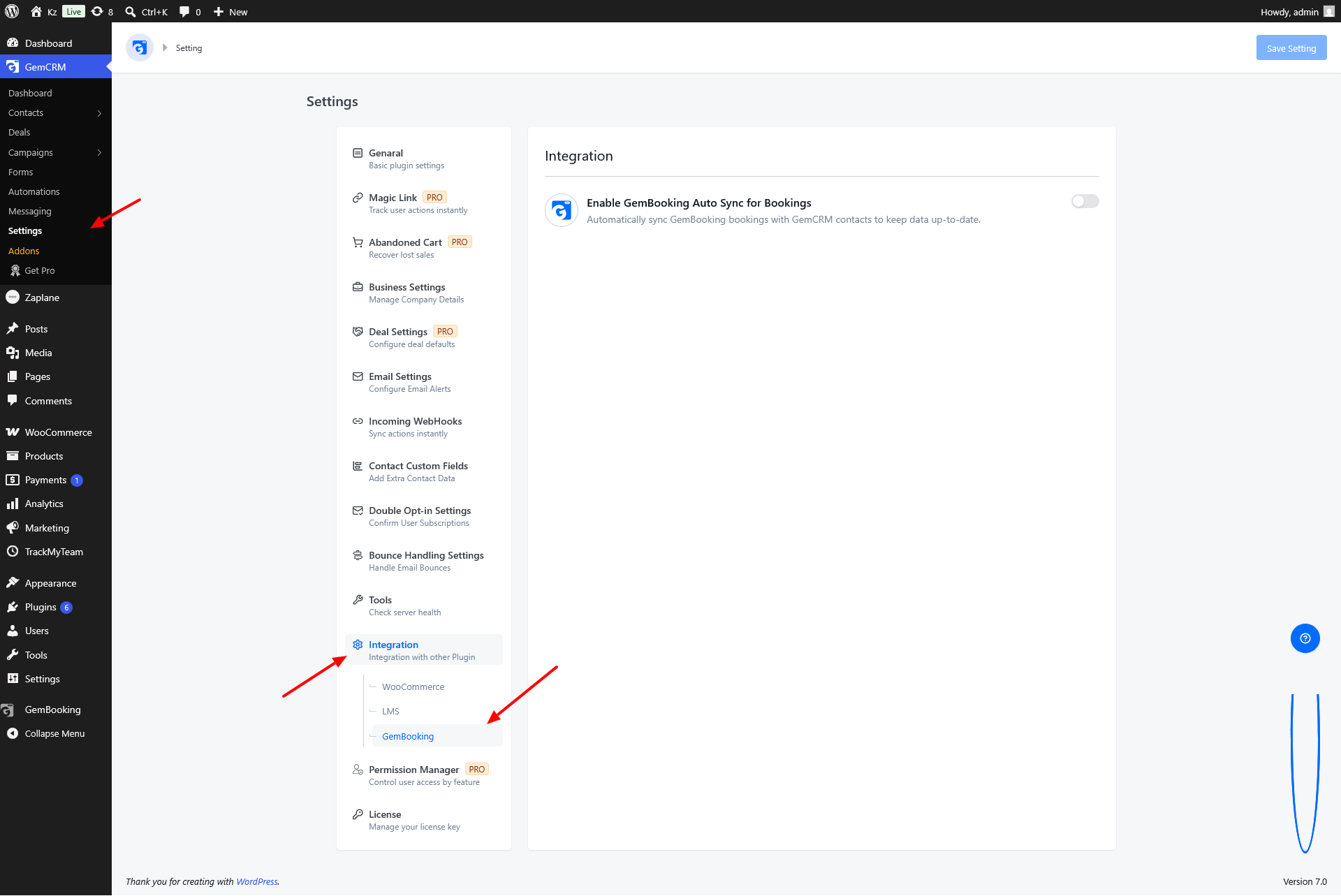
Open the WordPress dashboard and go to:
GemCRM → Settings → Integration → GemBooking
note:You will only see the GemBooking tab when the plugin is available in the integration area.
Setup Steps
- Open the GemBooking integration tab.
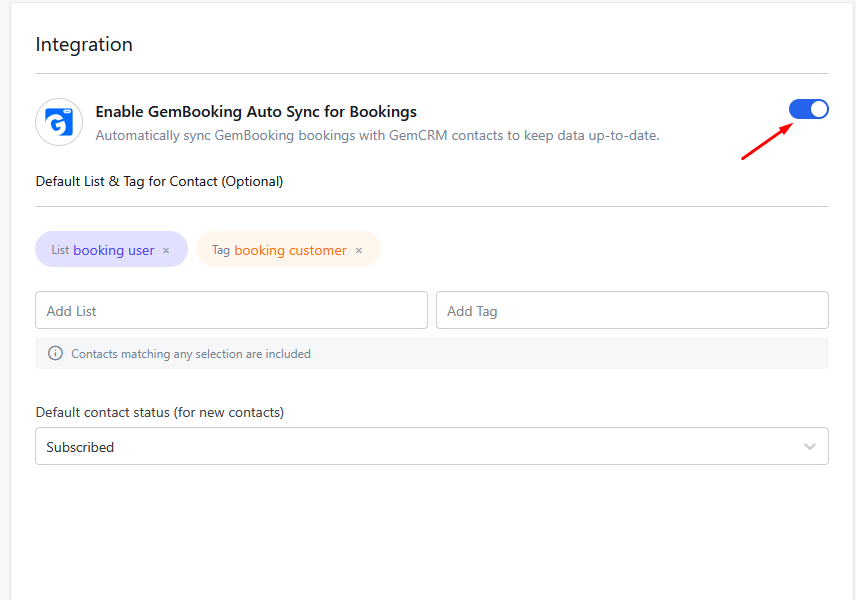
- Turn on Enable GemBooking Auto Sync for Bookings.
- Choose the lists you want new synced contacts to join.
- Choose the tags you want applied automatically.
- Select a default contact status for new contacts.
- Save the settings.
Settings Explained
Enable Sync
The main checkbox turns GemBooking syncing on or off.
- When enabled, GemCRM will process GemBooking booking data for contact syncing.
- When disabled, no new booking contacts are synced.
Default Lists
Use the list picker to assign synced contacts to one or more lists.
This is useful when you want booking contacts grouped by service, location, package, or any other internal segment.
Default Tags
Use tags to mark booking contacts with extra context.
Examples:
- Booked Consultation
- Event Attendee
- VIP Client
Default Contact Status
Choose the starting status for new synced contacts.
The available statuses in the integration card are:
- Subscribed
- Pending
- Draft
Important Behavior
When GemBooking sync is enabled, GemCRM automatically turns off WordPress User Sync.
That is intentional. It prevents the same person from being added twice through two different sync paths.
Recommended Use
Use this integration when bookings are a core part of your customer flow and you want the CRM to reflect those bookings immediately.
A practical setup is:
- one list for GemBooking contacts
- one or more tags for booking type or service
- Subscribed as the default status
That gives you a clean contact segment you can use for follow-up campaigns, reminders, or reporting.
Common Questions
Do I need GemBooking installed first?
Yes. The integration tab is meant to work with the GemBooking plugin active in WordPress.
Will existing contacts change when I enable it?
No. The integration affects new synced bookings and contacts.
Can I assign more than one list or tag?
Yes. The integration card supports multiple lists and tags.
Why did WordPress User Sync turn off?
GemCRM disables it automatically when GemBooking sync is enabled to avoid duplicate contact creation.