



Say you run a WordPress site that sells courses, products or services. Last month 300 people signed up for your newsletter, 40 bought something, and 25 left a full cart behind. Right now, someone on your team is copying addresses into a spreadsheet and writing “thanks for joining” emails by hand.
That works at 20 contacts. It falls apart at 200.
Email marketing automation in WordPress fixes this. You define a rule once: when this happens, send that email, after this long, to people who match these conditions. The site then follows up for you, every time, without anyone remembering to do it.
This guide explains how WordPress email automation works, what you can automate, how to set it up step by step, what tools you need, how to pick a plugin, which workflows to build first, and how to know whether they work. It is written for people who know WordPress and marketing basics but do not want to read a developer manual.
Quick Overview: How WordPress Email Automation Works
Every automation, in every plugin, is built from the same five parts.
|
Element |
Purpose |
Example |
|
Trigger |
The event that starts the automation |
A visitor submits your signup form |
|
Condition |
Decides who or what qualifies |
Only if the contact is tagged “customer” |
|
Action |
What the system does |
Send an email, add a tag |
|
Delay |
Controls the timing |
Wait 2 days |
|
Segment |
The group of contacts affected |
Everyone on the “Free guide” list |
Once you see these five parts, every plugin’s interface becomes easier to read. A “workflow”, “funnel”, “recipe” or “journey” is just these parts joined in order.
[IMAGE PLACEHOLDER — Description: Horizontal flow of five rounded boxes: Trigger → Condition → Delay → Action → Follow-up, one icon each, purple accent on Action, white background. Alt: WordPress email automation flow from trigger to follow-up]
What Is Email Marketing Automation in WordPress?
Email marketing automation in WordPress means using a plugin (or a connected service) to send emails automatically, based on what contacts do or what your data says about them, instead of writing and sending each message yourself.
WordPress can send a single email by itself, such as a password reset. What it cannot do out of the box is remember who signed up, decide who should get which message, wait three days, and check whether they bought in the meantime. A marketing automation plugin adds that memory and logic on top of WordPress.
How WordPress Email Automation Works
Most automations follow one chain:
Trigger → Condition → Delay → Action → Follow-up
Here is a practical example for a store:
The last step is the one people forget. A good automation knows when to stop as well as when to start.
Email Automation vs. Manual Email Marketing
Manual email marketing means you decide, each time, who gets what and when. You write a newsletter, pick a list, and press send. It is fine for occasional announcements.
Automation moves those decisions into rules. The main differences:
Automation does not replace manual campaigns. You will still send announcements, sales and newsletters by hand. Automation covers the repeatable follow-up around them.
Email Campaigns vs. Automated Emails
This distinction matters because people use these words loosely, and plugins name things differently. Here is how to tell them apart.
|
Type |
Who decides when it sends |
Typical use |
Example |
|
One-time campaign (broadcast) |
You, on a chosen date |
Announcements, newsletters, sales |
“Our summer sale starts Friday” |
|
Recurring campaign |
A schedule you set once |
Weekly or monthly digests |
A monthly “what’s new” email |
|
Triggered email |
A single contact’s action |
Confirmations, one-off replies |
Welcome email after signup |
|
Email sequence |
A trigger, then delays between steps |
Onboarding, nurture, drip courses |
A 5-email welcome series |
A simple test: if the send is tied to a date, it is a campaign. If it is tied to a person’s action, it is automation.
Most real setups use all four. Your newsletter goes out as a campaign. The welcome series goes out as an email sequence. The receipt-style confirmation is a triggered email. The point is to know which tool fits which job, so you do not build a sequence when a single campaign would do.
What Can You Automate With WordPress?
Nearly any email you send after a repeatable event can be automated. These are the most common, and the ones worth building before anything else.
Welcome Emails
Trigger: A new subscriber or new contact is created. Purpose: Confirm the signup, set expectations, and deliver whatever you promised (a guide, a discount code). Example: “Thanks for joining. Here is your free checklist, and here is what you will hear from us.” Useful when: You collect signups by form, checkout, or course enrollment. Welcome emails typically get read more than other emails you send, because the contact has just chosen to hear from you.
Lead Nurturing Emails
Trigger: A contact joins a list or receives a tag that marks interest, such as “downloaded pricing guide”. Purpose: Build trust over several emails before asking for a sale. Example: Three educational emails over two weeks, then an offer. Useful when: Your product costs enough that people research first: services, courses, software, B2B products. It also pairs well with lead generation from your site.
Follow-Up Emails
Trigger: A form submission, a quote request, or a support interaction. Purpose: Make sure no enquiry goes cold. Example: Two days after someone requests a quote, send “Any questions about the proposal?” Useful when: A slow reply costs you business. See customer follow-up automation for more.
Abandoned Cart Emails
Trigger: A shopper adds items to a cart, then leaves without buying. Purpose: Bring them back to finish the order. Example: One hour after abandonment, send a reminder with the cart contents (see these abandoned cart email examples). Useful when: You run a WooCommerce store. Full setup is in abandoned cart recovery.
Post-Purchase Emails
Trigger: An order is placed or completed. Purpose: Confirm the purchase, help the customer use the product, and ask for feedback. Example: Five days after delivery, send a “how to get the most from your purchase” email, then a review request a week later. Useful when: You want repeat customers. The first weeks after a purchase are when a customer decides whether to come back.
Re-Engagement Emails
Trigger: A contact has not opened, clicked or bought for a set period, such as 90 days. Purpose: Win back quiet contacts, or confirm they no longer want your emails. Example: “Still want to hear from us? Click here to stay subscribed.” Useful when: Your list has grown and open rates are dropping. Removing people who never engage also protects your sender reputation.
Event or Form-Based Emails
Trigger: A registration, webinar signup, booking, or any specific form. Purpose: Send confirmations, reminders and follow-ups tied to the event. Example: A reminder one day before a webinar, and a replay link the day after. Useful when: You run events, bookings or applications, where the timing depends on a date the contact chose.
WooCommerce Customer Emails
Trigger: Order status changes, first purchase, repeat purchase, high spend, or product bought. Purpose: Send marketing messages that use purchase data, separate from WooCommerce’s own order notifications. Example: Customers who bought a specific product get a matching accessory offer ten days later. Useful when: Your store data can guide the message, for example when you segment WooCommerce customers by what they bought. Seven store workflows are covered in WooCommerce email automation.
How to Automate Emails in WordPress
Follow these eight steps in order. Skipping straight to step 4 is the most common reason automations disappoint. A shorter beginner walkthrough is also available.
Step 1: Choose Your Email Automation Method
There are three main approaches.
A WordPress email plugin. The plugin runs inside your site and stores contacts in your WordPress database. You get direct access to WordPress and WooCommerce events, and often no per-subscriber fees. Examples include FluentCRM, MailPoet and GemCRM. The trade-off: you are responsible for how the emails are sent (see Step 2).
An external email marketing platform. A hosted service such as Brevo, MailerLite or Omnisend holds your contacts and does the sending. A small plugin connects your site to it. Deliverability is largely handled for you, but your data lives on someone else’s servers, and cost usually rises with list size (one reason people look for a Mailchimp alternative).
CRM-based automation. The automation sits inside a WordPress CRM that tracks each contact’s full history: forms, purchases, deals, notes. This helps when emails depend on more than one signal, such as “a lead who requested a demo and has not been contacted by sales.”
Pick based on where you want your data, how much your list will grow, and whether your emails depend on data from other parts of your business.
Step 2: Set Up Reliable Email Sending
This step is separate from automation, and it is the one most guides rush through.
An automation plugin decides what to send and when. A sending service or SMTP connection decides whether it reaches the inbox. These are two layers, and you need both.
By default, WordPress sends mail through your web host’s mail function. Many hosts limit this, and receiving servers often distrust it. For any automation you care about, connect an SMTP plugin or a dedicated sending service such as Amazon SES, Mailgun or SendGrid. Then set up SPF, DKIM and DMARC records for your domain. Your sending service documents how.
Do this before you build workflows. A perfect sequence that lands in spam is a wasted sequence.
Step 3: Build Your Contact List
Automation needs contacts, and contacts need a clear record of how and why they joined.
Keep these as distinct groups, using lists and tags, so you can send different emails to each. Add a signup form to your site, use double opt-in if you want confirmed addresses, and import existing contacts by CSV with their consent status intact. If you are starting from zero, see how to build an email list.
In GemCRM, forms live under GemCRM → Forms, where you build a signup form with the visual form builder and place it anywhere with a shortcode. Every submission creates a contact.
Double opt-in is switched on per form, and you customise the confirmation email under GemCRM → Settings → Double Opt-in Settings. Contacts from WooCommerce, StoreEngine and Academy LMS sync automatically, so your customer list builds without a manual export.
Step 4: Create Your First Automation
Before you open the builder, write down the goal in one sentence:
“Get new subscribers to read our best guide and make a first purchase within 14 days.”
The goal tells you which trigger to use, how many emails you need, and what counts as success. Without it, you will build something that sends emails but cannot be judged.
Start with a simple automation. A welcome email or a three-email welcome sequence is enough for a first build.
Step 5: Add Triggers and Conditions
The trigger starts the workflow, and conditions narrow it down. Common triggers include:
Conditions then answer questions such as “Has this person already bought?” or “Are they in the UK?” Use them sparingly. Each condition adds a branch you will need to test.
In GemCRM, workflows are built in a visual canvas at GemCRM → Automations, which opens Zaplane, the free companion plugin from the same team. You choose GemCRM as the app, pick a trigger (Contact Created, Tag Attached, List Attached, Contact’s Birthday, plus WooCommerce order and cart events), and add Condition, Filter or Router steps where the path needs to branch. Because Zaplane runs on your site, connecting GemCRM is a one-click step with no API keys.
Step 6: Add Emails and Delays
Now add the messages, using a drag-and-drop email builder such as GemCRM’s email builder so you can reuse templates across workflows.
Two rules keep this manageable:
One email, one job. A welcome email welcomes. An offer email offers. Mixing jobs lowers clicks on both.
Delays should match how people behave. After a signup, an immediate email makes sense. After that, a gap of two to three days between messages gives people time to act. For abandoned carts, the first message often works best within a few hours, while for post-purchase follow-up, you might wait until the product has arrived.
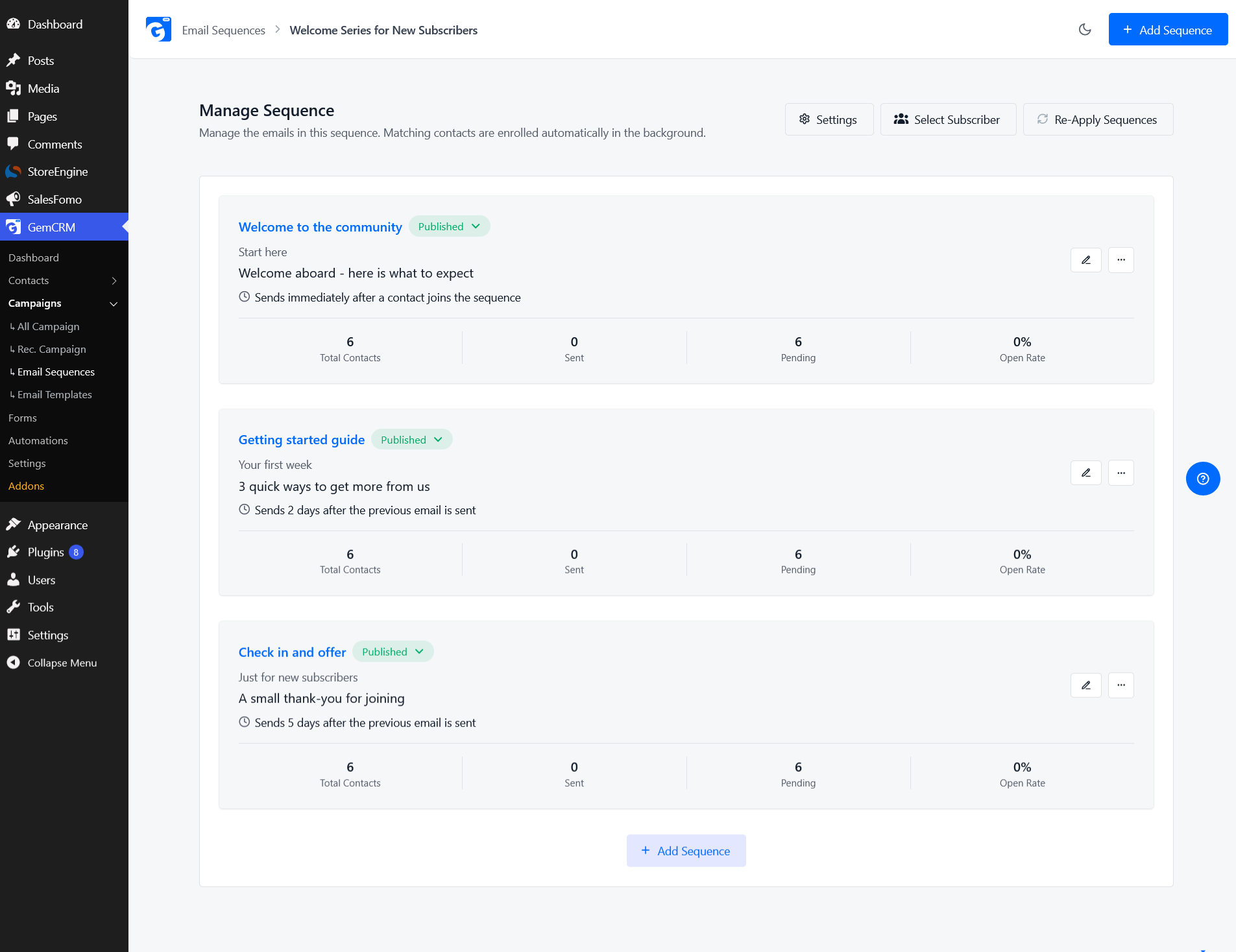
For multi-email journeys, you have two options. You can chain Delay steps inside an automation, or you can use a dedicated email sequence, where each email has its own delay. In GemCRM Pro, sequences are under GemCRM → Campaigns → Email Sequences. Each step has a subject, body, delay, optional day-of-week limits and a sending window. Note that the sending window uses UTC, so set it with your time zone in mind. Steps send by their own delay setting rather than by drag-and-drop order, so plan delays so the emails fire in the order you want. The full setup is in automated email sequences.
Step 7: Test the Workflow
Never activate an automation you have not tested. Check each of these:
In GemCRM’s workflow canvas, each node has a Test Run option that fires the trigger or action once, so you can check a step before publishing. Remember that a workflow that is saved but not published will not fire.
Step 8: Activate and Monitor the Automation
Turn it on, then watch it closely for the first two weeks. Look at:
If something looks wrong, pause the workflow before you fix it. Contacts already in the workflow will usually continue from where they were, so fix problems early.
What Do You Need for WordPress Email Automation?
A reliable system has six parts. Some plugins bundle several of them, but it helps to know which is which.
Email Marketing Automation Plugin
This is the engine that holds the rules. It listens for triggers, applies conditions, and queues emails. It does not, by itself, guarantee that emails arrive.
Contact and Subscriber Management
A place to store contacts (a WordPress CRM does this), their status (subscribed, unsubscribed, bounced), and the history of what they did. Good contact management stops you emailing people who opted out and lets automations react to each person’s history.
Email Sending Service or SMTP
The delivery layer, covered in Step 2. Installing a marketing plugin does not fix deliverability. If your domain has no SPF or DKIM records, or your sending IP has a poor reputation, even a well-built automation can land in spam.
Segmentation and Tags
Tags and lists label contacts. Segments group them by rules, such as “bought in the last 30 days” or “clicked three emails but never purchased.” Automations use these labels both to decide who enters a workflow and to keep the wrong people out.
Automation Triggers and Conditions
The range of triggers a tool supports determines what you can automate. A plugin that only reacts to form submissions cannot run a cart-abandonment flow. Check that the events you need exist before you commit.
Analytics and Tracking
You need to see opens, clicks, unsubscribes and, ideally, orders linked to emails. Without this, you are guessing.
Keep the layers separate in your head:
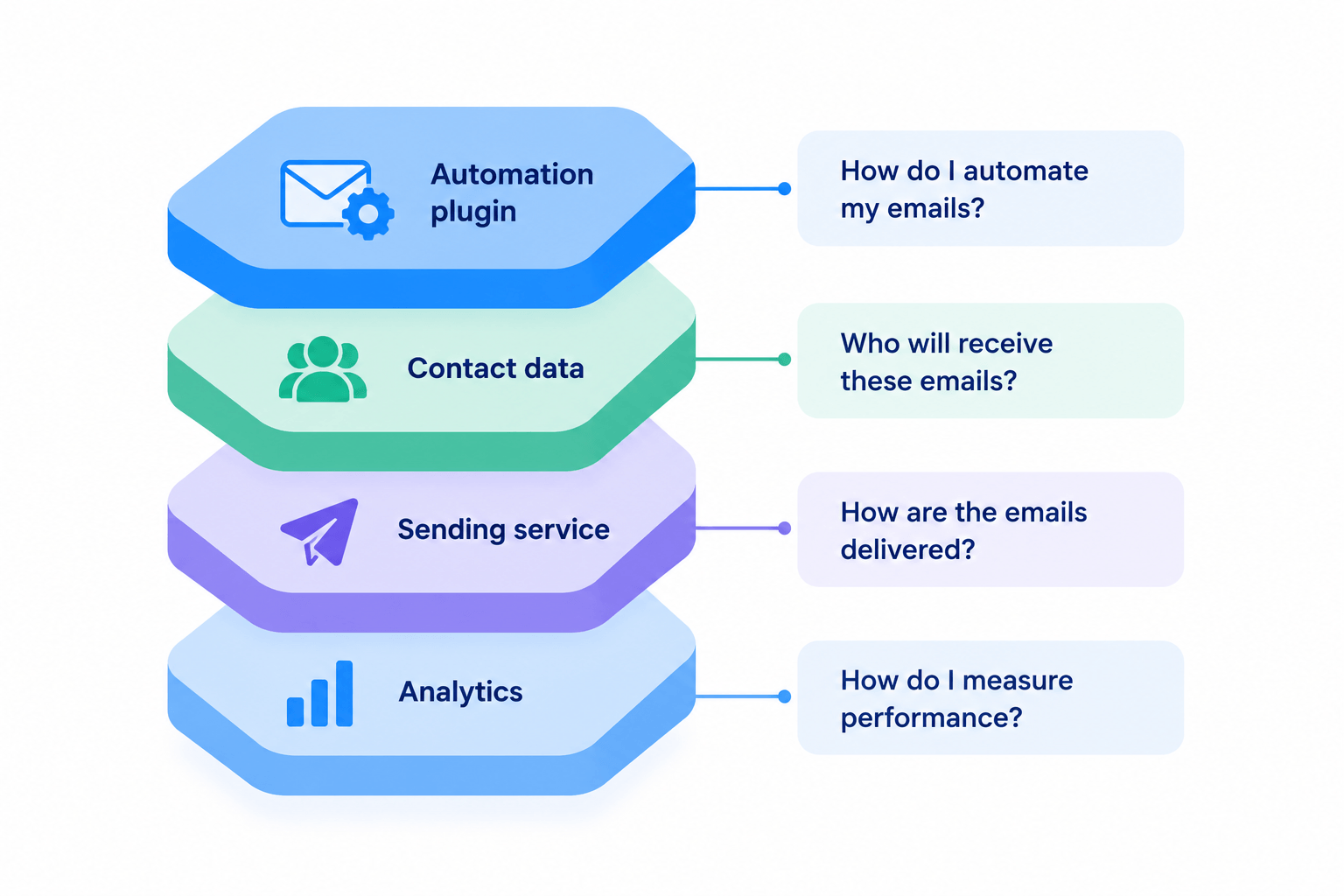
|
Layer |
Question it answers |
Example tools |
|
Automation plugin |
What do we send, and when? |
FluentCRM, MailPoet, GemCRM |
|
Contact data |
Who is this person? |
Built into the plugin or CRM |
|
Sending service |
Will it reach the inbox? |
Amazon SES, Mailgun, SendGrid, SMTP |
|
Analytics |
Did it work? |
Plugin reports, WooCommerce data |
How to Choose an Email Marketing Plugin for WordPress
Choosing an email marketing plugin for WordPress is easier if you decide what matters to you first. Here are ten criteria, and the business reason behind each.
Automation Features
Check which triggers and actions exist, not just whether “automation” is listed. Can it react to WooCommerce orders? Can it add tags? Can it branch on conditions? Some tools offer basic welcome emails for free and lock branching or custom triggers in a paid plan. Read the fine print for the workflows you actually plan to build.
Segmentation
The value of automation depends on sending to the right group. Look for segments that update themselves (contacts join and leave as their data changes) and can combine several conditions. Without this, you end up sending everything to everyone.
Contact Management
Ask where the data lives, what fields you can add, and whether unsubscribes are honoured everywhere. If your contacts sit in a plugin database on your own server, you control the data. If they sit in a hosted platform, you gain convenience and lose some control.
Email Campaign Features
Even if your priority is automation, you will still send broadcasts, so a CRM with built-in email campaigns saves running two tools. Check for a template builder, scheduling, and A/B testing. Also check whether recurring campaigns are supported, if you plan to send a weekly or monthly digest.
Email Sequences
Ask whether multi-step sequences are built in or need a paid tier, whether each step can have its own delay, and how contacts leave a sequence. Some tools exit contacts on goal completion. Others rely on unsubscribes alone. Knowing this in advance helps you design around it.
WooCommerce Integration
If you sell online, this criterion decides a lot (see the best CRM for WooCommerce stores). Look for order-based triggers, abandoned cart support, and segments based on purchase history, total spend or products bought. Confirm which of these are free and which need a paid plan.
Email Sending and Deliverability
Ask whether the tool sends through your own SMTP or service, or through its own infrastructure. Your own SMTP gives you flexibility and a low cost, but you are responsible for setup. A bundled sending service is simpler, and usually priced by volume.
Analytics and Reporting
At a minimum, you want opens, clicks and unsubscribes per email. Ideally you also want per-automation reports and a link between a click and a later order. Reports that only show totals across all emails hide which workflow is working.
Ease of Use
A tool your team finds confusing will not get used. Test the builder with a real workflow, such as a welcome email, before you buy. If it takes an hour to build one email, that will slow every future automation.
Pricing and Subscriber Limits
Many hosted tools charge by contacts, so your bill grows as your list grows, even if many contacts are inactive. Self-hosted plugins often charge per site instead, and some offer a lifetime license. Estimate your list size in a year and calculate cost at that size, not today’s.
A useful shortcut is to write down your three must-have workflows and check that each one is possible, on the plan you would actually buy.
Best Email Marketing Automation Plugins for WordPress
There is no single best tool. The right choice depends on your data, your store, and your budget. Here is how the common options differ (for a ranked list, see best email marketing plugins for WordPress). This table is a summary. Check each vendor’s site for current plans before deciding, because features and limits change.
|
Plugin |
Automation |
Segmentation |
Email Campaigns |
WooCommerce |
Email Sending |
Best Fit |
|
GemCRM |
Workflows via the free Zaplane plugin; email sequences in Pro |
Tags, lists, custom fields; dynamic segments in Pro |
Drag-and-drop builder, A/B subject tests, recurring campaigns in Pro |
Customer sync; purchase-history segments and abandoned cart in Pro |
Uses your own SMTP or sending service |
WordPress sites wanting CRM, email and automation in one self-hosted plugin, with no per-subscriber fees |
|
FluentCRM |
Automation funnels; more triggers and actions in Pro |
Tags, lists, dynamic segments |
Unlimited campaigns and contacts |
Segments by products, categories and lifetime value |
Uses your own SMTP or service |
Self-hosted WordPress sites wanting deep automation |
|
MailPoet |
Basic automations (welcome, new post); custom triggers and branching on paid plans |
Basic free; multi-condition on paid plans |
Newsletters, post notifications |
Abandoned cart, first-purchase and product emails |
Optional MailPoet Sending Service |
Newsletter-first sites and stores that want a simple setup |
|
Brevo |
Visual workflow builder, email plus SMS and push |
Behavior, purchase history, engagement |
Campaigns with a free tier limited by daily sends |
Sync, abandoned cart, product blocks |
Brevo’s own infrastructure |
Sites that want a hosted platform with SMS |
|
Omnisend |
Automation for email and SMS |
Available in the hosted platform |
Campaigns, forms and popups |
Strong ecommerce focus, abandoned cart |
Omnisend’s infrastructure |
Stores that want multichannel marketing in a hosted tool |
|
MailerLite |
Automation workflows in the hosted platform |
Groups and segments |
Campaigns, forms |
Dedicated WooCommerce plugin |
MailerLite’s infrastructure |
Small businesses wanting simple hosted email |
|
ActiveCampaign |
Advanced automation in a hosted platform |
Extensive |
Campaigns |
Integration via connectors |
ActiveCampaign’s infrastructure |
Teams needing complex, cross-channel automation and able to fund it |
Some things the table cannot show:
Where your data lives. GemCRM, FluentCRM and MailPoet keep contacts in your WordPress database (MailPoet’s optional sending service handles delivery). Brevo, Omnisend, MailerLite and ActiveCampaign store contacts on their own servers. That matters for privacy rules and for how easily you can leave later.
How cost scales. Hosted platforms usually price by contact count. Self-hosted plugins usually do not, but you pay separately for sending. For a growing list, compare the total cost at your expected size.
What is free and what is paid. In several tools the free tier covers basic automation only. Sequences, branching, recurring campaigns and purchase-based segmentation often sit in a paid tier. GemCRM follows this pattern too (see pricing for the current split): forms, campaigns, A/B tests, contact management and Zaplane-powered automation work on the free side, while sequences, recurring campaigns, dynamic segments, abandoned cart and SMS/WhatsApp messaging need GemCRM Pro.
What sets GemCRM apart is that email, SMS and WhatsApp share one contact record, and that its automation, built by the same team, runs natively on your site rather than through a third-party connector. Contacts from StoreEngine and Academy LMS sync without a bridge. That is useful if you run courses or a store on those plugins. It is less relevant if you already live inside a hosted platform.
A simple decision framework:
WordPress Email Automation Workflows to Build First
Each workflow below uses the same format: Trigger → Delay → Email → Condition → Next step. Use them as starting points, then adapt the timing to your audience.
Welcome Email Sequence
Contact joins the “Newsletter” list
↓
Immediate: welcome email + promised download
↓
Wait 2 days
↓
Educational email: your best guide or story
↓
Wait 3 days
↓
Condition: has the contact bought or booked?
├─ Yes → stop, tag “customer”
└─ No → product-focused email with a soft offer
Goal: First purchase or first booking.
Lead Nurture Sequence
Contact gets the tag “downloaded pricing guide”
↓
Wait 1 day
↓
Email 1: common problem the guide solves
↓
Wait 3 days
↓
Email 2: case example or how-to
↓
Wait 4 days
↓
Condition: did the contact click any link?
├─ Yes → email 3 with a demo or consultation invite, tag “sales-ready”
└─ No → email 3 with a lighter resource, keep in nurture list
Goal: Turn interest into a sales conversation.
Abandoned Cart Sequence
Cart abandoned (WooCommerce)
↓
Wait 1 hour
↓
Email 1: “You left something behind” with cart contents
↓
Wait 1 day
↓
Condition: has the order been placed?
├─ Yes → stop
└─ No → email 2: answer objections (shipping, returns, support)
↓
Wait 2 days
↓
Email 3: final reminder, optional incentive
Goal: Recover the order. Use an incentive only in the last email so you do not train shoppers to abandon carts on purpose. In GemCRM, abandoned cart recovery is a Pro feature, and it needs Zaplane active as well. See the GemCRM abandoned cart feature for what it includes.
Post-Purchase Sequence
Order marked completed
↓
Immediate: thank-you and what happens next
↓
Wait 5 days (after expected delivery)
↓
Email: how to use the product, tips, support link
↓
Wait 7 days
↓
Email: review request
↓
Wait 14 days
↓
Condition: did they buy again or open the review email?
├─ Yes → tag “engaged customer”
└─ No → cross-sell email based on the first purchase
Goal: Reviews and a second purchase.
Re-Engagement Sequence
No opens or clicks for 90 days (inactive segment)
↓
Email 1: “We miss you” with your best recent content
↓
Wait 7 days
↓
Condition: opened or clicked?
├─ Yes → tag “re-engaged”, return to normal sends
└─ No → email 2: “Do you still want to hear from us?”
↓
Wait 7 days
↓
Condition: clicked to stay?
├─ Yes → return to normal sends
└─ No → move to “inactive” and stop emailing
Goal: Clean the list and win back the interested. Note that some sequence tools have no goal-based exit, so in GemCRM you would handle the stop with tags and segments rather than expecting a sequence to end on its own.
Product Follow-Up Sequence
Customer buys product X
↓
Wait 10 days
↓
Email 1: tips for getting the most from X
↓
Wait 14 days
↓
Condition: bought an accessory or related product?
├─ Yes → stop
└─ No → email 2: recommended add-on for X
↓
Wait 30 days
↓
Email 3: replenishment or upgrade reminder if relevant
Goal: Grow order value from customers you already have.
Several of these flows use the same “stop if they already converted” check. Build that check into every workflow. It is the difference between helpful automation and annoying automation.
WordPress Email Automation Best Practices
Start With One Clear Goal
Each workflow should aim at one result: a purchase, a booking, a reply, a review. If you cannot name it, you cannot measure it, and you will not know whether to keep or change the workflow.
Segment Before You Automate
Decide who should get the workflow before you write it. A welcome email for customers is different from one for leads. Build the tags, lists or segments first, then attach the automation. Our guide on how to segment your email list in WordPress shows practical ways to split a list. In GemCRM, dynamic segments (Pro) update as contacts change, so a “bought in last 30 days” group keeps itself current. You can also use them as a sequence audience.
Keep Automated Emails Relevant
An automation that sends one message to everyone is a broadcast with extra steps. Use what you know: what they bought, which page they signed up on, what they clicked. Even simple personalisation from customer data, such as referring to the product they viewed, helps. Merge fields need fallbacks, so “Hi ,” never appears.
Use Reasonable Delays
Too short and the sequence feels like pressure. Too long and the contact forgets why they signed up. As a starting point, one to three days between educational emails and a few hours for cart reminders. Then adjust using your own click data.
Avoid Over-Automation
The more workflows you build, the more likely a single contact is in three at once. Decide which workflow owns a contact at any moment. A simple rule is one contact, one active sequence: when someone enters a purchase workflow, remove them from the nurture workflow. In GemCRM, tags make this practical. A workflow applies a tag when it starts, and other audiences exclude that tag.
Test Every Workflow
Test before launch, and again after any edit. A small change, such as renaming a tag, can quietly break the trigger. Keep a short checklist and run it each time.
Monitor Opens, Clicks, and Conversions
Watch results per email, not only overall. In GemCRM, each campaign report shows opens, clicks and unsubscribes, and each sequence step has its own report. The report’s Actions tab can also apply or remove tags based on who opened, who did not open, who clicked, or who did not click. That makes it easy to move engaged readers into a new segment.
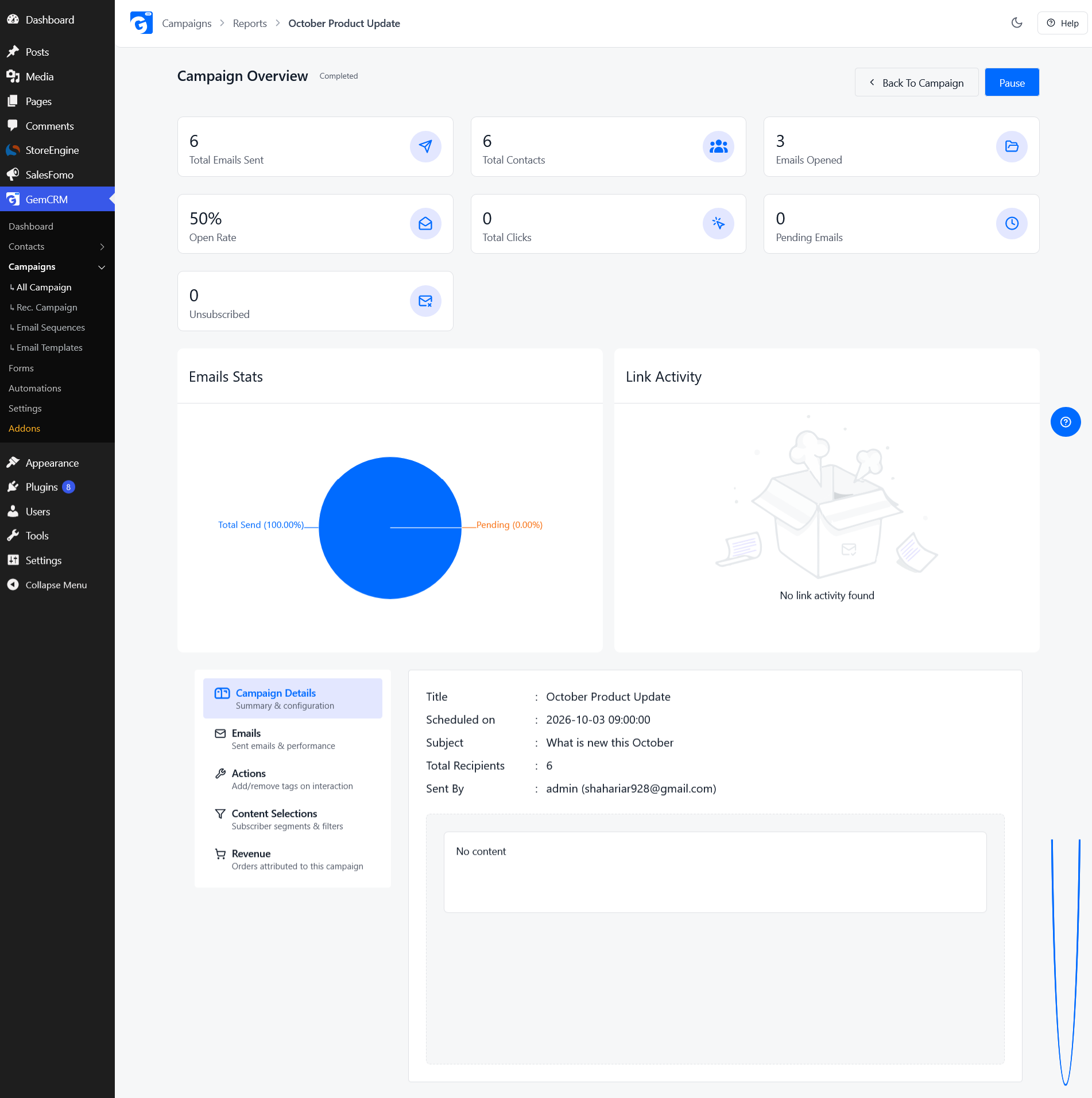
For a broadcast that many people missed, you can resend to unopened contacts from the completed campaign’s report after a day or two. GemCRM does not do this on a timer, so it is a manual step.
Maintain Consent and Unsubscribe Controls
Only email people who agreed to hear from you. Include a clear unsubscribe link in every marketing email, and honour it right away. Use double opt-in where your law or your standards call for confirmed consent. Keep records of how each contact joined. Rules differ by country (GDPR in the EU and UK, CAN-SPAM in the US and others), so check the ones that apply to your audience. This section is general guidance, not legal advice.
Review and Improve Automations Regularly
Set a quarterly reminder. Read each workflow’s numbers, remove steps that get no clicks, refresh outdated offers, and check that triggers still work after plugin updates. Old automations quietly go stale.
Common WordPress Email Automation Mistakes
|
Mistake |
What goes wrong |
Better approach |
|
Sending the same email to everyone |
Low relevance, more unsubscribes |
Split by tag, list or segment before you send |
|
Creating too many automations |
Contacts land in several at once; hard to maintain |
Start with three core workflows and give each contact one owner |
|
Using unclear triggers |
Emails fire at the wrong time, or not at all |
Write the trigger as a plain sentence, then test it |
|
Sending emails too frequently |
Fatigue, spam complaints |
Cap total emails per week across all workflows |
|
Ignoring segmentation |
Customers get lead offers, leads get customer emails |
Label customers and leads separately |
|
Not testing workflows |
Broken links, wrong merge fields, dead branches |
Run a test contact through every path |
|
Ignoring deliverability |
Emails go to spam, so metrics look poor for no visible reason |
Use proper SMTP or a sending service; set up SPF, DKIM and DMARC |
|
Not tracking conversions |
You cannot tell which workflow earns money |
Track clicks to orders and judge each workflow by its goal |
|
Building complicated workflows too early |
Hard to debug; small errors multiply |
Launch a simple version, then add branches |
|
Forgetting inactive or unsubscribed contacts |
Emails to opted-out people; damaged reputation |
Exclude unsubscribed contacts, and retire long-inactive ones |
How to Measure Email Automation Performance
Different workflows have different jobs, so no single number tells you whether an automation works. Match the metric to the goal.
Open Rate
The share of recipients who opened. It is useful for comparing subject lines and spotting delivery problems (a sudden drop can mean inbox placement changed). Open tracking is imperfect, because some email apps preload images and inflate opens. Treat it as a trend signal, not a precise count.
Click-Through Rate
The share who clicked a link. This is usually a better sign of interest than opens. Compare it step by step to see where interest drops.
Conversion Rate
The share who did what the email asked: bought, booked, replied. This is the number that connects the workflow to your goal.
Revenue or Sales Attribution
For stores, connect orders to emails. GemCRM’s free plugin ties a WooCommerce order to the campaign whose tracked link the buyer clicked. Attribution models are never perfect, since a buyer may have been influenced by several emails, so use it to compare workflows against each other rather than to claim exact revenue.
Unsubscribe Rate
A rising unsubscribe rate on a specific step suggests the email is off-target or too frequent. Look at it per email.
Automation-Level Performance
Zoom out and judge the whole workflow: how many contacts entered, how many finished, how many reached the goal, and how long that took. Compare workflows by goal:
|
Workflow |
Main metric |
Supporting metrics |
|
Welcome |
Click rate on first email, first purchase |
Open rate, unsubscribes |
|
Lead nurture |
Clicks to a demo or contact page |
Reply rate, “sales-ready” tags |
|
Abandoned cart |
Recovered orders |
Click rate, unsubscribe rate |
|
Post-purchase |
Repeat purchase, reviews |
Click rate |
|
Re-engagement |
Contacts re-engaged vs removed |
List health, bounce rate |
Change one thing at a time so you know what caused a change. In GemCRM, A/B testing works on the subject line of one-off campaigns, not on sequences. If you want to test sequence copy, test the subject as a one-off campaign first and move the winner into the sequence.
Conclusion
Email marketing automation in WordPress comes down to a few clear parts: a trigger, a condition, a delay, an action and a segment. Understand those and you can read any plugin’s builder. Add reliable sending, a clean contact list and a single goal per workflow, and you have a system that follows up on time, every time.
Start small. Build a welcome sequence, test it, and watch the numbers for two weeks. Then add a post-purchase or re-engagement workflow. Keep contacts assigned to one journey at a time, measure each workflow by its own goal, and review the set every quarter.
If you want CRM, email campaigns, sequences and automation in one self-hosted WordPress plugin, GemCRM is built for that, and you can start on the free version.
Frequently Asked Questions
What is email marketing automation in WordPress?
It is using a plugin to send emails automatically when a contact does something, such as signing up or buying, or when your data matches a rule, such as “no purchase in 90 days.” You set the rules once and the site follows them.
How do I automate emails in WordPress?
Choose a plugin or platform, set up reliable email sending, build your contact list, define one goal, add a trigger, add emails with delays, test with sample contacts, then activate and monitor. The eight steps above walk through each stage.
Can WordPress send automated emails?
WordPress can send system emails on its own, such as password resets and new user notices. For marketing automation, where emails depend on a contact’s actions and timing, you need a plugin that stores contacts, listens for triggers and queues messages.
What is the best email marketing plugin for WordPress?
There is no single best plugin. The right one depends on whether you run a store, a course site or a service business, how large your list will get, and whether you want data on your own server. Use the ten criteria above (or browse the best email marketing plugins for WordPress) and check that your three must-have workflows are possible on the plan you will buy.
What is the difference between an email campaign and email automation?
A campaign is sent on a date you choose, usually to a list or segment. Automation is sent in response to a contact’s action or data. A newsletter is a campaign. A welcome series is automation.
Do I need SMTP for WordPress email automation?
Strongly recommended. The default WordPress mail function is often limited by hosts and distrusted by receiving servers. An SMTP connection or sending service gives you better delivery and logs. It does not automate anything by itself. It only carries the messages your automation plugin creates.
Can I automate WooCommerce emails in WordPress?
Yes. You can trigger emails from order status changes, abandoned carts, first purchases or inactivity, and segment customers by purchase history. Check which of these features are free in your plugin and which need a paid tier. See WooCommerce email automation for examples.
Can I automate emails without coding?
Yes. Modern plugins use visual builders, where you pick a trigger, add steps, and write emails in a drag-and-drop editor. You do not need to write code. You do need a clear plan for who gets what and when.
What happens if one contact matches two automations at once?
Most tools will run both. The contact can receive emails from two workflows in the same week, and the messages may contradict each other, such as a nurture offer and a post-purchase thank-you. Before launch, list your workflows and decide which one has priority. Then use tags to enter, pause or exclude contacts so each person has one active journey at a time.