



Most WordPress site owners send the same email to everyone on their list. Same subject line, same offer, same “Hi there.” It’s fast — and it’s also why so many campaigns land in the Promotions tab and get ignored.
Personalized emails consistently outperform generic blasts. A widely cited Experian study found personalized emails get roughly 29% higher open rates and 41% higher click rates than non-personalized ones. That gap compounds — more opens lead to more clicks, and more clicks lead to more conversions.
But here’s the part most guides skip: personalization is not just Hi {first_name}. That’s the weakest, most saturated level of personalization, and inboxes have grown numb to it. Real personalization uses the data you already have — purchase history, tags, engagement, custom fields — to change what you say, not just how you greet someone.
This post walks through three levels of email personalization, from basic merge tags to fully behavior-driven campaigns, using GemCRM, a WordPress-native CRM and email marketing plugin.
What “Customer Data” Means in a CRM
Before personalizing anything, it helps to know what data GemCRM actually stores about a contact. This is the raw material every technique in this post pulls from:
- Contact profile fields — name, email, phone, address
- Custom fields — anything you define yourself: industry, plan tier, birthday, course interest, or whatever matters to your business
- Tags — lightweight markers you apply based on behavior or enrollment (e.g., “Webinar Attendee,” “Free Trial”)
- Lists — broader cohort or source grouping (e.g., “Newsletter Signups,” “Customers”)
- Activity data — signup date, campaign history, how many emails a contact has received
Custom fields, tags, and lists aren’t separate systems — they all feed into the same contact record, and all of them can be used for segmentation, filtering, and merge codes throughout GemCRM.
Level 1 — Merge Tags (Basic Personalization)
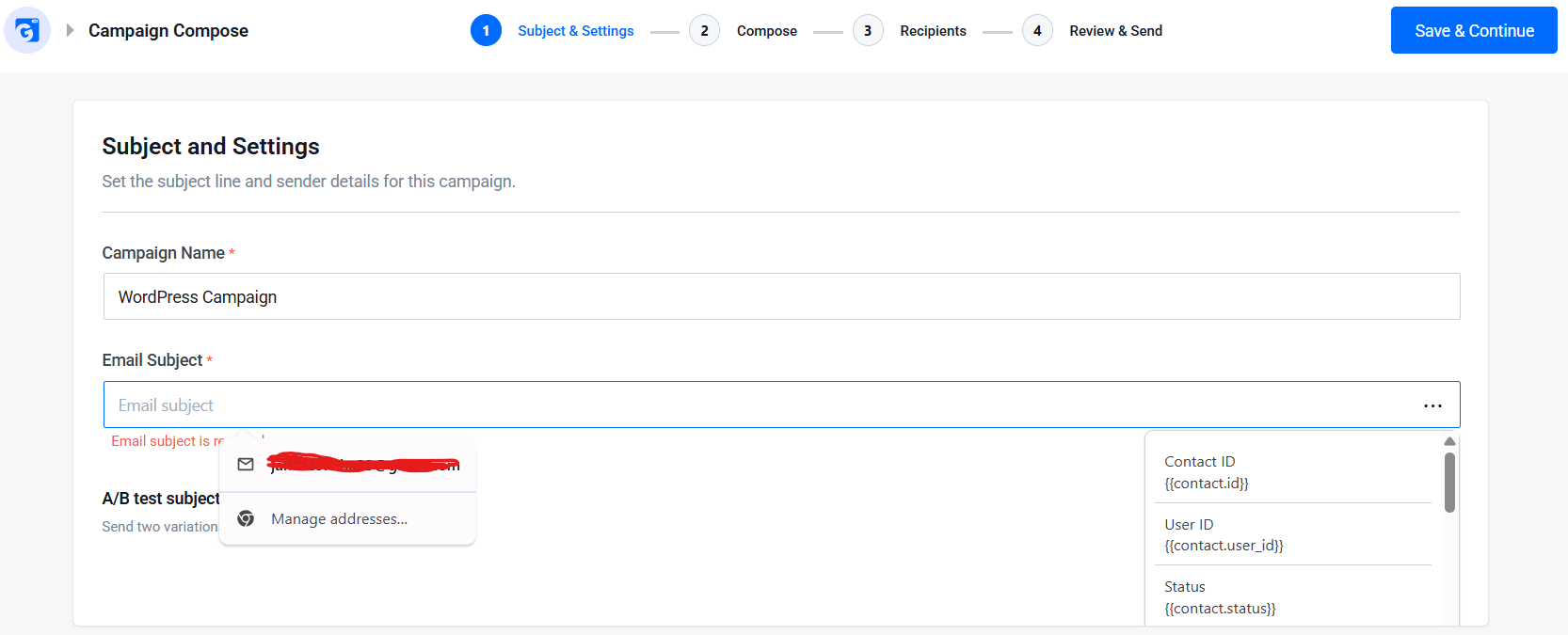
Merge tags (GemCRM calls them merge codes) are placeholders wrapped in double curly braces, like {{contact.first_name}}. When a campaign sends, GemCRM swaps each placeholder with the real value from that contact’s record — so {{contact.first_name}} becomes “Sarah,” “James,” or whoever the recipient actually is.
You can insert merge codes anywhere you write content: subject lines, email body, SMS messages, and template fields. There are two ways to add one:
- Click the ⋯ button next to any text field to open a list of all available codes.
- Type @ inside the editor to trigger a filtered dropdown — keep typing to narrow it down, then press Enter.
Commonly used merge codes:
|
Scenario |
Merge Code |
|
Greet by name |
{{contact.first_name}} |
|
Confirm email |
{{contact.email}} |
|
Local targeting |
{{contact.meta.city}} |
|
Unsubscribe link |
{{unsubscribe_link}} |
|
Preferences link |
{{update_preferences_link}} |
GemCRM also exposes contact ID, status, phone, full address fields, and activity data like signup date and total messages sent — all usable the same way.
A note on fallback values: unlike some email tools, GemCRM doesn’t currently support inline fallback text inside the merge code itself. If a field is empty for a contact, that spot in the email is simply left blank. This makes data hygiene non-negotiable — always preview a campaign before sending, and avoid personalizing on fields you know have gaps (like a custom field only half your list has filled in).
Level 2 — Segmentation-Based Personalization
Merge tags personalize the greeting. Segmentation personalizes the message itself — different audiences get different content entirely, not just a different name at the top.
GemCRM gives you three layers to segment with:
- Lists — broad grouping
- Tags — behavior or interest markers
- Dynamic Segments — rule-based groups built from any combination of contact data
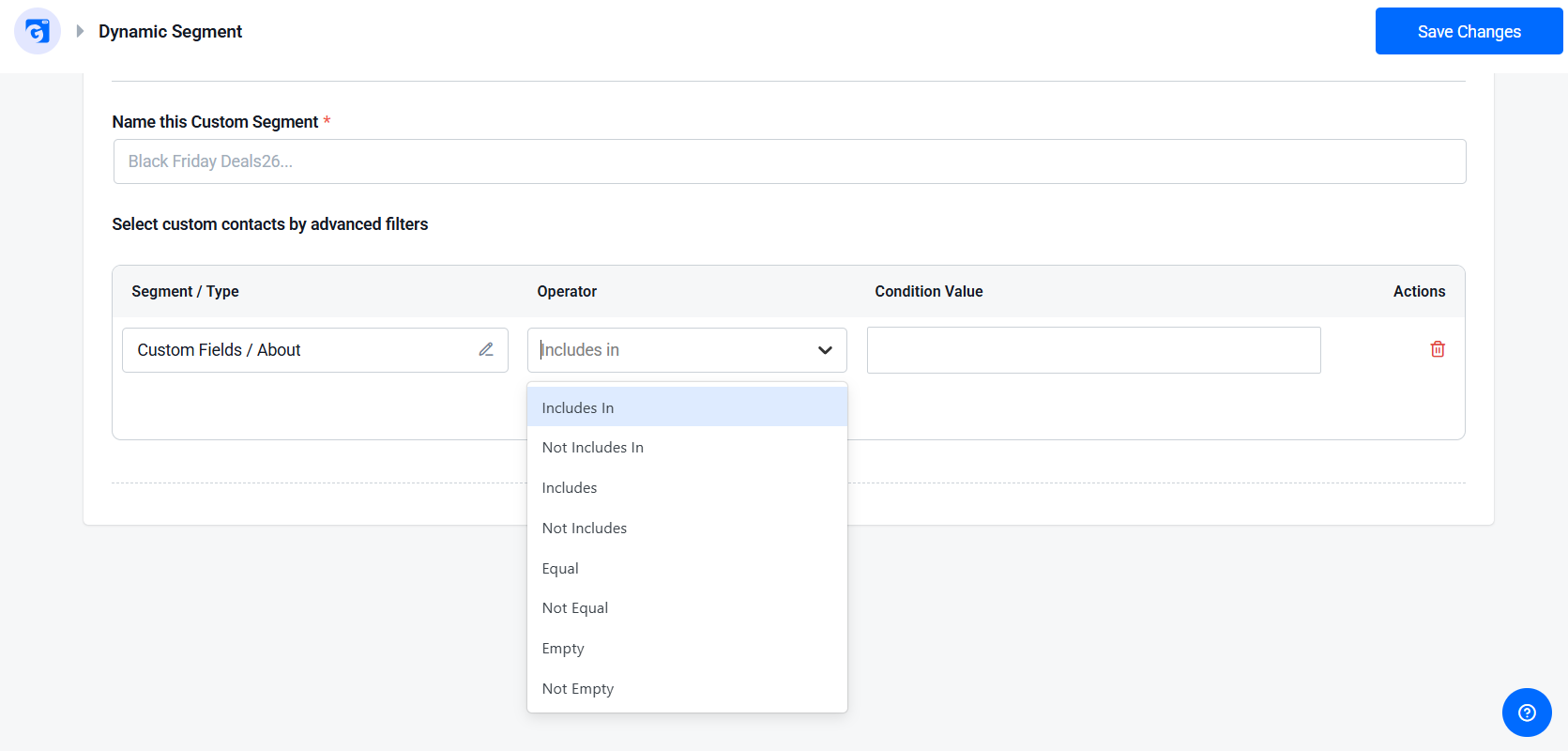
Dynamic Segments are the most powerful of the three. You define conditions once — signup source, location, engagement history, custom field values — and GemCRM keeps the segment updated automatically as contacts’ data changes. You never have to manually re-sort a list.
Example: Say you’re running the same promotion for two different audiences — “web dev students” and “marketing students.” Instead of sending one generic email, you build two Dynamic Segments based on a custom field like “Course Interest,” then write two versions of the email:
- To web dev students: emphasize the technical curriculum and project-based learning
- To marketing students: emphasize campaign strategy and analytics tools
Same offer, two angles, each one relevant to the person reading it.
To use a segment in a campaign: create the campaign, move to the Recipients step, choose Dynamic Segment, select the one you built, and save. That segment stays attached and auto-updates going forward.
Level 3 — Behavior-Triggered Personalization
This is where personalization stops being a one-time setup and becomes an ongoing system that reacts to what contacts actually do.
Email Sequences (Pro): GemCRM lets you build multi-step drip funnels — a series of emails sent automatically with a defined delay (hours or days) between each one. You choose which lists and tags trigger inclusion, and which to exclude. This is the backbone of onboarding flows, nurture sequences, and post-signup follow-ups: contact joins a list or gets tagged, and the sequence takes over from there, using merge codes inside each email to keep it personal.
Abandoned Cart Recovery (Pro, WooCommerce): For store owners, this add-on tracks carts that were started but not completed — capturing the customer’s email, cart value, and item count the moment they provide an email address and leave. Each cart moves through a lifecycle: Draft → Processing → Recovered or Lost. From the dashboard, you can copy a unique recovery link that restores the customer’s exact cart and takes them straight to checkout — useful for building a targeted, product-specific follow-up rather than a generic “did you forget something?” email.
Combined, Dynamic Segments plus Email Sequences give you most of what people mean by “behavior-triggered personalization”: contacts self-sort based on what they do (browse, buy, engage, ignore), and the right email finds them without you manually building a new list every week.
Practical Walkthrough — Build One Personalized Campaign
Here’s how the three levels come together in a single campaign:
1. Create a Dynamic Segment: Go to GemCRM → Contacts → Dynamic Segment → New Segment. Set your conditions — for example, contacts with a custom field value of “Marketing” plus an engagement filter for opening an email in the last 30 days.
2. Design the email with merge tags. In the campaign editor, write your subject line and body. Use {{contact.first_name}} for the greeting, and pull in any custom field data relevant to the segment — course interest, plan tier, city — using the @ trigger to insert codes without typos.
3. Double-check for blank fields. Since GemCRM doesn’t auto-fill missing data, preview the email using a test send and confirm nothing looks broken for contacts with incomplete profiles.
4. Attach the segment and schedule. Move to the Recipients step, select your Dynamic Segment, save it to the campaign, then schedule or send.
Best Practices & Mistakes to Avoid
- Fix your data before you personalize. A wrong name or a blank merge field does more damage than no personalization at all — it signals your list is messy, which erodes trust fast.
- Don’t over-personalize. Referencing too much granular behavior (“we saw you looked at this page 4 times”) can feel invasive rather than helpful. Keep it relevant, not surveillance-y.
- Since GemCRM has no built-in fallback text, avoid personalizing on sparse fields. Stick to fields you know are consistently filled in — name and email are usually safe; a custom field you added last month probably isn’t yet.
- Test on a small segment first. Send to 5–10% of a Dynamic Segment before a full send, especially with a new personalization variable.
Final Thoughts
Personalization doesn’t require a subscription-priced SaaS platform charging you per contact. With GemCRM running natively inside WordPress, your customer data — contact fields, tags, segments, purchase history — stays on your own site. You’re not paying more as your list grows, and you’re not sending customer data to a third-party server to run a merge tag.
Start with merge codes, layer in Dynamic Segments once you have data worth segmenting on, and add Email Sequences when you’re ready to automate the follow-up. Explore GemCRM’s features or check pricing to get started, and see the full documentation for setup details. If you’re currently on FluentCRM, see how the two compare in our FluentCRM alternative guide, or check Free vs. Pro to see which features need an upgrade.
FAQ
Accordion Title 0
Email personalization means tailoring email content to individual recipients using data you hold about them — name, behavior, purchase history, or interests — rather than sending the same message to everyone.
Accordion Title 0
A CRM like GemCRM stores contact data (fields, tags, activity) that you can insert into emails using merge codes, or use to build segments so different audiences receive different content automatically.
Accordion Title 0
Yes. GemCRM runs directly inside WordPress, storing and using your customer data locally instead of relying on an external subscription-based email platform.
Accordion Title 0
Start with data you’re confident is accurate and consistently filled in — name, email, and any custom fields with high completion rates. Avoid personalizing on sparse or unreliable fields since GemCRM leaves blank fields empty rather than substituting a fallback.