



Email is still the highest-ROI channel in digital marketing — but sending every message manually doesn’t scale. The moment your email list grows past a few hundred people, you need email automation: a system that sends the right email to the right subscriber at the right time, automatically, without you touching your inbox. That’s exactly what an automated email sequence does, and if your website runs on WordPress, you can build one directly inside your WordPress dashboard.
In this guide, you’ll learn what an email sequence is, why email marketing automation matters for a WordPress site, and a step-by-step walkthrough for sending automated emails in WordPress using GemCRM — a native WordPress email automation plugin. By the end, you’ll be able to set up an automated email campaign that runs entirely on autopilot.
What Is an Automated Email Sequence?
An email sequence is a series of pre-written emails sent automatically to a subscriber over a set period of time, triggered by an action or a schedule. Instead of manually composing and sending each message, you build the sequence once, and the automation workflow handles delivery from there.
The most common example of an automated email is the welcome email — the message a subscriber receives right after someone joins your email list through an email subscription form. From there, a typical onboarding email sequence might continue with a few follow-up emails over the next several days, each one delivered automatically based on a delay you set.
This approach, often called drip email or automated email marketing, lets you nurture subscribers, onboard new WordPress users, and drive sales without sending a single email by hand. Email marketing automation tools like ActiveCampaign popularized this model, but you no longer need an external email marketing service to do it — you can run the entire workflow inside WordPress.
Why Use Email Automation in WordPress
Running your email automation in WordPress, rather than on a separate email marketing platform, has real advantages for anyone already managing a WordPress site:
- Everything in one dashboard. You manage your email list, email templates, and automated email campaigns from the same WordPress dashboard where you manage your content, without juggling a separate login.
- Your data stays on your site. Contacts and subscribers live in your own WordPress database rather than on a third-party email marketing service.
- Native WordPress and WooCommerce integration. An email automation plugin built for WordPress can react to events on your site — a form submission, a new user, or a WooCommerce purchase — far more directly than an external tool.
- Lower cost as you grow. Most email marketing services charge by subscriber count. A WordPress plugin typically uses a flat model, so growing your email list doesn’t automatically inflate your bill.
The one thing to get right is email delivery. Sending automated emails in WordPress relies on a properly configured sending setup (an SMTP service or a dedicated email service) to ensure proper email deliverability — we’ll cover that in the requirements below.
What You Need to Send Automated Emails in WordPress
Before you build your first sequence, make sure you have these three pieces in place:
- A WordPress site with admin access. You’ll need to install a plugin, so you need access to the WordPress dashboard.
- An email automation plugin. This guide uses GemCRM, a WordPress email automation plugin that includes contacts, campaigns, email templates, forms, and email sequences in one tool. Install and activate it from your WordPress plugins screen.
- A reliable email sending method. For proper email deliverability, connect a dedicated SMTP or transactional email service so your automated emails land in the inbox rather than the spam folder. This is the single most important factor in email delivery for any WordPress email automation setup.
Tip
Test your email sending configuration before launching any automated email sequence. GemCRM includes a “Send Test Mail” button on each sequence email so you can confirm delivery and formatting before a single subscriber receives it.
How to Create an Email Sequence in WordPress with GemCRM
GemCRM keeps email sequences under its Campaigns menu, alongside your regular email campaigns and email templates. Here’s the full step-by-step process to create an email sequence and start sending automated emails in WordPress.
Step 1: Open Email Sequences from the Campaigns menu
In your WordPress dashboard, go to GemCRM → Campaigns → Email Sequences. This is where all your automated email sequences live. Click the “+ Create Sequence” button in the top-right corner to begin.
Step 2: Name your sequence and set the sender
A “Create new email sequence” window appears. Enter a Sequence Title — something descriptive like “Newsletter Subscribers” or “Welcome Onboarding” — so you can identify it later. If you want this sequence to send from a specific address, toggle on “Custom sender name & email” to override the default From address for this sequence. Then click “Create Sequence.”
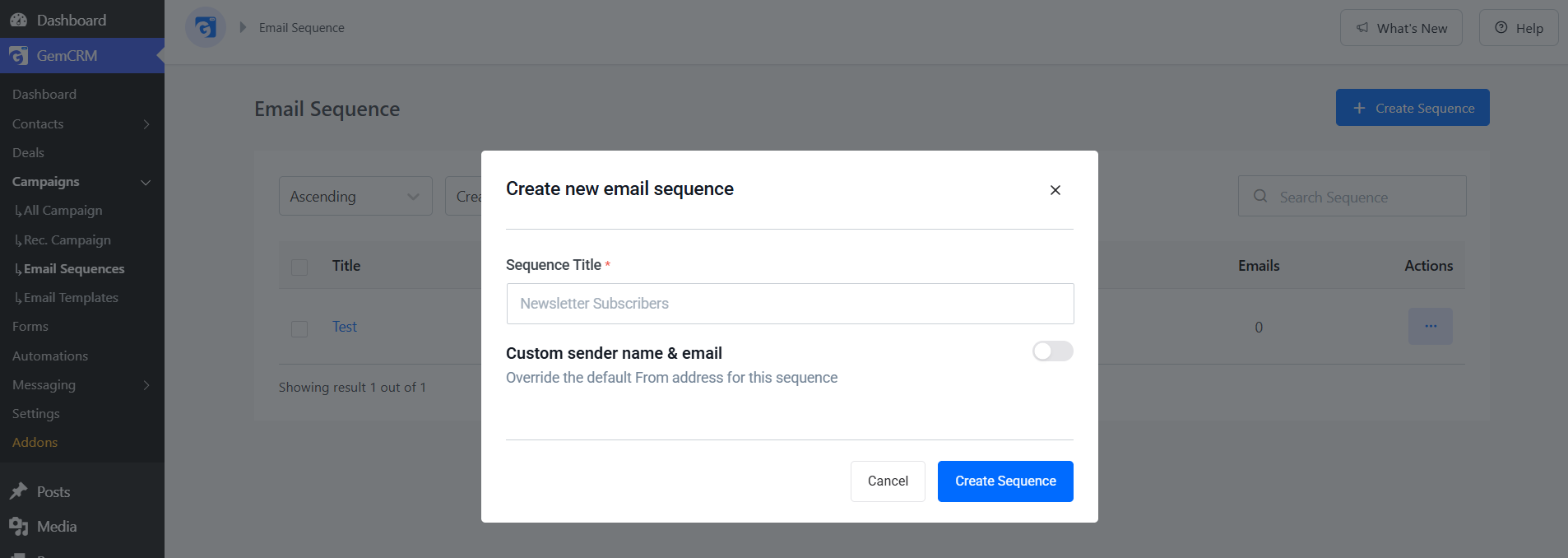
Creating a new email sequence in GemCRM — set a sequence title and an optional custom sender.
Step 3: Create your first sequence campaign
Once the sequence is created, it opens empty with the message “No Campaign Found In this Sequence.” Click “+ Create First Sequence Campaign” (or the “+ Add Emails” button at the top) to add the first email to your automation workflow. Each email you add here becomes one step in the sequence.
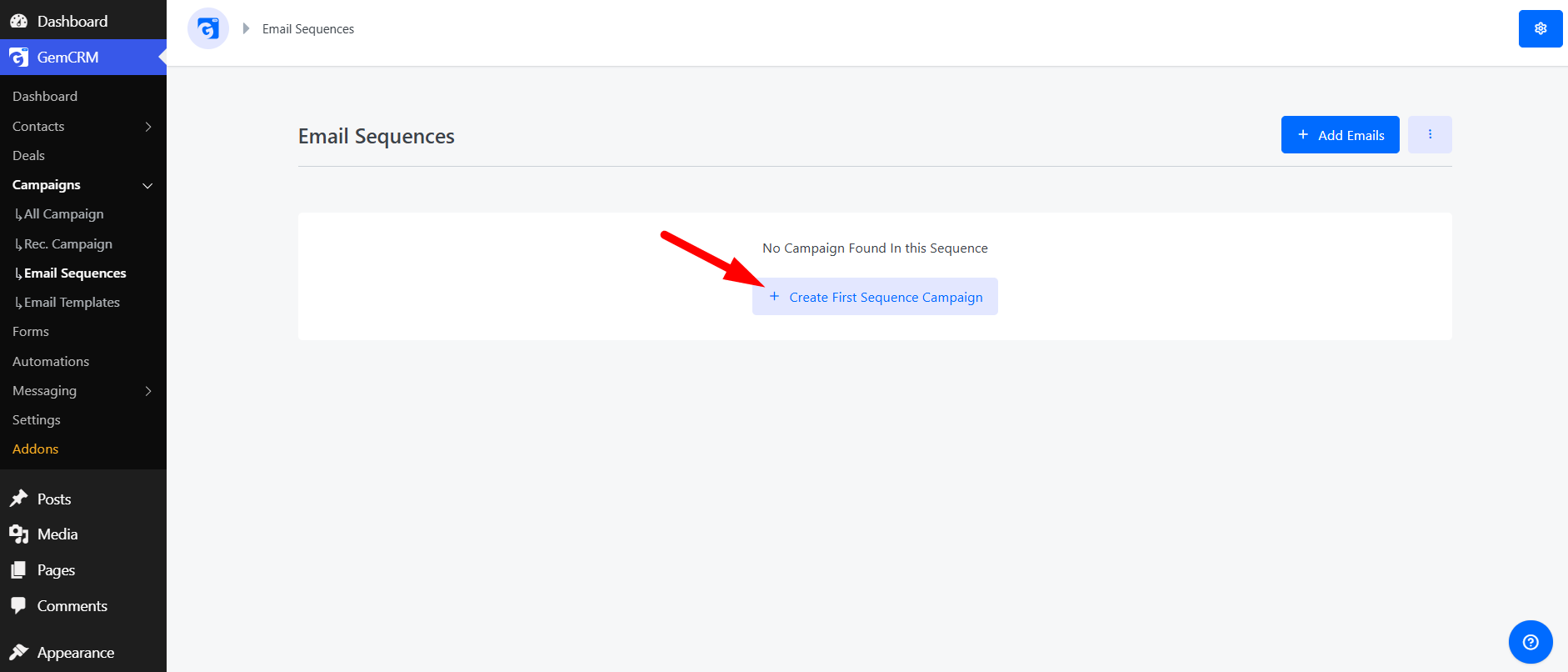
An empty sequence — click “Create First Sequence Campaign” to add your first automated email.
Step 4: Fill in the email details
This opens the Sequence Email editor, which has three sections. Work through each one:
Email Info. Enter an Email Title (an internal name for the email), the Email Subject (the email subject line your subscriber actually sees), and an optional Email Pre Header (the preview text that appears next to the subject in the inbox). A strong, clear email subject line is one of the biggest drivers of open rates, so it’s worth taking time here.
Schedule & Delay. Set the Delay Type (Hours, Days, etc.) and the Delay Value — this controls how long after the previous step this email sends. For example, a Delay Type of “Hours” with a Delay Value of “1” sends this email one hour after the subscriber enters this step. You can also toggle “Send only on specific days” to restrict sending to certain weekdays, and “Add UTM Parameters” to track the email in your analytics.
Email Body. Write your email content using either the Classic Editor or the visual Builder. The editor supports full formatting — headings, bold, lists, links, images, and raw HTML. To create a personalized email, type “@” to insert merge codes such as the contact’s name or email, so each subscriber receives an email addressed to them personally.
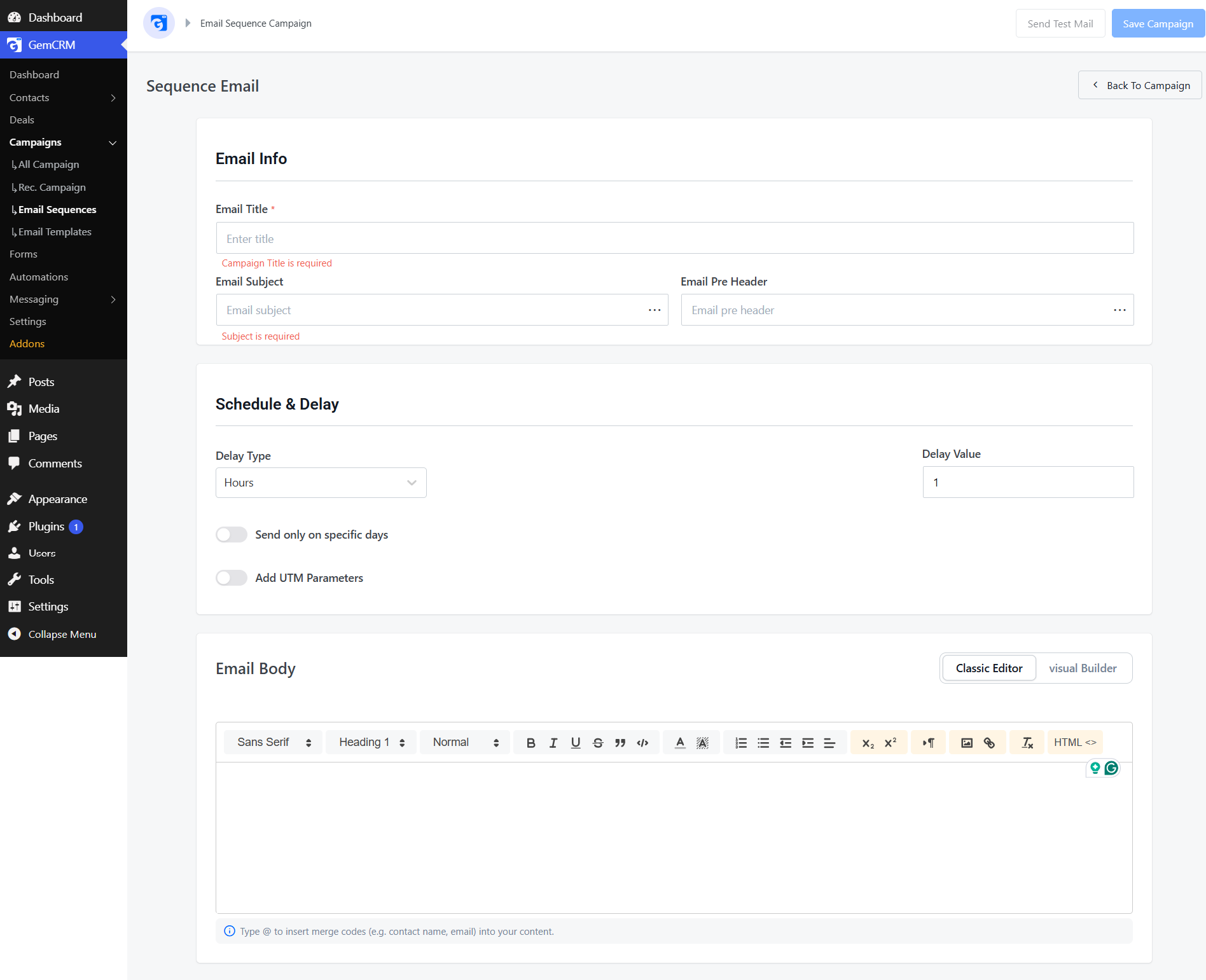
The Sequence Email editor — Email Info, Schedule & Delay, and Email Body, with merge-code personalization.
Step 5: Test, save, and add the next email
Before saving, click “Send Test Mail” in the top-right to test your email and confirm it renders correctly and lands in the inbox. When you’re happy, click “Save Campaign.” Then repeat Steps 3 and 4 to add each additional email to the sequence one by one, setting a delay on each so they send in order. This is how you build a complete automated email sequence — first the welcome email, then each follow-up, each with its own schedule and delay.
How the steps fit together
Each email is one step. The first email’s delay is measured from when the subscriber enters the sequence; every later email’s delay is measured from the previous step. Stack several emails with sensible delays and you’ve built a full onboarding email sequence that runs automatically.
How GemCRM Email Sequences Work
Once your sequence is built and saved, here’s what happens behind the scenes whenever a subscriber enters it:
- A subscriber is added to the sequence. When a contact joins — for example, through an email subscription form, a tag, or a manual add — they enter at the first step.
- GemCRM waits for the configured delay. Each step’s Schedule & Delay settings determine when its email sends. The plugin holds the subscriber until the delay (and any specific-day restriction) is met.
- The personalized email is sent automatically. At the scheduled moment, GemCRM sends that step’s email — with merge codes filled in per contact — through your configured email sending method.
- The subscriber advances to the next step. After the email sends, the contact moves to the next email in the sequence, and the cycle repeats until the sequence ends.
Because the whole automation workflow runs inside WordPress, every send, delay, and personalization happens on your own site — there’s no syncing contacts out to an external email marketing platform and waiting for it to fire.
Email Sequence Examples for WordPress and WooCommerce
Here are practical automated email sequence ideas you can build with the steps above:
- Welcome / onboarding sequence. A welcome email sent immediately after someone subscribes, followed by 2–4 emails over the next week introducing your brand, best content, and key products.
- Lead nurture sequence. A drip email series that educates a new lead over several days and gradually moves them toward a purchase or demo.
- WooCommerce post-purchase sequence. For WordPress and WooCommerce stores, an automated email to deliver order tips, request a review, and recommend related products after a sale.
- Re-engagement sequence. A short series sent to subscribers who’ve gone quiet, designed to win them back before you clean your email list.
- Email newsletter onboarding. A sequence that delivers your best evergreen newsletter issues to new subscribers so they get value immediately while you grow your email list.
Best Practices for WordPress Email Automation
- Lead with a strong welcome email. The welcome email after someone subscribes gets the highest open rates of any message you’ll send — make it count.
- Write one clear email subject line per email. Keep subject lines specific and benefit-driven; this single field has an outsized effect on whether your automated emails get opened.
- Personalize with merge codes. A personalized email using the subscriber’s name and details consistently outperforms a generic broadcast.
- Space your emails sensibly. Use the Delay settings to avoid overwhelming subscribers — a new email every one to three days is a common starting cadence for an onboarding sequence.
- Always test your email before launching. Use “Send Test Mail” to test your email content, formatting, and links on every step before any subscriber sees it.
- Protect your email deliverability. Connect a proper sending service so your automated email campaigns reach the inbox; good email delivery is the foundation everything else depends on.
Final Thoughts
Setting up automated emails in WordPress used to mean stitching together an external email marketing platform with your site. Today, you can build a complete automated email sequence — welcome email, follow-ups, and all — directly inside the WordPress dashboard with a plugin like GemCRM. Create the sequence once, set a title, add each email with its own subject, schedule, and personalized content, test it, and let the automation workflow handle the rest.
Whether you’re onboarding new subscribers, nurturing leads, or running a WordPress and WooCommerce store, email automation in WordPress lets you grow your email list and stay in front of your audience automatically — without sending a single email by hand. Build your first sequence today, and your welcome email will be working for you around the clock.
Frequently Asked Questions
Accordion Title 0
The best approach is a dedicated WordPress email automation plugin that handles contacts, sequences, and sending in one place. GemCRM builds the entire automated email sequence inside your WordPress dashboard, so you don’t need a separate email marketing service.
Accordion Title 0
Yes. WordPress core doesn’t include email marketing automation, so you need an email marketing plugin. An email automation plugin like GemCRM adds email sequences, email templates, and an automation workflow directly to WordPress.
Accordion Title 0
A single email campaign is one message sent to a list at one time. An email sequence is a series of emails sent automatically over time, each with its own delay — that scheduling and automation is what makes it a sequence.
Accordion Title 0
Yes. In GemCRM’s email body editor, typing “@” inserts merge codes such as contact name and email, so every subscriber receives a personalized email even though the whole sequence is automated.
Accordion Title 0
Email deliverability depends on your sending method. Connect a reputable SMTP or transactional email service to your WordPress site, and send a test email from each sequence step before launching to confirm proper email delivery.