



Most WooCommerce stores lose a majority of their checkout traffic to abandoned carts — shoppers don’t leave because they hate the product, but because of cost, friction, hesitation, or distraction. WooCommerce abandoned cart recovery is the system that brings a share of them back and turns an abandoned checkout into a completed order.
This guide gives you a practical, step-by-step setup tutorial using GemCRM, then covers the workflow mechanics — timing, discounts, guest vs. logged-in recovery, native WooCommerce vs. a dedicated CRM, and how to measure whether it’s working.
For ready-to-use email copy and subject lines, see Abandoned Cart Emails Example: Best Practices to Recover Sales — this article covers the system around those emails, not the emails themselves.
What Is WooCommerce Abandoned Cart Recovery?
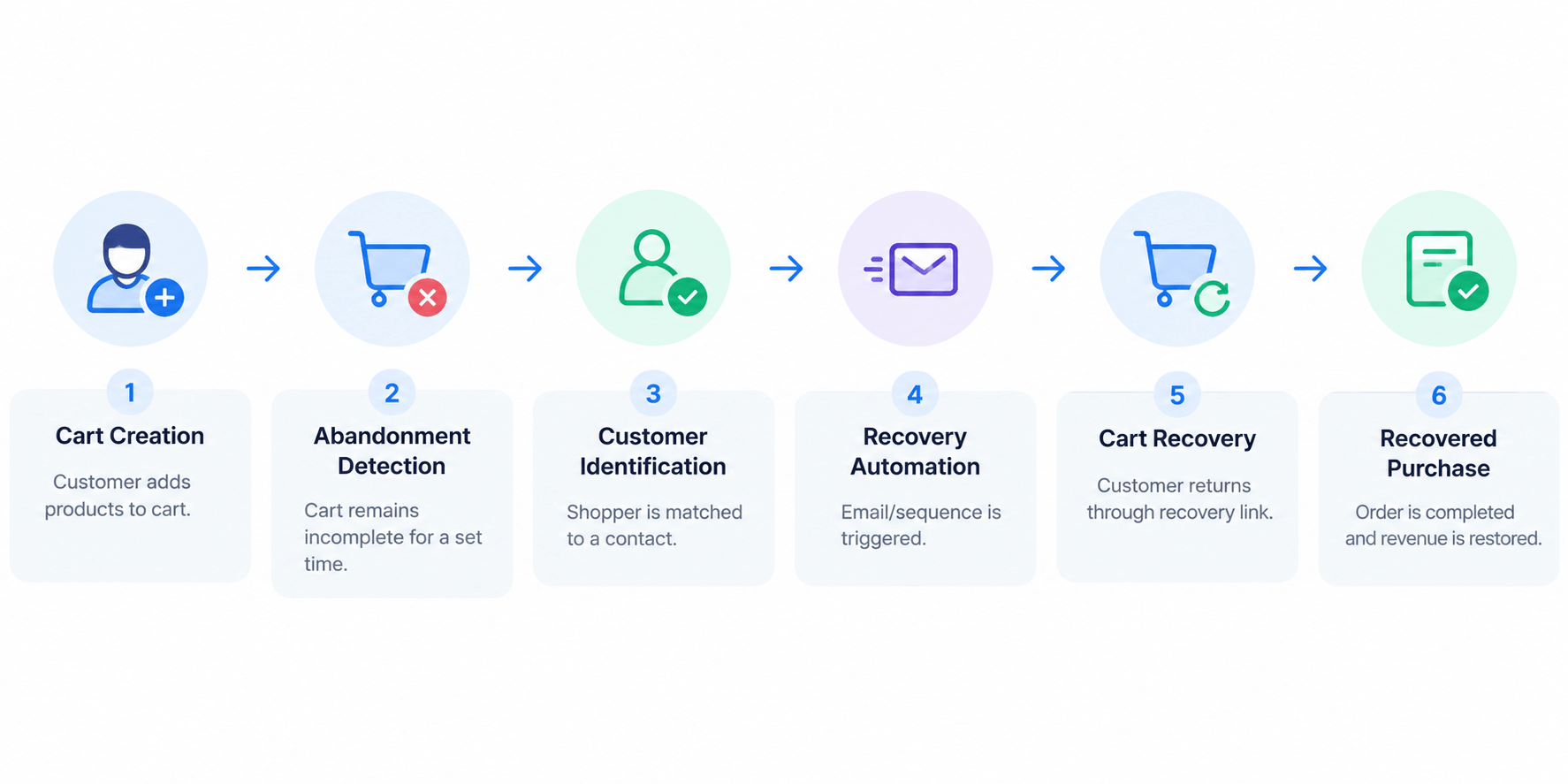
|
Step |
What happens |
Why it matters |
|
Cart tracking |
Customer adds products to cart |
Starts recovery workflow |
|
Abandonment detection |
Cart remains incomplete for a set time |
Starts recovery workflow |
|
Customer identification |
Shopper is matched to a contact |
Enables personalized recovery |
|
Recovery automation |
Email/sequence is triggered |
Brings shoppers back |
|
Cart recovery |
Customer returns through recovery link |
Restores the shopping journey |
Recovery is most commonly done by email, though some tools also support SMS, WhatsApp, or on-site messaging. The tutorial below uses GemCRM Pro’s Abandoned Cart addon to walk through exactly how this works in practice.
How to Set Up WooCommerce Abandoned Cart Recovery With GemCRM
This is the main tutorial in this guide — it walks through the actual GemCRM interface, step by step, so you can configure recovery for your own store rather than just understand the concept.
Before you start: Abandoned Cart Recovery is a GemCRM Pro feature and requires WooCommerce and Zaplane (GemCRM’s free automation plugin) active. From GemCRM → Addons, find the Abandoned Cart card and click Activate — this adds an Abandoned Carts menu item to the sidebar.
Step 1: Open the Abandoned Cart Settings
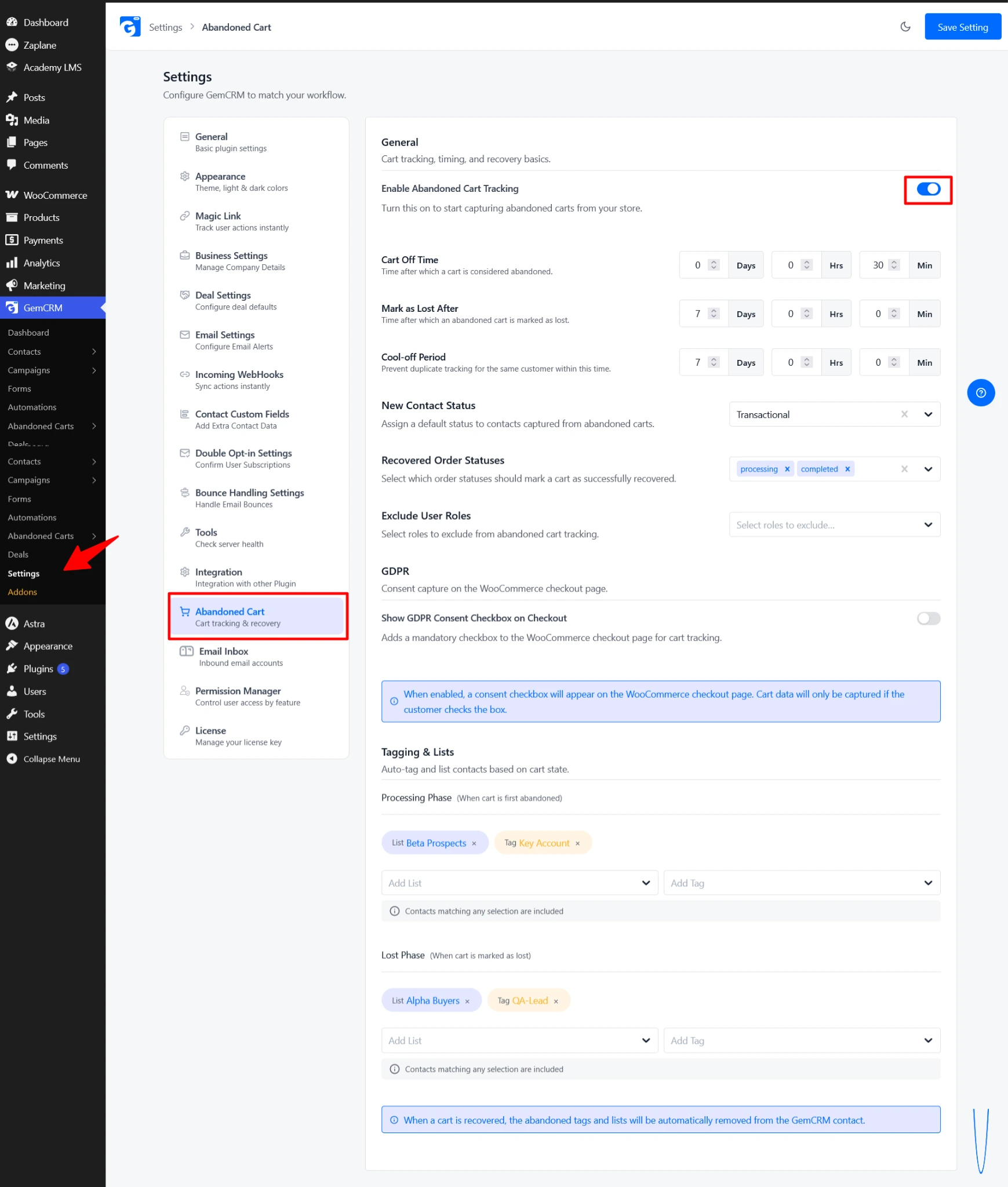
Go to GemCRM → Settings, then select Abandoned Cart from the settings list (listed as “Cart tracking & recovery”). This opens the Settings › Abandoned Cart panel where every recovery rule lives.
Step 2: Configure Abandoned Cart Tracking
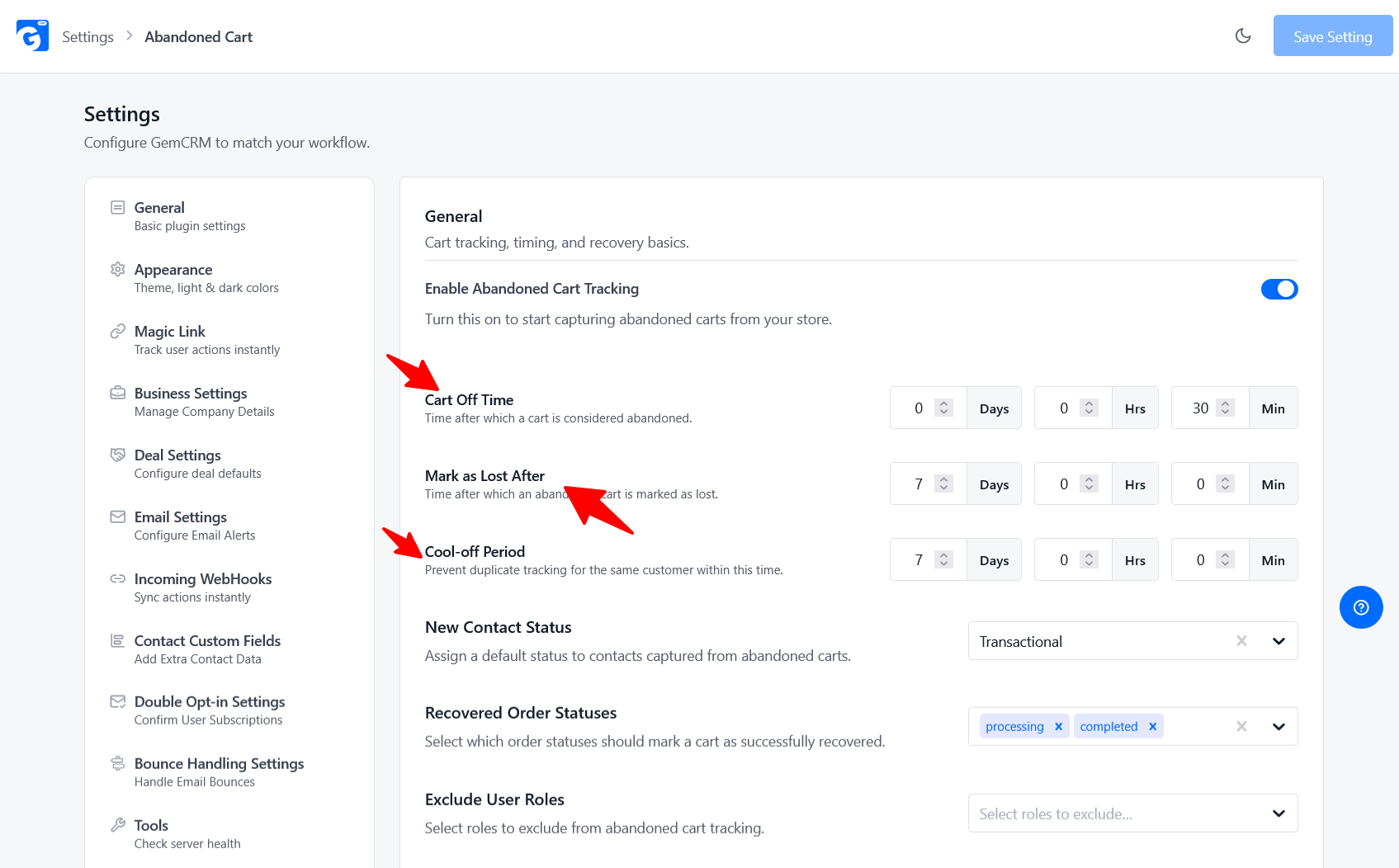
Under the General tab, the first setting is Enable Abandoned Cart Tracking — a toggle that turns the whole tracking engine on or off. With it enabled, GemCRM captures cart contents (products, quantities, total) the moment a shopper enters an email at checkout and leaves without completing the order — no separate tracking script needed.
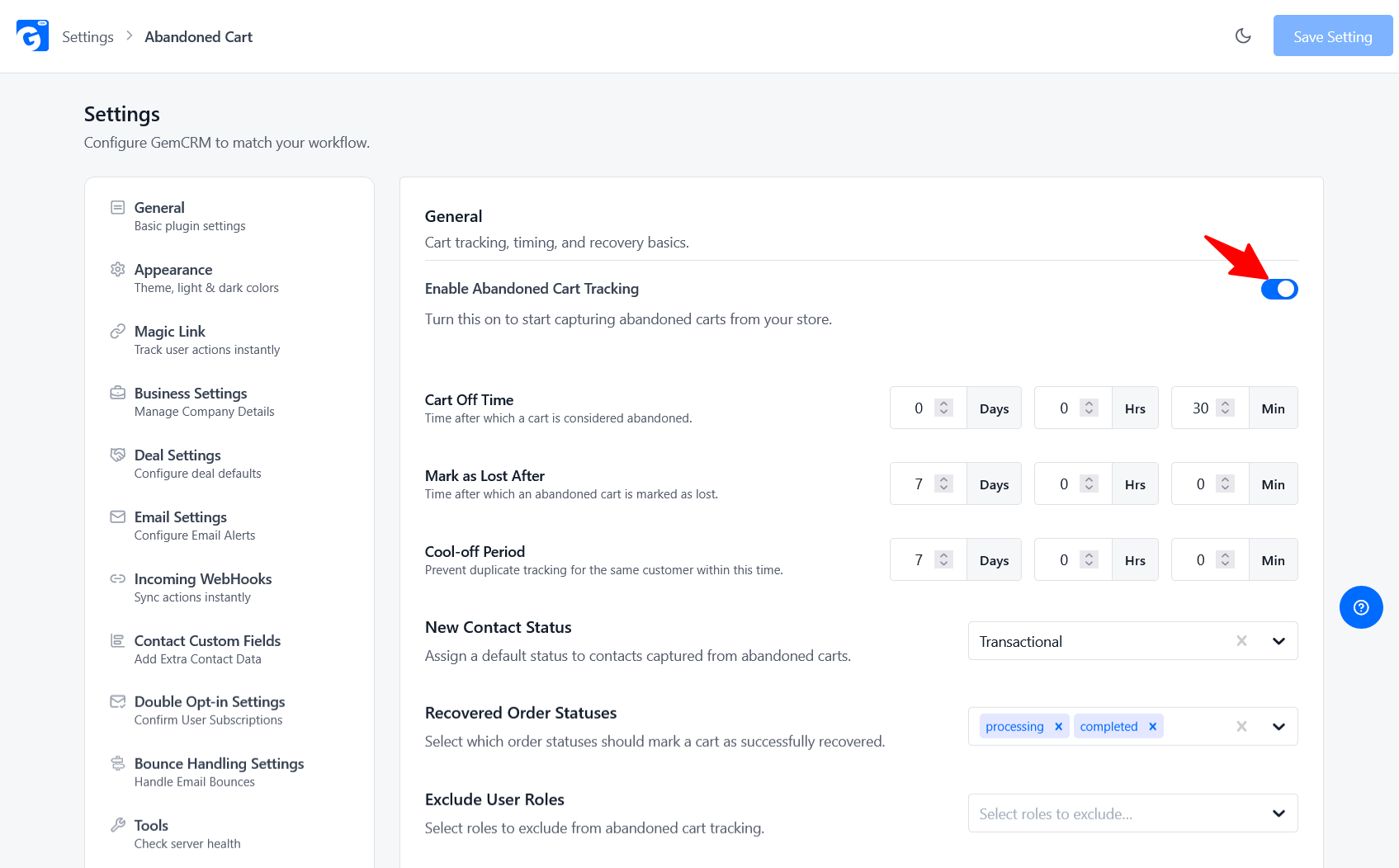
Two more settings here matter: New Contact Status (the CRM status — Transactional, Subscribed, Pending — assigned to a contact created from an abandoned cart) and Exclude User Roles (roles like Administrator or Shop Manager that should never be tracked, so staff or testing activity doesn’t pollute your data).
Step 3: Configure the Abandoned Cart Time
Still on the General tab, two timing settings determine the cart’s lifecycle: Cart Off Time (how long a cart sits inactive, in Days/Hrs/Min, before it’s considered abandoned — default 30 minutes) and Mark as Lost After (how long an abandoned cart stays “in play” before it’s written off — default 7 days). A Cool-off Period setting also prevents duplicate tracking if the same customer abandons another cart shortly after a recent one. There’s no universally correct value here — the defaults are a reasonable starting point, but adjust based on your own checkout traffic once you have data.
Step 4: Configure Contact, List, and Tag Handling
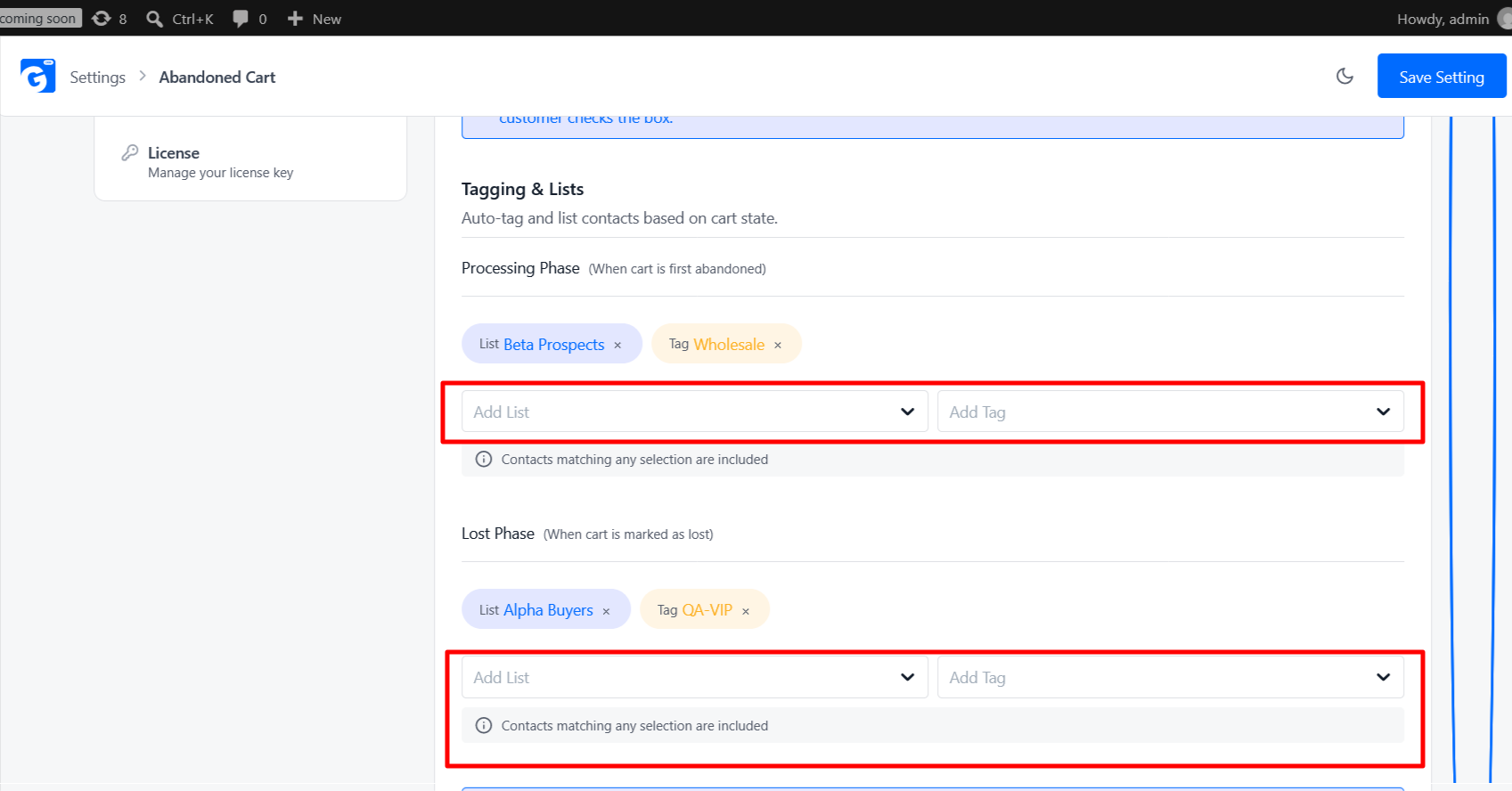
Two more tabs on the same settings screen control how abandoned-cart shoppers are organized in your CRM. The GDPR tab turns on a consent checkbox added directly to the WooCommerce checkout page, with a customizable message — if enabled, cart data is only saved when the shopper checks it. The Tagging & Lists tab lets you choose which Lists and Tags apply automatically when a cart moves to Processing (abandoned), and separately which apply when it moves to Lost — this is what lets you target abandoned-cart shoppers with broader segments, not just the automated sequence. GemCRM removes those tags/lists automatically once a cart is recovered.
Flow: cart abandoned → contact identified → tag/list applied → recovery sequence triggered → purchase completed → tag/list removed automatically.
Step 5: Create the Recovery Email or Automation
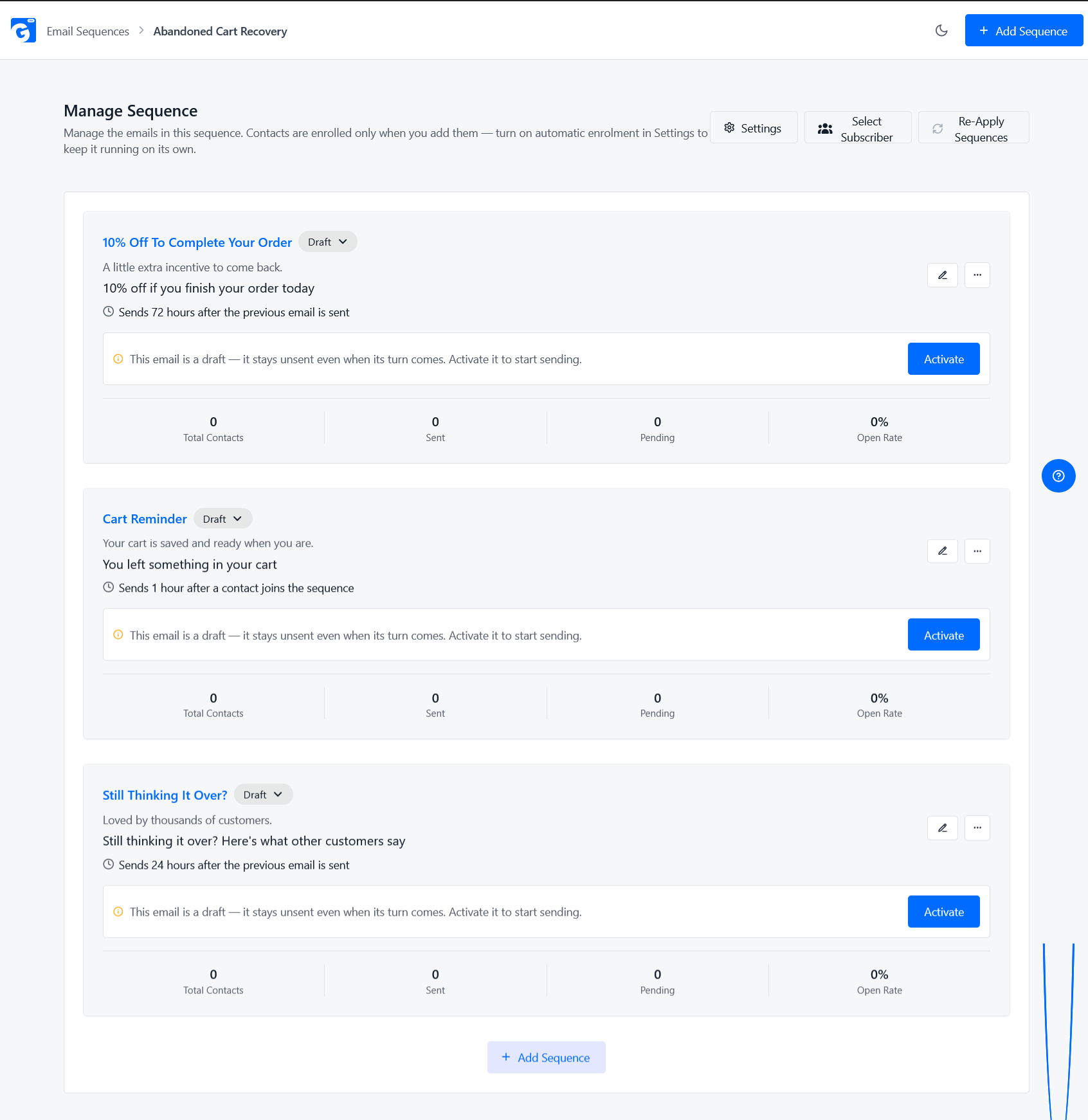
The settings screen controls tracking and timing — the recovery message itself is built separately with GemCRM’s Email Sequence builder, the same drip-campaign engine used for onboarding and nurture emails elsewhere in GemCRM. Go to GemCRM → Campaigns → Email Sequences, click Create Sequence, and add a first step (a single email) with its Subject, Body (using the editor to insert the recovery link and cart/product details as merge fields), and Delay relative to when the cart was abandoned.
Step 6: Configure the Recovery Sequence
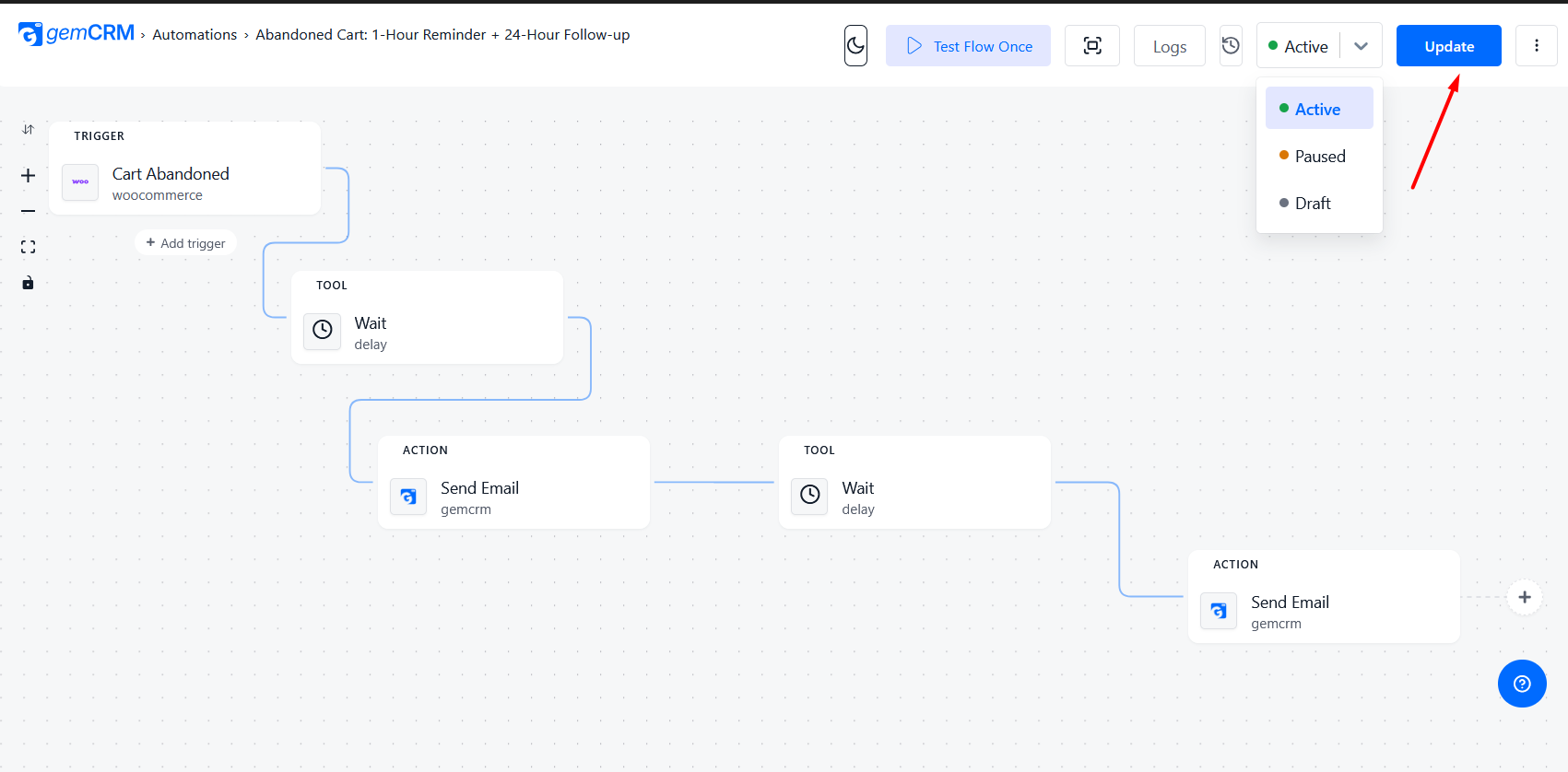
Add two or three more steps to the same sequence, each with a longer delay, to build a full follow-up cadence (see the timing framework later in this guide). The sequence doesn’t need a manually assigned audience — shoppers are enrolled automatically from an automation, which is where Zaplane comes in. Go to GemCRM → Automations, click Create Workflow, and add a trigger (app Abandoned Cart, event Cart Abandoned) connected to an action (app GemCRM, action Enroll in Sequence — select the sequence you just built). Optionally, insert a WooCommerce → Create Coupon action before enrollment to generate a unique discount code and reference it in a later email. Then build a second, small automation with the Cart Recovered trigger and Remove from Sequence action, so recovery emails stop the moment the shopper actually buys.
Conceptually: Cart Abandoned → (optional) Create Coupon → Enroll in Sequence → timed emails send → Cart Recovered stops the sequence.
Step 7: Test the Abandoned Cart Recovery Workflow
Before this touches real customers: use Test Run on each Zaplane node to confirm the trigger, coupon, and enrollment fire correctly; Save, then Publish/Activate the workflow (a saved-but-unpublished automation won’t run); switch each Email Sequence step’s status from Draft to Pending/Publish (a Draft step won’t send); then run a real end-to-end test — add a product to cart on the live storefront, enter an email, abandon checkout, watch GemCRM → Abandoned Carts for the cart to appear, confirm the recovery email arrives after your configured delay, click the recovery link, and verify it restores the exact cart into checkout.
Step 8: Monitor Recovered Carts and Revenue
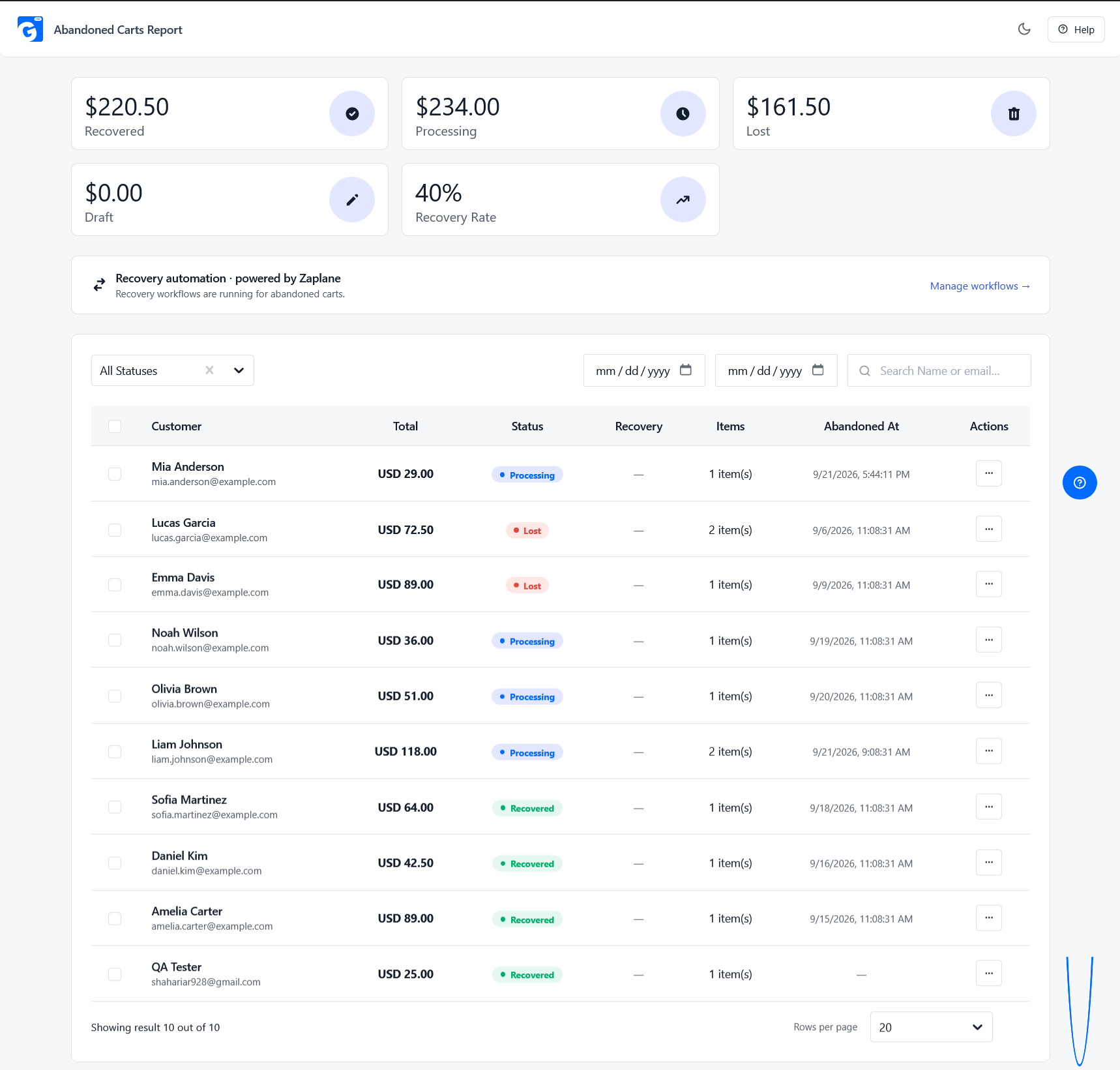
Once live, go to GemCRM → Abandoned Carts to track performance. The report view shows five cards — Recovered, Processing, Lost, Draft, and Recovery Rate — each with revenue and cart count. Below that, the Abandoned Carts table lists every tracked cart with Customer, Total, Status, Items, and Abandoned At columns, plus a Copy Recovery Link action per row. A Recovery Automation panel confirms whether your Zaplane workflow is active, with a link back to the automation canvas. For per-email performance, check the Reports tab on the Email Sequence itself.
How Does WooCommerce Abandoned Cart Recovery Work?
The GemCRM setup above is one implementation of a mechanism every recovery system shares — including WooCommerce’s own native feature, covered later:
WooCommerce Abandoned Cart Recovery Email Strategy
Email is the backbone of most recovery workflows, but this isn’t the place to relitigate every best practice — Abandoned Cart Emails Example: Best Practices to Recover Sales already covers subject lines, templates, and 10 real examples in depth. At a system level, a recovery email needs to reference the actual cart contents, use a single clear CTA (“Return to Cart”), include a working recovery link, and be personalized rather than generic.
When Should You Send WooCommerce Abandoned Cart Emails?
There’s no single “correct” timing for every store — this is a reasonable starting framework to test from:
|
|
Starting Timing |
Goal |
|
Email 1 |
30–60 minutes |
Reminder |
|
Email 2 |
12–24 hours |
Address hesitation |
|
Email 3 |
48–72 hours |
Final reminder / incentive |
Treat this as a starting point, not a rule — the right cadence depends on product price, buying cycle, and customer type (first-time vs. repeat). The only way to know what actually works for your store is testing different delays against your recovery rate.
Should You Offer a Discount for Abandoned Carts?
Discounting every abandoned cart is a common mistake — it trains shoppers to abandon on purpose, and it erodes margin on orders you’d have gotten anyway. A discount works best as a later step, reserved for genuinely price-sensitive shoppers who didn’t convert on softer touches. Try alternatives first: free shipping (the most common abandonment cause), social proof, return-policy reassurance, or a reminder of the product’s benefits.
[IMAGE PLACEHOLDER] @Mridha (Web Designer) — Create a clean horizontal timeline showing a typical abandoned-cart email recovery sequence, with cart abandonment, first reminder, follow-up, and final reminder stages.
Main takeaway: use incentives strategically, based on why a segment is hesitating — not automatically on every cart.
Guest vs Logged-In Cart Recovery in WooCommerce
[IMAGE PLACEHOLDER] @Mridha (Web Designer) — Create a side-by-side visual comparing logged-in and guest shoppers during WooCommerce abandoned-cart recovery. Highlight customer identification, tracking, and recovery differences without adding unsupported technical claims.
This affects how many carts are even recoverable. Logged-in customers are identified immediately, making personalization easier and tracking possible from the moment the cart is created.
Guest customers are unknown until they voluntarily provide an email at checkout — a cart abandoned before that point generally can’t be recovered by email. Consent matters too: capturing a guest’s email for follow-up should be transparent, which is what GemCRM’s GDPR consent checkbox (Step 4 above) is for. Since guest checkout is the default for most WooCommerce stores, a system that only tracks logged-in users misses most recoverable revenue.
WooCommerce Native Recovery vs GemCRM
Native WooCommerce Recovery
As of WooCommerce 11.0, WooCommerce includes an experimental, native abandoned cart recovery email feature — no third-party plugin required, though it’s off by default. Per WooCommerce’s documentation, it’s found under WooCommerce → Settings → Advanced → Features → Experimental features, and once enabled, configured under WooCommerce → Settings → Emails → Abandoned cart recovery. For automatic sending, an order must sit in “Pending payment” for two hours before a recovery email is scheduled (cancelled if status changes first); manual sending needs an order at least one hour old with a valid billing email. WooCommerce sends no more than one recovery email per order, and disables itself when a supported third-party recovery tool is detected.
In short: native recovery sends one timely reminder to a shopper who reached checkout and left a pending order — it doesn’t track earlier abandonment, run sequences, or capture guest carts beyond that one case.
What GemCRM Adds
GemCRM’s Abandoned Cart addon (walked through step by step above) adds what the native feature doesn’t attempt: cart tracking from the moment a guest email is captured (not just from a pending order), configurable abandonment and lost-cart timing, a multi-step recovery sequence instead of one email, automatic contact tagging/listing tied to cart status, GDPR consent capture built into checkout, coupon automation through Zaplane, and recovery reporting (recovered/processing/lost/draft, recovery rate) instead of a single “email sent” event.
This doesn’t mean every store needs it — a low-volume store might get real value from the native experimental feature alone. A store with meaningful checkout traffic, a mix of guest and logged-in shoppers, and a goal of running recovery as part of a broader customer journey is where a CRM-based approach starts to matter.
How to Measure WooCommerce Abandoned Cart Recovery
Common WooCommerce Abandoned Cart Recovery Mistakes
WooCommerce Abandoned Cart Recovery Best Practices
Conclusion
Cart abandonment isn’t something you can eliminate — but with a working recovery workflow, it stops being silent lost revenue. Whether you start with WooCommerce’s native experimental email or a full GemCRM sequence, the mechanics are the same: track the cart, identify the shopper, trigger a timely message, make the return path frictionless, and measure recovered revenue rather than just emails sent.
For more on connecting cart recovery to your broader customer data, see WooCommerce CRM: eCommerce Customer Relationship Management with GemCRM, WooCommerce Email Marketing Guide, and Best WooCommerce Customer Segmentation.
WooCommerce Abandoned Cart Recovery FAQ
What is WooCommerce abandoned cart recovery?
The process of identifying shoppers who added items to their cart but didn’t check out, then following up — usually by email — to bring them back and finish the purchase.
How do I set up abandoned cart recovery in WooCommerce?
Activate a tracking method, define when a cart counts as abandoned, capture the shopper’s email, build a recovery message with a working return-to-cart link, and measure recovered revenue against a baseline. The full GemCRM walkthrough is above.
Can I recover abandoned carts with GemCRM?
Yes — GemCRM Pro’s Abandoned Cart addon tracks carts natively, applies tags/lists based on cart status, and triggers a recovery sequence through Zaplane automation, as detailed in the tutorial above.
Does WooCommerce have built-in abandoned cart recovery?
Yes, as of WooCommerce 11.0, as an experimental, off-by-default feature sending one reminder email to eligible pending orders roughly two hours after checkout — no multi-email sequences or guest-cart tracking before an order exists.
How long should I wait before sending a recovery email?
30–60 minutes is a common starting point, but the right timing depends on product price, buying cycle, and your own store’s data.
Can abandoned carts from guest users be recovered?
Only from the point a guest provides an email, typically at checkout — a cart abandoned earlier generally isn’t recoverable without a tool that captures the email sooner.
Should I offer a discount for abandoned carts?
Not automatically — use discounts strategically later in a sequence, for price-sensitive segments, and try free shipping or reassurance first.