




Your WordPress website is already doing the hardest part — attracting visitors. The real question is what happens next. Most sites let that traffic come and go without capturing a single email address. If you’re looking for ways to generate leads and turn that traffic into real business leads, the good news is that WordPress is one of the best platforms for lead generation — with the right plugin, you can turn your WordPress site into a lead generation machine.
In this guide, you’ll learn proven ways to generate leads from your WordPress website — from lead magnets and landing pages to SEO and optimized lead capture forms. Then we’ll show you exactly how GemCRM’s form builder helps you capture leads and grow your business, with a step-by-step walkthrough for building high-converting lead generation forms directly inside your WordPress dashboard.
What Is Lead Generation in WordPress?
Lead generation is the process of attracting website visitors and converting them into leads — people who have shared their contact information (usually an email address) because they’re interested in your product or service. A lead is a potential customer who has raised their hand; lead generation is the system that captures them.
In the context of WordPress, lead generation means using your WordPress website — your pages, posts, popups, and forms — to collect leads and feed them into your email marketing. Instead of letting visitors leave without a trace, you offer something valuable, capture their contact information through a lead capture form, and begin a relationship that can grow your business over time.
Done well, WordPress lead generation combines several moving parts: a lead magnet that gives visitors a reason to subscribe, lead generation forms that capture their details, SEO that drives organic traffic, and a tool to store and nurture every lead you collect.
Why Use WordPress for Lead Generation
WordPress powers a huge share of the web for good reason — and that flexibility makes it one of the best environments for lead generation:
- A massive plugin ecosystem. There are countless lead generation plugins for WordPress, so you can add lead capture forms, popups, and landing pages without writing code.
- Built-in content and SEO power. WordPress is built for content creation and ranks well in search engines, so the organic traffic you need for lead gen is already within reach.
- Full control and ownership. Unlike a hosted website builder, your WordPress site and the leads you collect belong to you — not a third-party platform.
- Works with any WordPress theme. Lead generation tools integrate with virtually any WordPress theme, so you can add forms and CTAs that match your design.
The one piece many site owners miss is connecting their lead capture to a system that actually stores and nurtures those leads. That’s where a dedicated WordPress lead generation plugin like GemCRM comes in — it captures the lead and keeps the relationship going.
Proven Ways to Generate Leads From Your WordPress Website
Before the step-by-step setup, here are the most effective ways to generate leads on your site. The best lead generation strategy usually combines several of these:
- Offer a lead magnet. A lead magnet is something valuable you give away in exchange for contact information — an ebook, checklist, template, or discount. A great lead magnet solves a specific problem for your potential customer, which makes them happy to hand over an email address.
- Build dedicated landing pages. A focused landing page with one clear offer and one lead capture form converts far better than a general page. Use a landing page for each major lead magnet or campaign.
- Use popups and inline forms. Well-timed popups, slide-ins, and inline lead generation forms capture visitors at the moment they’re most engaged. Pair them with clear CTAs.
- Add a newsletter signup. A simple newsletter or email list signup turns casual readers into subscribers you can nurture toward becoming customers.
- Optimize for SEO and keywords. Targeting the right keywords helps you rank higher in search engines and brings in organic traffic — the most sustainable source of new leads.
- Add social proof and testimonials. Testimonials and social proof near your forms reassure visitors and lift your conversion rate.
- Offer live chat. Live chat lets you answer questions in real time and capture leads who might otherwise leave undecided.
Each of these is a different lead generation tactic, but they all share one requirement: a reliable way to capture leads and store their contact information. That’s the role your lead capture forms play — and it’s where GemCRM’s form builder does the heavy lifting.
How GemCRM Turns Your WordPress Site Into a Lead Generation Machine
GemCRM is a WordPress-native CRM and lead generation plugin that runs entirely inside your WordPress dashboard. Instead of stitching together a separate form tool, an email marketing service, and a CRM, GemCRM combines lead capture forms, contact management, and email automation in one plugin — so every lead you collect is captured, stored, and nurtured in the same place.
For lead generation specifically, the GemCRM form builder is the engine. It lets you create lead capture forms and embed them anywhere on your WordPress site, then automatically saves every submission as a contact you can tag, segment, and follow up with. Here’s what makes it a genuine lead generation machine:
- A visual form builder with templates. Start from a ready-made template like Newsletter Signup, then customize the fields, button text, and style — no code required.
- Embed anywhere via shortcode. Drop your lead generation form onto any page, post, or landing page using a simple shortcode, or embed it as a widget.
- Automatic lead capture into your CRM. Every form submission becomes a contact in GemCRM instantly — no exporting, no manual entry, no leads lost.
- Built-in follow-up automation. Pair each form with an automated welcome email or sequence so new leads are nurtured the moment they subscribe.
- Self-hosted and lifetime-licensed. Your leads live in your own WordPress database, and a one-time license means growing your list never inflates a monthly bill.
How to Generate Leads Using the GemCRM Form Builder (Step by Step)
Follow these steps to create a lead capture form with GemCRM and start collecting leads from your WordPress website.
Before you start
Make sure you have installed and activated the GemCRM plugin on your WordPress site to use the GemCRM form builder features. Once active, GemCRM appears in your WordPress dashboard sidebar.
Step 1: Open Forms and click Create Form
From the GemCRM menu in your WordPress dashboard, go to Forms in the left sidebar. This opens the Subscription Forms screen, where all your lead generation forms live. Click the “+ Create Form” button in the top-right corner to launch the form builder.
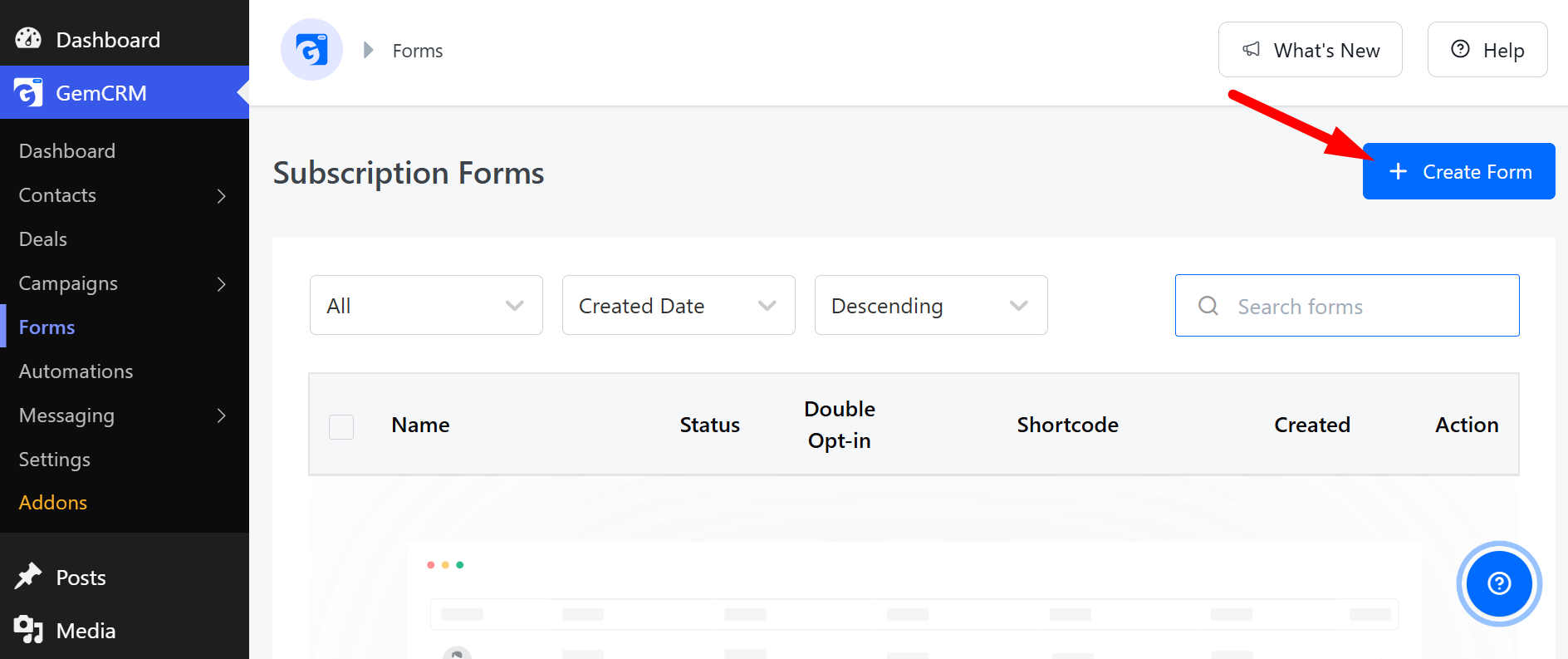
Click the “+ Create Form” button on the GemCRM Subscription Forms screen.
Step 2: Build your form in the visual builder
The GemCRM form builder opens with a live preview on the right and a BLOCKS panel on the left. Start by giving your form a name at the top (for example, “News Letter”). Then drag blocks from the left panel — Input, Textarea, Dropdown, Radio group, Checkboxes — to add the fields you need, and use the structure blocks (Submit button, Divider, Spacer, Columns, Section) to shape the layout.
For lead generation, keep the form short: an Email field plus First name and Last name, with a clear Subscribe button, is the ideal high-converting lead capture form. Fewer fields mean a higher conversion rate. Use the Preview button any time to see exactly how your form will look to visitors.
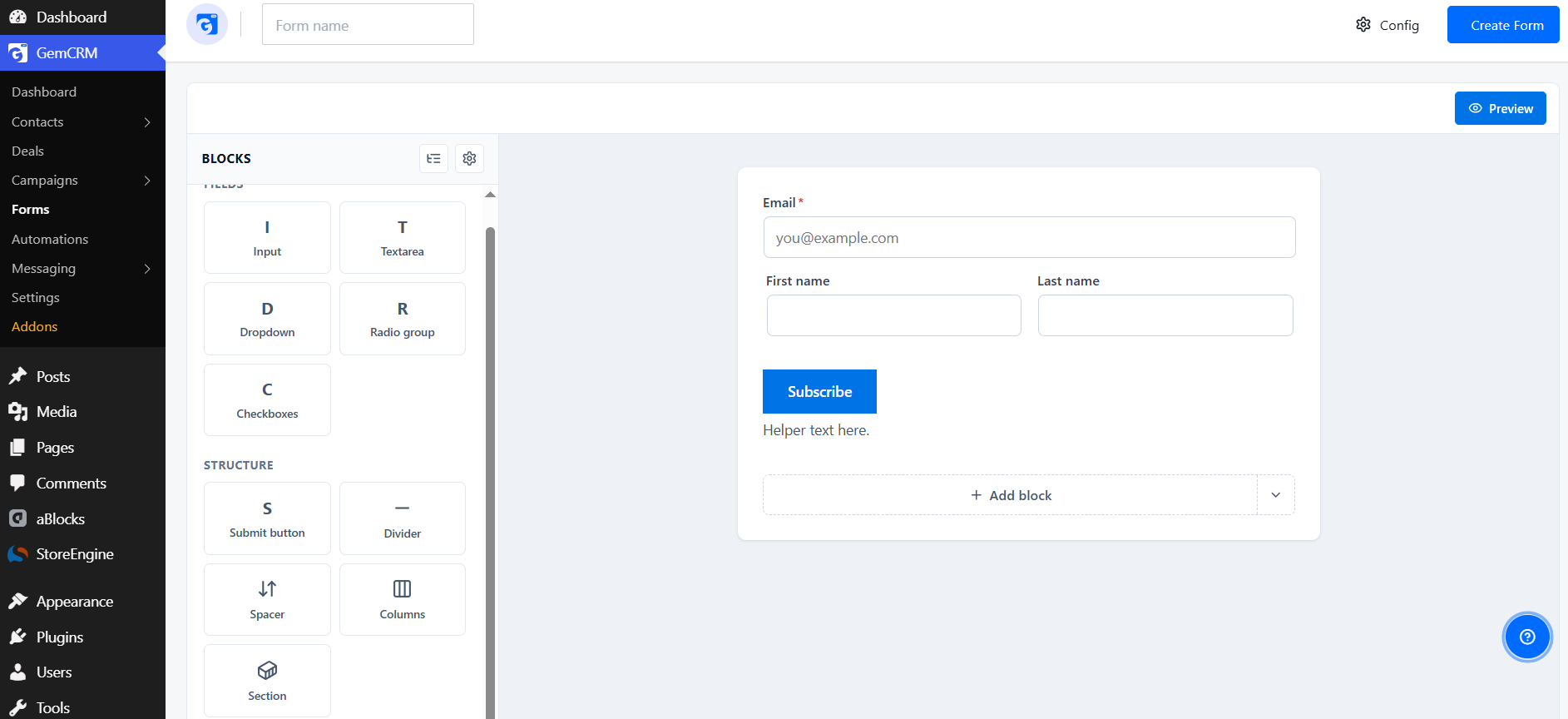
The GemCRM visual form builder — drag blocks on the left, preview the form on the right.
Step 3: Configure list, tag, double opt-in, and redirect
Click the “Config” button at the top of the builder to open the Form Config panel. Here you control what happens when a visitor submits the form:
- Default List & Tag for Contact (optional). Automatically add every new lead to a specific list or tag, so your captured leads are organized the moment they come in.
- Enable Double Opt-in. Require email confirmation before a subscription is activated — this keeps your email list clean and improves email deliverability.
- Enable Redirection. Redirect subscribers to a custom URL (such as a thank-you page) after a successful submission, which is perfect for delivering a lead magnet or tracking conversions.
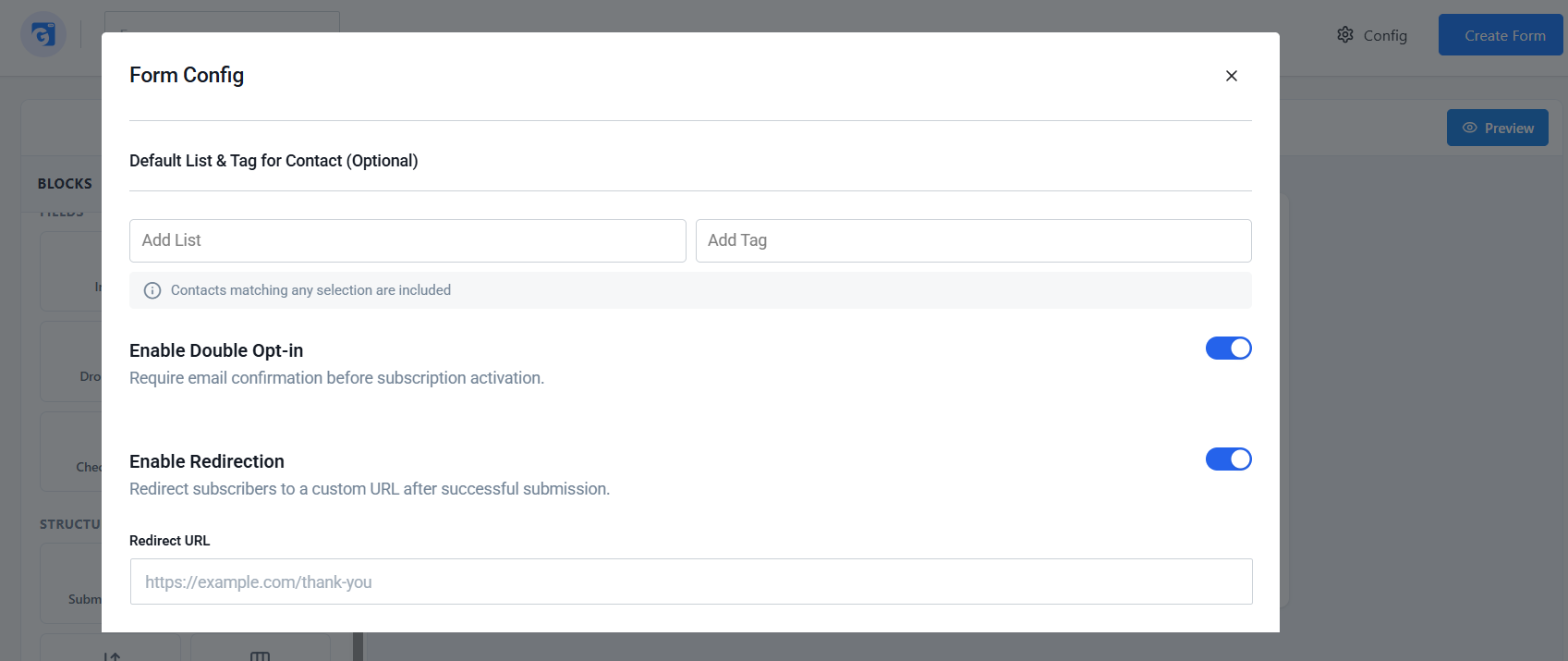
The Form Config panel — set list & tag, double opt-in, and a redirect URL.
Step 4: Create the form and copy the shortcode
When your form and settings are ready, click “Create Form.” GemCRM saves it to your Subscription Forms list with a status of Active and generates a shortcode (for example, [gemcrm_form id=”1″]). Click the copy icon next to the shortcode — you’ll use it to place the form anywhere on your WordPress site.
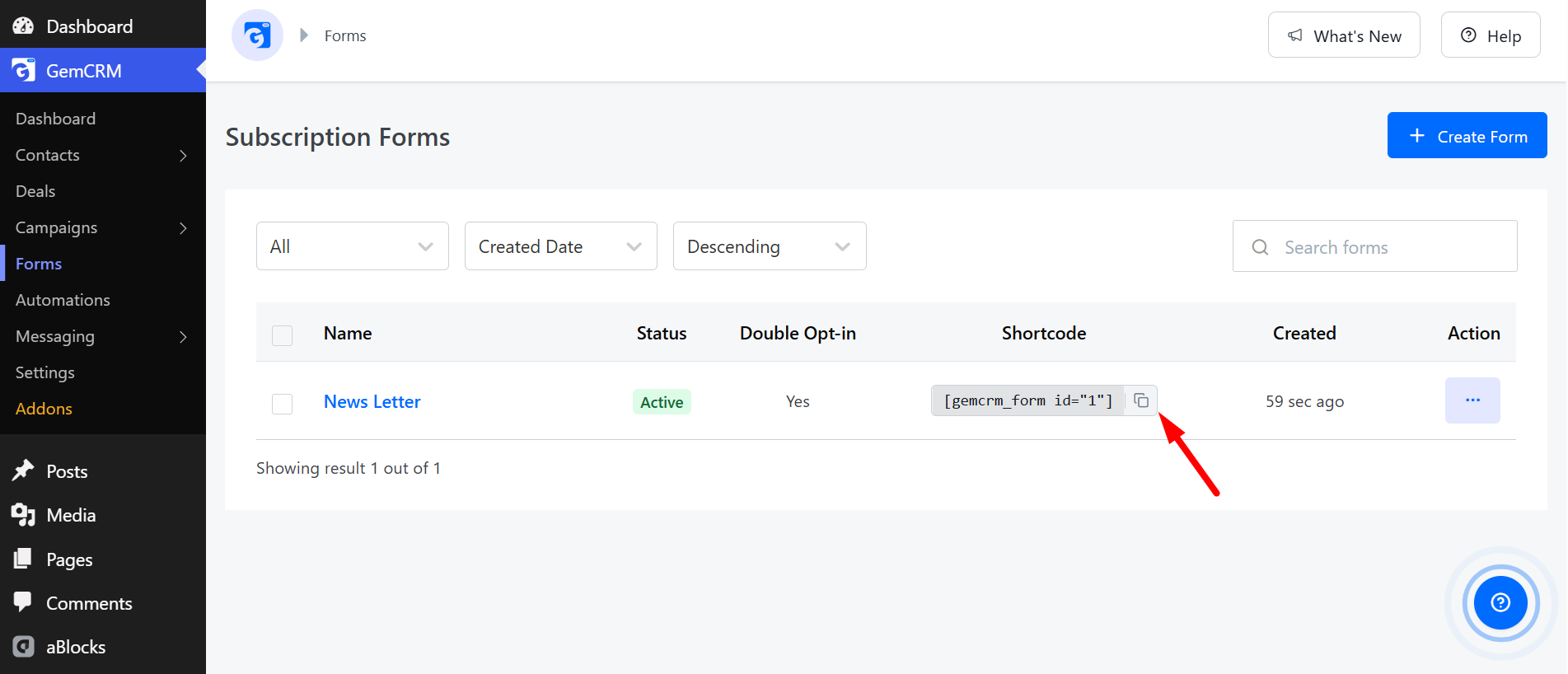
Copy the generated shortcode from your Subscription Forms list.
Step 5: Embed the form on a page or landing page
Open any page, post, or landing page in the WordPress block editor, add a Shortcode block, and paste your GemCRM shortcode into it. Click Save / Publish to make it live. For lead generation, embedding the form on a dedicated landing page with a single clear offer typically converts best — but you can place it anywhere visitors are most engaged.
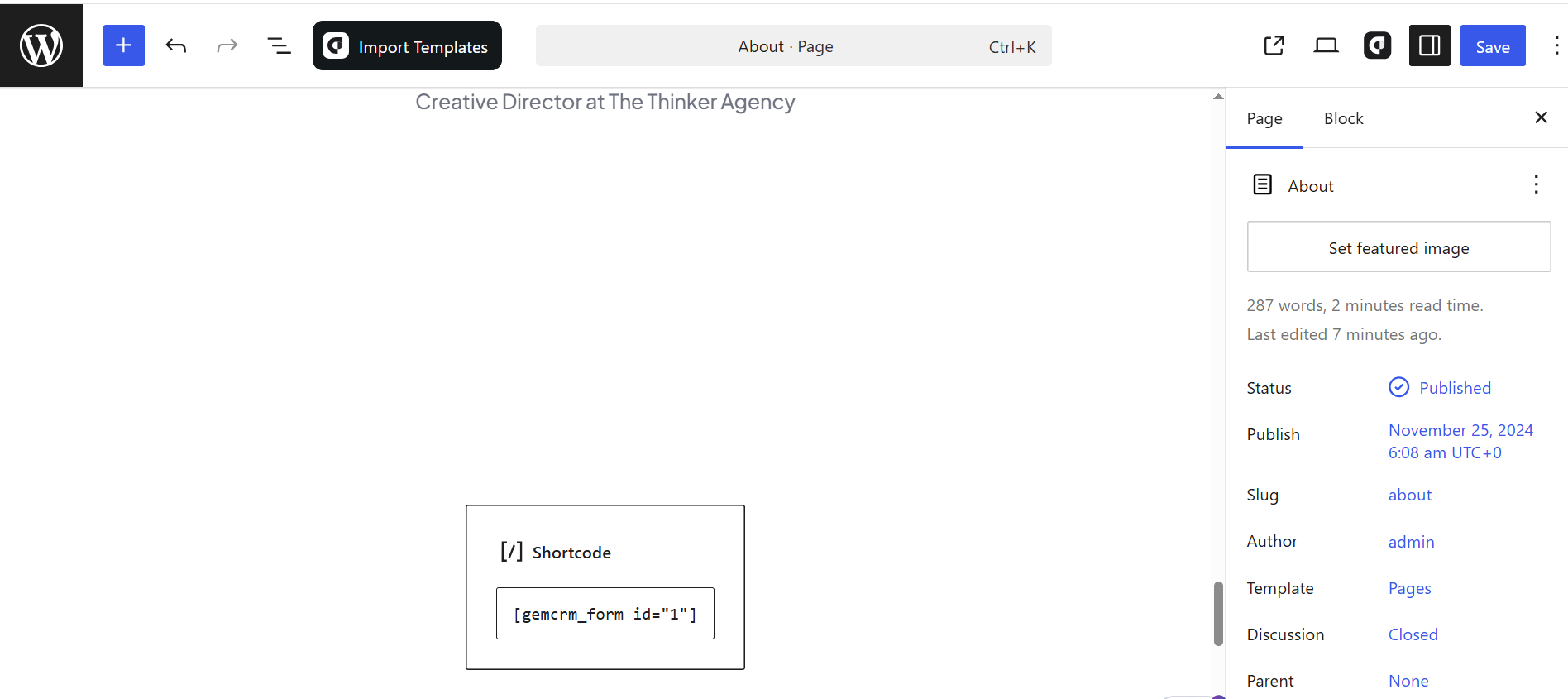
Paste the GemCRM shortcode into a Shortcode block in the WordPress editor.
Step 6: Connect automated follow-up
To turn captured leads into customers, set up an automated welcome email in GemCRM’s Automations so every new lead is greeted instantly. This pairs your lead generation form with follow-up that nurtures the lead — the difference between simply collecting leads and actually converting them.
Result
Once published, your GemCRM form captures every visitor who submits it as a new contact in your WordPress dashboard, adds them to your chosen list or tag, and can automatically start a welcome sequence — turning your WordPress site into a self-running lead generation machine.
Optimizing Your WordPress Site for More Leads
Capturing leads is only half the job — optimizing your site helps you generate more leads from the same traffic:
- Make sure your website loads quickly. A fast WordPress site keeps visitors from bouncing before they ever see your form. Speed directly affects both SEO and conversion.
- Place CTAs where visitors look. Add clear CTAs and lead capture forms above the fold, at the end of posts, and in your sidebar to generate more leads.
- Optimize for search engines. Target relevant keywords so you rank higher and bring in organic traffic — the steady fuel for any lead generation strategy.
- Test and refine your forms. Analyze your website performance, experiment with button text, form length, and offers, and keep the versions that lift your conversion rate.
- Improve the user experience. A clean, easy-to-navigate WordPress theme with an intuitive layout builds trust and encourages visitors to become leads.
Lead Generation Best Practices for 2026
- Offer something genuinely valuable. The stronger your lead magnet, the more leads you’ll capture. Make sure it solves a real problem for your potential customer.
- Keep forms short. Ask only for what you need. A First Name + Email address field combination almost always outperforms a long form.
- Follow up immediately. Leads are most engaged right after they subscribe — an automated welcome email captures that moment.
- Use social proof. Testimonials near your lead generation forms reassure visitors and lift conversions.
- Keep your leads in a system you own. Store every lead in a WordPress lead generation plugin like GemCRM so your contact list stays yours and stays organized.
Final Thoughts
Generating leads from your WordPress website comes down to a simple system: attract visitors with SEO and content, give them a reason to subscribe with a strong lead magnet, capture their details with an optimized lead generation form, and follow up automatically. Put those pieces together and you turn your WordPress site into a lead generation machine that works around the clock.
GemCRM ties the whole system together — its form builder captures leads, its CRM stores them, and its automation nurtures them, all inside WordPress and all owned by you. Start with one form on one landing page, connect a welcome email, and build from there. The sooner you start capturing leads, the sooner your WordPress website starts growing your business.
Frequently Asked Questions
Accordion Title 0
The most reliable way is to combine a valuable lead magnet, a focused landing page, and an optimized lead capture form connected to a CRM. A WordPress lead generation plugin like GemCRM handles the form, captures the lead, and starts automated follow-up — all from your WordPress dashboard.
Accordion Title 0
The best WordPress lead generation plugin depends on your needs, but a plugin that combines lead capture forms with contact management and email automation — like GemCRM — removes the need for separate tools and keeps every lead in one place.
Accordion Title 0
No. GemCRM’s form builder is fully visual, and forms embed with a simple shortcode, so you can build lead generation forms and add them to your WordPress site without any code.
Accordion Title 0
A lead magnet gives visitors a reason to share their contact information. Using lead magnets — an ebook, checklist, or discount that solves a specific problem — dramatically increases the number of new leads your forms capture.
Accordion Title 0
Place forms where engagement is highest: on dedicated landing pages, at the end of blog posts, in popups, and in your sidebar. Testing different placements helps you generate more leads from the same traffic.