



WooCommerce email automation means sending the right email automatically when a customer does something: buys, abandons a cart, goes quiet, or reaches a purchase milestone. You set the rule once, and the store follows up for you.
It is not the same thing as the emails WooCommerce already sends. Order confirmations and password resets are operational messages. Automation is marketing that runs on customer behavior and purchase data, which is why it works best when your store data and your email tool can see each other.
This guide covers what automation is, how the pieces fit together, seven workflows worth building, how to segment and measure them, and where a WooCommerce CRM fits in.
Quick Overview of WooCommerce Email Automation
WooCommerce email automation sends relevant emails automatically based on customer actions, purchase history, or inactivity. Instead of manually sending every message, you create rules that decide when an email should be sent, who should receive it, and what happens next.
|
Trigger |
Condition |
Timing |
|
|
New customer |
First order completed |
Immediately |
Welcome email |
|
Cart abandoned |
No purchase |
1–24 hours |
Cart recovery |
|
Order completed |
Customer purchased |
1–3 days |
Post-purchase email |
|
Product purchased |
Related product available |
2–4 weeks |
Cross-sell |
|
Customer inactive |
No recent purchase |
Based on buying cycle |
Win-back |
What Is WooCommerce Email Automation?
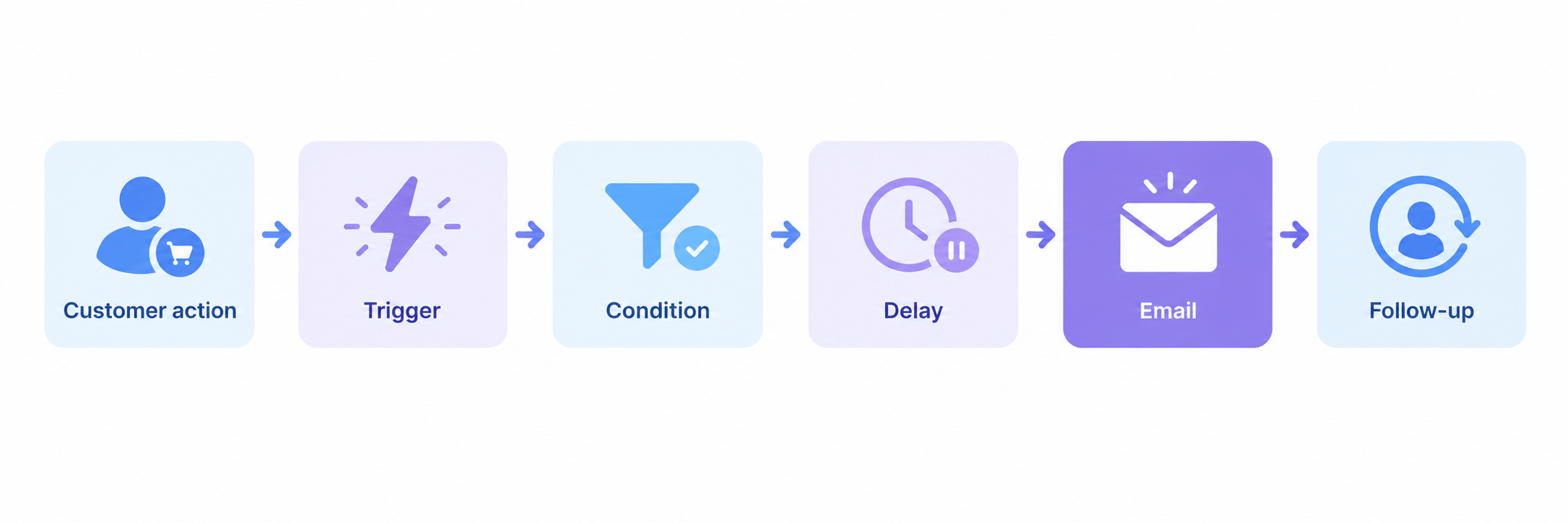
WooCommerce email automation is a set of rules that send emails in response to customer actions instead of on a manual schedule. Every rule follows the same chain:
Customer action → trigger → condition → delay → email → follow-up
The simplest example: a customer’s order is marked completed, the system waits 7 days, then sends a review request. No one on your team touches it.
A trigger can react to many things:
The value isn’t the sending. It’s that each email arrives when it’s relevant, to someone it’s relevant for.
WooCommerce Transactional Emails vs Marketing Automation
Transactional emails tell a customer what is happening with something they already did. Marketing automation tries to move the relationship forward. WooCommerce handles the first kind natively and needs an added tool for the second.
|
WooCommerce transactional emails |
Marketing automation |
|
Order confirmation |
Welcome sequence |
|
Shipping notification |
Abandoned cart recovery |
|
Refund notification |
Post-purchase follow-up |
|
Password reset |
Cross-sell |
|
New account email |
Win-back |
|
Order status update |
Review request |
Transactional emails are expected and operational. You can restyle and edit them under WooCommerce’s email settings, but they fire on order and account events, not on customer behavior or purchase history.
Automation is lifecycle-based. It asks what the customer did, what they bought before, and what is worth saying next. If you want the broader strategy behind it, our guide to email marketing for WooCommerce covers list building and campaign types. This article stays on the automation mechanics.
How WooCommerce Email Automation Works
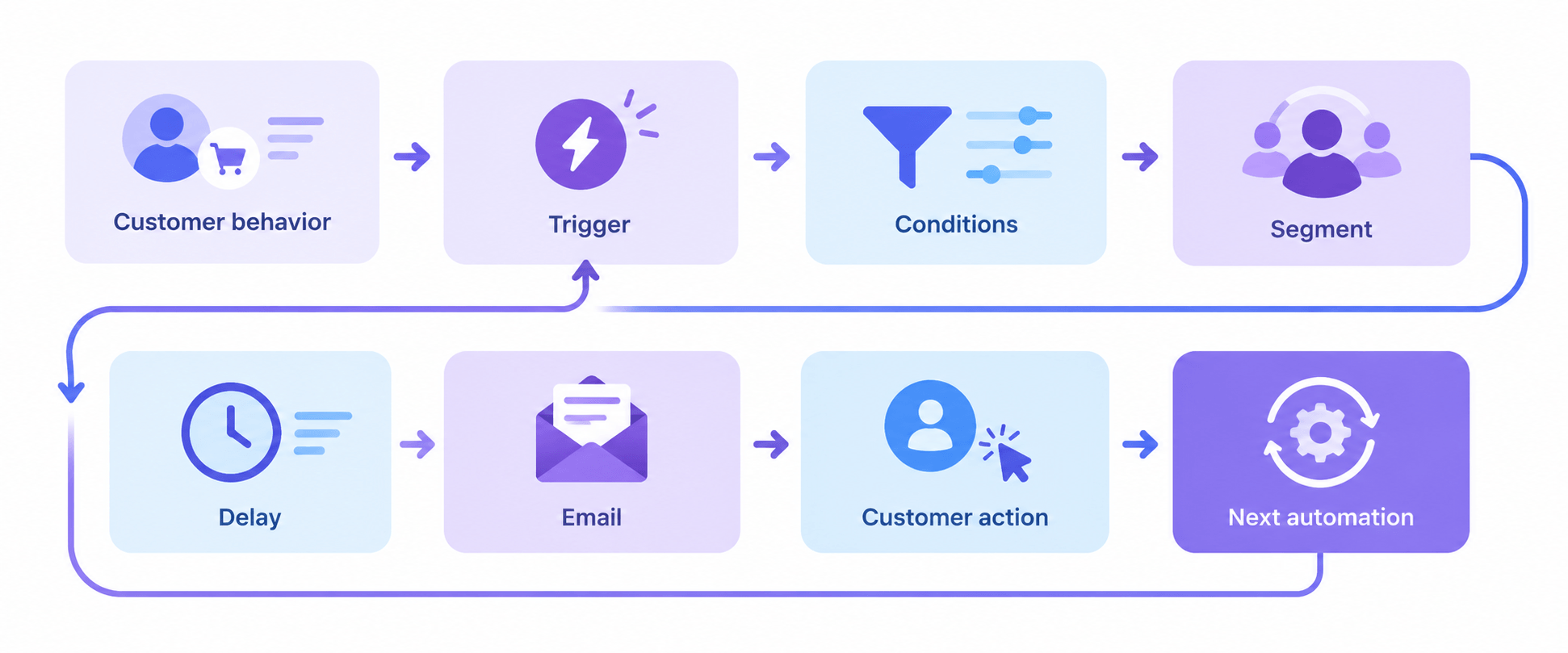
Every automation, however elaborate, is built from the same parts:
Customer behavior → trigger → conditions → segment → delay → email → customer action → next automation
Knowing each part makes any workflow easier to design and to debug.
Triggers
A trigger is the event that starts the automation: an order reaching Completed, a cart being abandoned, a contact being created, a tag being applied. Pick triggers that reflect a real customer action rather than a calendar date.
Conditions
Conditions decide whether the automation should continue. “Only if the order total is over $100.” “Only if the customer hasn’t already been sent this email.” Conditions are what stop automation from feeling like a blast.
Customer segments
A segment is a group of customers defined by data: what they bought, how much they’ve spent, when they last ordered. A trigger says when; a segment says who. More on this below.
Delays
A delay is the wait between steps. It should reflect how the customer actually behaves, not a round number. A review request for a t-shirt and one for a piece of furniture should not go out on the same day count.
Actions
The action is usually an email, but it can also be a tag, a list change, or enrolling the customer in a longer sequence. Tags and list changes are how one automation hands off to the next.
Exit conditions
An exit condition removes someone from an automation when it stops making sense: they bought the item in the abandoned cart, they unsubscribed, they replied. Skipping exit conditions is the most common way stores end up sending a “still thinking about it?” email to someone who already paid.
7 Essential WooCommerce Email Automation Workflows
Each workflow below follows the same structure: goal, trigger, timing, an example, and why it works. Timings are starting points. Your product type and buying cycle should override them.
1. Welcome Email Series
Goal: Turn a new subscriber or first-time customer into someone who knows your store and expects your emails.
Trigger: A contact is created, joins a list, or completes a first order.
Timing: Email one immediately. Email two after 2 to 3 days. Email three after another 3 to 4 days.
Example: A new subscriber gets an immediate welcome with what to expect, then a message introducing your best-selling category, then a short note on shipping, returns, and support.
Why it works: The first email is the one most likely to be opened, and it sets the tone for everything that follows. Use it to teach, not to sell three times.
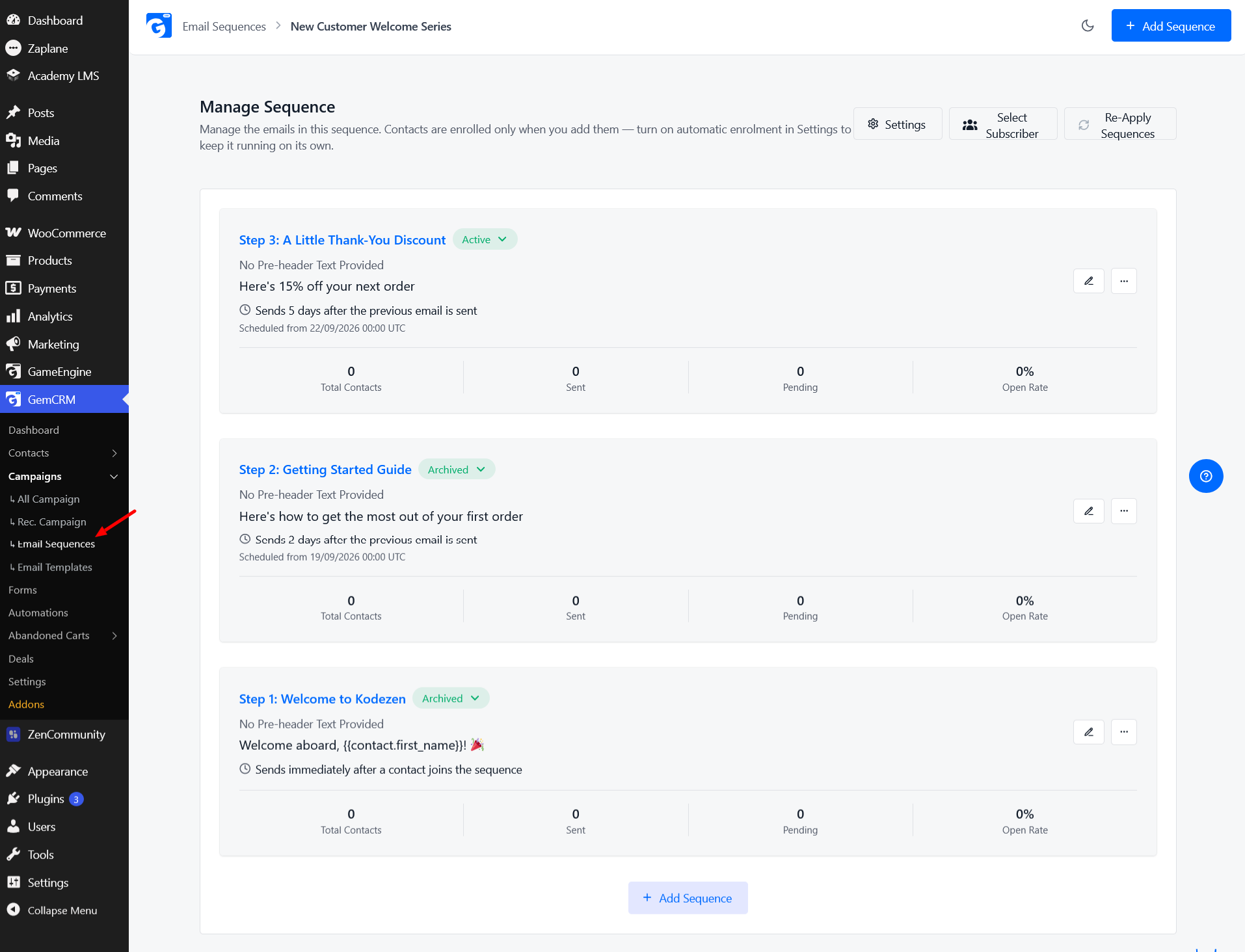
Use this whenever you collect emails through a form, a checkout opt-in, or an import. If you’re setting up sequences for the first time, the email sequences guide walks through the steps.
2. Abandoned Cart Recovery
Goal: Bring back shoppers who added items and left before paying.
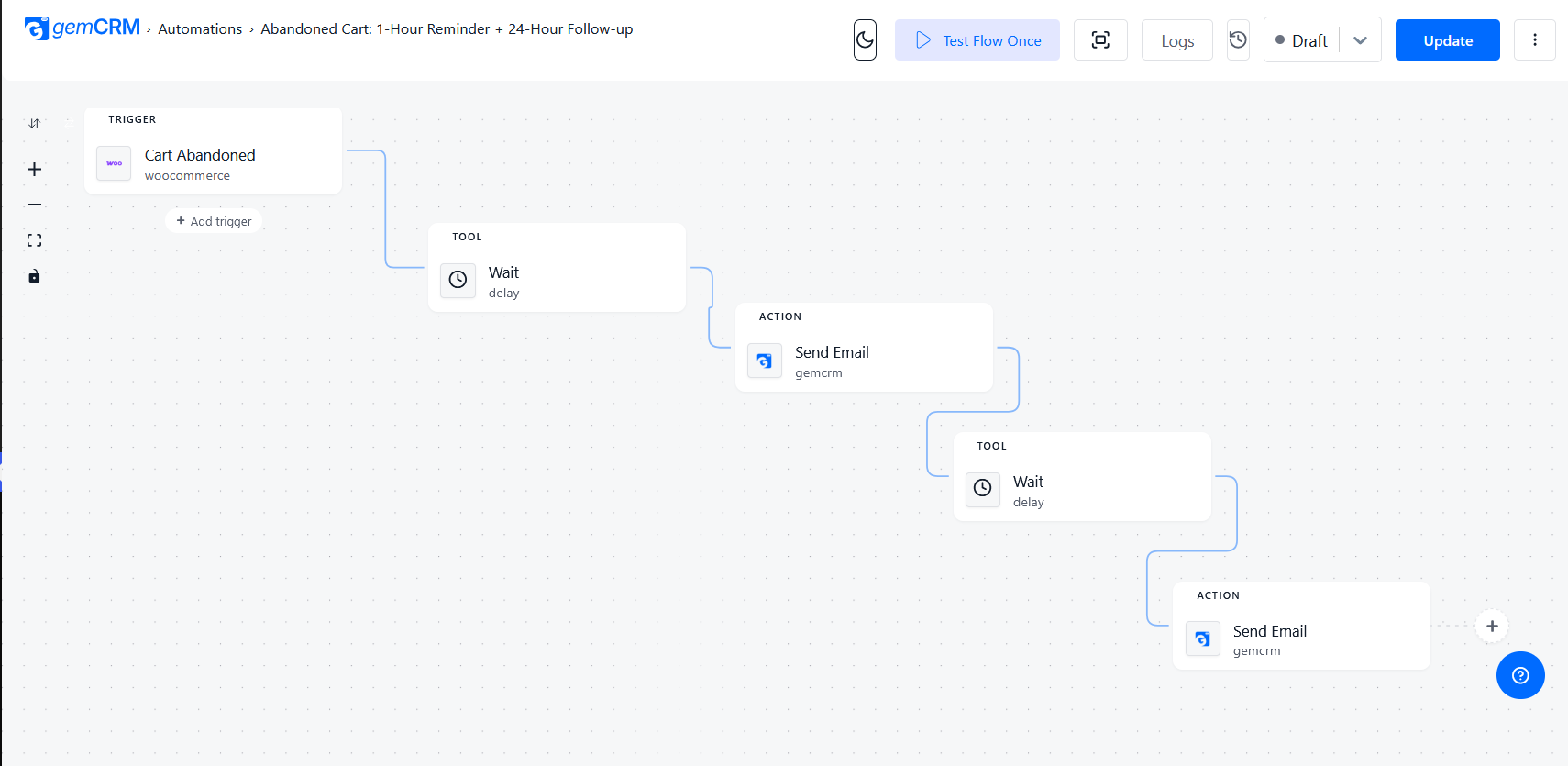
Trigger: A cart is abandoned (the shopper gave an email address, then left).
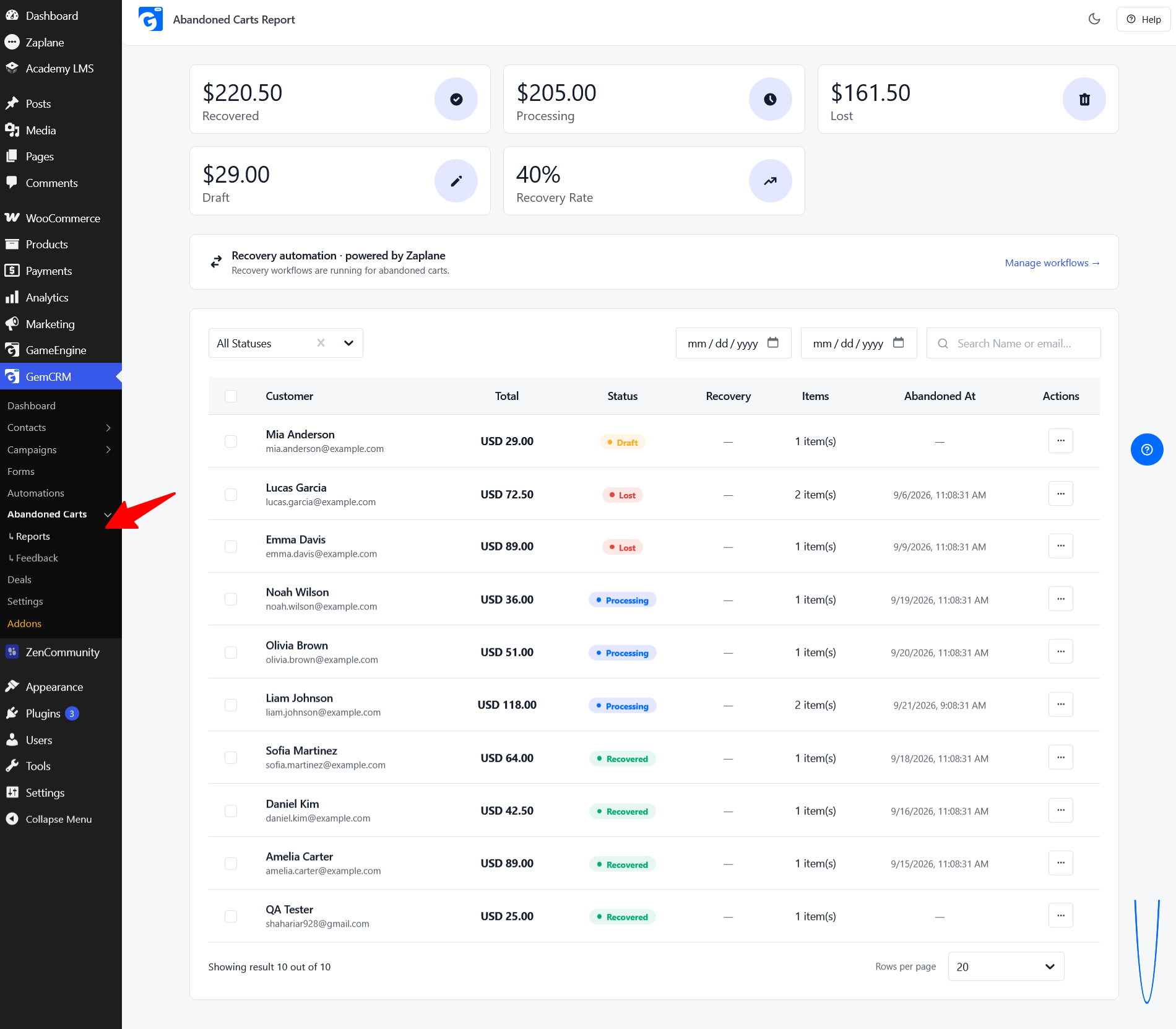
Timing: Reminder after about 1 hour. Second email after about 24 hours. Optional incentive after about 3 days.
Example: Email one shows the exact items with a link that restores the cart. Email two answers likely hesitations: returns, delivery times, a review. Email three, only if needed, offers a small incentive with an expiry date.
Why it works: These shoppers have already shown intent. Most of the time they got distracted, so the first email shouldn’t include a discount.
Three points to get right:
GemCRM Pro tracks WooCommerce carts and fires triggers when a cart is abandoned, recovered, or lost. The full setup is in our abandoned cart recovery guide.
3. Post-Purchase Email Sequence
Goal: Make the customer’s next few weeks after buying good ones, and set up the second purchase.
Trigger: An order moves to Completed.
Timing: Thank-you shortly after completion. Product-use tips a few days later. Review request after the customer has had time to use the product. Cross-sell after that.
Example: A customer buys a coffee grinder. Day 1: thank-you and how to care for it. Day 5: a short guide to grind settings. Day 14: a review request. Day 30: a related product.
Why it works: The order confirmation tells a customer their purchase went through. A post-purchase sequence tells them how to get value from it, which is what drives reviews, referrals, and reorders.
4. Product Review Request
Goal: Collect reviews from customers who have actually used what they bought.
Trigger: An order is completed, then a delay.
Timing: Depends on the product. Something consumed or used immediately can ask within a week. Something that takes time to evaluate, like a mattress or a course, needs weeks. Send one reminder if there’s no response, then stop.
Example: Ten days after completion, “How is your new backpack holding up?” with a single button to the review page. A reminder five days later to anyone who hasn’t left one.
Why it works: Asking too early gets you reviews of the shipping experience instead of the product, or no reviews at all. Timing by product type is the difference.
5. Cross-Sell and Upsell Automation
Goal: Recommend something the customer is likely to want, based on what they’ve already bought.
Trigger: A purchase of a specific product or category, usually with a delay.
Timing: Often 2 to 4 weeks after the order, once the first purchase has arrived and been used.
Example: A customer bought running shoes. Three weeks later they receive an email about socks and insoles for runners, not a random bestsellers list.
Why it works: Relevance comes from data: the previous purchase, the product category, the customer segment, and how often they buy. Random recommendations train people to ignore you. Group customers with WooCommerce customer segmentation first, then decide what each group should see.
6. Win-Back and Re-Engagement Automation
Goal: Reconnect with customers who used to buy and stopped.
Trigger: No order within a set window, commonly 60 to 90 days, or a “last order date” segment.
Timing: A reminder when the window passes. A follow-up about a week later with relevant products. An incentive only at the end, and only for customers who qualify.
Example: A customer who ordered pet supplies 75 days ago receives “Time to restock?” with the items they bought before. If there’s no click, a second email arrives a week later with a small offer.
Why it works: Bringing back a customer who already trusts you is usually cheaper than finding a new one. The catch is the threshold: 90 days of silence is lost for a store selling monthly consumables and perfectly normal for one selling furniture. Set it around your real buying cycle. Our guide to win-back email campaigns goes deeper.
7. Repeat Purchase and Replenishment Automation
Goal: Remind customers to reorder a product right before they run out.
Trigger: A completed order containing a consumable product.
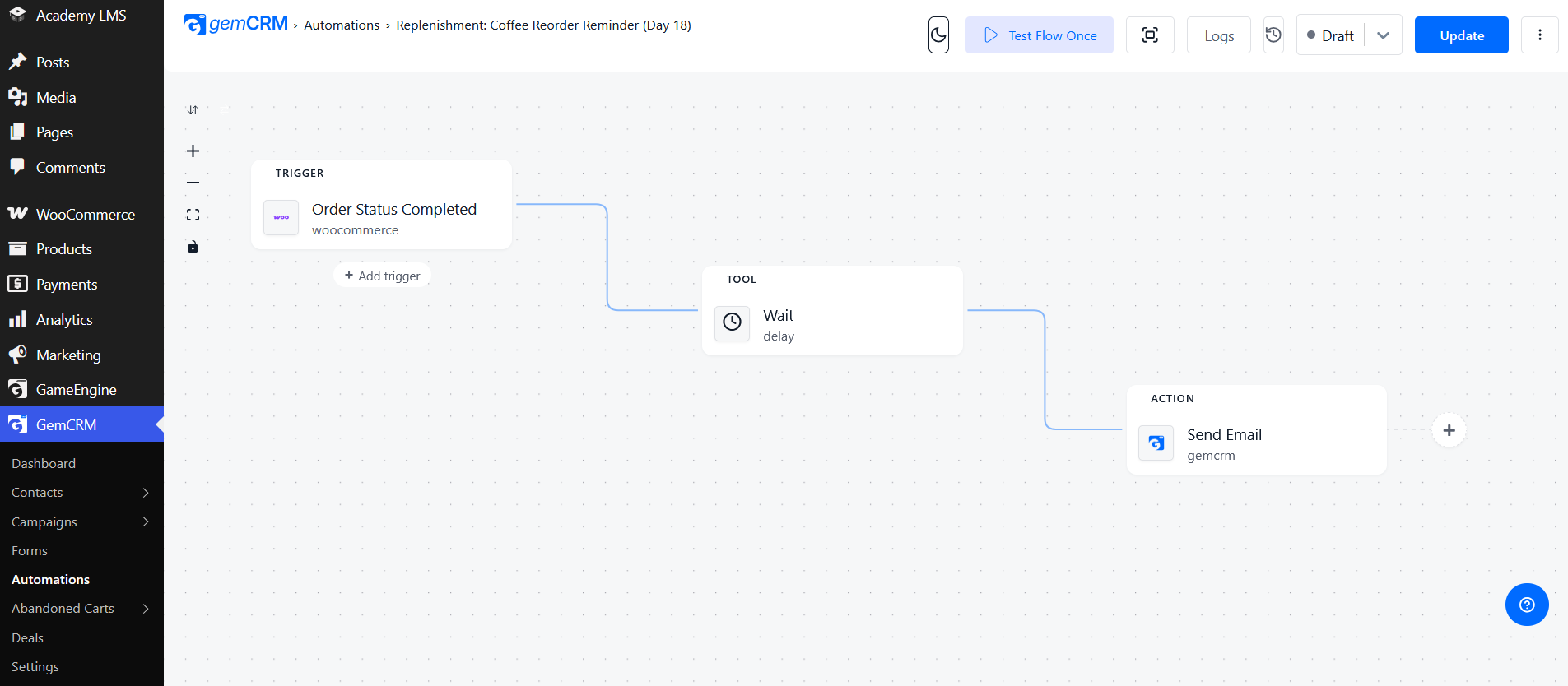
Timing: Based on how long the product lasts, not an arbitrary interval. A 30-day supply of a supplement should trigger a reminder around day 25.
Example: A customer buys a 250 g bag of coffee. If a typical household finishes that in about three weeks, the reorder email goes out on day 18 with a one-click link to the same product.
Good candidates: coffee, supplements, skincare, pet food, household products.
Why it works: The email arrives at the moment of need, so it feels like a service. Most generic guides skip this workflow, but for consumables it’s often the most reliable revenue in the store. Use your own reorder data to tune the timing: look at the median gap between first and second orders for that product and set the reminder slightly ahead of it.
Customer Segmentation for WooCommerce Email Automation
Good automation depends on sending the right message to the right customer. Segmentation is how you define “right.” Without it, even a well-timed workflow ends up saying the same thing to everyone.
Segments worth having:
A simple example puts the pieces together:
That is a cross-sell that a store owner can explain in one sentence, and it only works because the segment is built from order data.
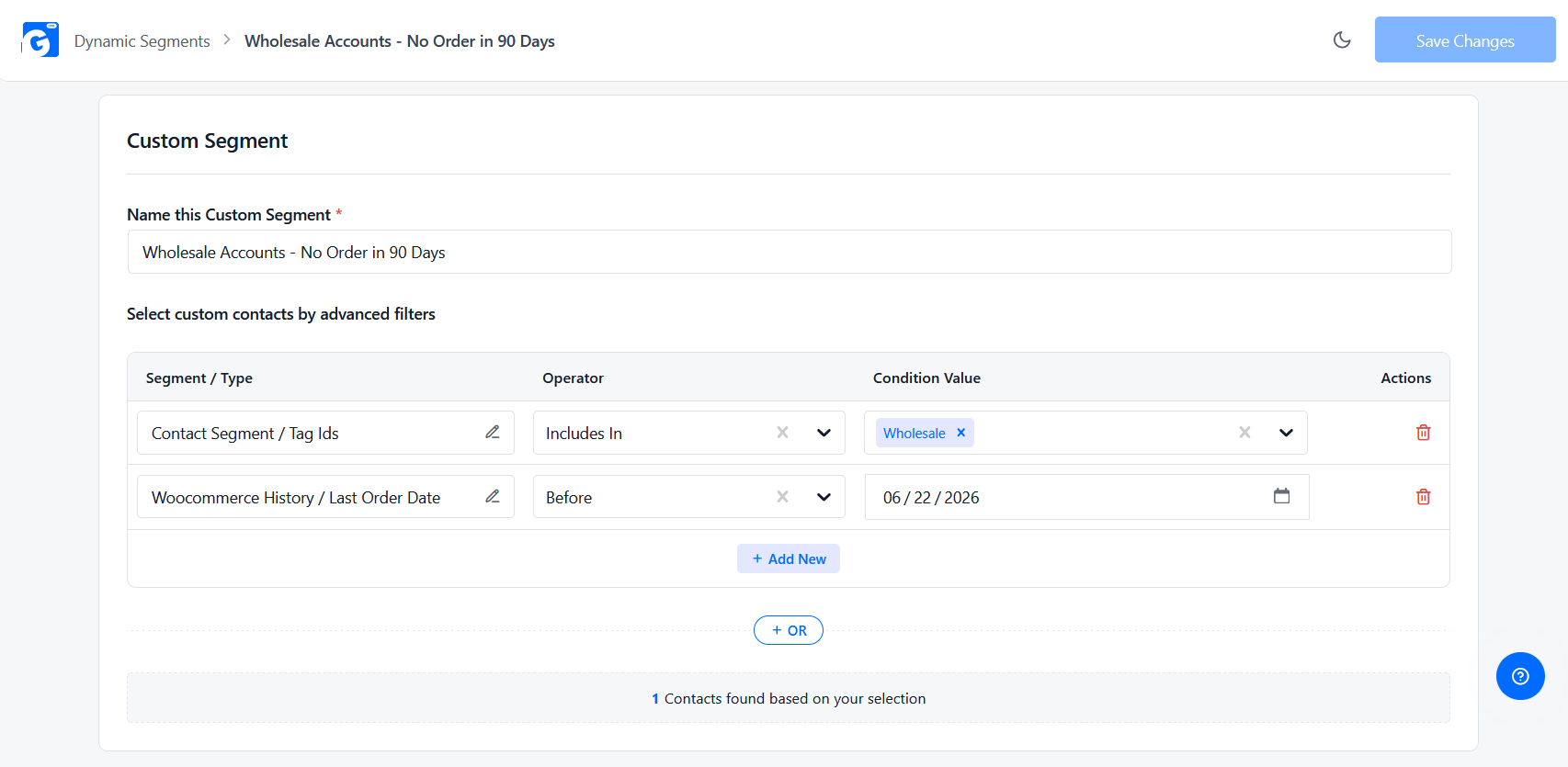
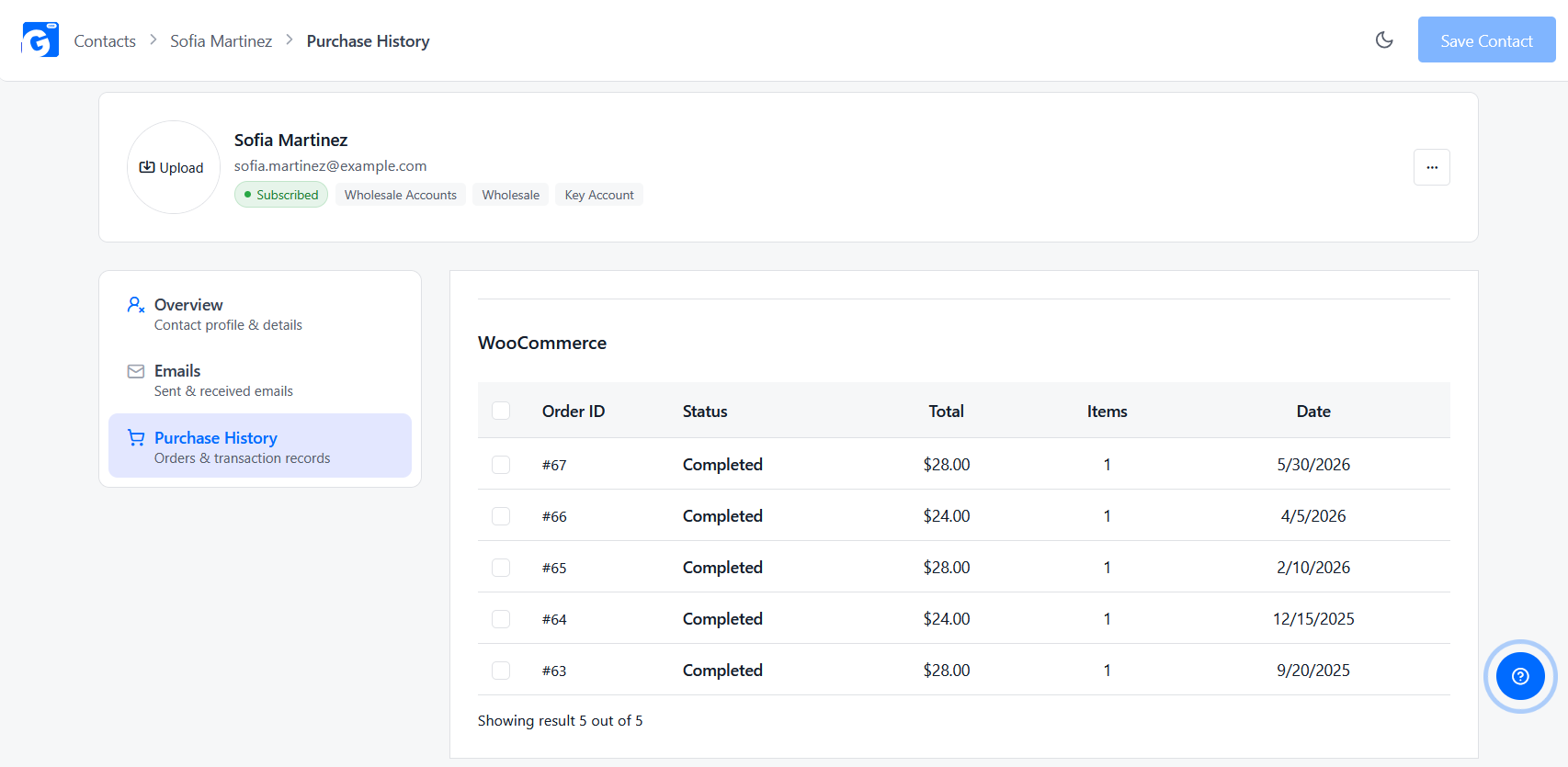
Segments that update on their own matter here: a customer who spends more moves into “high-value” automatically, and one who buys again leaves “inactive.” Our guide to WooCommerce customer segmentation shows how to build these from purchase history.
10 Practical WooCommerce Email Automation Triggers
If you’re not sure where to start, work down this list and pick the two or three that match your store.
|
Trigger |
Possible automation |
|
New subscriber |
Welcome email |
|
New customer |
Onboarding |
|
Order completed |
Post-purchase sequence |
|
Product purchased |
Product education |
|
Cart abandoned |
Recovery sequence |
|
Review due |
Review request |
|
Customer inactive |
Win-back |
|
Previous product purchased |
Cross-sell |
|
Expected replenishment |
Reorder reminder |
|
High-value purchase |
VIP follow-up |
How to Build a WooCommerce Email Automation Workflow
Building one workflow is a nine-step process. Follow it in order, and a beginner can ship a first automation in an afternoon.
WooCommerce Email Automation Best Practices
How to Measure WooCommerce Email Automation
The right metric depends on what the automation is for. No single number proves an automation works.
|
Metric |
What it tells you |
Most useful for |
|
Delivery rate |
Whether emails reach inboxes at all |
Every automation |
|
Open rate |
Subject line and sender recognition (treat as directional) |
Welcome, win-back |
|
Click-through rate |
Whether the content and offer were relevant |
Cross-sell, review request |
|
Conversion rate |
Whether the email led to an order |
Cart recovery, cross-sell |
|
Revenue per email |
What each send is worth |
Comparing workflows |
|
Cart recovery rate |
Share of abandoned carts that became orders |
Abandoned cart |
|
Unsubscribe rate |
Whether you’re over-sending or off-target |
Every automation |
|
Repeat purchase rate |
Whether customers come back |
Post-purchase, replenishment |
Read them together. A high open rate with no conversions means the subject line worked and the offer didn’t. A strong conversion rate with rising unsubscribes suggests you’re pushing too hard. Also keep in mind that open rates have become less reliable as some mail clients pre-load images, so weigh clicks and orders more heavily.
Best WooCommerce Email Automation Tools
Different tools fit different requirements, and there is no single best option for every store. This is how the common ones position themselves:
|
Tool |
Primary positioning |
|
GemCRM |
WooCommerce CRM with customer data, segmentation, and automation together |
|
AutomateWoo |
WooCommerce-focused automation, built around store events |
|
FunnelKit Automations |
Visual ecommerce automation for WooCommerce |
|
FluentCRM |
WordPress CRM and email automation |
|
MailPoet |
WordPress email marketing and newsletters |
|
Klaviyo |
Hosted ecommerce marketing automation platform |
The question to ask is not “which tool has the most features” but “where does my customer data live, and can the tool act on it?” If you only need to send a couple of automated emails, a lightweight email plugin may be enough. When you want customer records, segmentation, purchase history, and automation to work together, a WooCommerce CRM is a better fit.
WooCommerce CRM vs Email Automation Tool
An email automation tool is focused on sending automated messages. A CRM is focused on the customer: their data, history, segments, and every communication, with automation on top.
That difference shapes what you can do. An automation-only tool knows about the trigger. A CRM knows about the person: what they’ve bought over three years, which segment they’re in, which emails they’ve opened, and whether they’re already in another sequence.
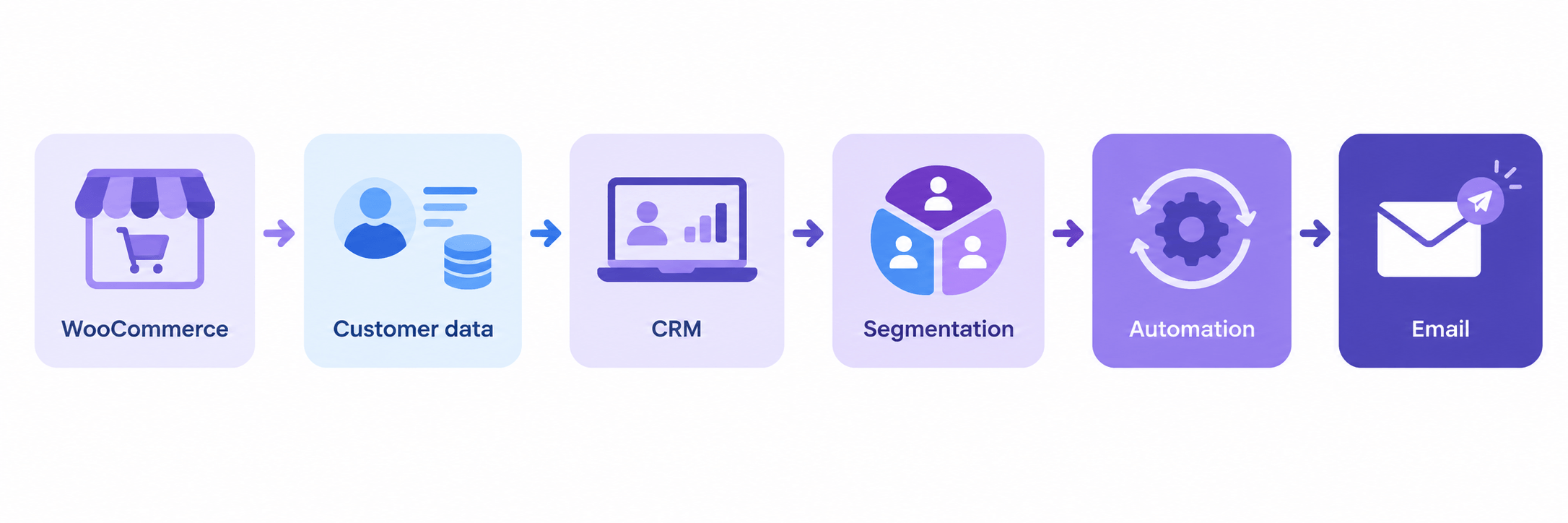
The flow looks like this:
WooCommerce → customer data → CRM → segmentation → automation → email
Each step feeds the next, and the quality of the last depends on the first. This is the reason we treat email automation as part of a WooCommerce CRM strategy rather than a standalone tactic.
How GemCRM Helps With WooCommerce Email Automation
GemCRM is a WordPress CRM and email marketing plugin. For automation, this is what it does, and what needs Pro or Zaplane:
Two things worth knowing if you’re comparing tools. There are no per-subscriber fees in GemCRM, so your costs don’t rise as your list grows (you still pay for whatever SMTP or sending service you use). And Zaplane runs on your own site without per-task billing. If you later add SMS or WhatsApp (GemCRM Pro), they share the same contact record and consent list as email, so a customer who opts out is opted out everywhere.
What GemCRM doesn’t do natively: there’s no dedicated “reorder reminder” trigger. You build replenishment from an order-completed trigger, a delay, and a condition, as described above. Learn how the pieces connect in the automations guide.
Conclusion
WooCommerce email automation works best when it’s based on customer behavior and purchase history rather than the same message sent to everyone.
The pattern repeats through every workflow above: customer data feeds segmentation, segmentation shapes automation, automation delivers relevant communication, and relevant communication builds retention. Start with one workflow, get it right, and add the next.
If you want customer data, segments, and automation in one WordPress plugin, try GemCRM and build your first workflow from a WooCommerce order.
WooCommerce Email Automation FAQ
Does WooCommerce have email automation?
Not marketing automation. WooCommerce sends transactional emails such as order confirmations and password resets. Behavior-based emails like cart recovery, review requests, and win-back need a plugin or CRM.
Can WooCommerce automatically send abandoned cart emails?
Not on its own. You need a plugin or CRM that tracks carts, detects abandonment, and sends the follow-up sequence.
What emails should I automate in WooCommerce?
Start with abandoned cart recovery, a welcome series, and a post-purchase sequence. Add review requests, win-back, and replenishment once those are running.
How do I automate post-purchase emails?
Use the order Completed status as the trigger, add delays between steps, and send a thank-you, usage tips, a review request, and a related product. Remove the customer from the sequence if they unsubscribe.
How does customer segmentation improve email automation?
It changes who receives each email. A cross-sell goes to people who bought a related product, a win-back goes to people who stopped ordering, and a VIP message goes to high spenders.
What is the difference between WooCommerce emails and marketing automation?
WooCommerce emails are operational and tied to orders and accounts. Marketing automation is behavior-based and aims to drive repeat purchases, reviews, and reactivation.
Do I need a CRM for WooCommerce email automation?
Not for one or two simple workflows. A CRM becomes useful once you want automation to use purchase history, segments, and customer records together.
What is the best way to automate WooCommerce emails?
Start with one goal, use a behavioral trigger, segment the audience, set delays that fit your product, and add exit conditions. Then measure it and adjust.