



You can write a great campaign, pick the perfect segment, and schedule it for the best hour of the week. None of it matters if the email lands in spam, or never arrives.
Email deliverability is the work of making sure your messages have a good chance of reaching the inbox. It is not a one-time setup. It is an ongoing process that depends on authentication, sender reputation, list quality, subscriber engagement, sending behavior, content, and regular monitoring.
This guide explains how email deliverability works, what affects it, how to fix problems, and how to set it up in GemCRM. Nobody can guarantee inbox placement, because mailbox providers like Gmail, Yahoo, and Outlook make that decision. What you can do is remove the reasons they would have to distrust you.
Email Deliverability at a Glance
|
Area |
What to focus on |
|
Authentication |
SPF, DKIM, DMARC |
|
Sender reputation |
Engagement, complaints, bounces |
|
List quality |
Valid and engaged subscribers |
|
Sending behavior |
Consistent volume and frequency |
|
Content |
Relevant, expected messages |
|
Monitoring |
Bounces, complaints, engagement |
|
Compliance |
Unsubscribe and sender requirements |
The rest of this article explains each row and how to act on it.
What Is Email Deliverability?
Email deliverability is how likely your email is to reach the recipient’s inbox, rather than the spam folder, a filtered tab, or a rejection. It covers the whole path of a message: your domain, your sending service, the receiving mail server, and the filtering decision at the end.
Email Delivery vs. Email Deliverability
These two terms sound alike, but they measure different things.
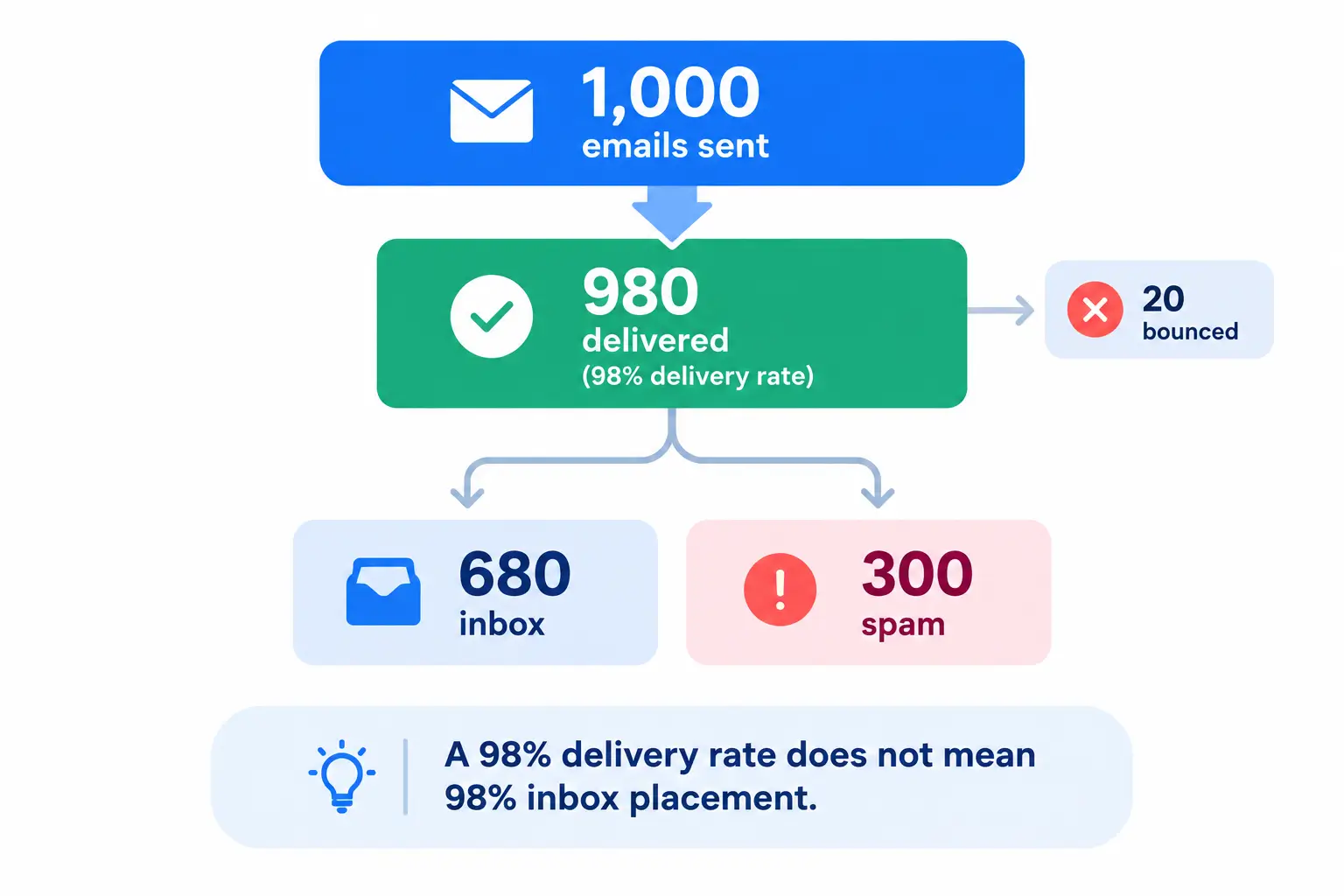
Here is a simple example. You send 1,000 emails. Gmail, Yahoo, and Outlook accept 980 of them and bounce 20. Your delivery rate is 98%. But if 300 of those 980 were sorted into spam, only about 680 people had a fair chance to see your email. The delivery report looks healthy, and your campaign still underperforms.
Delivery is the first step. It does not prove inbox placement.
Why Email Deliverability Matters
How Email Deliverability Works
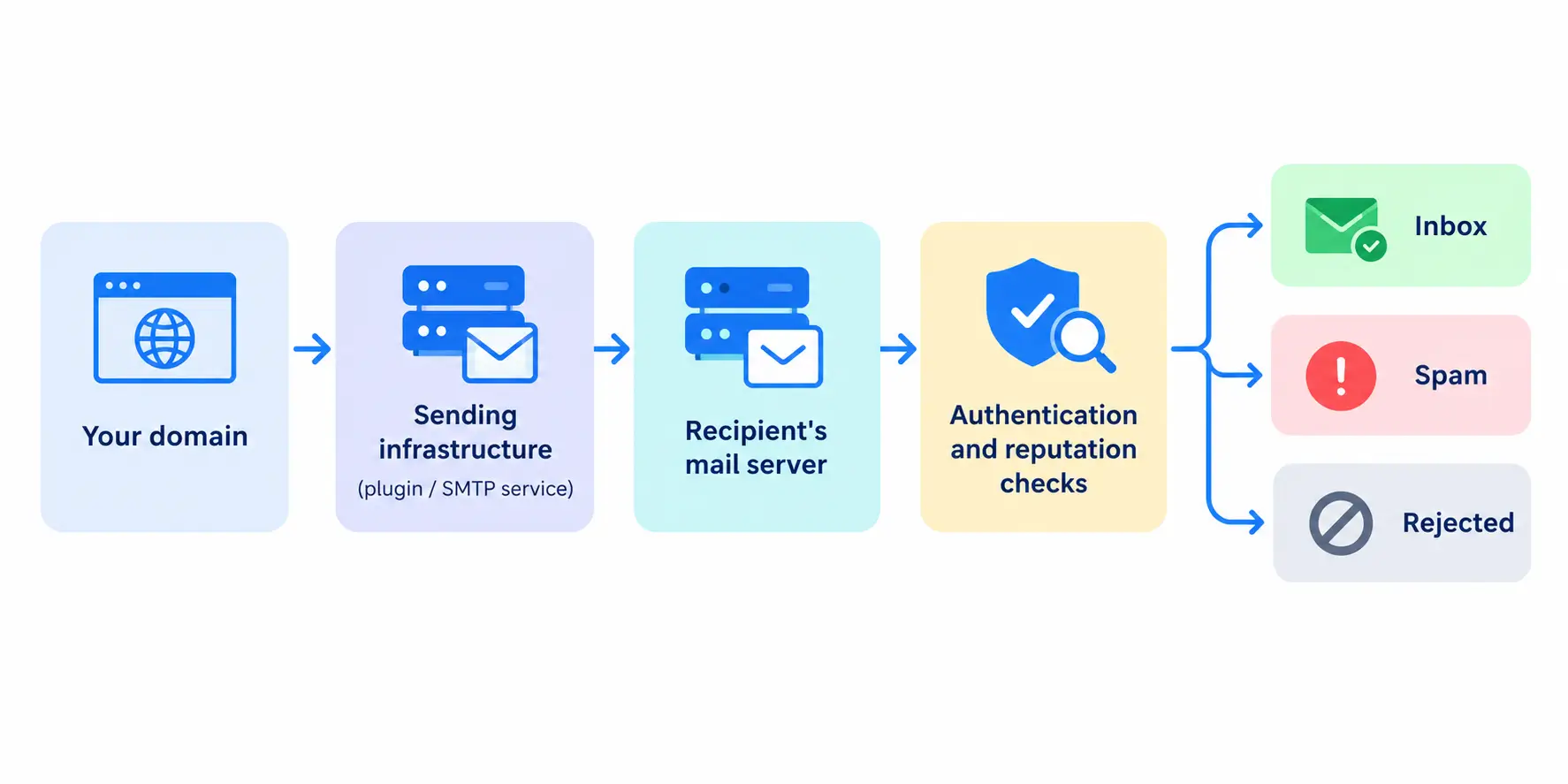
Every email follows a path like this:
Your domain → sending infrastructure → recipient’s mail server → authentication and reputation checks → inbox or spam decision
[email protected].Mailbox providers do not use one simple rule. They combine many signals: whether your domain is authenticated, how people have reacted to your past emails, how many complaints and bounces you generate, and what the message itself looks like. Each provider weighs these in its own way, and none of them publish the exact formula.
What Affects Email Deliverability?
Email Authentication
Authentication lets a receiving server confirm that you are allowed to send mail from your domain. It is the technical base of good deliverability. There are three parts.
SPF (Sender Policy Framework) is a DNS record that lists which servers may send email for your domain. When a message arrives, the receiving server checks whether the sending server is on that list.
DKIM (DomainKeys Identified Mail) adds a digital signature to each message. The receiving server uses a public key in your DNS to check that the message really came from your domain and was not changed on the way.
DMARC (Domain-based Message Authentication, Reporting and Conformance) is a policy that sits on top of SPF and DKIM. It tells receivers what to do when a message fails authentication (none, quarantine, or reject) and sends you reports about who is using your domain.
Domain alignment is the part people miss. DMARC passes only if the domain in the visible From address matches the domain that passed SPF or DKIM. If your From address is [email protected] but the message is signed by your email provider’s own domain, SPF and DKIM can pass while DMARC still fails.
[IMAGE: Three-layer diagram. Left: an email with the visible From address “[email protected]“. Middle: three check boxes, “SPF: is this server allowed?”, “DKIM: is the signature valid?”, “DMARC: do the From domain and the SPF/DKIM domain match (alignment)?”. Right: result “DMARC pass” or “DMARC fail”. Show one example where SPF passes but alignment fails. Alt text: “How SPF, DKIM and DMARC work together with domain alignment” — Web Designer]
Authentication proves who you are. It does not prove you are a good sender. A fully authenticated domain with high complaints can still go to spam. Think of authentication as the entry ticket, and reputation as what happens after you are inside.
Gmail now makes authentication a requirement. Google’s email sender guidelines say all senders to Gmail accounts must:
Senders who send more than 5,000 messages a day to Gmail accounts are “bulk senders” and must also set up SPF, DKIM, and DMARC, with a DMARC policy of at least p=none, and make sure the From domain is aligned with the SPF or DKIM domain. Marketing and subscribed messages from bulk senders must also support one-click unsubscribe.
You do not need to be a large sender for this to matter. The first list applies to everyone, and the 5,000-a-day line is counted across your domain, not per campaign.
Sender Reputation
Sender reputation is the track record mailbox providers keep about you. It is built from:
Reputation builds slowly and can fall quickly. A new sender has no history, which is why a brand new domain behaves differently from one that has sent good mail for years.
Email List Quality
Your list is the biggest factor you control. A poor list creates problems in every other area.
Permission-based collection solves most of this. People who chose to join give you real addresses, expect your emails, and complain less.
Subscriber Engagement
Mailbox providers watch how people treat your emails. Some signals help you, and some hurt.
|
Positive signals |
Negative signals |
|
Clicks |
Spam complaints |
|
Replies |
Deleting without reading |
|
Moving the message out of spam |
Ignoring your emails over a long time |
|
Opens, where they can be measured |
Unsubscribes (a milder signal than complaints, and better than a complaint) |
No single metric decides where your email goes. Treat engagement as a pattern across your whole audience.
Be careful with opens. Apple Mail Privacy Protection and some other tools can load images automatically, which inflates open counts. Clicks and replies are more reliable evidence of real interest.
Sending Frequency and Consistency
Mailbox providers learn what is normal for you. If you send 500 emails a week for months and then suddenly send 50,000, that jump looks unusual, and unusual looks risky. The same goes for long silences followed by a large blast.
Predictable patterns help. Your subscribers also have expectations: if they signed up for a monthly newsletter and now get daily promotions, expect more complaints and unsubscribes, whatever the volume.
Email Content
Content matters, but not in the way older advice suggested. There is no fixed list of “spam words” that automatically sends your email to spam. Modern filters combine many signals, such as sender reputation, authentication, engagement history, links, and message structure. A subject line with the word “free” from a trusted sender with a good record can land in the inbox. A plain-looking message from a sender with high complaints can still go to spam.
What content can affect:
Content mostly works through people. If readers find it relevant, they engage. If they feel tricked, they complain.
How to Improve Email Deliverability
1. Authenticate Your Sending Domain
Set up SPF, DKIM, and DMARC for the domain you send from. The details depend on your sending service, so use its setup guide, and then confirm the records work.
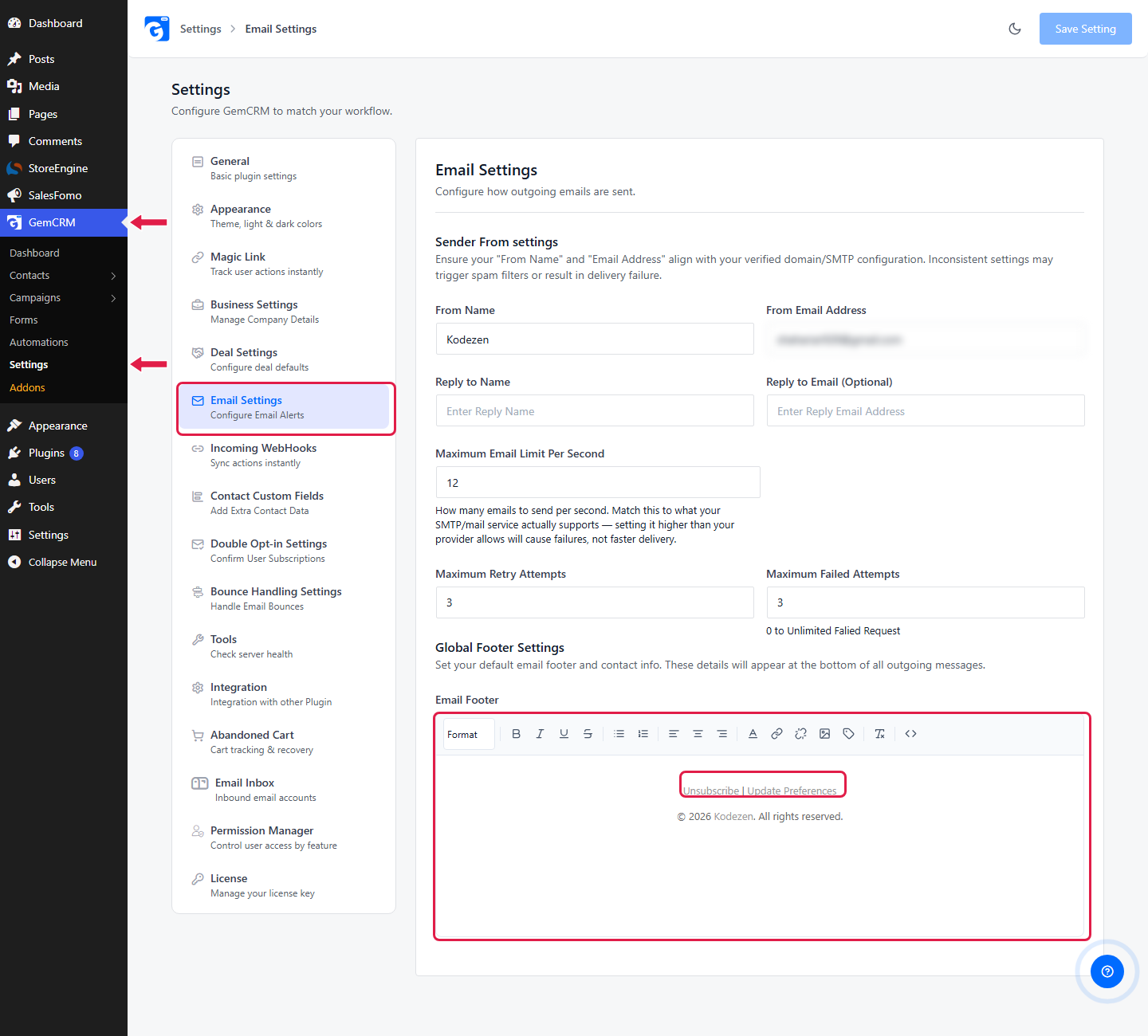
p=none, and add a reporting address so you receive reports. Once you are confident that all your legitimate mail passes, you can move to a stricter policy.In GemCRM, you set the From name and address under GemCRM → Settings → Email Settings. The page reminds you to keep these in line with your verified domain and SMTP configuration, because mismatched settings can trigger spam filters or cause failures. GemCRM sends through your WordPress mail setup, so the SPF and DKIM records themselves live in your DNS and with your SMTP service, not inside GemCRM.
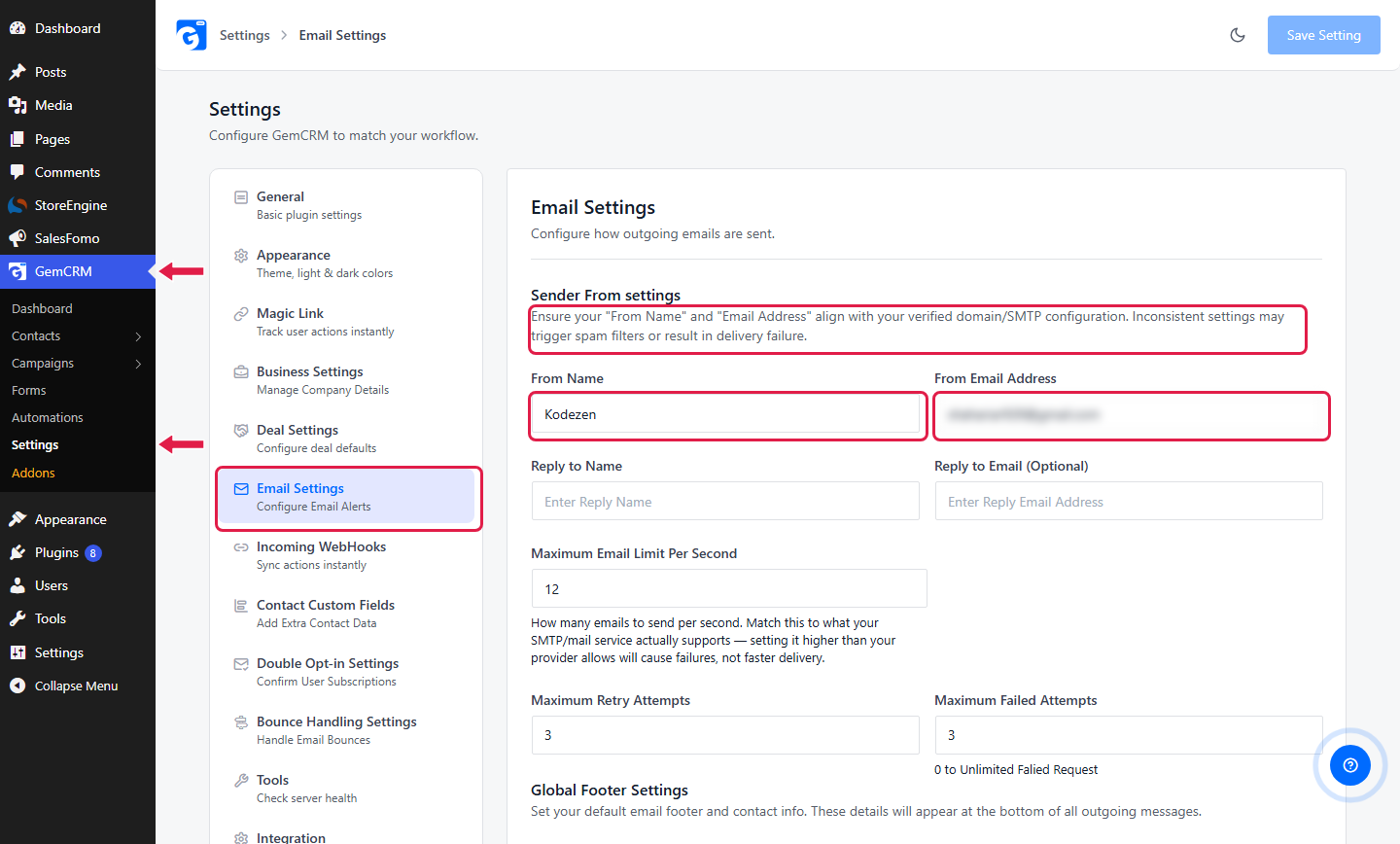
[ Alt text: “GemCRM Email Settings page showing the sender From name and email address fields” — Web Designer]
2. Build a Permission-Based Email List
Only email people who asked to hear from you. Purchased, rented, or scraped lists carry very high complaint risk, they often include spam traps, and they break the rules of most sending services and many privacy laws.
Good sources of permission are signup forms, checkout opt-in boxes, content upgrades, and events where people clearly agree to receive email. Tell people what they will get and how often.
Double opt-in goes one step further: the person must click a link in a confirmation email before they are added. It filters out typos and fake addresses, and it gives you a clear record of consent. Yahoo’s sender guidance recommends it too.
In GemCRM, you can collect leads with forms under GemCRM → Forms. To turn on confirmation emails, go to GemCRM → Settings → Double Opt-in Settings. There you edit the subject, pre-header, and body of the confirmation email and choose what happens after the click: show a message, or redirect to a page. New contacts stay in a Pending status until they confirm.
3. Clean Your Email List Regularly
List cleaning means removing or pausing contacts who hurt your results:
Do not delete engaged people just because they skipped one email. Someone who ignored one campaign may have clicked three others last month. Judge by a longer pattern.
In GemCRM, contacts have a status, and the statuses include Subscribed, Pending, Unsubscribed, Bounced, and Complained. GemCRM does not send to contacts who are unsubscribed, bounced, complained, or marked as spam. You can change the status of many contacts at once from the Contacts table with bulk actions, and you can import a CSV with a status column. Good habits for customer email management make this cleaning easier to repeat.
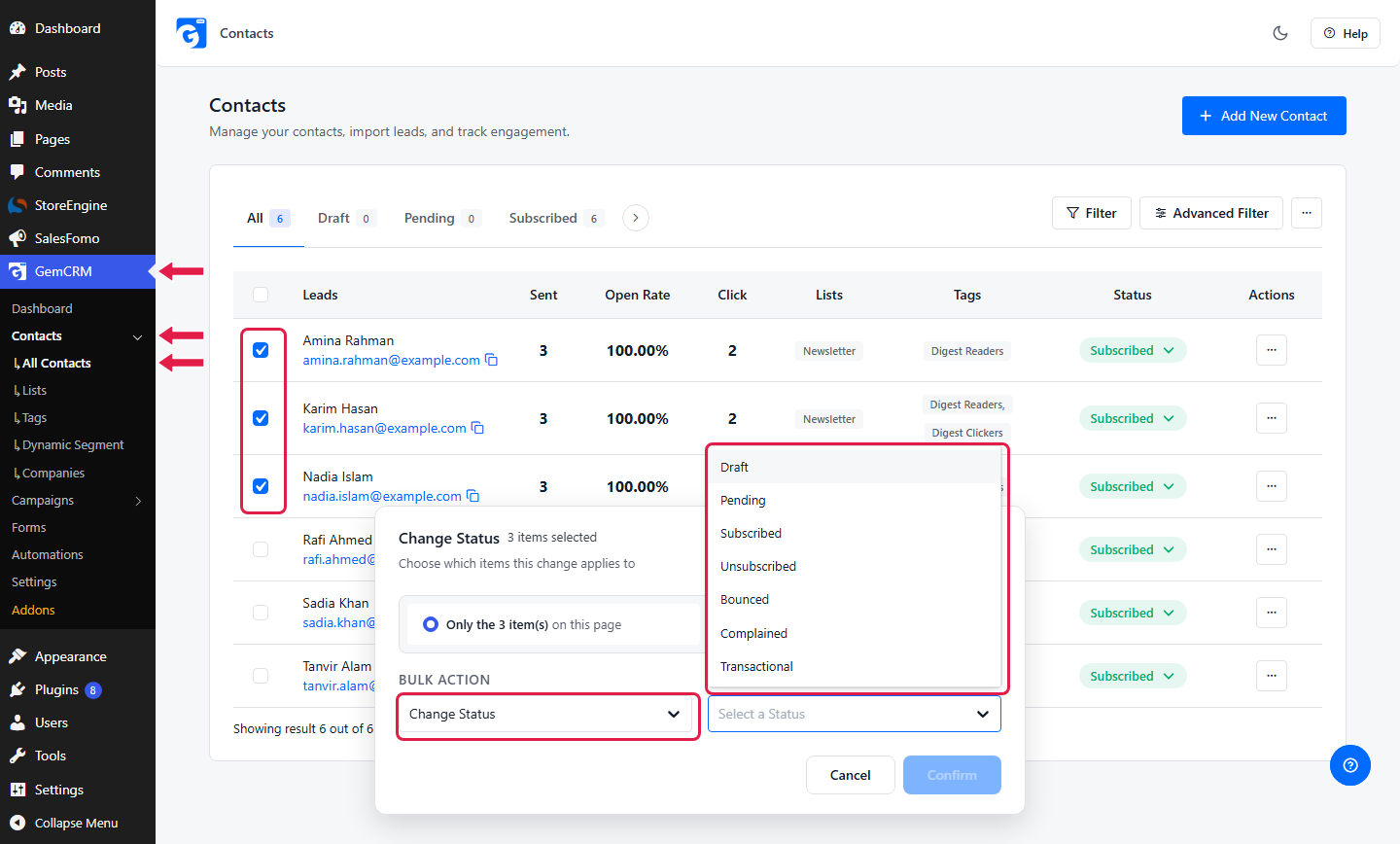
[ Alt text: “GemCRM contacts table with bulk Change Status action open” — Web Designer]
4. Send Relevant Emails to the Right Audience
The same email sent to everyone usually performs worse than a few focused emails. People who get content that does not fit them ignore it or report it, and both hurt your reputation.
Segmentation is how you fix that. Start simple: new subscribers vs. customers, or people who bought vs. people who have not. As you grow, segment by product interest, order history, or engagement.
In GemCRM, you can group contacts with lists and tags under GemCRM → Lists and GemCRM → Tags, then choose them when you create a campaign. With GemCRM Pro, GemCRM → Segments → Dynamic Segment lets you build rules, including WooCommerce and StoreEngine purchase history, and the segment updates as customer data changes. If you run a store, the same idea applies to WooCommerce customer segmentation in general.
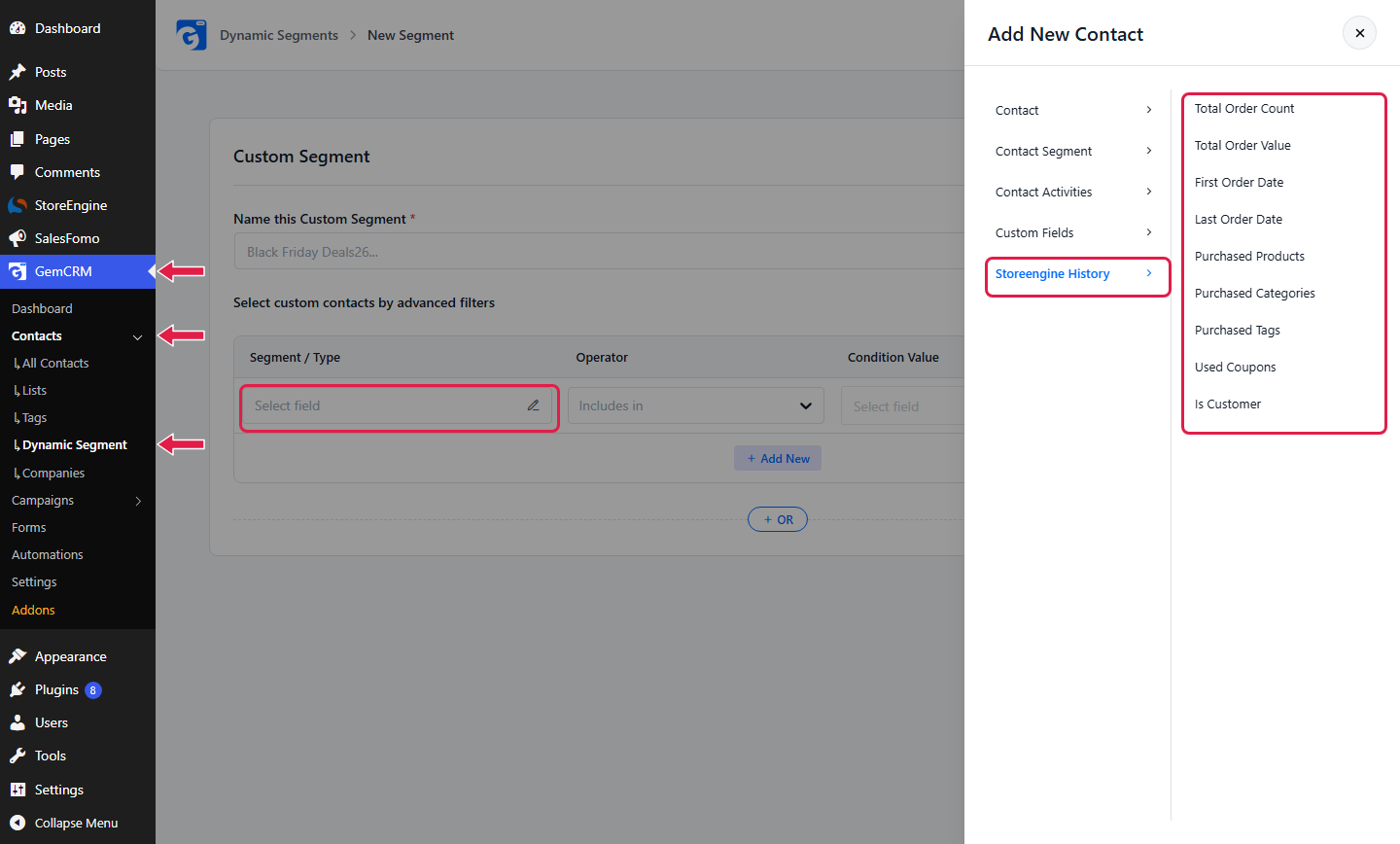
[Alt text: “GemCRM Dynamic Segment builder with a WooCommerce purchase history rule” — Web Designer]
5. Keep Sending Frequency Consistent
Choose a rhythm you can keep and tell subscribers about it at signup. Avoid long gaps followed by large sends. If you must send a big announcement after a quiet period, split it into stages, starting with your most engaged contacts.
GemCRM also lets you control the pace. Under GemCRM → Settings → Email Settings, “Maximum Email Limit Per Second” sets how many emails go out each second. Set it to match what your SMTP or email service allows, because a higher value than your provider supports causes failures, not faster delivery. You can also set retry attempts and a limit on failed attempts.
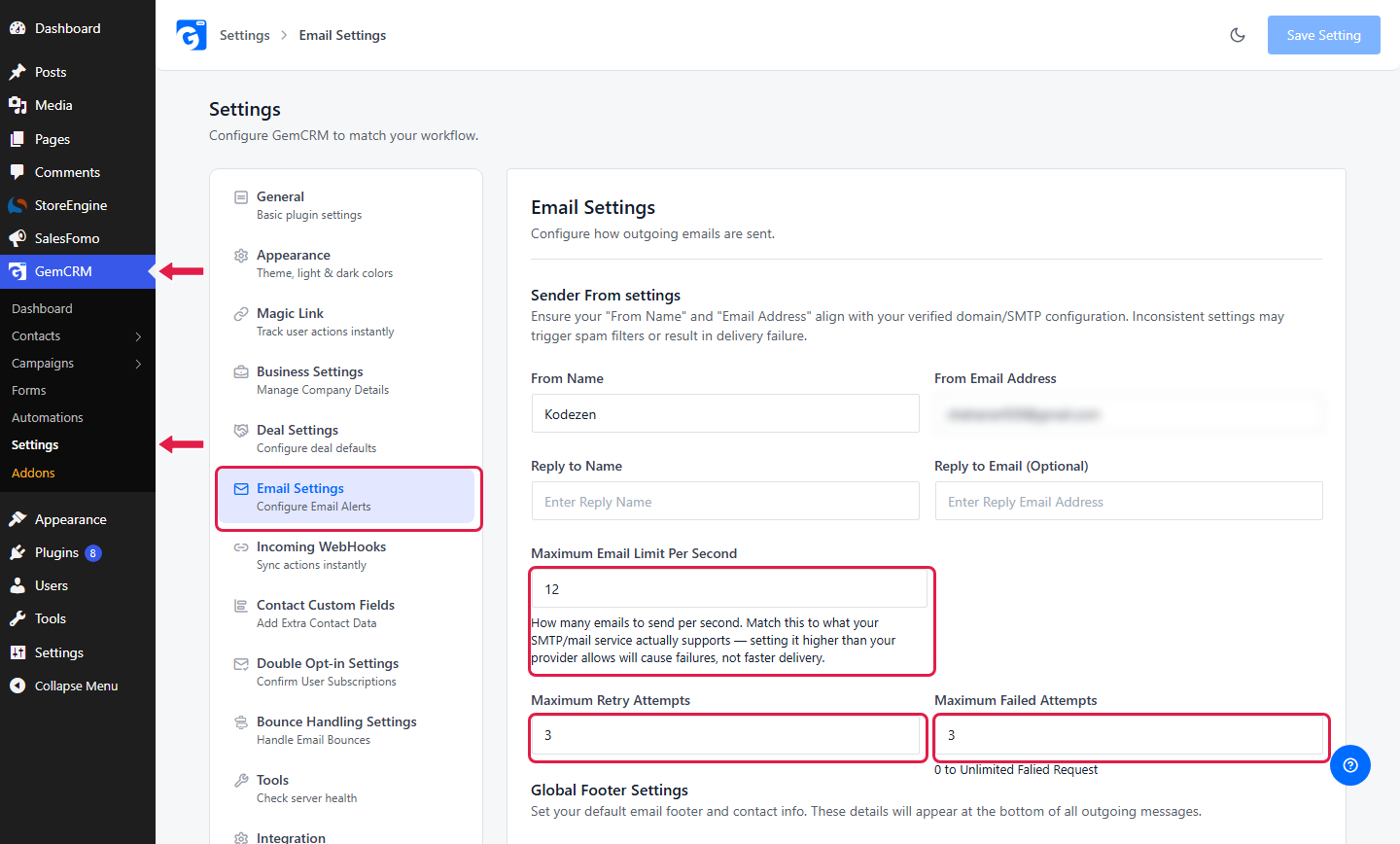
[ Alt text: “GemCRM email sending rate and retry settings” — Web Designer]
6. Warm Up New Sending Infrastructure
Warm-up means building a sending history gradually when you start with a new domain, a new dedicated IP, or a big jump in volume. You begin with small sends to your most engaged contacts, then increase the volume as results stay healthy.
Not everyone needs the same warm-up. A small shop on a shared sending service that already has a good IP reputation may only need to start sensibly and avoid a sudden blast. A sender moving to a new dedicated IP or a brand new domain needs a more careful ramp. Your sending service may offer its own guidance, so follow it.
7. Reduce Spam Complaints
Complaints are one of the strongest negative signals, and both Google and Yahoo give a clear threshold: keep your spam rate below 0.3%. To reduce them:
8. Manage Bounces
A bounce is an email that could not be delivered.
Repeated sends to dead addresses tell mailbox providers that you do not maintain your list. That can lower your reputation.
If you send through Mailgun, SendGrid, Pepipost, or Amazon SES, GemCRM can pick up bounce and complaint events automatically. Go to GemCRM → Settings and open Bounce Handling Settings. Choose your provider, copy the bounce handler URL, and paste it into your provider’s webhook settings. GemCRM then marks affected contacts as bounced or complained, and they are skipped in later sends. The page links to a setup guide for each provider.
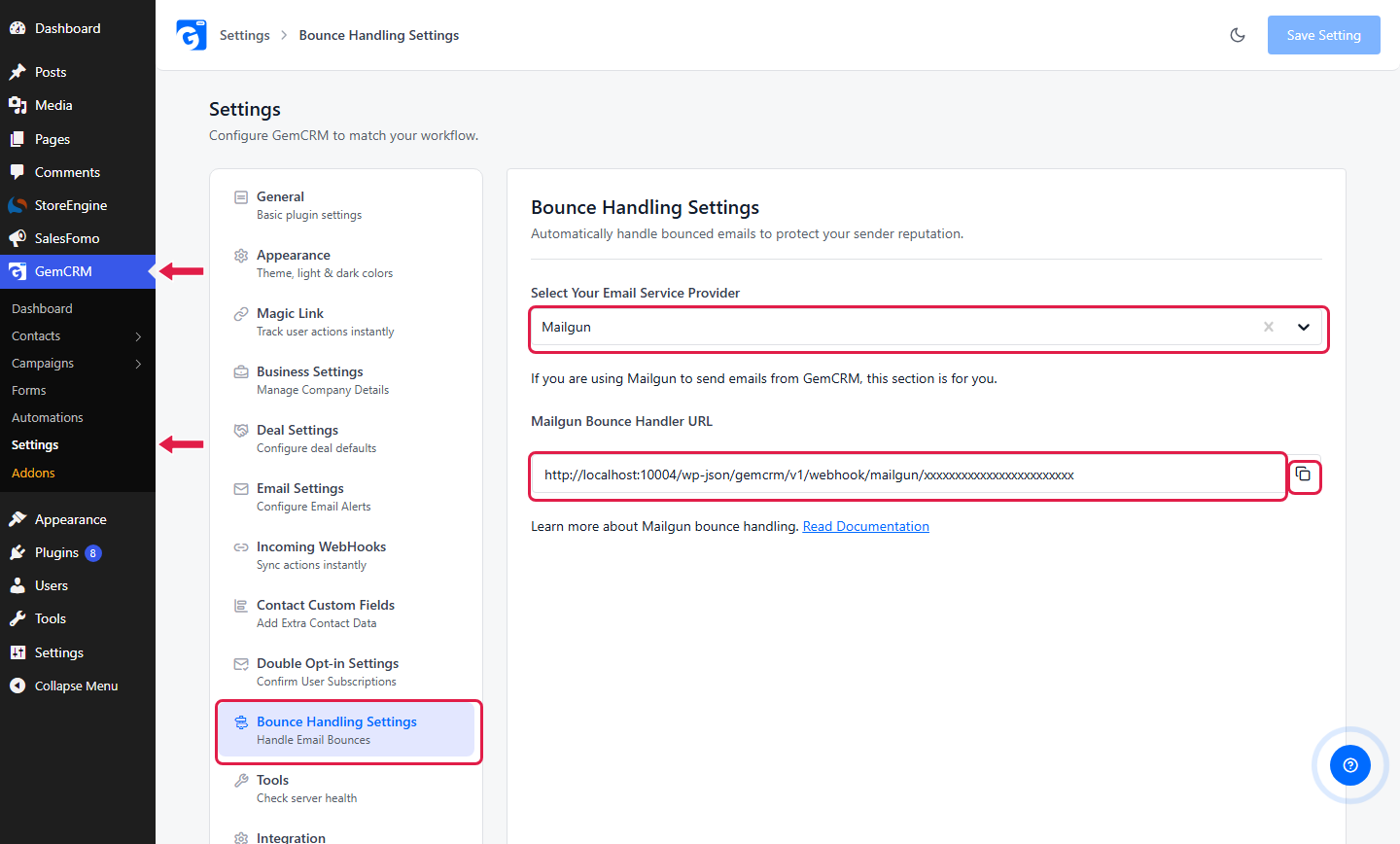
[Alt text: “GemCRM Bounce Handling Settings page with provider dropdown and handler URL” — Web Designer]
9. Use Clear Unsubscribe Options
Some senders hide the unsubscribe link, hoping to keep people on the list. It backfires. People who cannot leave will report your email instead, and complaints cost more than unsubscribes.
Make the link easy to find and make the process simple. Google requires bulk senders to support one-click unsubscribe for marketing and subscribed messages, using the list-unsubscribe headers described in RFC 8058. Yahoo has a similar rule and asks senders to honor unsubscribe requests within two days. Microsoft has also announced authentication and unsubscribe rules for high-volume senders to Outlook.com, Hotmail, and Live.com, starting with a May 2025 enforcement date for senders of more than 5,000 emails a day, according to Microsoft’s announcement.
In GemCRM, add the unsubscribe link to your templates with the {{unsubscribe_link}} merge code. Contacts who unsubscribe are marked Unsubscribed and left out of future sends.
[Alt text: “Unsubscribe link in the footer of a GemCRM email” — Web Designer]
If you send in volume, check with your sending service that your messages include the list-unsubscribe headers, and send yourself a test to confirm.
10. Monitor Your Deliverability Regularly
Do not wait for a crisis. Review trends after each campaign: bounces, complaints, unsubscribes, clicks. A slow decline is much easier to fix than a collapse.
Use mailbox provider tools too. Google Postmaster Tools shows your spam rate, authentication results, and domain reputation for Gmail traffic, and Google describes each dashboard in its help center. Yahoo offers a Sender Hub, and your sending service will have its own reports.
[Alt text: “Google Postmaster Tools spam rate dashboard” — Web Designer]
In GemCRM, the campaign report shows emails sent, opened, clicked, pending, and unsubscribed, plus link activity. Click any card to filter the Emails tab to the contacts behind that number. The bounce handling setup above brings bounce and complaint status into your contact data too.
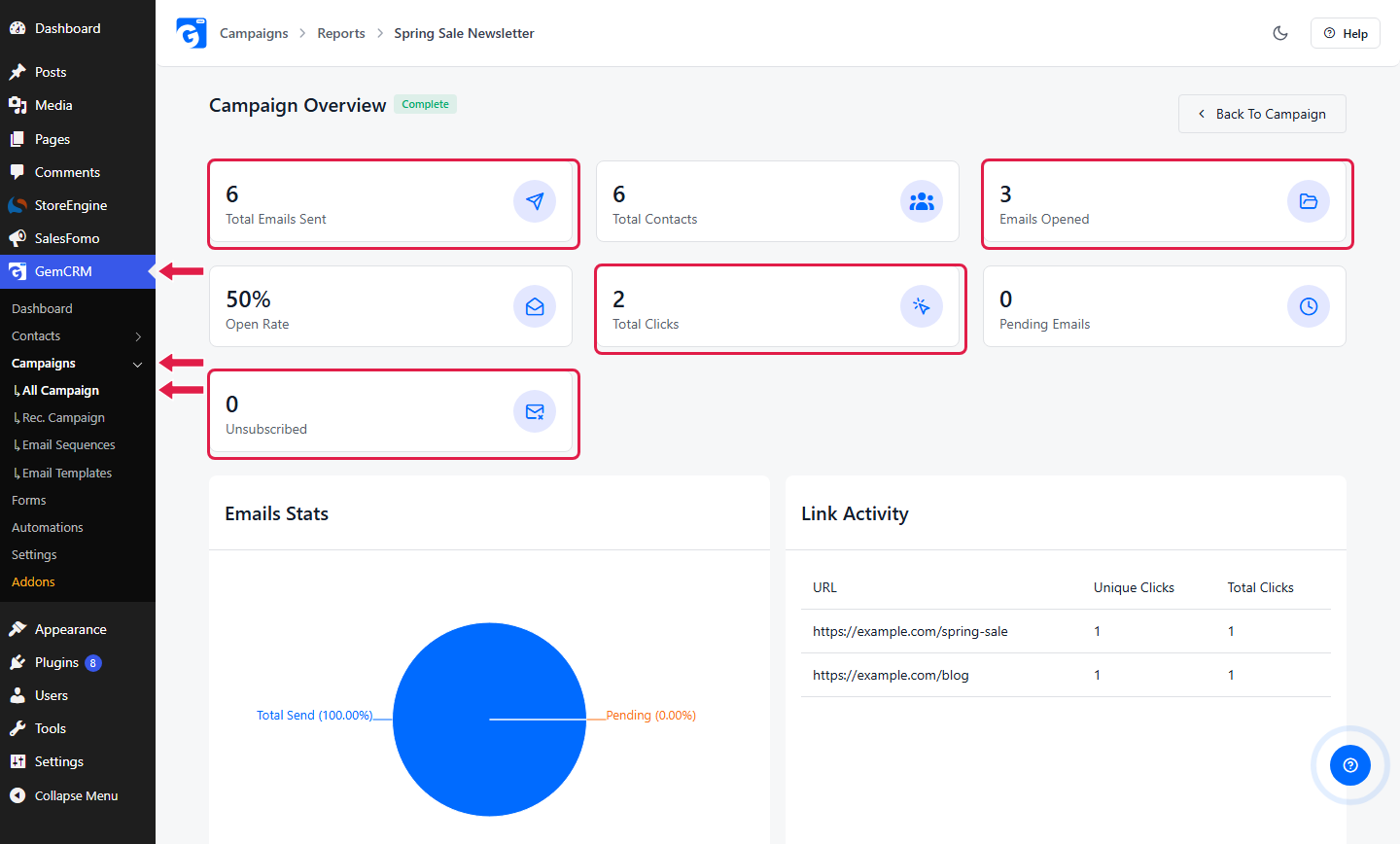
[Alt text: “GemCRM campaign report with sent, opened, clicked and unsubscribed cards” — Web Designer]
Why Are My Emails Going to Spam?
Start by looking at several signals together. One symptom can have more than one cause.
|
Problem |
Possible reason |
What to check |
|
Emails go to spam |
Poor reputation |
Complaints, engagement |
|
Emails bounce |
Invalid addresses |
List hygiene |
|
Gmail rejects messages |
Authentication issue |
SPF/DKIM/DMARC |
|
Engagement suddenly drops |
Wrong audience/frequency |
Segments and sending behavior |
|
New domain performs poorly |
Little sending history |
Warm-up and consistency |
|
Complaints increase |
Irrelevant or unexpected emails |
Consent and targeting |
A few rules for troubleshooting:
Email Deliverability Metrics to Monitor
Delivery Rate
Delivery rate is the share of sent emails that the receiving servers accepted: emails delivered divided by emails sent. A common guide, according to Litmus, is 95% or higher. It does not tell you whether the email reached the inbox. A 95% delivery rate does not mean 95% of your emails were seen in inboxes.
Bounce Rate
Bounce rate is the share of emails that could not be delivered. Split it into hard bounces (permanent) and soft bounces (temporary). A spike in hard bounces points to a list-quality problem, such as an old list or a bad import. Soft bounces that keep repeating for the same address deserve attention too.
Spam Complaint Rate
This is the share of recipients who report your email as spam. Mailbox providers watch it closely. Google and Yahoo both say to keep it under 0.3%. The way each provider counts it differs, for example by counting complaints against inbox-delivered mail or all accepted mail, so compare your numbers to the same source over time rather than across tools.
Unsubscribe Rate
Unsubscribes are a healthy way for people to leave. A small steady rate is normal. A sudden increase usually means something changed: the audience was wrong, the frequency went up, or the content did not match what people signed up for.
Open and Click Engagement
Clicks show real interest and are the more reliable of the two. Opens are useful for trends but not as exact numbers, because Apple Mail Privacy Protection and similar features can register opens that never happened. Treat open rate as a rough signal and look at clicks, replies, and conversions alongside it.
Inbox Placement
Inbox placement is the share of emails that actually landed in the inbox. It is different from delivery rate, because an email can be delivered to the spam folder. Most mailbox providers do not report this, so it is estimated with seed tests and panel data, and with tools like Postmaster Tools. Use it as a guide, not as a precise number.
Email Deliverability Best Practices
Email Deliverability Checklist
Before Sending
☐ SPF configured ☐ DKIM configured ☐ DMARC configured (at least p=none) and aligned with your From domain ☐ Sending domain verified ☐ Audience has permission ☐ Invalid contacts removed ☐ Email content tested ☐ Unsubscribe option included (and list-unsubscribe headers confirmed if you send in volume)
After Sending
☐ Bounce rate checked ☐ Complaint rate checked (below 0.3%) ☐ Engagement checked ☐ Unsubscribes reviewed ☐ Sudden performance changes investigated
[IMAGE: Printable email deliverability checklist — Web Designer]
How GemCRM Can Help Improve Email Deliverability
GemCRM cannot guarantee inbox placement. Mailbox providers decide that, and your DNS records and sending service handle the technical authentication. What GemCRM can do is make the good habits above easier to follow, inside the WordPress dashboard you already use.
Keep Your Contact Data Organized
Every contact has a status, lists, tags, and a record of campaign activity. Contacts who are unsubscribed, bounced, or complained are not emailed again, and you can bulk-update status or import a cleaned CSV. With bounce handling connected, bounce and complaint events from Mailgun, SendGrid, Pepipost, or Amazon SES update the contact record without manual work.
Segment Subscribers Before Sending
Lists and tags are available in the free plugin. For WooCommerce and StoreEngine stores, GemCRM reads customer and order data natively, with no CSV bridge. GemCRM Pro adds Dynamic Segments, so you can target by purchase history and keep the segment current. A focused audience helps engagement, and engagement is one of the signals mailbox providers look at.
Use Email Automation Responsibly
Automation can send a welcome email when someone joins, a follow-up after a purchase, or a reminder for an abandoned cart (a Pro feature). Multi-step email sequences and other WooCommerce email automation workflows work well because they arrive when the person is interested. Automation does not improve deliverability by itself, though. A badly targeted automated email creates complaints just like a manual one, so keep the audience and timing relevant.
Monitor Campaign Performance
Each campaign report shows sent, opened, clicked, pending, and unsubscribed counts, plus link activity. You can filter to the contacts behind each number, and resend to unopened contacts once, which is a better way to follow up than blasting the full list again. Watch the trends across campaigns for the first sign of a problem.
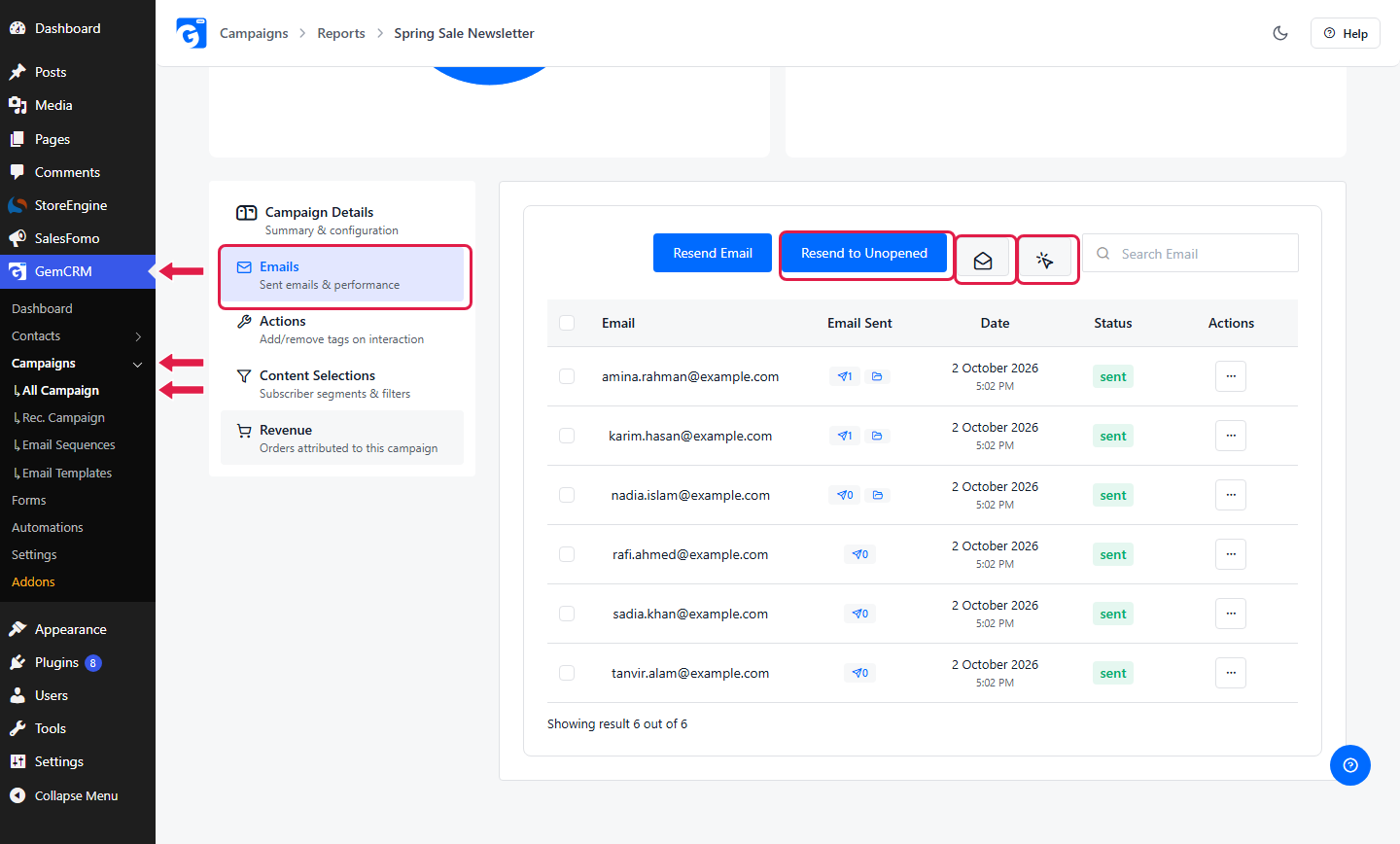
[ Alt text: “GemCRM campaign report Emails tab with filters and Resend to Unopened” — Web Designer]
One more point that matters for deliverability: GemCRM has no per-subscriber pricing, so you can clean your list as hard as you need to without worrying about your bill. Cleaning is never a cost decision. These habits also sit inside broader email campaign best practices, and for stores they connect to your wider WooCommerce email marketing plan.
Frequently Asked Questions About Email Deliverability
What is email deliverability?
Email deliverability is how likely your emails are to reach the recipient’s inbox instead of the spam folder or being rejected. It depends on authentication, sender reputation, list quality, engagement, sending behavior, and content.
What is the difference between email delivery and deliverability?
Delivery means the receiving mail server accepted your email. Deliverability is about where the accepted email ended up: the inbox, spam, or another filtered folder. An email can be delivered and still land in spam.
Why are my emails going to spam?
There is rarely one reason. The common causes are failed or missing authentication, a poor sender reputation, high complaints, a low-quality or old list, sudden volume changes, and content people do not expect. Check authentication first, then your complaint and bounce rates, then your audience and frequency. See the troubleshooting table above.
How can I improve email deliverability?
Authenticate your domain, collect permission, clean your list, send relevant emails to the right segments, keep your sending pattern steady, handle bounces, make unsubscribing easy, and monitor your results. Warm up new domains and IPs gradually.
Does SPF improve email deliverability?
SPF helps because it confirms that your sending server is allowed to send for your domain, and Gmail requires SPF or DKIM from all senders. But SPF alone does not improve inbox placement. Reputation, engagement, and list quality still matter. For DMARC to pass, you also need alignment between your From domain and the SPF or DKIM domain.
Do I need SPF, DKIM, and DMARC?
For Gmail, every sender needs SPF or DKIM. Bulk senders (more than 5,000 messages a day to Gmail accounts) need all three, with a DMARC policy of at least p=none. Yahoo and Microsoft have similar rules for high-volume senders. Even if you send less, setting up all three is the safe default, because it protects your domain and helps mailbox providers trust you.
What is a good email deliverability rate?
There is no universal benchmark. A delivery rate of 95% or more is a common guide, but delivery rate only counts accepted emails, not inbox placement. Inbox placement varies by sender, audience, and provider, and most providers do not publish it. Use your own trend over time, and keep complaints under 0.3%.
How do I check if my emails are going to spam?
Send a test to your own accounts at Gmail, Outlook, and Yahoo and see where it lands. Check your authentication results by viewing the original message. Use Google Postmaster Tools for Gmail trends, and look at your campaign report and bounce data. Seed-testing services can also estimate inbox placement across providers.
Do small senders need to follow Gmail’s bulk sender rules?
Some rules apply to everyone: SPF or DKIM, TLS, valid DNS records, and spam rates under 0.3%. The extra bulk-sender rules (DMARC, alignment, one-click unsubscribe) formally apply above 5,000 messages a day, but following them from the start makes growth easier and your domain safer.