



A visitor fills out your WordPress contact form. The message lands in your inbox, and someone copies it into the CRM by hand. Two days later, the same person submits again, and now there are two records. Nobody knows which one is right.
The fix is to let the website and the CRM talk directly. That connection is CRM API integration. This guide explains how it works, which method to pick, and how to build and troubleshoot a safe WordPress-to-CRM flow.
Quick Overview
What Is CRM API Integration?
CRM API integration means connecting software to a CRM through the interface the CRM publishes for that purpose. The integration is the working connection. The API is the door the CRM provides.
How a CRM API works
Most CRM APIs follow the REST style. Your code sends an HTTP request to a URL (an endpoint). The CRM checks your credentials, does the work, and returns a status code and usually a JSON body.
A POST to a contacts endpoint typically creates a contact, and a GET reads one. Every CRM names things differently, so its documentation is the source of truth.
What data can you exchange through a CRM API?
It depends on the CRM. Common objects include contacts, companies, leads, deals, tags, lists, custom fields, notes, tasks, and activity records. Some CRMs also support orders or purchase data.
Not every CRM exposes everything. Some allow read access but not write access, and some restrict features to higher plans. Check objects and permissions before designing the flow.
Common CRM API integration examples
How Does CRM API Integration Work?
Every integration follows the same lifecycle:
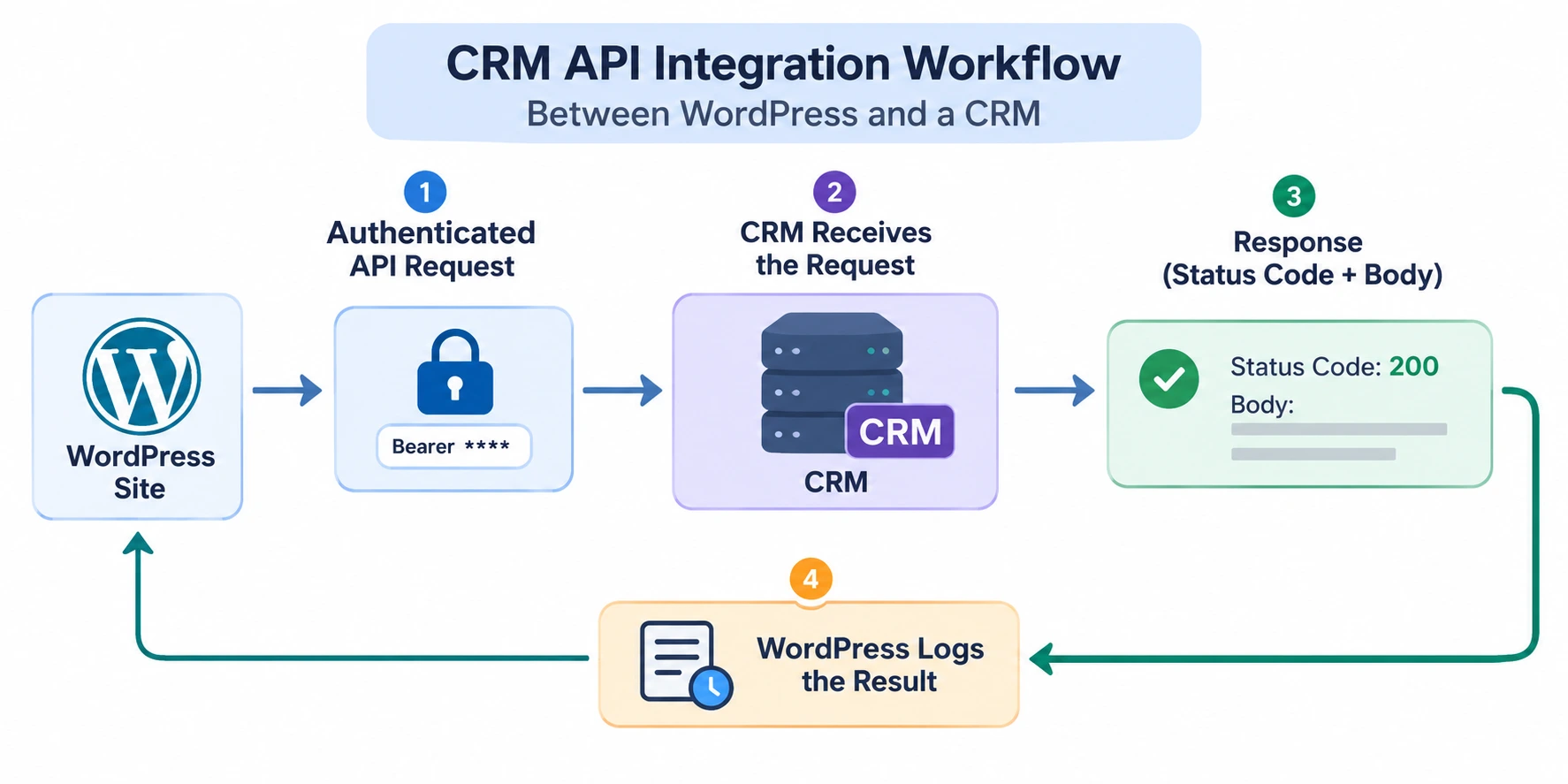
Authentication and API credentials
The CRM needs to know who is calling. The common options are:
|
Method |
How it works |
Typical use |
|
API key or token |
A secret string sent in a header |
Server-to-server scripts, private integrations |
|
OAuth 2.0 |
The user approves access; the app gets a short-lived token and a refresh token |
Apps that act on behalf of many accounts |
|
Basic auth |
Username and password or key and secret, Base64-encoded |
Older or simpler APIs |
Which options exist depends on the CRM. Jetpack CRM, for instance, issues an endpoint, a key, and a secret from its API settings, while Pipedrive describes both an API token and OAuth 2.0 on its CRM API page.
Sending API requests and receiving responses
A request has a method, an endpoint, headers (including authentication), and a body. The response has a status code and usually a JSON body. The code tells you what to do next:
201 Created.Mapping and synchronizing CRM data
Mapping connects your fields to the CRM’s fields. A form’s “Full name” may need to become “first name” and “last name,” and a dropdown label may need to match an option the CRM already has.
Decide two things up front: which system is the source of truth for each field, and what the unique key is. Email is the usual key for contacts. Without one, you will create duplicates.
Handling errors, retries, and rate limits
Plan for failure before launch. Networks drop, tokens expire, and CRMs throttle.
429, and 5xx. Fix the cause of 400, 401, 403, and validation errors first.Retry-After header with a 429, follow it. MDN documents 429 and Retry-After.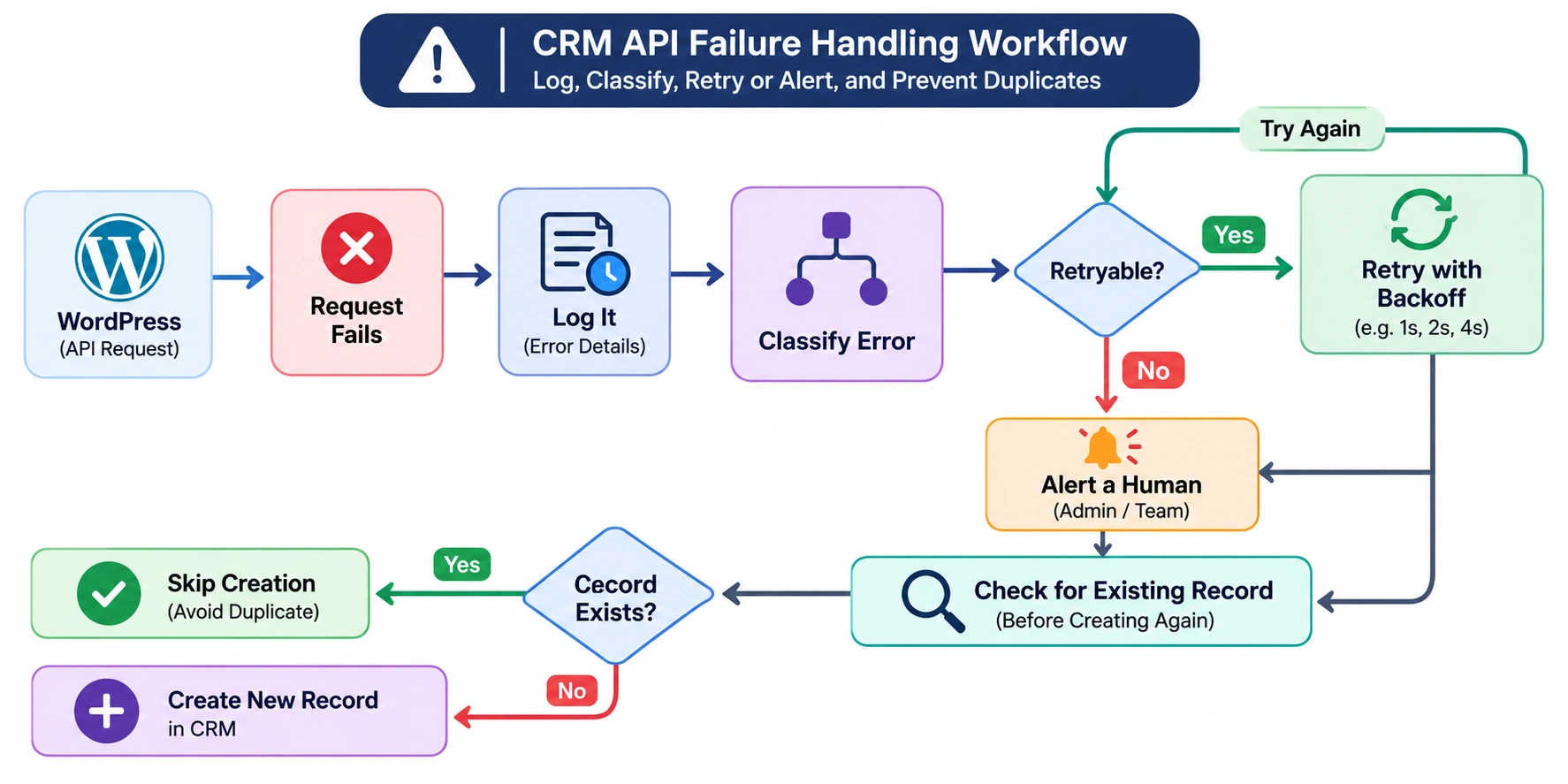
CRM API vs. Webhooks vs. Native Integrations
These are not rivals. They solve different parts of the same problem.
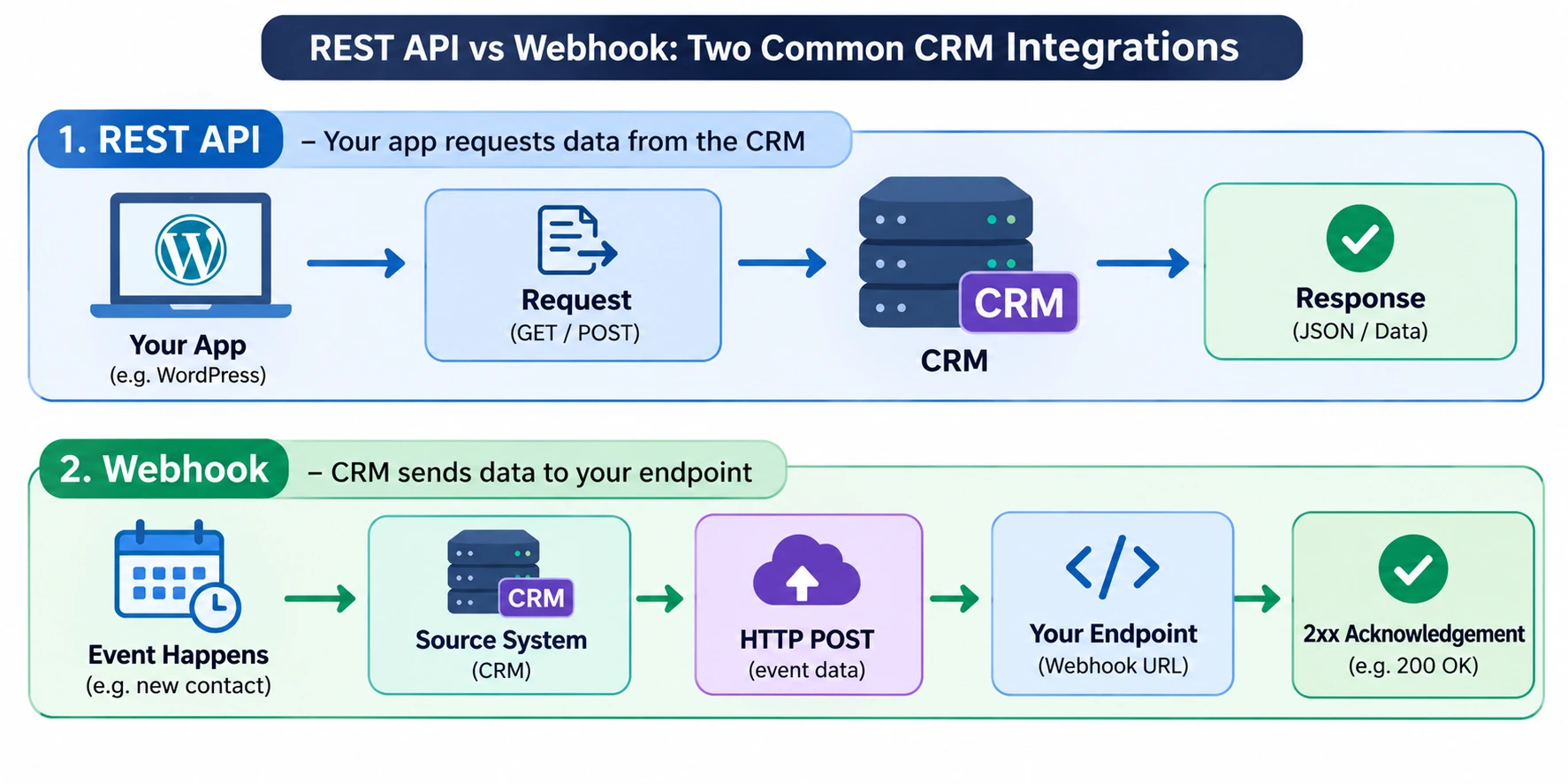
CRM REST API integration
You call the CRM when you need to. This gives the most control over what is sent and read. It also needs the most work: authentication, mapping, error handling, and upkeep when the API changes.
Webhook automation
A webhook pushes a message to a URL when an event happens, so you react quickly without polling. A form tool can send each submission to a webhook URL, and a CRM can notify your site when a contact changes.
A webhook usually carries limited data and does not replace the API. You often receive the event, then call the API for detail or to write back.
Native integrations and connector platforms
A native integration is maintained by the vendors and is the fastest route when it covers your case. A connector platform (an automation tool that links apps) fills the gap when none exists. It is quicker than custom code but adds another account, bill, and failure point.
For a broader look at tools and connection methods for capturing leads, see our guide to lead capture integration methods.
Which integration method should you choose?
|
Native integration |
Connector platform |
Webhook |
REST API (custom) |
|
|
Setup effort |
Low |
Low to medium |
Medium |
High |
|
Flexibility |
Limited to what the vendor built |
Medium |
High for the events it covers |
Highest |
|
Event handling |
Depends on the vendor |
Triggers and actions |
Real-time push |
You poll, or pair with webhooks |
|
Maintenance |
Vendor maintains it |
You maintain the workflow and account |
You maintain the receiver and security |
You maintain code, tokens, and API changes |
|
Best for |
Common pairings |
Tools with no native link |
Reacting to events |
Custom logic and two-way sync |
A simple rule: start with native. Add a webhook for events. Use the API when you need control that the first two do not give you. In practice, you will often combine them.
How to Integrate a CRM API With WordPress
First, separate two ideas that are easy to confuse:
register_rest_route(). See the WordPress REST API Handbook.wp_remote_post(). See the HTTP API handbook.Sending data to a CRM uses the HTTP API. Receiving a webhook uses the REST API.
Choose the CRM and identify the required endpoints
Read the CRM’s API documentation first. Note the create/update contact endpoint, required fields, authentication method and permissions, rate limits, error formats, and which webhook events it supports.
Configure authentication securely
Keep secrets on the server. Store the token in wp-config.php or an environment variable, not in a theme file, a database option that is visible in exports, or front-end JavaScript. If the CRM supports scoped tokens, give this one only the permissions it needs.
Send WordPress data to the CRM
Hook into your form’s “submission complete” action, validate the data, and make the request from PHP on the server. The next section shows a full example.
Receive CRM data or webhook events in WordPress
To receive events, register a custom REST route. Verify the sender before you process anything. Where the CRM signs its webhooks, verify the signature. Where it does not, use a long, unguessable URL secret, and limit what the endpoint can do.
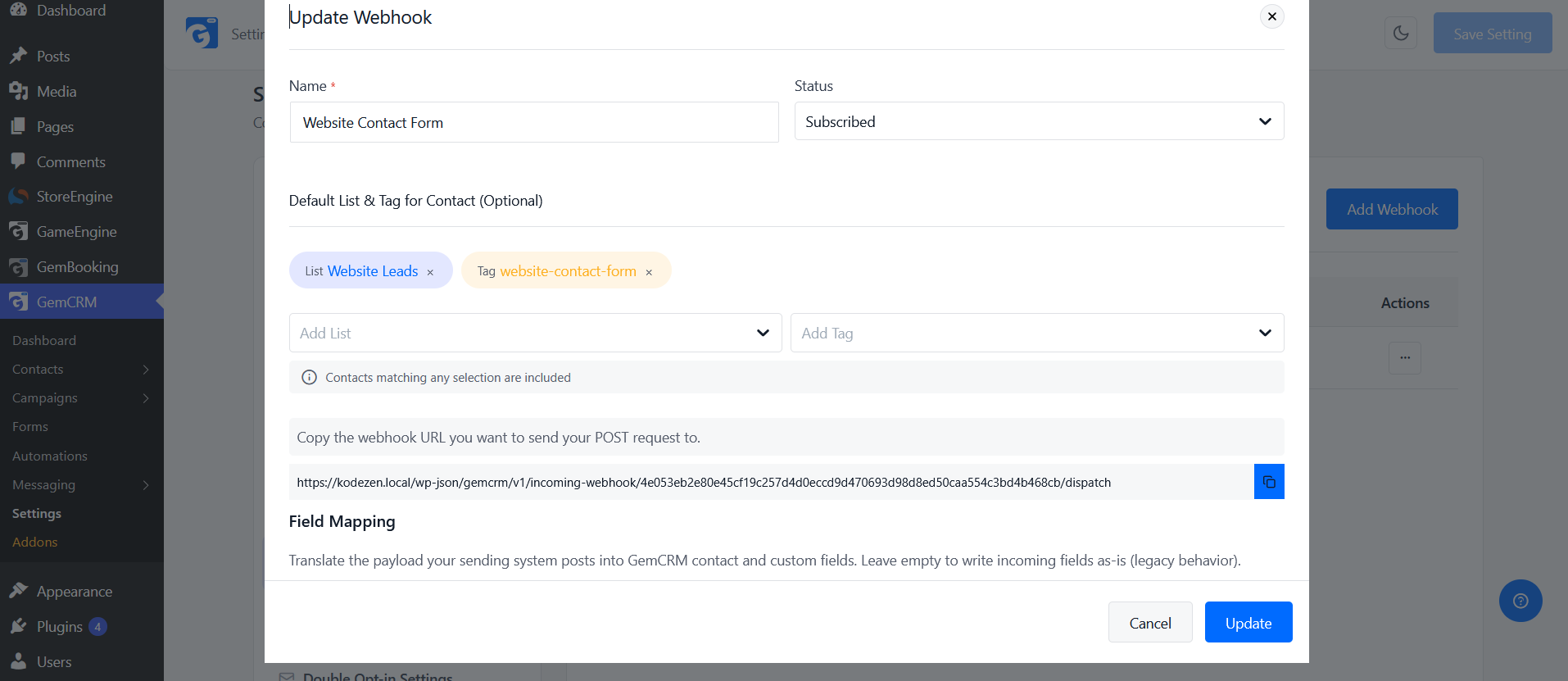
GemCRM follows the URL-secret approach for its incoming webhooks. If you want to send external form or app data into GemCRM, configure incoming webhooks in GemCRM. Each webhook gets its own URL, a target list, tags, and a subscription status, and you map fields after a first test submission.
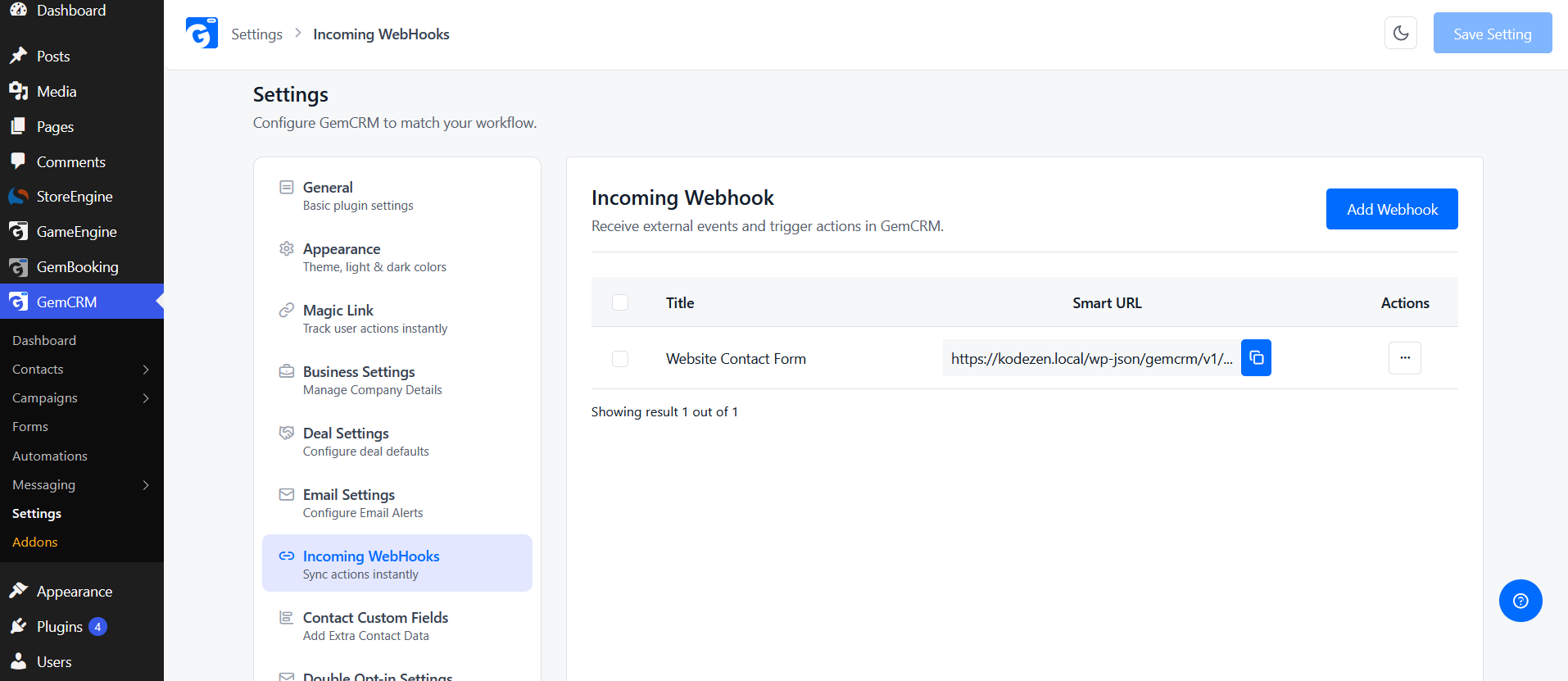
Settings → Incoming Webhooks lists each webhook with its own Smart URL.
Once a contact is created, GemCRM can automate CRM workflows through Zaplane, with triggers such as Contact Created or Tag Attached, and actions like Apply Tag or Send Email.
Test the integration and verify data synchronization
Test with fake data. Submit the form and confirm the contact has the right fields. Submit again with the same email and confirm no duplicate appears. Then simulate a wrong token, a missing field, and a timeout, and check that each failure is logged.
If you want to try this inside WordPress with a CRM that lives in the same site, see GemCRM installation and setup.
A Practical CRM API Integration Example
Example workflow: WordPress form submission to CRM
The flow:
Example API request and response
The endpoint below is a placeholder (api.example-crm.com). It is illustrative and not a real service. Replace it with the endpoint, headers, and body from your CRM’s official documentation.
For a real reference, HubSpot documents POST https://api.hubapi.com/crm/v3/objects/contacts, which takes a properties object (for example, an email) and returns 201 Created with the new record’s id. Other CRMs use different shapes.
<?php

/**

 * Illustrative only. Endpoint, payload shape, and status handling must be

 * adapted to your CRM's documentation.

 */

function mysite_send_lead_to_crm( array $raw ): bool {

	// 1. Validate and sanitize on the server.

	$email = sanitize_email( $raw['email'] ?? '' );

	if ( ! is_email( $email ) ) {

		return false;

	}

	$payload = array(

		'email'      => $email,

		'first_name' => sanitize_text_field( $raw['first_name'] ?? '' ),

		'source'     => 'wordpress-contact-form',

	);

	// 2. Secret lives in wp-config.php: define( 'MYSITE_CRM_TOKEN', '...' );

	if ( ! defined( 'MYSITE_CRM_TOKEN' ) ) {

		error_log( 'CRM token is not configured.' );

		return false;

	}

	// 3. Make the request (HTTPS only, with a timeout).

	$response = wp_remote_post(

		'https://api.example-crm.com/v1/contacts', // Placeholder endpoint.

		array(

			'timeout' => 15,

			'headers' => array(

				'Authorization' => 'Bearer ' . MYSITE_CRM_TOKEN,

				'Content-Type'  => 'application/json',

			),

			'body'    => wp_json_encode( $payload ),

		)

	);

	// 4. Network-level failure (DNS, timeout, TLS).

	if ( is_wp_error( $response ) ) {

		error_log( 'CRM request failed: ' . $response->get_error_message() );

		mysite_schedule_retry( $payload ); // Your own retry helper.

		return false;

	}

	// 5. Check the HTTP status.

	$code = wp_remote_retrieve_response_code( $response );

	$body = json_decode( wp_remote_retrieve_body( $response ), true );

	if ( $code >= 200 && $code < 300 ) {

		return true; // Created or updated.

	}

	if ( 409 === $code ) {

		// Many CRMs return 409 for an existing email. Look up and update instead.

		return mysite_update_existing_contact( $payload ); // Your own helper.

	}

	if ( 429 === $code || $code >= 500 ) {

		mysite_schedule_retry( $payload ); // Retry later with backoff.

		return false;

	}

	// 400/401/403 and others: retrying will not help. Log without secrets.

	error_log( sprintf( 'CRM rejected request (%d): %s', $code, wp_json_encode( $body ) ) );

	return false;

}
A typical success response from a REST CRM looks like this (illustrative):
Sanitization stops bad input early, and the token stays on the server. The timeout keeps a slow CRM from hanging the visitor’s request, and for heavy traffic you should queue the call instead. The status branches separate “done,” “duplicate,” “try later,” and “fix this.”
How to verify that the contact was created successfully
Do not trust a green “success” message on the form. Check the response (a 2xx code and an id), search the CRM and confirm each field landed correctly, and review your logs for hidden errors.
Then repeat the submission with the same email. You should see an update or a handled 409, not a second contact.
CRM API Integration Security Best Practices
Protect API keys and access tokens
Store them in wp-config.php, environment variables, or a secrets manager. Never expose them in JavaScript, page source, public repositories, or logs. Rotate them if a developer leaves or a leak is possible.
Use least-privilege permissions and HTTPS
Give the token only the scopes it needs, such as write access to contacts but not delete access. Send every request over HTTPS. Whether scoped tokens exist depends on the CRM.
Validate incoming requests and webhook signatures
An open webhook endpoint accepts anything. Verify who sent the request.
When the provider signs requests, check the signature. HubSpot’s v3 method, for example, hashes the method, URI, body, and timestamp with HMAC SHA-256, rejects requests older than five minutes, and compares the result in constant time. Other providers use different headers and algorithms, so follow their documentation.
If the provider does not sign requests, rely on a secret in the URL, treat that URL like a password, and restrict what the endpoint can do. In WordPress, set permission_callback explicitly on every custom route. The REST API docs note that omitting it raises a notice, and public routes should say so deliberately.
Prevent duplicate events and unauthorized access
Webhooks can be delivered more than once. Store each event ID, or a hash of the payload, and skip repeats. For contacts, use a unique key such as email, and use an idempotency key or “upsert” endpoint if the CRM offers one. Also rate-limit your own endpoint and sanitize every field you receive.
Monitor logs, failures, and API usage
Log the endpoint, status code, and a safe error message, never tokens or full personal data. Watch for rising 4xx rates, repeated 429 responses, and retries that never finish. Check the CRM’s usage headers or dashboard where available.
Common CRM API Integration Problems and Fixes
|
Problem |
Likely cause |
Fix |
|
|
Expired, revoked, or wrong token; missing scope |
Regenerate the token, confirm scopes, and check the environment (test vs. live) |
|
Fields empty or in the wrong place |
Mapping mismatch; wrong field key; wrong format |
Compare the payload with the CRM’s field names and types |
|
|
Too many calls; slow CRM |
Queue requests, back off, respect |
|
Duplicate contacts |
No unique key; retry without a lookup |
Use email as the key, upsert, handle |
|
Webhook not arriving |
Wrong URL; blocked by a firewall or security plugin; endpoint returns non-2xx |
Check the delivery log, test the URL with a sample request, return |
Authentication errors
Check the basics: is the token current, in the right header, with the right permission, for the right environment?
Missing or incorrectly mapped data
Log the payload (minus secrets) next to the CRM’s response. Most mapping bugs show up in that pair.
Rate limits and failed requests
Move slow or bulk work out of the page request. Use a queue and cap retries so a long outage does not become a flood.
Duplicate contacts and out-of-sync records
Duplicates usually come from retrying a create request that already worked. Search before creating, or use an upsert. For drifting records, run a periodic reconciliation and decide which system wins for each field.
Webhook delivery failures
Check that the URL is public, uses HTTPS, and returns a 2xx response quickly. Do heavy work after responding. Retry rules differ by provider, so confirm them in its docs.
Frequently Asked Questions
What is CRM API integration?
It is the connection between a CRM and another system through the CRM’s API. It lets the two exchange data, such as contacts or deals, without manual copying.
How does a CRM API work?
Your code sends an authenticated HTTP request to a CRM endpoint. The CRM validates it, performs the action, and returns a status code and usually a JSON response.
What is the difference between a CRM API and a webhook?
With an API, you send a request and get a response when you ask. With a webhook, a system sends a message to your URL when an event happens. They often work together.
Can I connect a CRM to WordPress using a REST API?
Yes, if the CRM offers an API. Your WordPress site makes outgoing requests with the HTTP API (for example, wp_remote_post()). To receive events, you register a route with the WordPress REST API.
How do I automate CRM updates using webhooks?
Create a webhook URL in the receiving system, give it to the sending app, map the fields, and test it. Verify each request, handle repeats, and respond quickly. Then use an automation tool to act on the new contacta